MR8740T_user_manual_eng_20191016H.pdf - 第189页
184 Conguring the LAN Settings and Connecting the Instrument to the Network Renaming the computer This name in the [Current PC name] box identies the instrument on the network. If necessary , change the computer name t…
183
Conguring the LAN Settings and Connecting the Instrument to the Network
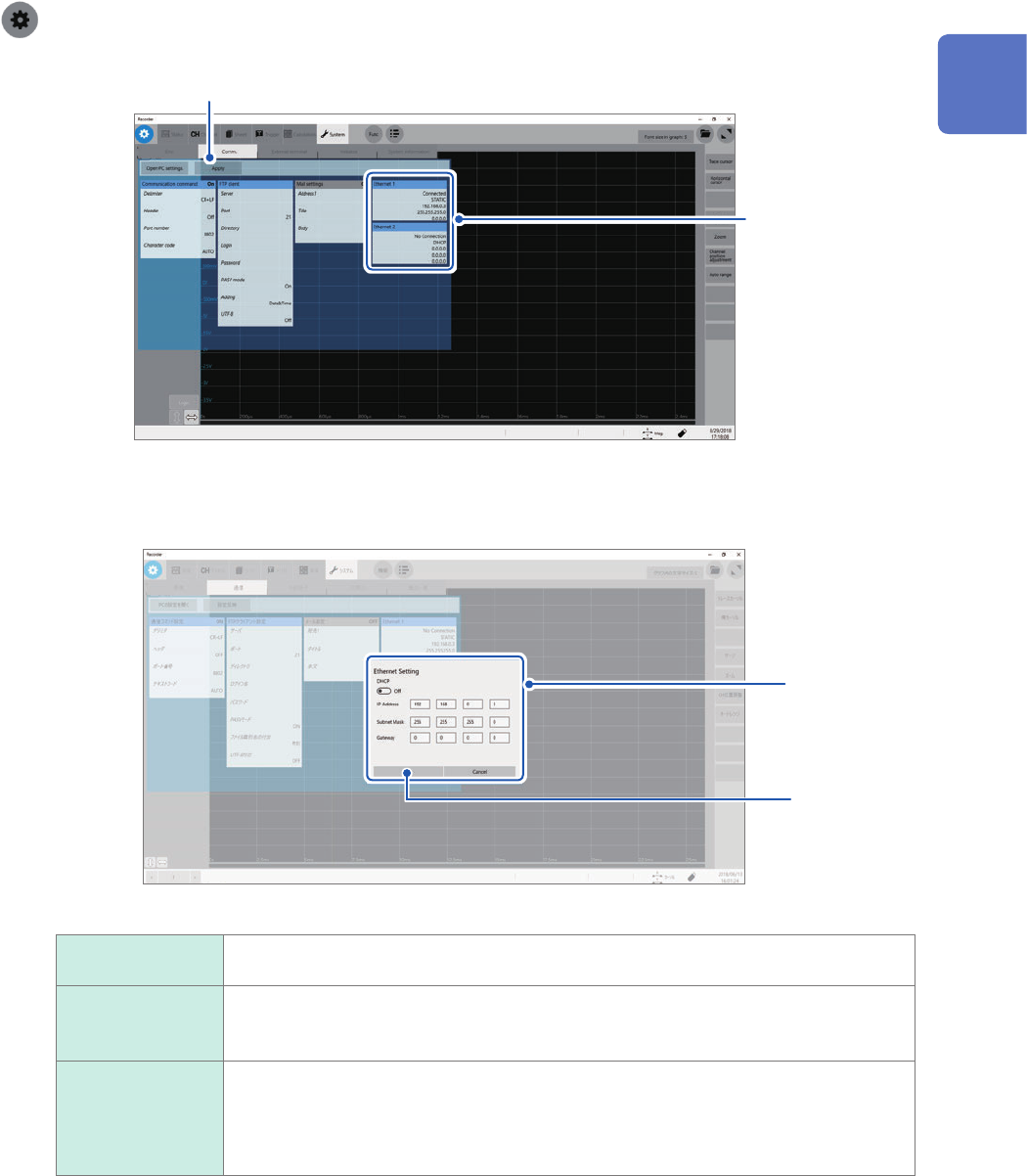
Setting items
> [System] > [Comm.]
4
1
1
Click [Ethernet 1] or [Ethernet 2].
The Ethernet settings screen appears.
2
3
2
Enter the necessary items.
IP Address
The IP addresses are used to identify individual devices on the network.
Assign a unique address different from that of other devices.
Subnet Mask
The subnet mask divides the IP address into the network address and the host address.
Congure the subnet mask settings in the same way as those of other devices on the
network.
Gateway
For network connection
When your computer to be used (host device) connects to another network than the
instrument, specify a gateway device.
When your computer connects to the same network, usually assign the same address
as the default gateway in the computer communications settings.
3
Click [OK].
4
Click [Apply].
11
Connecting the Instrument to Computers
184
Conguring the LAN Settings and Connecting the Instrument to the Network
Renaming the computer
This name in the [Current PC name] box identies the instrument on the network.
If necessary, change the computer name to a unique one among the network devices.
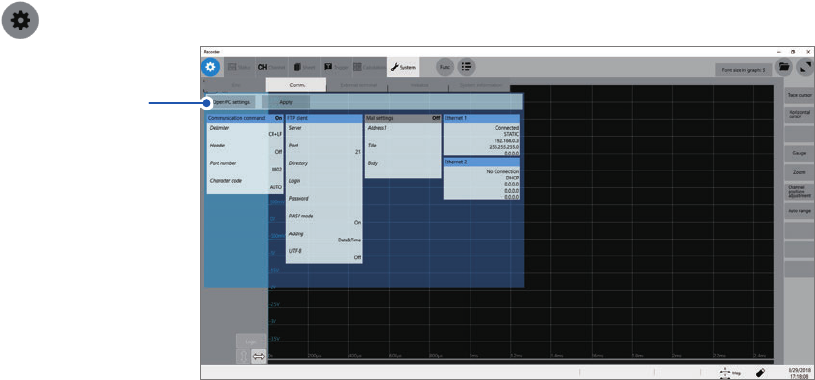
> [System] > [Comm.]
1
1
Click [Open PC settings.].
The Ethernet settings screen appears.
2
Click [Home].
The Windows
®
settings screen appears.
3
Click [System].
4
Click [About] under System.
5
Click [Rename PC], and then enter another name in the [Current PC name] box.
6
Click [Next].
Restarting the instrument is required.
7
Click [Restart now].
185
Conguring the LAN Settings and Connecting the Instrument to the Network
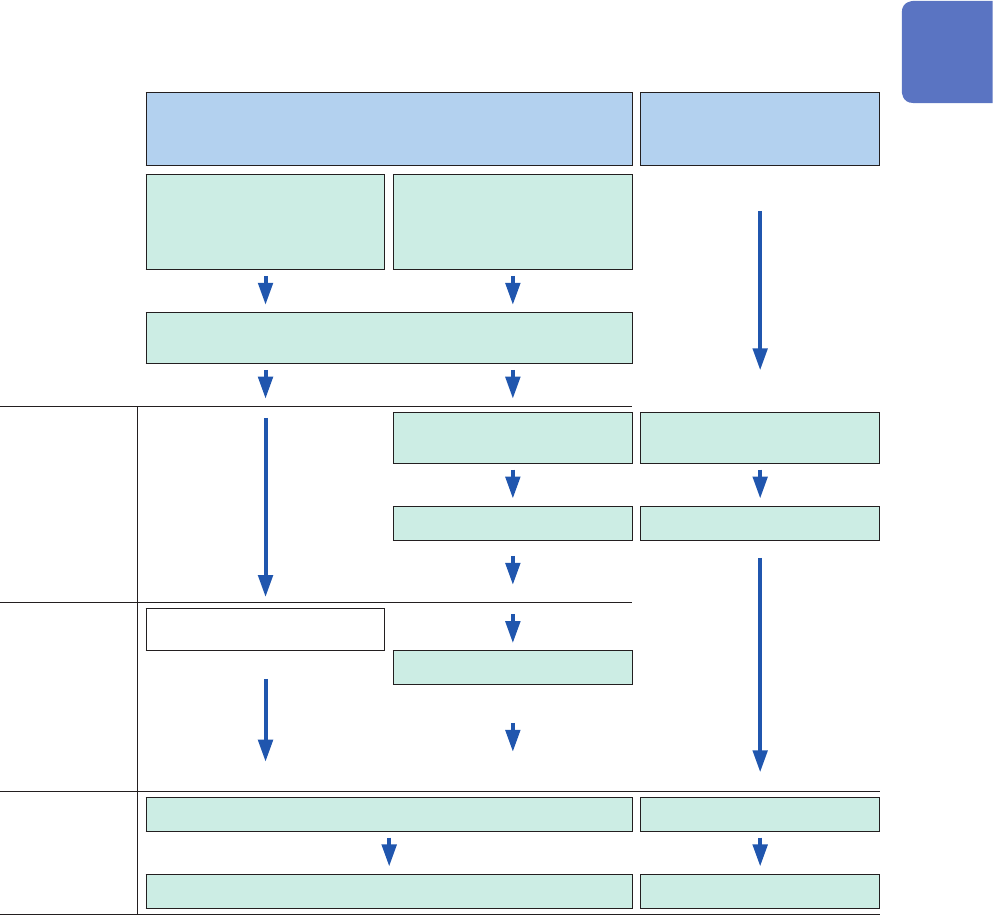
LAN setting procedure
Follow this procedure in accordance with the intended usage.
For details on each setting, refer to “Setting items” (p. 183).
For details on your network including the IP address, contact your network administrator.
Intended use Connecting the instrument to the existing network
Directly connecting
the instrument to your
computer
Connect the instrument
to the network using
the IP address obtained
automatically.
Connect the instrument
to the network using the
specied IP address.
When you would like to name the instrument, congure the
[Current PC name] setting.
Settings to
connect the
instrument and
computer to the
same network
Enter [IP Address] of the
instrument.
Enter [IP Address] of the
instrument.
Enter [Subnet Mask]. Enter [Subnet Mask].
Settings to
connect the
instrument to
the different
network from
the computer
network (using
the gateway)
(Automatically specied.)
Enter [Default gateway].
Connection
Click [Apply]. Click [Apply].
Connect a straight-through cable. Connect a crossover cable.
11
Connecting the Instrument to Computers