MR8740T_user_manual_eng_20191016H.pdf - 第193页
188 Managing Data in the Instrument With the FTP Server Function 7 Right-click on the item displayed under [Connections] on the left side of the screen to display the shortcut menu, then click [Add FTP Site] . Communicat…
187
Managing Data in the Instrument With the FTP Server Function
3
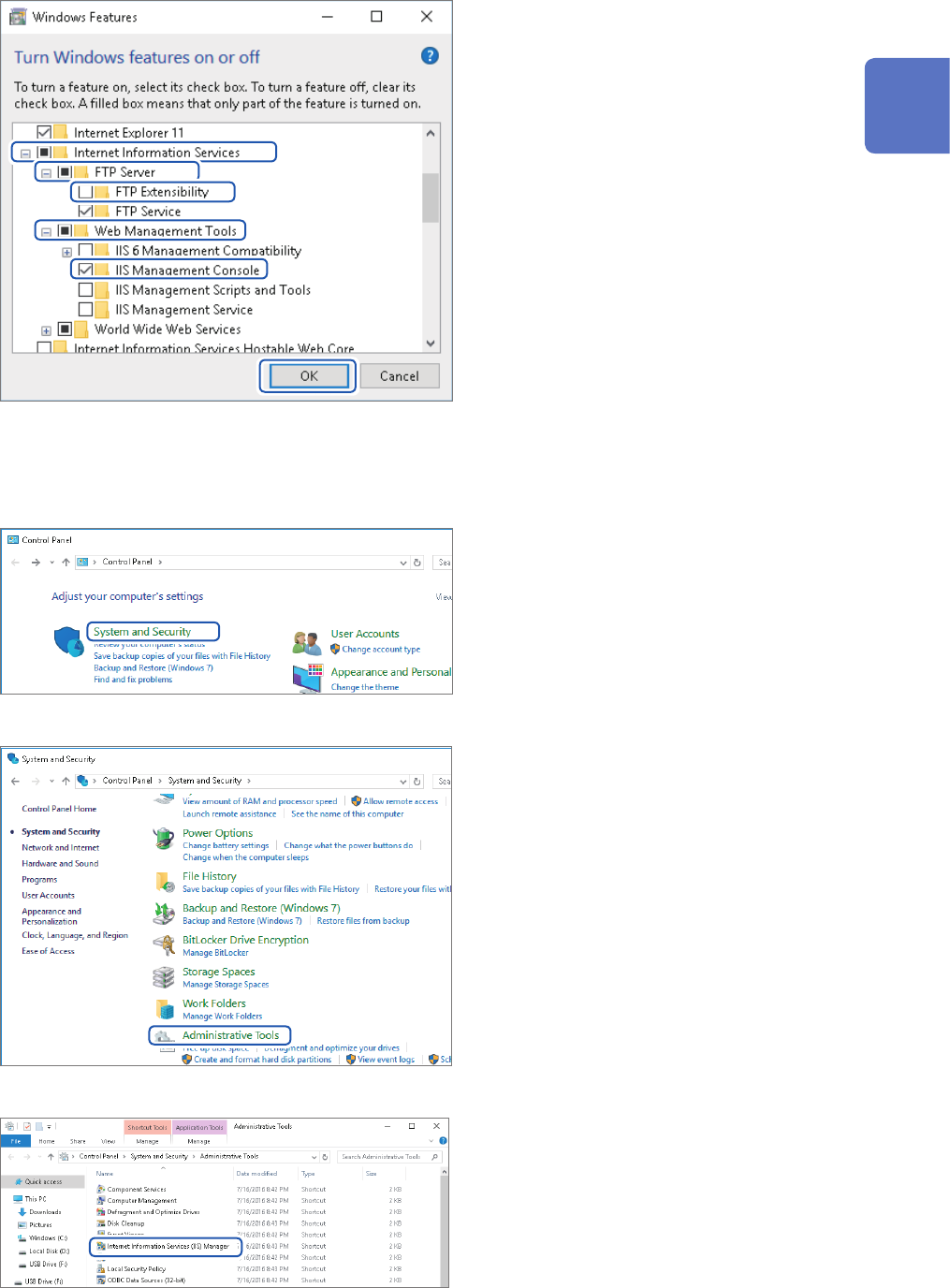
Click [+] on the left of [Internet
Information Services] to expand it.
Click [+] on the left of [FTP Server]
to expand it, and then choose [FTP
Service].
Click [+] on the left of [Web
Management Tools] to expand it,
and then choose [IIS Management
Console].
Click [OK].
Conguring the FTP settings
4
Click [System and Security] on
[Control Panel].
5
Click [Administrative Tools].
6
Double-click [Internet Information
Services (IIS) Manager].
11
Connecting the Instrument to Computers
188
Managing Data in the Instrument With the FTP Server Function
7
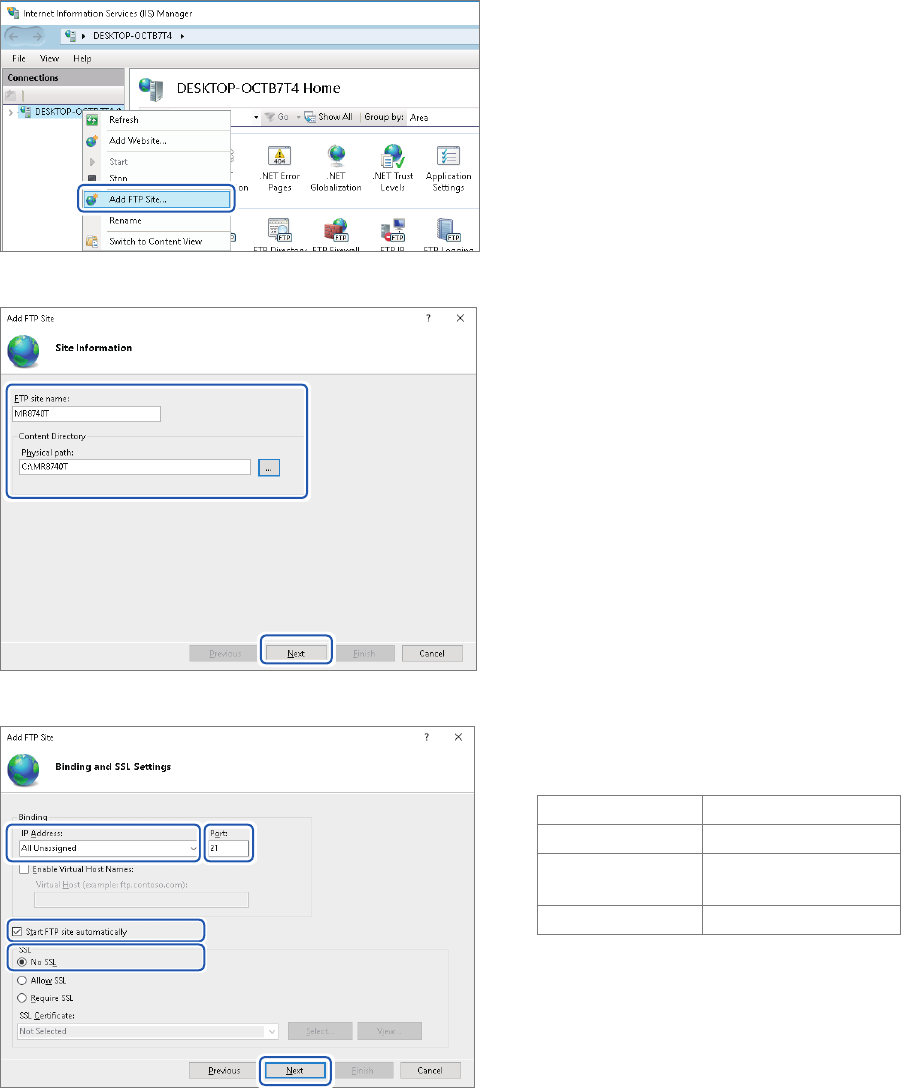
Right-click on the item displayed
under [Connections] on the left
side of the screen to display the
shortcut menu, then click [Add
FTP Site].
Communication may be blocked
depending on the settings of the
computer-protecting software (example:
rewall).
8
Enter site information.
Example:
[FTP site name]: [MR8740T]
[Content Directory]:
Choose a directory in which data from the
FTP client will be saved.
Click [Next].
9
Congure the [Binding] and [SSL]
settings as follows:
[IP Address] [All Unassigned]
[Port] [21]
[Start FTP site
automatically]
Select
[SSL] [No SSL]
Click [Next].
189
Managing Data in the Instrument With the FTP Server Function
10
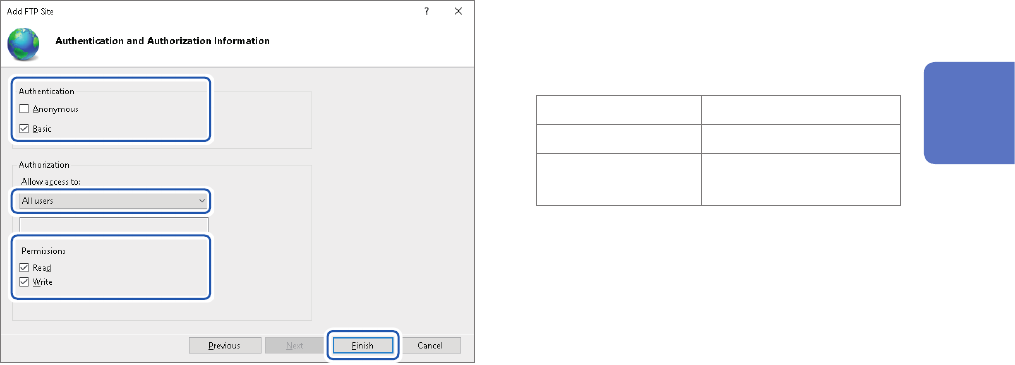
Congure the [Authentication and
Authorization Information] settings
as follows:
[Authentication] Choose [Basic].
[Authorization] [All users]
[Permissions]
Choose both [Read]
and [Write].
Click [Finish].
11
Connecting the Instrument to Computers