MR8740T_user_manual_eng_20191016H.pdf - 第195页
190 Managing Data in the Instrument With the FTP Server Function Congure the access user setting Congure this setting to use the FTP client with the instrument. See step 4 on p. 191.) See step 4 in ). Y ou can use the …
189
Managing Data in the Instrument With the FTP Server Function
10
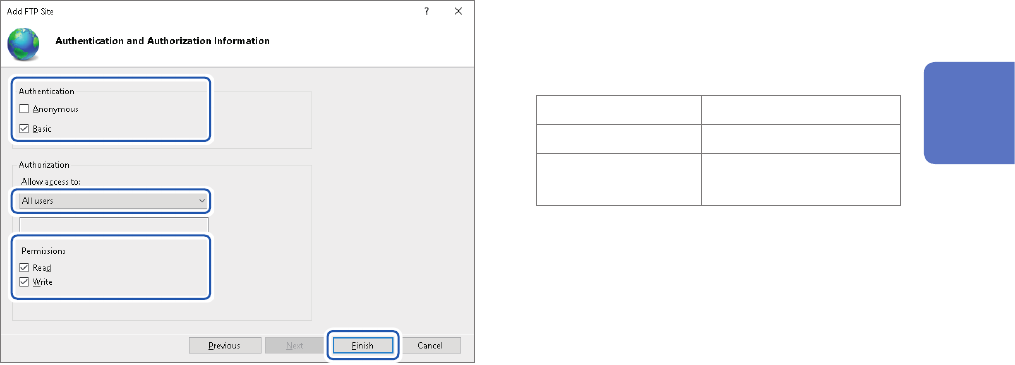
Congure the [Authentication and
Authorization Information] settings
as follows:
[Authentication] Choose [Basic].
[Authorization] [All users]
[Permissions]
Choose both [Read]
and [Write].
Click [Finish].
11
Connecting the Instrument to Computers
190
Managing Data in the Instrument With the FTP Server Function
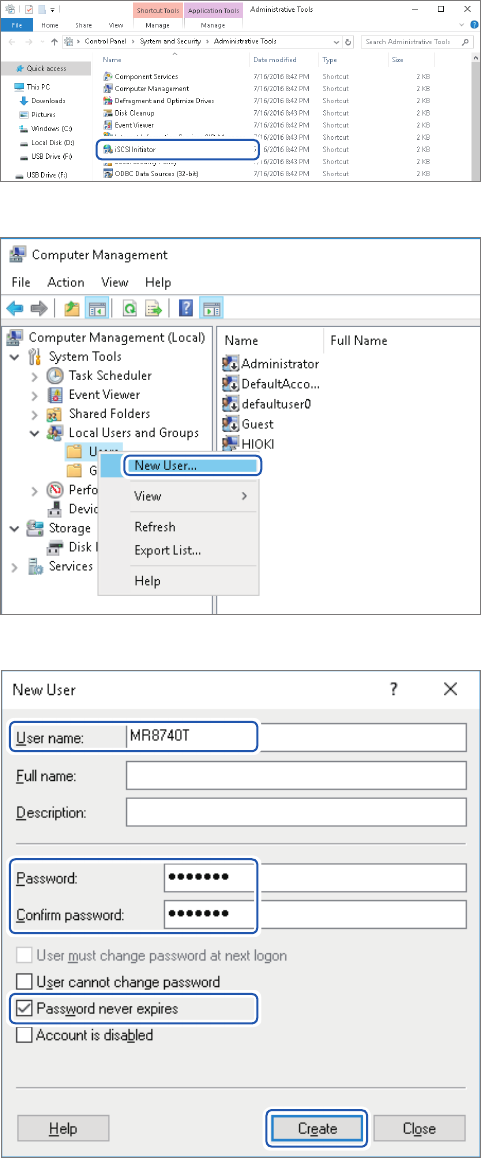
Congure the access user setting
Congure this setting to use the FTP client with the instrument. See step 4 on p. 191.) See step 4
in ).
You can use the FTP with a user name and password you specied.
11
Choose [Computer Management]
in [Administrative Tools]
mentioned in step
5
(p. 187).
12
Right-click [Users] under [Local
Users and Groups], then choose
[New User].
13
Enter the le name in the [Users
name] box.
Enter the same password in
the [Password], and [Conrm
password] box.
Select the [Password never
expired] check box.
Click [Create].
191
Managing Data in the Instrument With the FTP Server Function
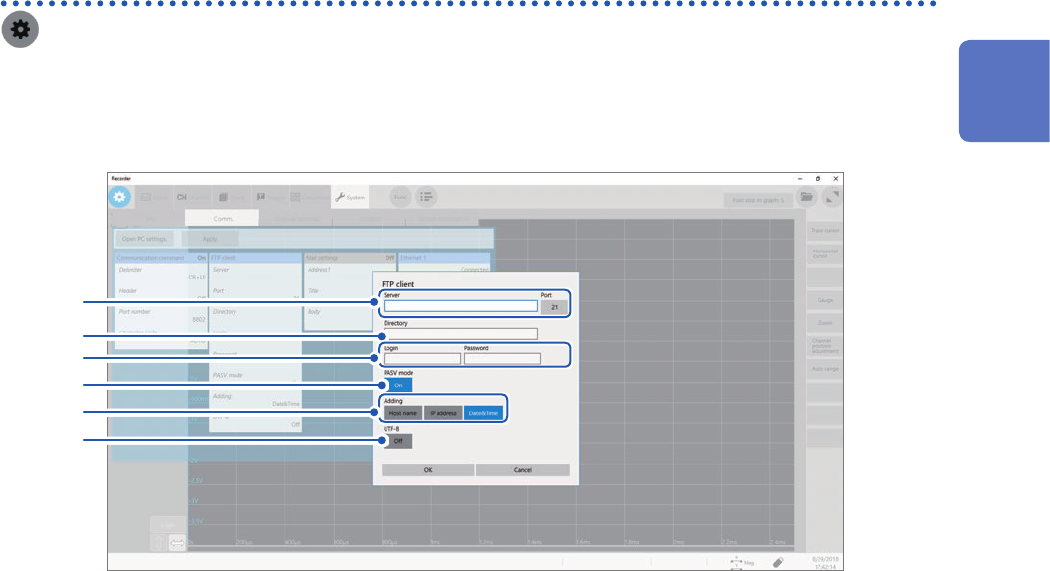
Conguring the FTP client setting with the instrument
> [System] > [Comm.]
1
Click [FTP Client].
The setting dialog box will appear.
2
3
4
5
7
6
2
Click the [Server] box and the [Port] button in turn.
The key pad and numerical value entry dialog box appears.
Enter a computer name or an IP address in the [Server] box. In the [Port] box, enter a port number with which
the FTP server is operating if the number is not the standard number of 21.
3
Enter a directory name in the [Directory] box.
Choose a directory of the FTP server you would like to save data into.
4
Enter a login name and password to use for logging in to the FTP server in the [Login] and
[Password] box, respectively.
Enter the user name and password specied for the FTP server of the computer.
Refer to “Congure the access user setting” (p. 190).
5
Click the [PASV Mode].button to choose a PASV mode setting.
To establish communications in PASV mode, set it to [On].
6
Click any of the buttons in the [Adding] area, and choose an identier.
Click the buttons to add identiers to the le name.
• No identiers are added when you select a le to be sent on the le screen. Files with the same name are
overwritten.
• When you have congured the setting to append numerical calculation results to existing les (when you set
the [Calculation result] button to [On] or choose [Append] in the [File] box), no identiers representing
time of day are added.
• Moreover, if a le with the same name exists, the instrument tries to append the le.
• No button in the [Adding] area is enabled, a le with the same name is overwritten when it exists. Note that
all les with the same name will be overwritten if [Date&Time] is disabled with the continuous measurement
setting and some others.
7
Click the [UTF-8] button to choose an UFT-8 support setting.
11
Connecting the Instrument to Computers