MR8740T_user_manual_eng_20191016H.pdf - 第198页
193 Sending Data to a Computer With the FTP Client Function Conguring an FTP server setting on a computer The following example shows how to congure the FTP server settings on Windows 10. The Microsoft ® Windows ® Home…
192
Sending Data to a Computer With the FTP Client Function
11.3 Sending Data to a Computer With the FTP Client
Function
The instrument is equipped with the FTP transmission function (FTP client). You can send data to
the FTP server on the network.
FTP transmission method
Real-time save data transmission Automatically sends waveform data during measurement.
Congure the real-time save settings and specify the save destination to
[FTP].
Auto-save data transmission Automatically sends save target data on completion of the measurement,
according to the auto-save settings.
Congure the auto-save settings and set the save destination to [FTP].
Transmission with the save icon When you click the save icon, the data to be saved is automatically sent.
In the manually-saving setting, set the save destination to [FTP].
• The date of a le sent to the computer is set at when the le was sent.
• Transmission to all FTP servers is not necessarily guaranteed due to differences among servers.
• If a le with the same name exists in the destination, the le is overwritten.
193
Sending Data to a Computer With the FTP Client Function
Conguring an FTP server setting on a computer
The following example shows how to congure the FTP server settings on Windows 10.
The Microsoft
®
Windows
®
Home Edition does not include any FTP server. Use free software such
as the FileZilla Server.
• The setting contents may vary with environment. When necessary, refer to the help topics of the
FTP server or consult your network administrator.
• Microsoft
®
Windows
®
administrator privileges are required for setup.
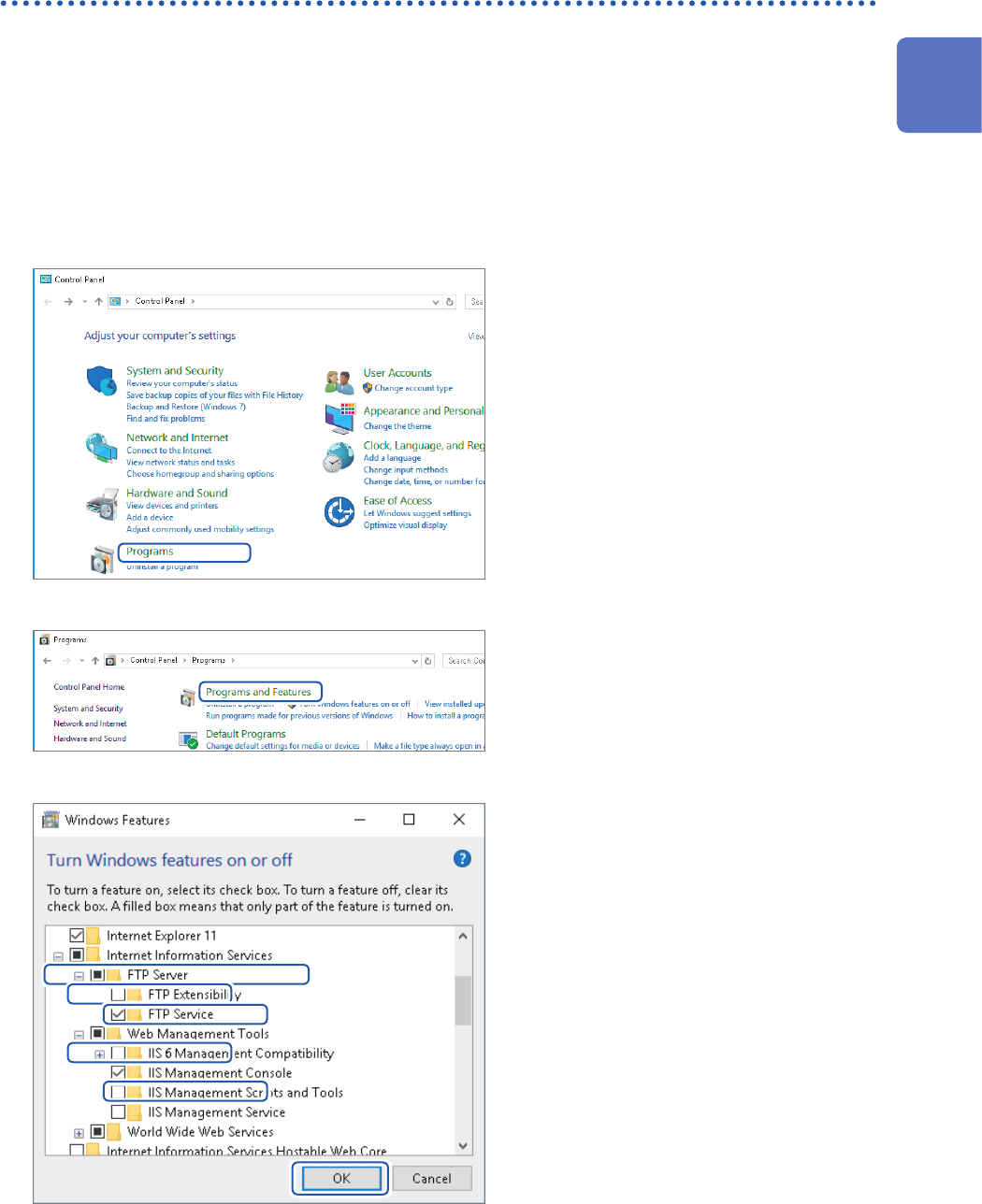
Enabling the FTP
1
Start [Control Panel], and then
click [Programs].
2
Click [Turn Windows features on
or off].
The [Windows Features] dialog box
appear.
3
Click [+] on the left of [Internet
Information Services] to expand it.
Click [+] on the left of [FTP Server]
to expand it, and then choose [FTP
Service].
Click [+] on the left of [Web
Management Tools] to expand it,
and then select [IIS Management
Console].
Click [OK].
11
Connecting the Instrument to Computers
194
Sending Data to a Computer With the FTP Client Function
Conguring the FTP settings
4
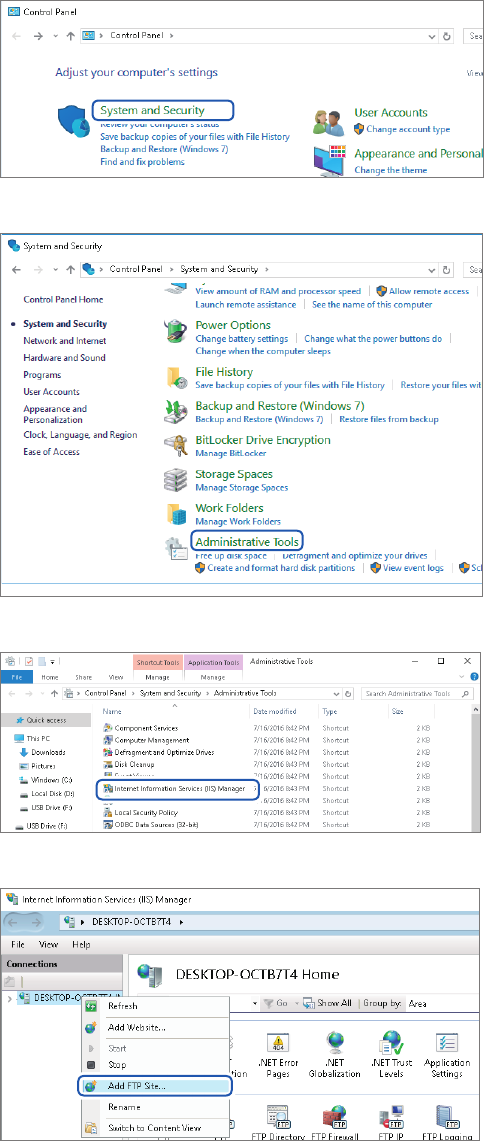
Click [System and Security] on
[Control Panel].
5
Click [Administrative Tools].
6
Double-click [Internet Information
Services (IIS) Manager].
7
Right-click on the item displayed
under [Connections] on the left
side of the screen to display the
shortcut menu, then click [Add
FTP Site].
Communication may be blocked
depending on the settings of the
computer-protecting software (example:
rewall).