MR8740T_user_manual_eng_20191016H.pdf - 第206页
201 Sending Email messages Conguring the authentication, compression, and encryption settings for email messages to be sent 1 2 4 5 3 6 1 Click [Advanced] . 2 Click the [Encrypt attached le] box, and then choose an att…
200
Sending Email messages
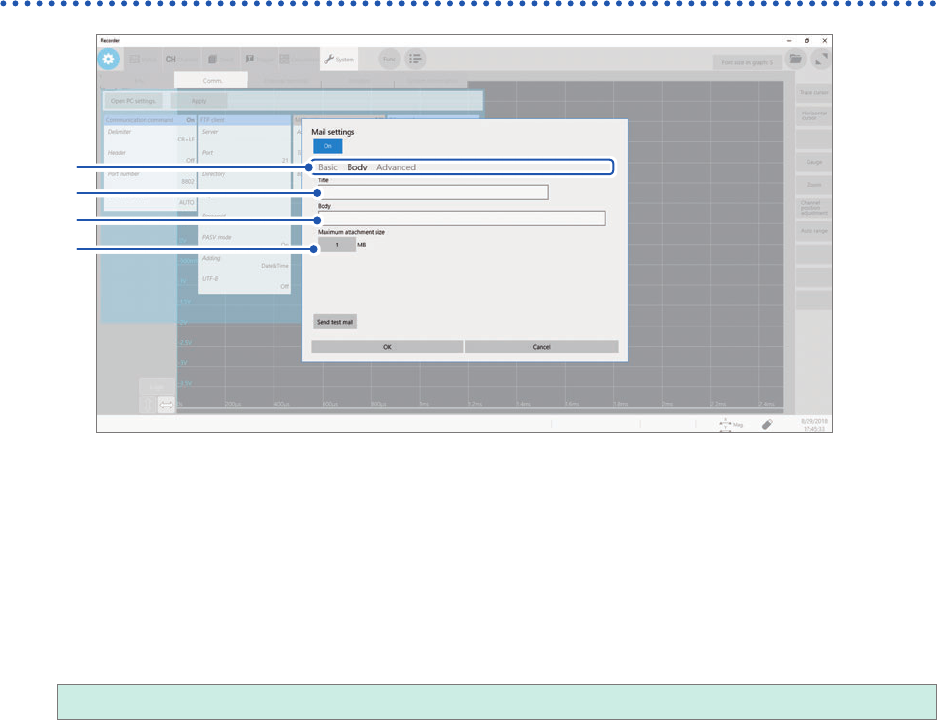
Conguring the email contents settings
1
2
3
4
1
Click [Body].
2
Click the [Title] box, and then enter a mail title.
3
Click the [Body] box, and then enter an email body.
4
Click the [Maximum attachment size] button, and then enter the maximum attachment size.
1
to 2048
Specify the maximum le size so that no large-size data is sent to the mail server. If a waveform data size
automatically saved is larger than the specied size, the instrument does not send email messages.
• Data with the specied le size or less may also not be sent due to server restrictions.
• Data is converted (encoded by Base64, compressed, and encrypted) for attachment; however, the maximum
le size is determined by the size before conversion. Thus, the actually sent data may be larger (about 1.3
times) than the size limitation.
201
Sending Email messages
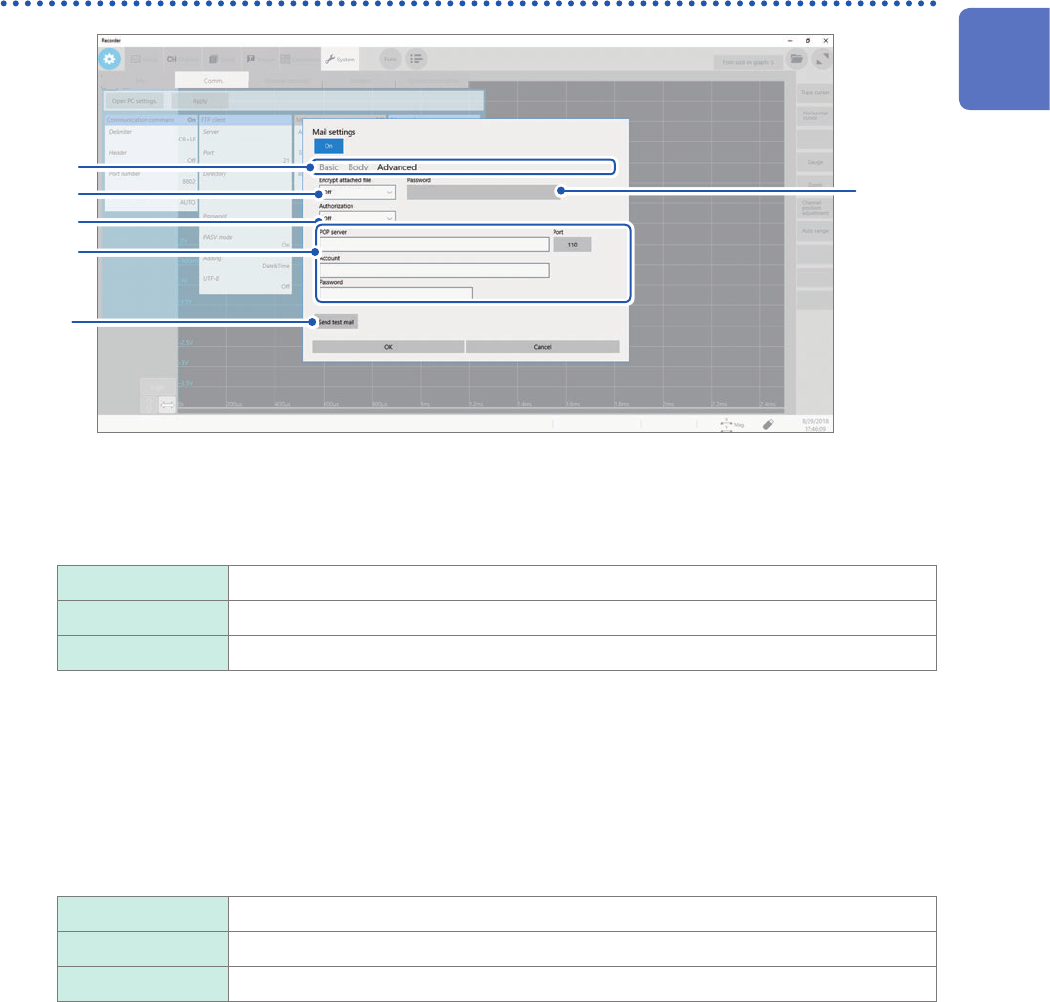
Conguring the authentication, compression, and encryption settings
for email messages to be sent
1
2
4
5
3
6
1
Click [Advanced].
2
Click the [Encrypt attached le] box, and then choose an attachment setting from the list.
Off
Attaches les in original format.
ZIP Attaches ZIP-compressed les.
ZIP+AES Attaches les in encrypted ZIP format. The instrument does not compress les.
3
(To encrypt attachments)
Enter an encryption password in the [Password] box.
Number of characters: up to 16
4
(When an email authentication is required)
Click the [Authentication ] box, and then choose a authentication protocol from the list.
Off
Sends mails with no user authentication.
POP Sends mails using POP (APOP) before SMTP.
SMTP Sends mails using SMTP (supports CRAM-MD5, PLAIN, and LOGIN).
5
Congure the authorization information settings.
• When you use the POP authentication
Click the [POP server] box and the [Port] button in turn, and then enter a POP server name and its port
number, respectively.
When the [POP server] is left blank, the instrument uses the gure entered in the [Mail server] box.
Click the [Account] and [Password] boxes in turn, and then enter an authentication user name and
password, respectively.
• When you use the SMTP authentication
Click the [POP server] box and the [Port] button in turn, and then enter a POP server name and its port
number, respectively.
Click the [Account] and [Password] boxes in turn, and then enter an authentication user name and
password, respectively.
11
Connecting the Instrument to Computers
202
Sending Email messages
6
Make sure that the email can normally be sent.
Click [Send test mail].
A test email that includes the specied contents is sent.
Make sure that the specied destination can correctly receive the test email message. If the specied
destination cannot receive the test email message, review your settings.
If encryption is enabled for the attached le, images in the test email are encrypted.
Be sure to decompress the attachment to check whether the password is correctly set.