MR8740T_user_manual_eng_20191016H.pdf - 第208页
203 Controlling the Instrument with Command Communications (LAN) 1 1.5 Controlling the Instrument with Command Communications (LAN) Y ou can externally control the instrument using commands via the communication interfac…
202
Sending Email messages
6
Make sure that the email can normally be sent.
Click [Send test mail].
A test email that includes the specied contents is sent.
Make sure that the specied destination can correctly receive the test email message. If the specied
destination cannot receive the test email message, review your settings.
If encryption is enabled for the attached le, images in the test email are encrypted.
Be sure to decompress the attachment to check whether the password is correctly set.
203
Controlling the Instrument with Command Communications (LAN)
11.5 Controlling the Instrument with Command
Communications (LAN)
You can externally control the instrument using commands via the communication interface.
Communications can be established with a LAN connection.
For details, refer to the Communication Command Instruction Manual on the accompanying
application disc.
Congure the LAN settings and connect the instrument before using the command communications.
Refer to “11.1 Conguring the LAN Settings and Connecting the Instrument to the Network”
(p. 182).
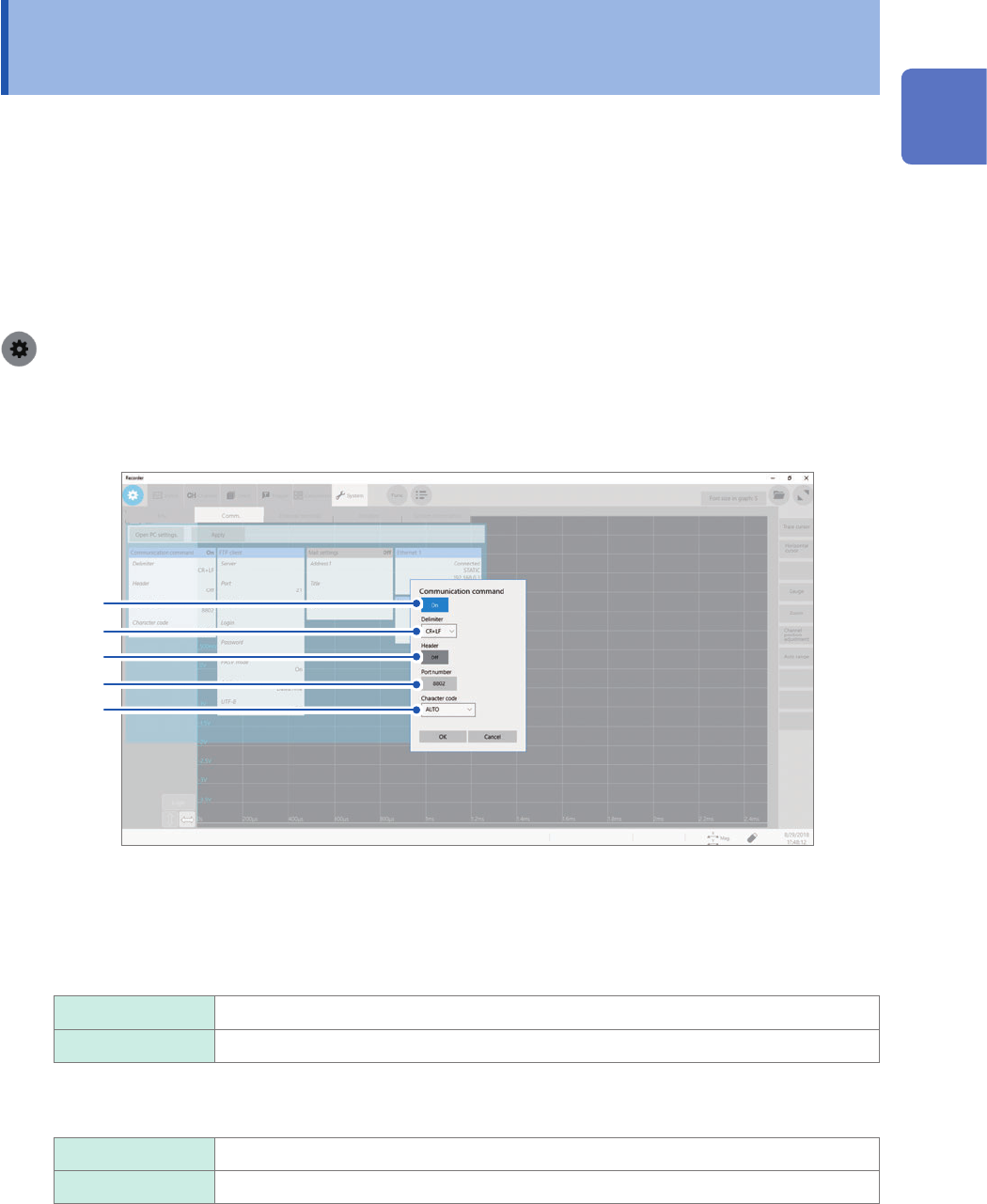
> [System] > [Comm.]
1
Click [Communication command].
The setting dialog box will appear.
2
3
4
5
6
2
Click the [Communication command] button to set it to [On].
3
Click the [Delimiter] box, and then choose a character code (line feed code) that represents
the data delimiter.
CR+LF
Sends the character codes 0x0d and 0x0a.
LF Sends the character code 0x0a.
4
Click the [Header] to choose whether to prex a header to command responses.
Off
Does not prex any header to response data.
On Prexes a header to response data.
11
Connecting the Instrument to Computers

204
Controlling the Instrument with Command Communications (LAN)
5
Click [Port number] box, and then enter the most signicant 3 digits of the 4-digit port
number.
The last digit is xed at [2].
6
Click the [Character code] box, and then choose a character code setting from the list.
AUTO
Automatically species a text code depending on the display language.
The text code UTF-8 is set for English; SJIS for Japanese.
SJIS Sets the character code to SJIS.
UTF-8 Sets the character code to UTF-8.
Using a 4K-resolution monitor with the maximum resolution set may require longer time for processing
command communication.