MR8740T_user_manual_eng_20191016H.pdf - 第41页
36 Overlaying New W aveforms With Previously Acquired Waveforms 3.1 Overlaying New W aveforms With Previously Acquired W aveforms New waveforms can be overlaid with the presently displayed waveforms. • Y ou can compare t…
35
3
Advanced Functions
Advanced measurement and settings
• Overlaying new waveforms with previously
acquired waveforms (p. 36)
Detailed module settings (p. 46)
• Anti-aliasing lter
• Thermocouple type
• Reference junction compensation
• Wire break detection
• Data refresh
• Executing auto-balance
• Probe division ratio
• Response time
• Measurement mode
Converting input values (scaling) (p. 38)
Fine-adjusting input values (p. 43)
Inverting a waveform (p. 44)
Copying a setting to another channel
(p. 45)
3 Advanced Functions
3
Advanced Functions
36
Overlaying New Waveforms With Previously Acquired Waveforms
3.1 Overlaying New Waveforms With Previously
Acquired Waveforms
New waveforms can be overlaid with the presently displayed waveforms.
• You can compare the new waveforms with those recorded before. (When [Mode] is set to
[Repeat]) (p. 6)
• Two methods are available to overlay waveforms: the automatic overlaying during measurement
and the manual overlaying.
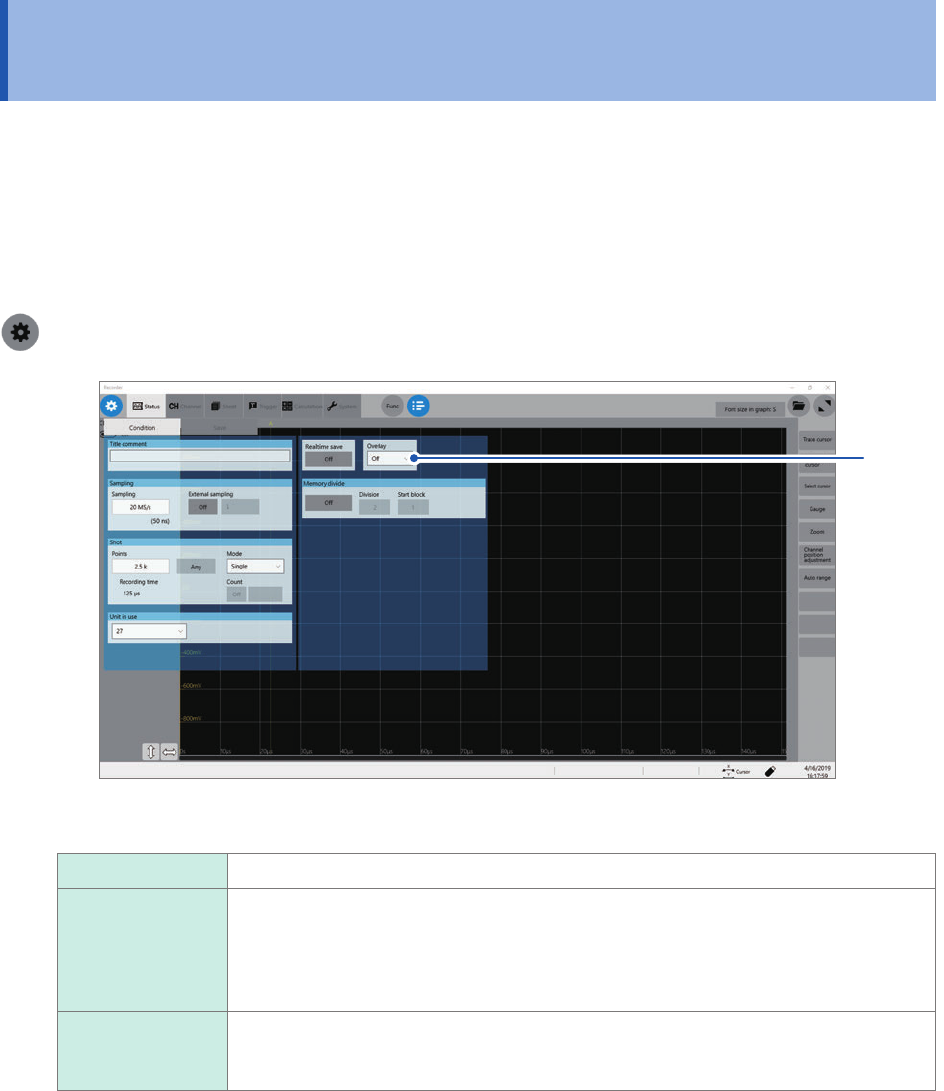
> [Status] > [Condition]
1
1
Click the [Overlay] box, and then choose an overlaying method from the list.
Off
Does not overlay any waveforms.
Auto Overlays waveforms newly acquired with the presently displayed waveforms every
time the instrument acquires new ones.
When [Mode] is set to [Repeat], the instrument overlays the new waveforms with
the presently displayed waveforms beginning from the start until the stop of the
measurement.
Manual Manually overlays the new waveforms with the presently displayed waveforms.
Refer to Step 3 “Overlay the waveforms manually (leaving any waveforms to be
displayed on the screen).” (p. 37).
Refer to “When the overlay function is enabled (When [Overlay] is set to [Auto] or [Manual])” (p. 37).
37
Overlaying New Waveforms With Previously Acquired Waveforms
2
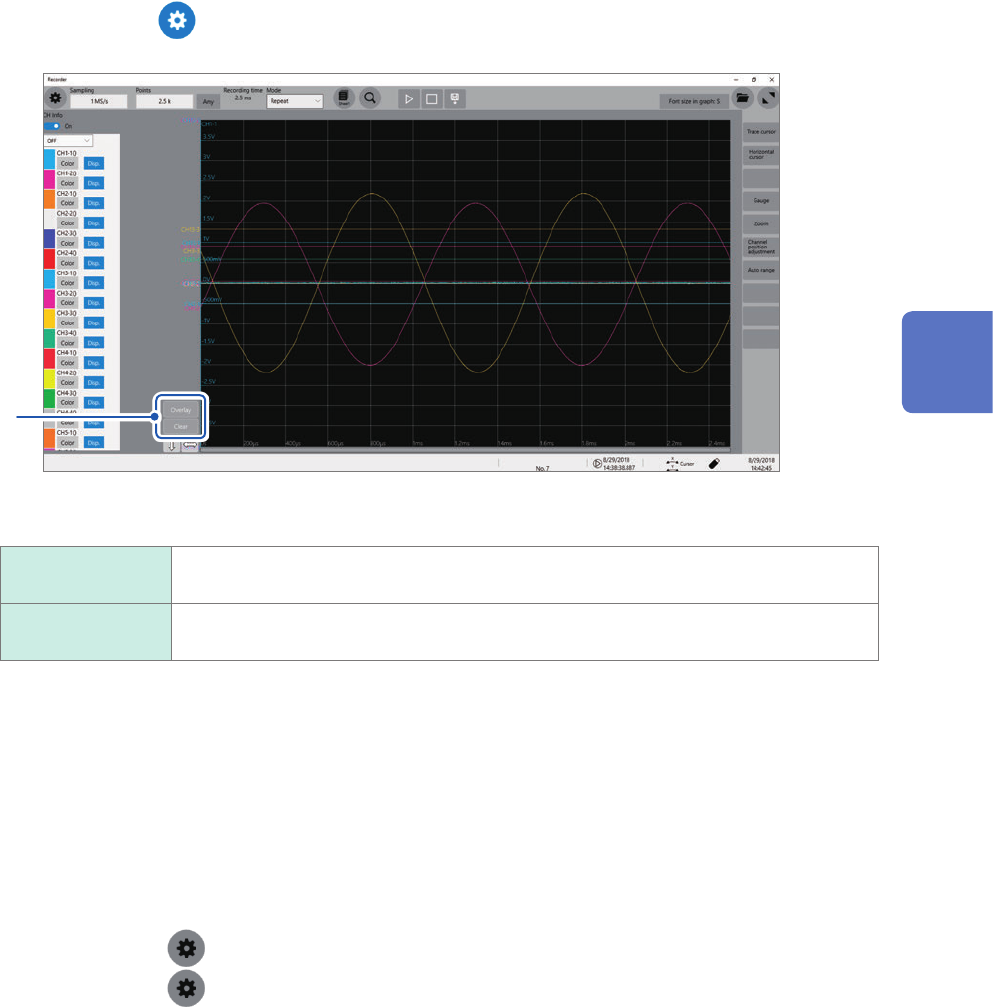
Click the button to display the waveform screen.
3
3
Overlay the waveforms manually (leaving any waveforms to be displayed on the screen).
Overlay Leaves the acquired waveforms displayed on the screen.
The overlay setting continues to be available until the waveforms are cleared.
Clear Clears all the overlaid waveforms displayed on the screen.
No cleared waveforms can be displayed again.
When the overlay function is enabled (When [Overlay] is set to [Auto] or [Manual])
• The instrument displays the waveforms always after the data has been acquired.
• The trace cursors show the measured values of the waveforms most recently acquired.
• The following operation is not available on the waveform screen:
Scrolling through waveforms, switching the zoom function between on and off, changing the
magnication, and changing the zero position.
• The instrument leaves the waveforms most recently displayed only and clears the others in the
following cases:
• After selecting
> [Sheet] and changing its setting
• After selecting > [Channel] and changing the waveform display settings (switching
between on and off for the display setting or changing a waveform color)
• After executing the search.
• After changing the waveform display settings (switching between on and off for the display
setting or changing waveform color) in [CH info] on the waveform screen.
3
Advanced Functions