MR8740T_user_manual_eng_20191016H.pdf - 第91页
86 Saving Data (When you choose [W aveform (T ext)] in the [T ype] box) Click the [Thin out] button to set it to [On] or [Off] . When you choose [On] , click the number box on the right, and then enter the number of data…
85
Saving Data
4
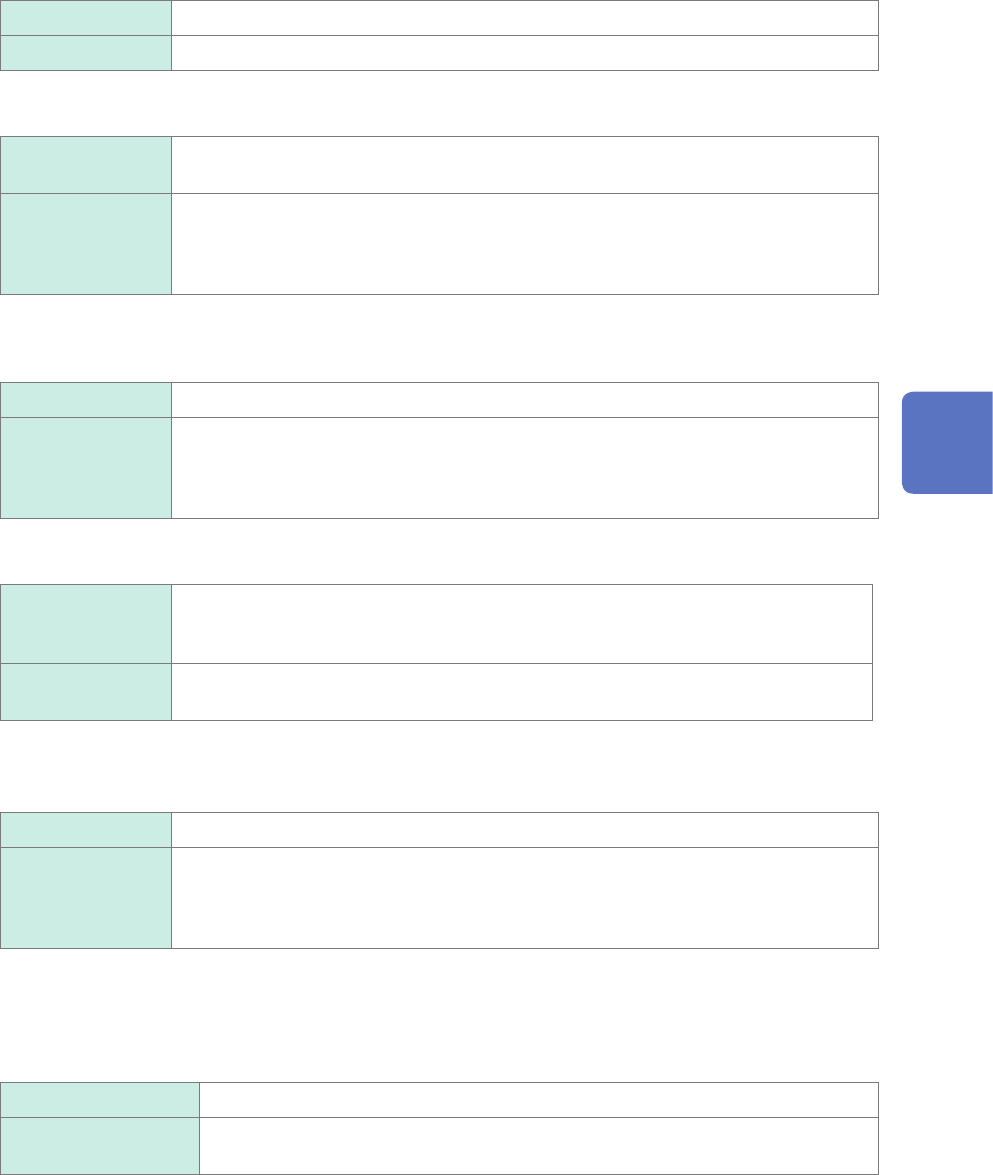
In the [Waveform] area, click [On] or [Off] to congure the waveform save setting.
Off
Does not save any waveforms.
On Saves waveforms.
Click the [Type] box, and then choose a save format of data from the list.
Waveform
(Binary)
Saves waveform data in binary format.
(Only data saved in binary format can be loaded onto the instrument)
Waveform (Text) Saves waveform data in text format.
(The instrument decimates the data and saves the remaining data as a le. The les
can be opened with editors and spreadsheet software installed in computers; however,
they cannot be loaded onto the instrument.)
Click the [Method] box, and then from the list, choose an action to be taken if the size of waveform
data to be saved exceeds the capacity of the storage device.
Normal
Stops the auto-save if the storage device is full.
Delete Deletes older les and continues the auto-save even when the storage device is full
(waveform les only).
The instrument deletes les only created after the measurement has started. It does
not delete previously existing les.
Click the [Channel] box, and then choose an option for channels to be saved.
All
Saves measured data of all channels.
The instrument also saves data acquired across channels with the waveform display
set to [Off].
Display Saves data acquired across channels with the waveform display set to [On] on all
sheets.
(When you choose [Waveform (Binary)] in the [Divide] box)
Click the [Divide] box, and then from the list, choose a size of each le.
Off
Saves a le without dividing it.
16 MB,
32 MB,
64 MB
Choose this option to divide a large le into several les and save them. A le is
divided into several les each of which has the specied size. The instrument creates
a folder with the specied name, divides a le into several les, and then saves them
in the folder.
The instrument automatically creates a folder, and then creates waveform les and an index le (extension:
.IDX) in the folder. Loading the IDX le allows the waveform les to be loaded in a batch.
(When you choose [Waveform (Text)] in the [Type] box)
Click the [Divide] box, and then from the list, choose an option for the number of lines of each le.
Off
Saves a le without dividing it.
60,000 data,
1,000,000 Data
Divides a le according to data points (row) you specify.
When using the memory division function, you cannot use the division save function.
4
Saving/Loading Data and Managing Files
86
Saving Data
(When you choose [Waveform (Text)] in the [Type] box)
Click the [Thin out] button to set it to [On] or [Off].
When you choose [On], click the number box on the right, and then enter the number of data points out of
which a data point is retained.
Storing les in text format requires a lot of storage space. Data decimation can reduce le sizes.
Off
No data is decimated.
On (2 to 1,000) Allows you to enter the decimation number. The instrument retains one data point out
of the specied number of data points.
Example
When you enter [3], the instrument retains one data point out of three consecutive data points: it decimates
the two other points.
The number of data points is reduced by one third of the original number.
5
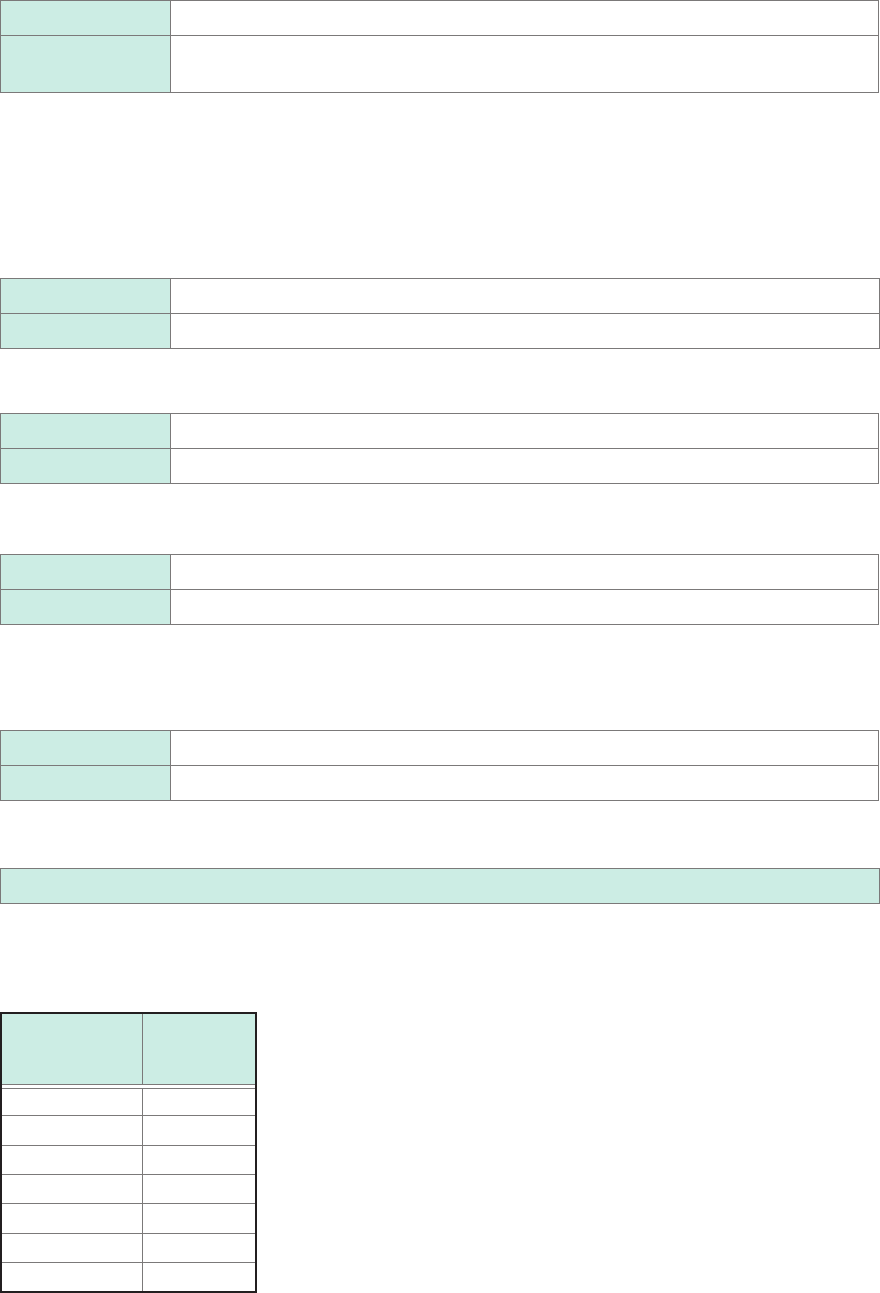
In the [Calculation result] area, click [On] or [Off] to congure the saving setting of the
numerical calculation result .
Off
Does not save any numerical calculation results.
On Saves numerical calculation results.
Click the [File] box, and then from the list, choose an option for saving data to les.
New
Creates a new le for each measurement and saves it.
Append Appends data to an existing le and saves it.
Click the [Divide] box, and then choose a le division setting from the list.
Off
Does not divide any les.
Split by Calc. No. Creates a le for each calculation number.
6
In the [Screen image] area, click [On] or [Off] to congure the saving setting of display
images.
Off
Does not save any screenshot.
On Saves a screenshot.
Click the [Type] box, and then choose a save format of images from the list.
BMP
, PNG, JPEG
When you choose data in text format or numerical calculation results to be saved
Characters or display items used on the instrument are converted as follows:
Character
used on the
instrument
Saved
character
2
^2
3
^3
μ
~
u
Ω
~
o
e
~
e
°
~
c
±
~
+
87
Saving Data
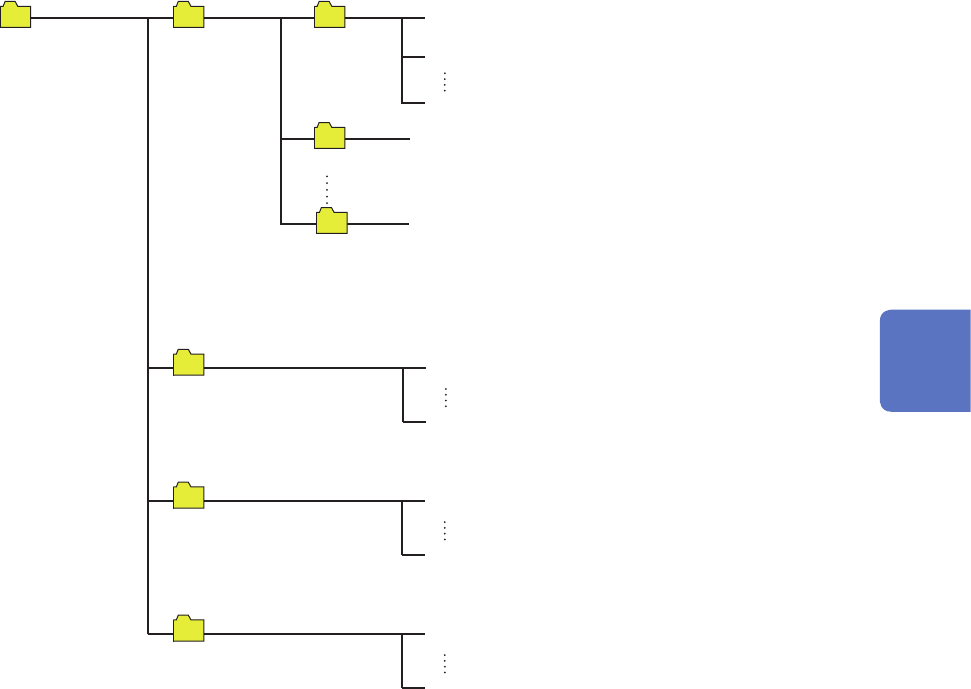
Structure of the save destination folders
The instrument saves folders under the “HIOKI_MR8740T” folder as follows.
Every folder can collectively retain up to 5000 les and folders.
MEASURE
0001MEAS.CSV
5000MEAS.CSV
PICT
0001SCR.BMP
5000SCR.BMP
CONFIG
0001CONF.SET
5000CONF.SET
When the number of les in the xxxxDATA (“xxxx”
represent a gure of 0001 to 9999) folder reaches
5000, the instrument automatically creates a new
folder with the next number.
When [Method] is set to [Delete], the instrument
automatically creates the xxxxDELSAVE (“xxxx”
represent a gure of 0002 to 9999) folder and
saves les in this folder. Files in this folder are
subject to being deleted.
0001DATA
HIOKI_MR8740T
WAVE
0002DATA
9999DATA
0001AUTO.MEM
0001AUTO.CSV
Up to 5000 les
4
Saving/Loading Data and Managing Files