00198611-02_IM_712.1_R19-1_EN.pdf - 第53页
Station Software Version 7 12.1 (R19-1) / Installation Manual 05/2019 Edition 53 5.6.3.1 Error Handling If an error occurs during in stallation, the setup is interrupted a nd the following dialog box di splayed. Figure 5…
Station Software Version 712.1 (R19-1) / Installation Manual 05/2019 Edition
52
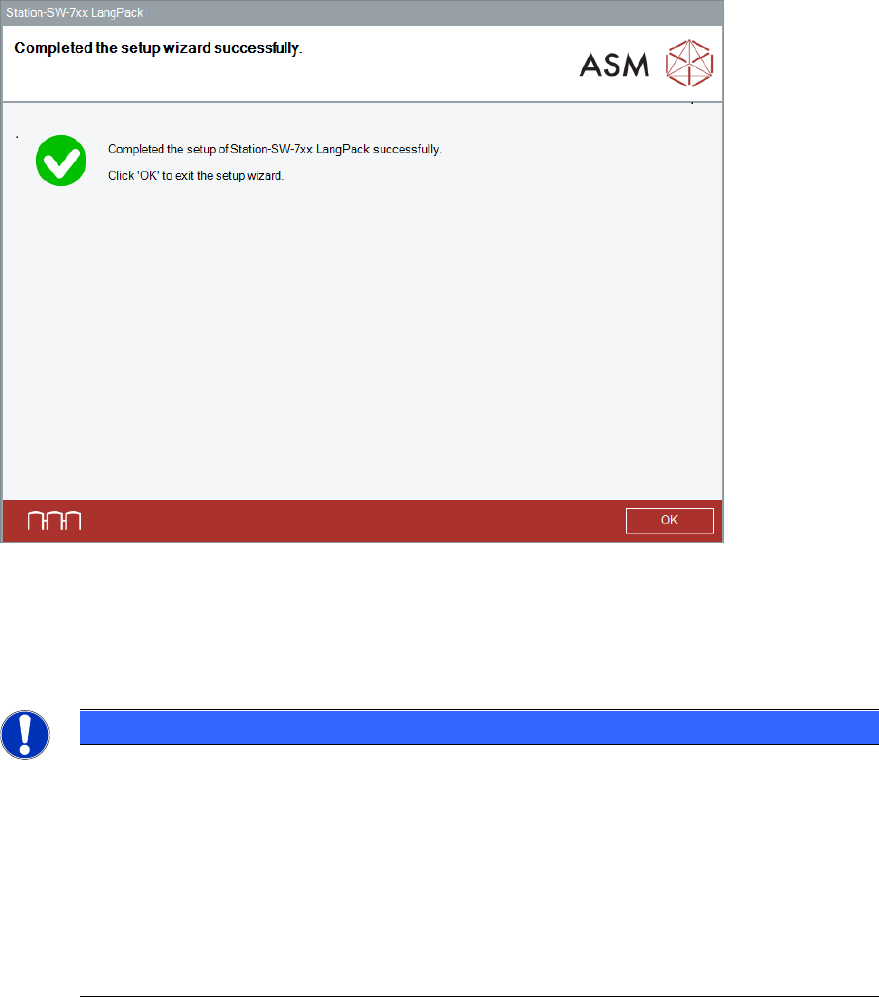
After successful installation, the following dialog is displayed.
Figure 5-42: Installation completed
► Click the OK button to exit the setup wizard.
When the installation has been completed, the language(s) you selected will be available on the
station software GUI and SIPLACE Vision GUI respectively.
NOTICE
Uninstalling the Language Pack
Please note that if you uninstall the Language Pack, all installed languages will be
uninstalled (Chinese included!). Single languages cannot be selected or deselected.
If Chinese shall be installed again, the standard Station Software installation must be
modified.
► Follow the instructions in section 8.1Fehler! Verweisquelle konnte nicht gefunden
werden..
► In the Features and Packages dialog, enable the Chinese language, too.
Station Software Version 712.1 (R19-1) / Installation Manual 05/2019 Edition
53
5.6.3.1 Error Handling
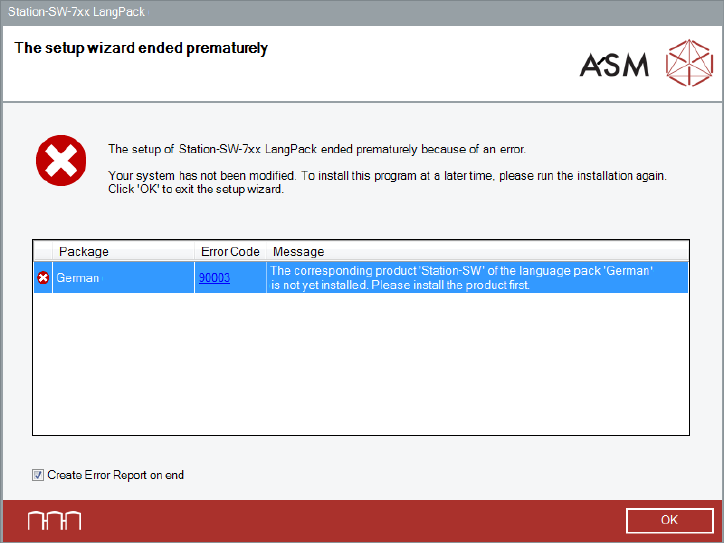
If an error occurs during installation, the setup is interrupted and the following dialog box displayed.
Figure 5-43: Error during installation
► Ensure that the Create Error Report on end option is selected (default).
► Click OK to exit the setup wizard.
The setup wizard will prompt you to store the Error Report (as zip file).
► After the problem has been solved, start the BundleInstaller.exe file to run the installation
again.
Station Software Version 712.1 (R19-1) / Installation Manual 05/2019 Edition
54
5.7 Enabling Firewall (Option)
The station software installation also sets rules for the firewall which allow the station software to
be operated with enabled firewall.
NOTICE
Exception:
Placement machines with a separate Vision computer (i.e. with Coplan computer
software or BulkFeeder computer software) CANNOT be operated with enabled firewall!
Proceed as follows to enable the firewall:
► Log in under the ASM_Admin user account on the station computer.
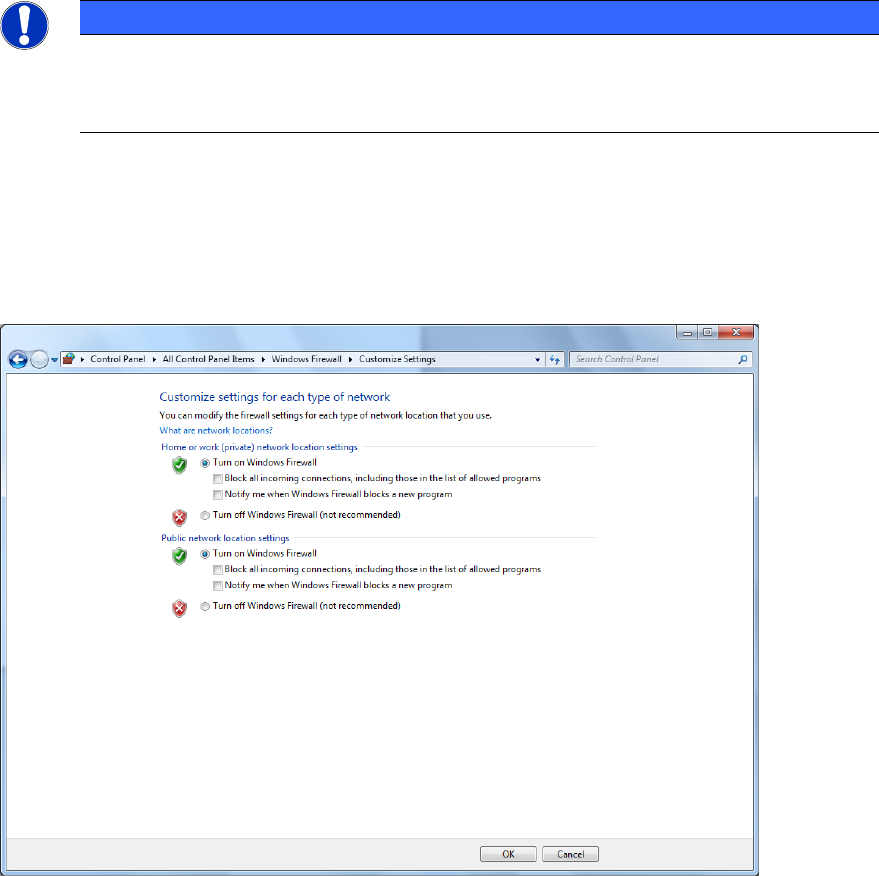
► Select Start – Control Panel – Windows Firewall – Turn Windows Firewall on or off.
The following dialog box is displayed.
Figure 5-44: Enabling Windows Firewall
► Enable the Turn on Windows Firewall option under Home or work /private) network
location settings and Public network location settings respectively.
► Click OK to exit the dialog box.