00191413-01.pdf - 第119页
User Manual Line Computer UNIX 4 Data Management Software Version 501.xx 01/99 Issue 4.3 User Interface of the Data Manager 4 - 9 4.3 User Interface of the Data Manager 4.3. 1 Gen eral De scripti on The window- oriente d…
4 Data Management User Manual Line Computer UNIX
4.2 Data Storage Software Version 501.xx 01/99 Issue
4 - 8
● Click on OK, eliminate the error and subsequently re-start the switch-over procedure, as described
above.
Once the switch-over procedure has been completed successfully, a corresponding message is
displayed on the screen.
● Acknowledge the message by choosing OK. The data are now saved to the central data storage.
Procedure in the event of a power failure with central data storage activated:
If a power failure has occurred, the system will inform you of this situation by displaying a warning
message on the screen together with instructions how to proceed further.
First check whether the power failure will presumably last for some time or whether power can be
restored quickly.
In the event of a short-time power failure, you can proceed as follows:
● Allow the current job to be completed.
● If the line computer is in the "control mode", finish the line computer session via the main menu by
selecting LC_End and subsequently re-start by selecting LC_Start.
(This is not required in the programming mode).
● When power has been restored, continue the assembly by means of the central data.
In the event of a power failure over an extended period of time, you can proceed as follows:
● Switch the data storage to local data access.
● If the line computer is in the "control mode", finish the line computer session via the main menu by
selecting LC_End and subsequently re-start by selecting LC_Start.
(This is not required in the programming mode).
● If necessary, copy the data from the central storage to the local line computer using a streamer
tape.
● Continue the assembly by means of the local data.

User Manual Line Computer UNIX 4 Data Management
Software Version 501.xx 01/99 Issue 4.3 User Interface of the Data Manager
4 - 9
4.3 User Interface of the Data Manager
4.3.1 General Description
The window-oriented user interface which is capable of handling several data partners (see Fig. 4.3.1)
is used for manipulating the files and file structures within the line computer system.
The data partners must have been logged on in the Data Manager.
4.3.2 Starting the Data Manager
● Click on FILE -> Data Manager on the desktop menu bar.
The main window of the Data Manager with all data partners logged into the Data Manager is
opened (see Fig. 4.3.1).
NOTE
If the user selects menu option OPTIONS --> Save default values
(see page 4 - 13) in the main window, the main window and all open file windows (incl. paths, posi-
tions, display mode) are saved to a configuration file, ensuring that all thus stored windows will be
automatically opened the next time the line computer is started up again, provided the respective
data partners can be addressed.
4 Data Management User Manual Line Computer UNIX
4.3 User Interface of the Data Manager Software Version 501.xx 01/99 Issue
4 - 10
4.3.3 Main Window of Data Manager
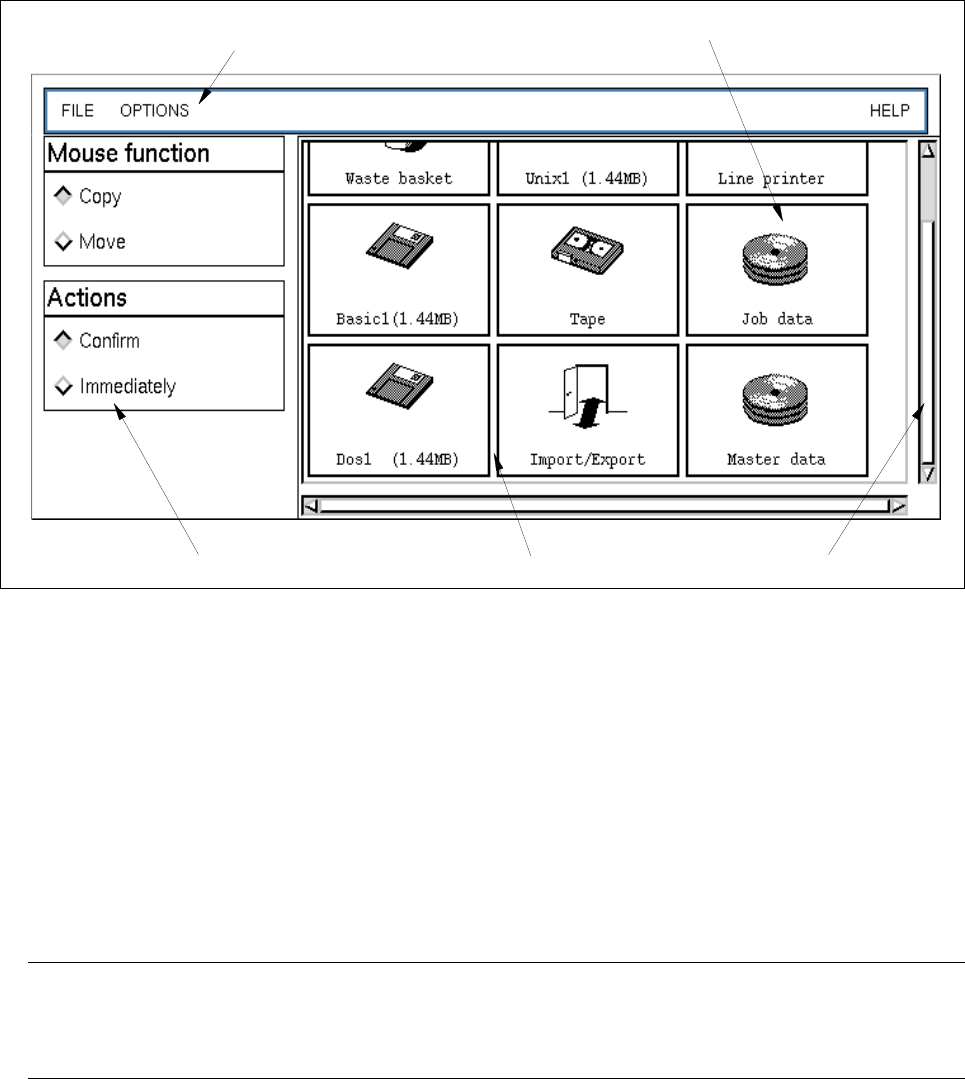
Fig. 4.3.1 Main window of "Data Manager"
The main window is subdivided into the following areas:
- Menu bar
- Display area
- Command area
Menu Bar
The menu bar contains the menus "FILE", "OPTIONS" and "HELP".
The menu functions are described in the section 4.3.3.1 and section 4.3.4.3.
NOTE
Since the functions and operation of the "FILE" menu are identical to those in other application programs
of the line computer, they are described comprehensively in chapt. 2 of this manual.
Display Area
In the display area the data partners are shown which have been logged on in the Data Manager and can thus
be called up.
The data partners can be opened by double-clicking or via the menu. Upon opening a data partner a new
window (see Fig. 4.3.2) is created on the screen showing the contents of the data partner.
In the following, a brief explanation of the meaning of the data partners "DP" is contained:
data partner
menu bar
scroll bardisplay areacommand area