00191413-01.pdf - 第136页
4 Data Management User Manu al Line Computer UNIX 4.3 User Interface of t he Data Manager Software Version 501.xx 01/99 Issue 4 - 26 4.3.5 Quitting the Data Manager When the m ain wi ndow of the Da ta Mana ger is cl osed…
User Manual Line Computer UNIX 4 Data Management
Software Version 501.xx 01/99 Issue 4.3 User Interface of the Data Manager
4 - 25
4.3.4.6 Actions to Be Taken Following any Update/Upgrade of the LC Software
Subsequent to any update/upgrade (see chapt. 1), the following steps described below are to be performed
with the aid of the Data Manager, to ensure the proper functioning of the LC software:
Consistency check for "set-ups"
NOTE
Depending on the procedure used, the consistency check can be carried out for the complete line
"xx.ak", for every subline "xx.va". or for every individual set-up "xx.ar". It is good practice to trigger the
consistency check for the subline, see the description below.
● Set Double-click -> Default in the command area.
● Successively open the directories Anlagen/xx.ak by double-clicking.
● Set Double-click -> Menu in the command area.
● Select the set-up file xx.va (subline) by double-clicking.
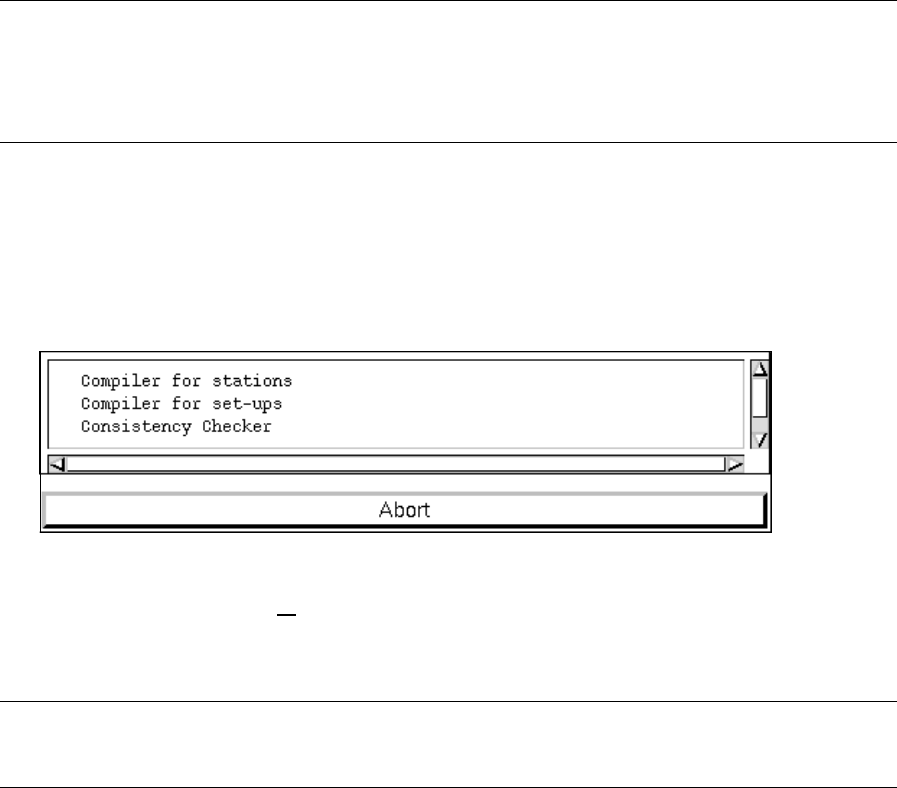
The following dialog box is opened.
● Click on the Consistency Checker entry.
The consistency check for all
set-ups contained in the selected subline is performed.
Upon the successful completion of the check a corresponding message is displayed.
NOTE
The consistency check must be performed for all set-ups.
● After the completion of the consistency check, click on the arrow button until the "Anlagen"
directory is closed.

4 Data Management User Manual Line Computer UNIX
4.3 User Interface of the Data Manager Software Version 501.xx 01/99 Issue
4 - 26
4.3.5 Quitting the Data Manager
When the main window of the Data Manager is closed, the latter is no longer active.
● Click on FILE --> Quit in the main window of the Data Manager.
The main window and all
open windows of the data partners are closed.
Upon restarting the Data Manager, the main window and all previously open windows of the
data partners are restored.
User Manual Line Computer UNIX 4 Data Management
Software Version 501.xx 01/99 Issue 4.4 User Interface of Print and Update Server
4 - 27
4.4 User Interface of Print and Update Server
The user interface of the print and update server basically serves to log on (activate) and log off (deactivate)
the physical devices available within the LC system, such as printers, floppy disk and magnetic tape drives.
Moreover, data carriers can be prepared (formatted) for data saving operation.
4.4.1 Starting the Print and Update Server
● Click on SERVICES -> Equipment on the menu bar of the desktop.
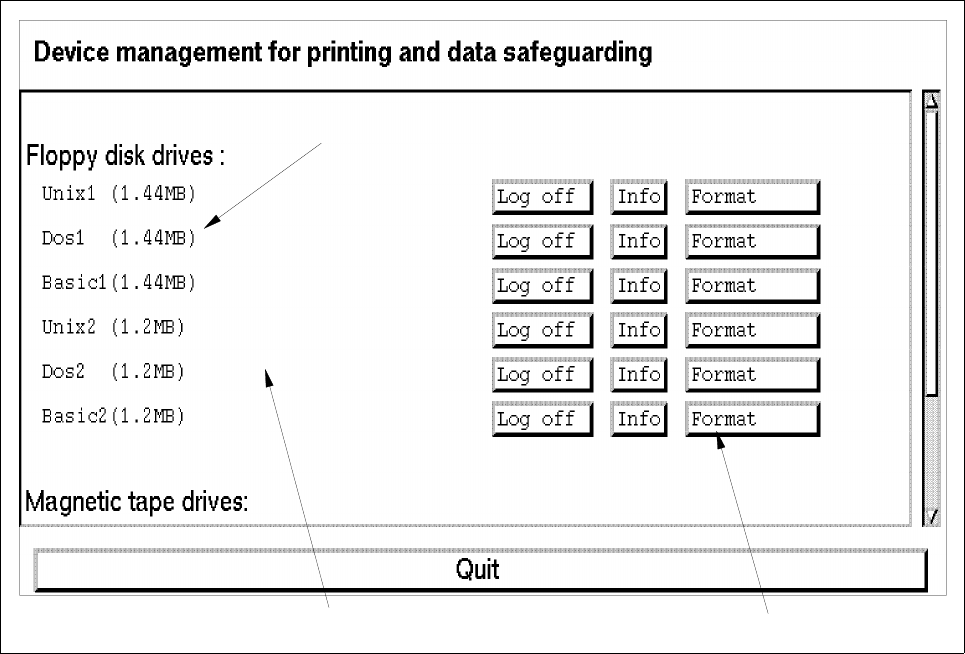
The main window of the print and update server is opened (see Fig. 4.4.1).
4.4.2 Main Window of Print and Update Server
The various areas of the main window and their functions are described in the following.
Fig. 4.4.1 Main Window "Print and Update Server"
The main window of the print and update server is subdivided as follows:
- display area
- command area
device name
command area
display area