00191413-01.pdf - 第160页
4 Data Management User Manu al Line Computer UNIX 4.6 CAD Import S oftware Version 501.xx 01/99 Issue 4 - 50 4.6.3.1 "PCB Filter Dialog" Window Fig. 4.6.4 "PCB filter dialog" Window The "PCB f il…
User Manual Line Computer UNIX 4 Data Management
Software Version 501.xx 01/99 Issue 4.6 CAD Import
4 - 49
4.6.3 Filter Editing Mode
In the filter editing mode of CAD Import, existing filters can be modified or new filters be created. In either case
this is accomplished on the basis of the currently used CAD file. The filters are not bound to the CAD file by
means of which they were created, but they can be applied to all other CAD files whose data structure matches
that of the filter.
● Open the "PCB filter dialog" window by means of the "SERVICES" menu
(see section 4.6.2.2).
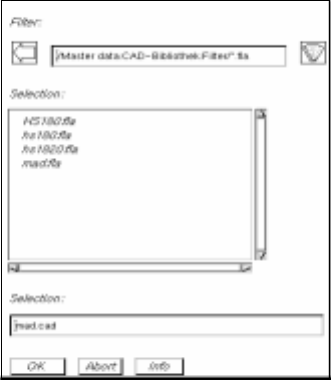
● Click on the "PCB filter dialog" filter selection button (see Fig. 4.6.4).
The FSB containing the file selection of all already-defined PP filters (*.fla) opens.
● Select the filter "xx.fla" by double-clicking, or enter new name on the keyboard and confirm with
OK (or RETURN).
The FSB closes and the name of the filter is transferred to the "Filter" field.
This is the name under which the subsequently determined filter definitions are saved (see
section 4.6.3.2).
4 Data Management User Manual Line Computer UNIX
4.6 CAD Import Software Version 501.xx 01/99 Issue
4 - 50
4.6.3.1 "PCB Filter Dialog" Window
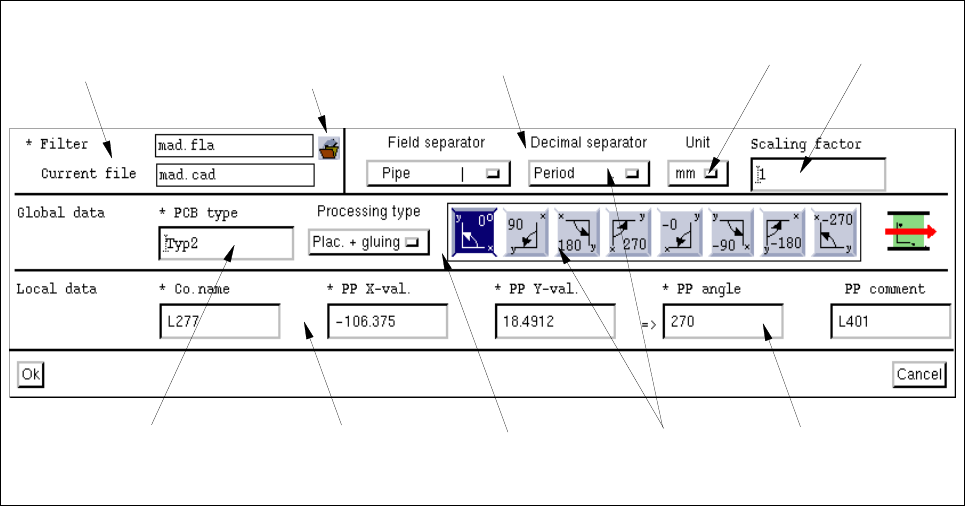
Fig. 4.6.4 "PCB filter dialog" Window
The "PCB filter dialog" is subdivided into several areas. The individual areas contain selection fields (including
buttons or icons), editing fields and position fields for the definition of PP filters.
Basic Filter Data
The filter is or was created on the basis of these data.
- * Filter
This field contains the name of the currently set filter. The field is empty if no name has been assigned
to the new filter yet.
Clicking on the filter selection button causes the FSB containing the file selection of the already-
defined filters to be opened. In this FSB the name is entered under which the completely defined filter
is to be saved.
- Current file
This field contains the name of the current CAD file.
- Filter settings
The values to be set at this point are so-called fixed values. They are determined during the filter defi-
nition in accordance with the structure of the CAD file.
"Filter setting"
area
Filter selection
button
"Basic filter data"
area
"Global data"
area
"Local data"
area
Button
Position field
Editing field
Editing field
Selection
fields
User Manual Line Computer UNIX 4 Data Management
Software Version 501.xx 01/99 Issue 4.6 CAD Import
4 - 51
Field separator
The field separators are used to separate the data fields within a data line so that their respective
contents can be assigned to the appropriate position fields (see section 4.6.3.2).
● Click on the button in the "Field separator" selection field and hold down the mouse button.
The popup menu containing a list of the possible field separators opens.
● Position the mouse cursor on the entry of the desired field separator and release the mouse
button.
The menu closes and the name and the symbol of the selected field separator are displayed in
the "Field separator" selection field.
Decimal separator
Here, you can set which decimal separators are to be used to specify the values for the x and y-
coordinates of the placement positions in the CAD file.
● Click on the button in the "Decimal separator" selection field and hold down the mouse button.
The popup menu containing a list of the possible decimal separators opens.
● Position the mouse cursor on the entry of the desired decimal separator and release the mouse
button.
The menu closes and the name and the symbol of the selected decimal separator are displayed
in the "Decimal separator" selection field.
Unit
Here, the unit can be set in which the values for the x and y-coordinates of the placement positions are
to be specified in the CAD file.
● Click on the button in the "Unit" selection field and hold down the mouse button.
A popup menu containing a list of the possible units opens.
● Position the mouse cursor on the entry of the desired unit and release the mouse button.
The menu closes and the name of the selected unit is displayed in the "Unit" selection field.
Scaling factor
The scaling factor serves as conversion factor for the x and y-values. It is entered if the units for the x
and y-coordinates of the placement positions are neither specified in "mm", "inches" nor "mill", but in
a different unit (e.g. pixels or
1
/
1000
mm).
● Click on the "Scaling factor" editing field and enter a value for the factor required.
Global data
The values to be set at this point are so-called fixed values. They are determined during the filter definition in
accordance with the structure of the CAD file. They are always valid for an entire PCB structure and cannot be
changed locally for a single position.
- * PCB type
The indication of a PCB type is required for the further classification of a PCB.
This entry is mandatory.
● Click on the "PCB type" editing field and enter a name for the PCB type
(max. 15 characters).