00191413-01.pdf - 第288页
9 Production Tools / Feeders User Manu al Line Computer UNIX 9.1 Feeder Editor Software Version 501.xx 01/99 Issue 9 - 4 9.1.3 Main Window of the Feeder Editor In the foll owing, the a reas of the mai n window an d their…

User Manual Line Computer UNIX 9 Production Tools / Feeders
Software Version 501.xx 01/99 Issue 9.1 Feeder Editor
9 - 3
Example of a type-specific allocation of the component "xxx" with package form "541":
Machine type: HS-180
Feeder type: 12mm-tape feeder
Machine type: SIPLACE80S
Feeder type: 9.5mm-linear feeder
Explanation: The optimization process offers the possibility to set up the component "xxx"
either on the machine type "HS-180" or
the machine type "SIPLACE80S"
The machine types "WPC", "SIPLACE80F" and "HS180-HR" are not
mentioned. The component must therefore not be set up on these types.
If the optimization process determines that the component is to be set up on
the machine type "HS-180", the component will be supplied in a 12mm-tape
feeder. If, however, the optimization process determines that the component
is to be set up on the machine type "SIPLACE80S", the component will be
supplied by a 9.5mm-linear feeder.
9.1.2 Starting the Feeder Editor
- In the "programming mode" the Feeder Editor is activated by clicking on the Feeder icon on the
desktop, or via the Data Manager (see chapt. 4).
- If the LC program was installed for the "control mode", the Feeder Editor can be started via the
"PRODUCTION TOOLS" desktop menu, or via the Data Manager.
● Click on the Feeder icon on the desktop (or the "Feeder Editor" option on the "PRODUCTION
TOOLS" menu). The main window of the Feeder Editor is opened (see Fig. 9.1.2).
NOTE
Moreover, the Feeder Editor can be started via the Data Manager user interface by selecting the
".ri" set-up info file in the "Master data/RI-Bibliothek/*" path (see chapt. 4), via the Optimization user
interface (see chapt. 11), or via the Package Form Editor (see chapt. 6).
9 Production Tools / Feeders User Manual Line Computer UNIX
9.1 Feeder Editor Software Version 501.xx 01/99 Issue
9 - 4
9.1.3 Main Window of the Feeder Editor
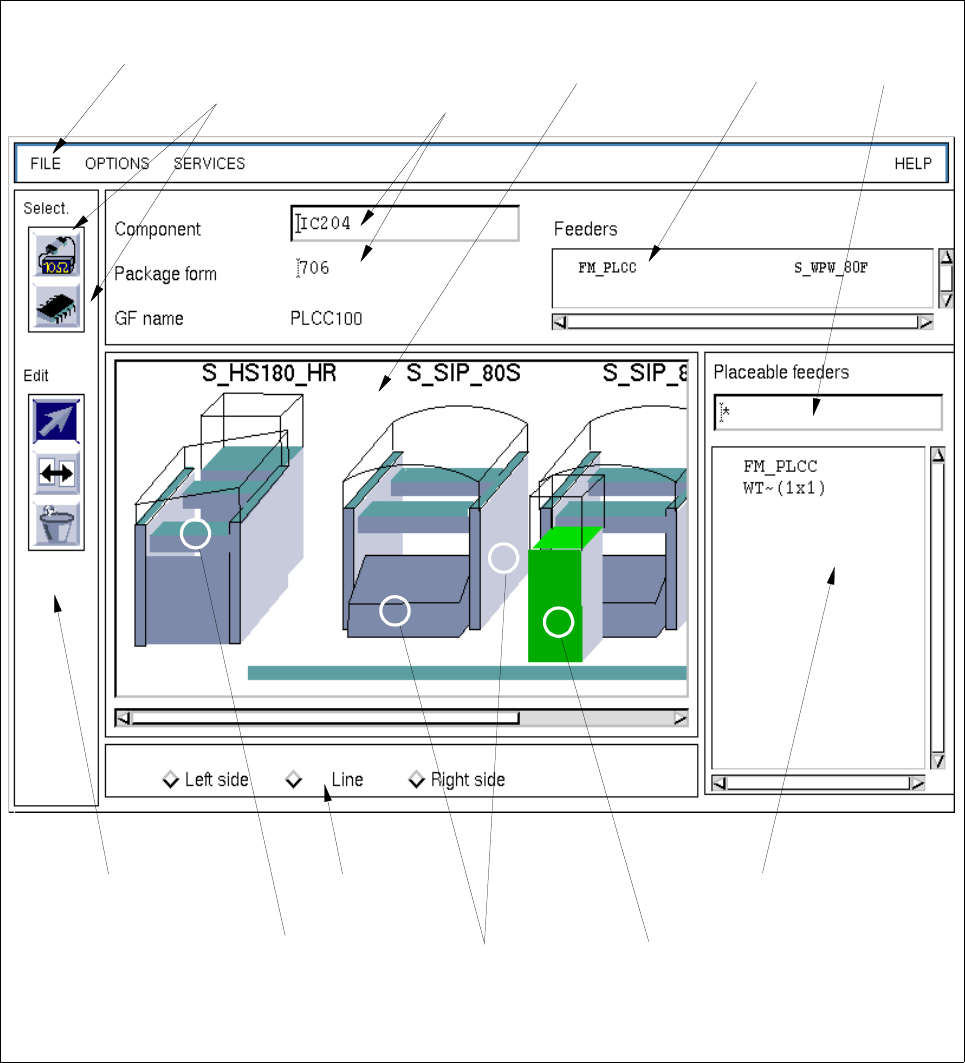
In the following, the areas of the main window and their functions are explained.
Fig. 9.1.2 Main Window "Feeder Editor" (Allocation of the Component "IC204" with Package Form "704")
selection field
"Placeable feeders"
setting area
command area
selection:
WPC trolley
(SIPLACE 80F)
selection:
complete
selection:
Feeder part on
the right
machine side
machine type
menu bar editing fields
"Component/
"Package form"
selection field
"Feeder"
filter field
selection area
"Component/
Package form"
display
area

User Manual Line Computer UNIX 9 Production Tools / Feeders
Software Version 501.xx 01/99 Issue 9.1 Feeder Editor
9 - 5
The main window is subdivided as follows:
- Menu bar
- Selection area
- Editing fields
- Display area
- Selection fields
- Filter field
- Setting area
- Command area
Menu Bar
The menu bar contains the menus "FILE", "OPTIONS", "SERVICES" and "HELP".
The "SERVICES" menu is described in section 9.1.3.1.
NOTE
Since the functions and the operation of the menus "FILE", "OPTIONS" and "HELP" are similar to those in
other application programs of the line computer, they are described comprehensively in chapt. 2.
Selection Area "Package Form/Component"
In this area, package form and component are symbolized by two icons by means of which the respective FSB
for the selection of a new package form or a new component can be opened. The procedure to be followed is
described in section 9.1.3.2.
Editing Fields
Editing field "Component"
The name of the desired component can be entered in this field if no package form no. has been entered
in the "Package form" editing field yet.
Editing field "Package form"
The package form number of the desired package form can be entered in this field if no component
name has been entered in the "Component" editing field yet.
Field "GF name"
In this field it is possible to display a comment that may exist. This comment can be entered in the
Package Form Editor and it is read in by the Feeder Editor. The comment is normally used to assign
a name to the package form in clear text (e.g. name of the package type).
Display Area
In the display area, all station types are represented symbolically that are contained in one of the line
configuration lists of all lines existing in the master data.