00191413-01.pdf - 第312页
10 Production Tools / Restrictions User Manual Line Computer UNIX 10.1 Restriction Editor Software Version 501.xx 01/99 Issue 10 - 6 10.1.3.2 Selection Area "Component " This are a contain s the icon ( symbol f…
User Manual Line Computer UNIX 10 Production Tools / Restrictions
Software Version 501.xx 01/99 Issue 10.1 Restriction Editor
10 - 5
Selection field "Placeable feeders"
In this field, all feeders are displayed that can be set up on the location selected in the display area (in accordance
with the MSC). Moreover, all "customer-specific types" that are contained in the set-up info file ".ri" are also
displayed. If in the Restriction Editor "customer-specific types" were created for a given production job, also
these are displayed, howerver, only if the Restriction Editor was started with the appopriate lot file.
Filter field
The list of the feeders contained in the selection field "Placeable feeders" can be limited by entering given
character strings.
Example: *LIN* Only linear feeders are displayed.
* All feeders suitable for set-up are displayed.
Command area (see section 10.1.3.3)
This area contains commands by means of which selections can be made, bindings and exclusions be defined
of, if required, existing allocations as well as customer-specific types that were created in the Restriction Editor
be deleted.
10.1.3.1 SERVICES Menu
The SERVICES menu contains only the menu option described in the following:
- Print preview
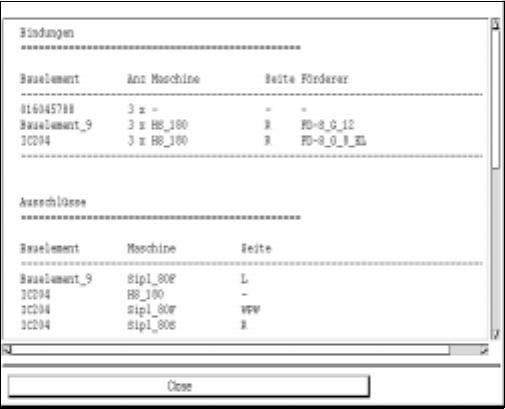
This function allows the allocations and restrictions as well as the created customer-specific types to
be displayed in a separate window.
● Select menu option SERVICES --> Print preview.
The window containing a listing of all bindings, exclusions, allocations and customer-specific
types related to the current lot file is opened.
● Click on the Close button to close the window again.
10 Production Tools / Restrictions User Manual Line Computer UNIX
10.1 Restriction Editor Software Version 501.xx 01/99 Issue
10 - 6
10.1.3.2 Selection Area "Component"
This area contains the icon (symbol for component) by means of which the FSB for the selection of a
new component is opened for which an allocation or restriction is to be defined.
NOTE
The changeover to another component can also be made by entering the component name in the
"Component" editing field (see Fig. 10.1.1).
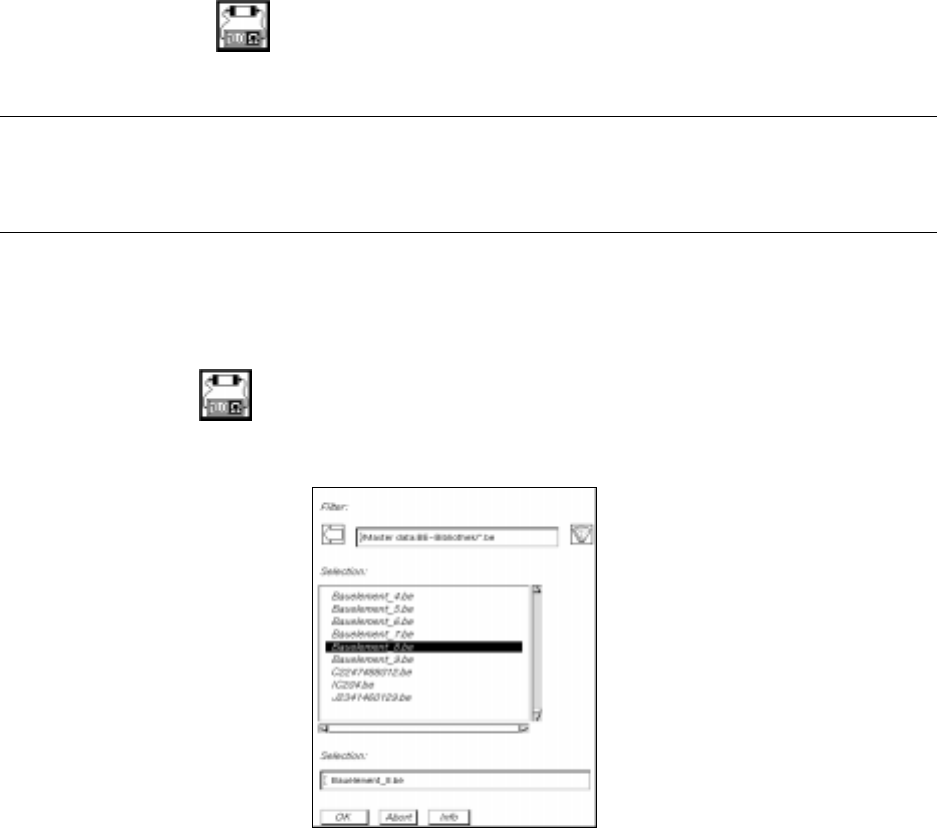
Example: Changeover to component "Component_9"
Procedure:
● Click on icon
The FSB containing a selection of files of all already defined components is opened:
● Select the component file Component_9.be by double-clicking.
The FSB is closed and the name of the selected component is entered in the "Component"
editing field in the main window of the Restriction Editor.
In the "Package form" field the number of the package form assigned to component
"Component_9" is displayed and in the "GF name" field the comment ("1206") entered in the
Package Form Editor is displayed (see Fig. 10.1.1).
Or else:
● Click on the "Component" editing field and delete the name of the current component using the
DELETE key.
● Enter the name of the new component and confirm your entry by pressing the RETURN key.
In the "Package form" field the number of the package form assigned to the component is displayed, and
in the "GF name" field the comment entered in the Package Form Editor is displayed.
If the component does not exist in the master data, a dialog box containing a corresponding
message is displayed.
User Manual Line Computer UNIX 10 Production Tools / Restrictions
Software Version 501.xx 01/99 Issue 10.1 Restriction Editor
10 - 7
NOTE
If bindings, exclusions or allocations have already been defined for the selected component, these
are displayed in the selection field "Restrictions/Allocations".
Depending on the currently set mode, the locations for which bindings and exclusions have been defi-
ned, are highlighted in color (see chart, page 10 - 4).
10.1.3.3 Command Area
The commands are symbolized by icons. They determine the mode (selection, allocation, binding, exclusion or
deletion mode) in which the Restriction Editor is to operate.
NOTE
Upon opening, the Restriction Editor is initially in the selection mode.
- (Select)
When this icon is active (displayed in reverse video with the arrow pointing from the lower left to the
upper right), the editor is in the selection mode. It is possible to select machine types or individual ele-
ments from the display area, or feeding units from the selection fields, by clicking the left mouse
button.
● Click on icon in the command area.
(The arrow in the icon now points to the upper right).
● Click on the location (feeder part or entire machine) in the display area (see Fig. 10.1.1). The
selected element is highlighted in green.
In the selection field "Placeable feeders" all feeders, waffle-pack trays and customer-specific
types are displayed that can be set up and which were defined for the selected element.
NOTE
Double-clicking on an entry in the "Placeable feeders" selection field causes the sub-editor for editing
the feeder or waffle-pack tray data to be opened (see section 9.1, Figs. 9.1.3 and 9.1.4). The sub-
editor allows existing feeder or waffle-pack tray data to be modified or new customer-specific types to
be created. The procedure to be followed is described in detail in chapt. 9 "Feeder Editor", section
9.1.4.
The modified data or newly created customer-specific types are only
valid for the current production
job. They remain valid for as long as the lot file exists.