00191413-01.pdf - 第371页
User Manual Line Computer UNIX 12 Production Tools / S tation and Line Configuration Software Version 501.xx 01/99 Issue 12.1 Configuration Editor 12 - 9 ● Conf irm you r exiting f rom th e edito r by ch oosing OK if you…
12 Production Tools / Station and Line Configuration User Manual Line Computer UNIX
12.1 Configuration Editor Software Version 501.xx 01/99 Issue
12 - 8
12.1.2.3 FILE Menu
- Invoking the Structure Editor
The user can load or create a new station.
● Select FILE --> Open... .
The FSB containing the file listing is opened.
● The further procedure is identical to that described in section 12.1.1.
- Saving the current configuration or set-up
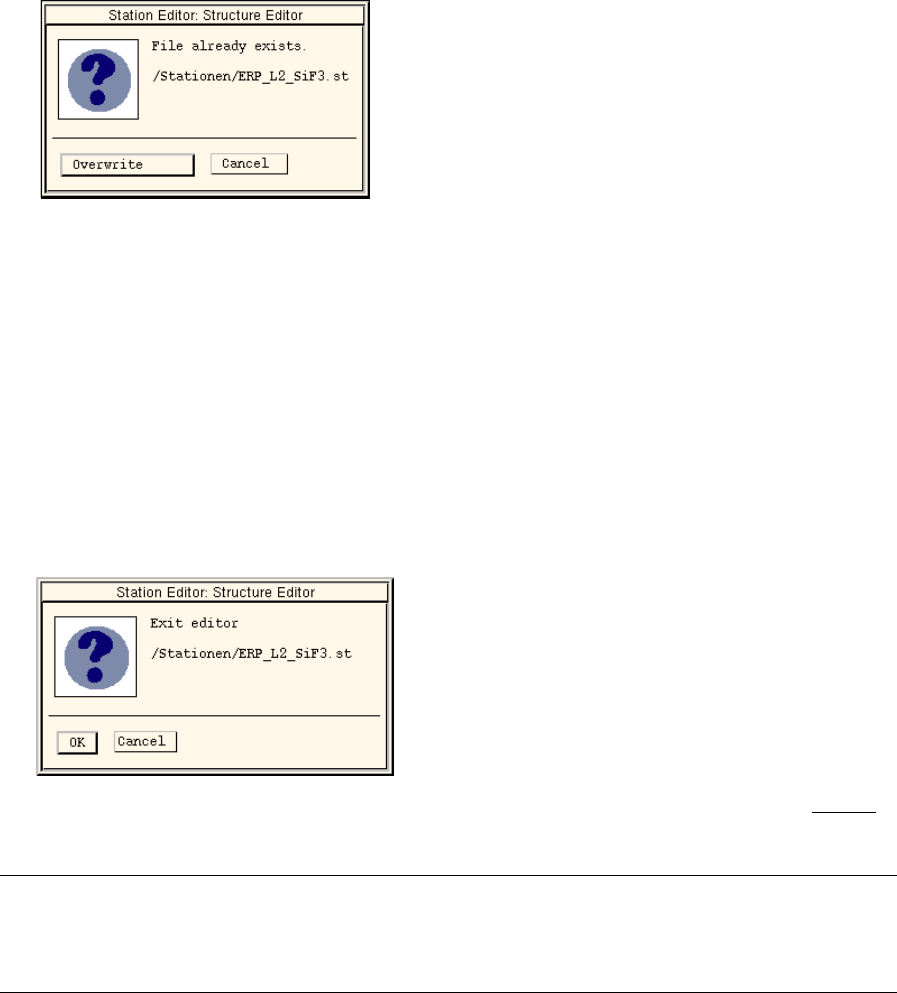
● Select menu option FILE --> Save.
The following dialog box is displayed:
● Click on Overwrite.
The current configuration or set-up is saved.
- Printing the station configuration or set-up data
The current data of the station can be output on a connected printer.
● Select menu option FILE --> Print.
The data relating to the station are output on the printer.
- Quitting the Configuration (Structure) Editor
● Select menu option FILE --> Quit.
A dialog box containing the following note is displayed:
● Confirm your exiting from the editor by choosing OK. The Configuration Editor is exited without
the data being saved.
NOTE
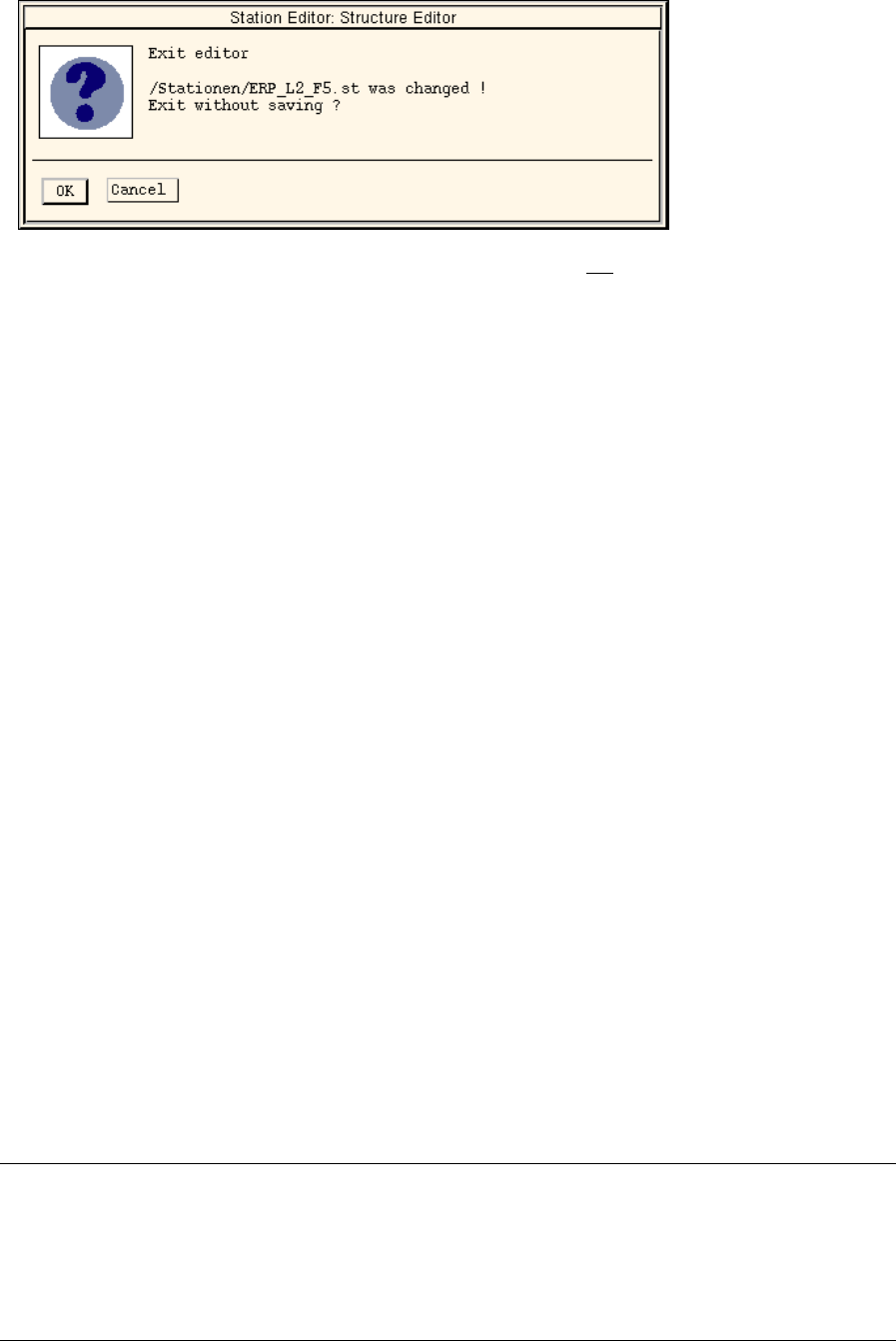
If the editor contains unsaved changes, the dialog box also contains a message informing you of this
(see example below).
User Manual Line Computer UNIX 12 Production Tools / Station and Line Configuration
Software Version 501.xx 01/99 Issue 12.1 Configuration Editor
12 - 9
● Confirm your exiting from the editor by choosing OK if you do not want to save the changes.
● Click on Cancel to perform a save before the editor session ends.
12.1.2.4 SERVICES Menu
- Invoking the Set-up (Feeder Part) Editor for the feeder part of the "station"
● If a command is active in the command area, it is to be deactivated by clicking on it.
● Select feeder part in the display area (see Fig. 12.1.1) with a mouse click.
● Select SERVICES --> Feeder Part Editor.
The window of the Feeder Part Editor is opened (see Fig. 13.1.2).
- Invoking the Feeder Part Editor for the feeder part of the "Waffle-Pack Changer Trolley"
● If a command is active in the command area, it is to be deactivated by clicking on it.
● Click on WPC-Tr in the selection field "Machines" (see Fig. 12.1.1).
The display area changes to display the structure of the WPC trolley.
● Select feeder part in the display area (see Fig. 12.1.2) with a mouse click.
● Select SERVICES --> Feeder Part Editor.
The window of the (Set-Up)Feeder Part Editor "WPC trolley" is opened (see Fig. 13.1.4).
- Invoking the Machine Options Editor
● If a command is active in the command area, it is to be deactivated by clicking on it.
● Select machine option in the display area (see Fig. 12.1.1) with a mouse-click.
● Select SERVICES --> Machine Opt. Editor.
The window of the Machine Options Editor for the selected machine option is opened (see, for
example, Fig. 12.1.4 ).
NOTE
The menu item "Machine Opt. Editor" can only be selected if a machine option was previously
selected for which a machine option editor is available.
Machine option editors are available for the machine options Station, Station Extension, Head and
Nozzle Changer.

12 Production Tools / Station and Line Configuration User Manual Line Computer UNIX
12.1 Configuration Editor Software Version 501.xx 01/99 Issue
12 - 10
12.1.2.5 OPTIONS Menu
- Define the feeder part as a Changeover table
This option is required exclusively for setup clustering (see chapt. 11).
● If a command is active in the command area, deactivate it by clicking on it.
● Select desired feeder part in the view area (see Fig. 12.1.2) by clicking on it.
● Select the OPTIONS --> ° Component changeover table menu option.
The marking (°) preceding the option now changes (
¤).
° means that the option is deactivated. (The feeder part is considered a fixed setup).
¤ means that the option is active. (The feeder part is treated as a changeover table for setup
clustering purposes).
NOTE
The "°Component changeover table" option can only be selected if the selected feeder part can actually
be defined as changeover table.