00191413-01.pdf - 第386页
12 Production Tools / Station and Line Confi guration User Manual Line Computer UNIX 12.2 Line Editor Software Version 501.xx 01/99 Issue 12 - 24 The FSB conta ins a listi ng of the confi gured li nes. If the LC s oftwar…
User Manual Line Computer UNIX 12 Production Tools / Station and Line Configuration
Software Version 501.xx 01/99 Issue 12.2 Line Editor
12 - 23
12.2 Line Editor
Following the installation of the line computer software or after changes have been made to the configuration
of the line(s)/subline(s), the line configuration must be newly established or corrected, respectively. The Line
Editor is used for this purpose.
With its help, the configurations and work steps described below can be performed:
- Configuration of new lines
- Adding new stations to an existing line
- Entering or changing the parameters of the individual stations
- Removal of stations from a line
- Configuration of new sublines
- Removal of sublines from a line
- Removal of stations from a subline
- Selection of the production line
NOTE
Prior to establishing the line configuration, the stations must be configured with the aid of the Configuration
Editor (see section 12.1.1).
12.2.1 Configuration of a Line
A line can consist of one or several sublines. When carrying out the configuration of the line, it is important that
the sequence be observed in which the stations are actually positioned within the line.
If the configuration of the overall line is changed, all subline configurations must be revised (see section 12.2.2).
No automatic adaptation takes place.
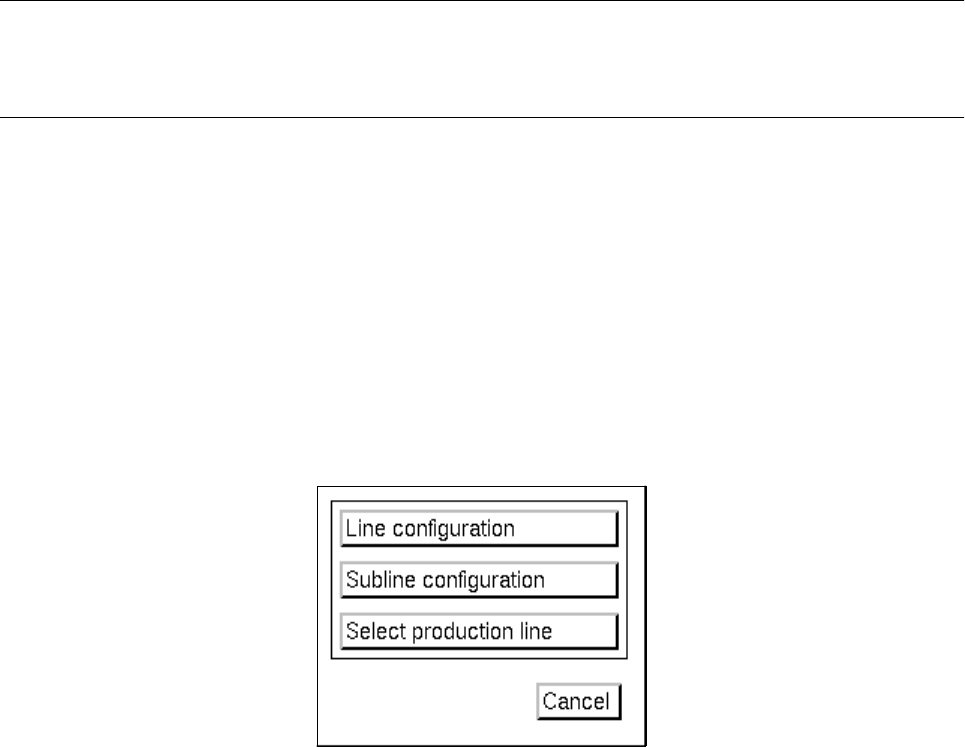
● On the desktop menu bar click on SERVICES --> Line configuration.
The "Line Configuration" selection window opens.
● Click on the Line configuration button.
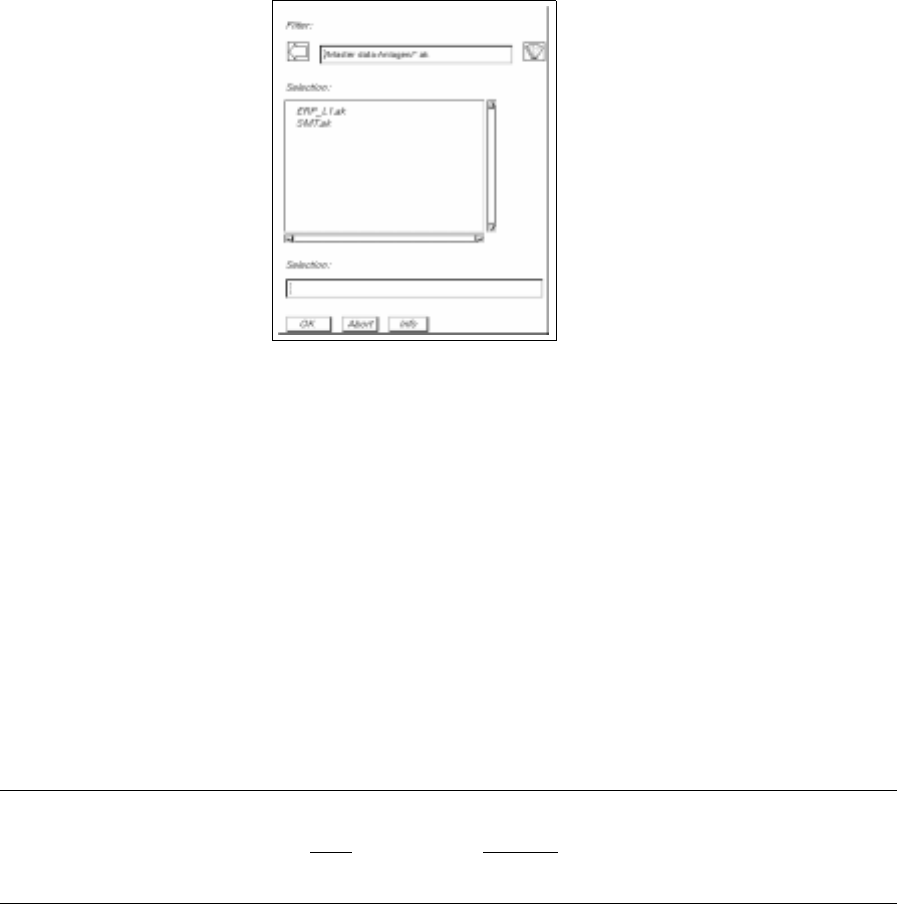
The FSB containing the "Master data: Anlagen" directory opens.
12 Production Tools / Station and Line Configuration User Manual Line Computer UNIX
12.2 Line Editor Software Version 501.xx 01/99 Issue
12 - 24
The FSB contains a listing of the configured lines. If the LC software was installed for the first time,
no overall line will be contained in the list yet.
To change an existing configuration:
● Select the line "xx.ak" and confirm with OK (or select the line directly by double-clicking on it). The
main window of the Line Editor opens (see Fig. 12.2.1).
The description on how to proceed further is contained in section 12.2.1.1.
To establish a new configuration:
● Enter the name "xx.ak" for the new line and confirm your entries with OK (or RETURN).
The main window of the Line Editor opens (see Fig. 12.2.1).
The description on how to proceed further is contained in section 12.2.1.1.
NOTE
The name of the line may comprise max.
20 characters, including the suffix ".ak". Some characters must
not be used when assigning the name, for more details see chapt. 2, section 2.3.
User Manual Line Computer UNIX 12 Production Tools / Station and Line Configuration
Software Version 501.xx 01/99 Issue 12.2 Line Editor
12 - 25
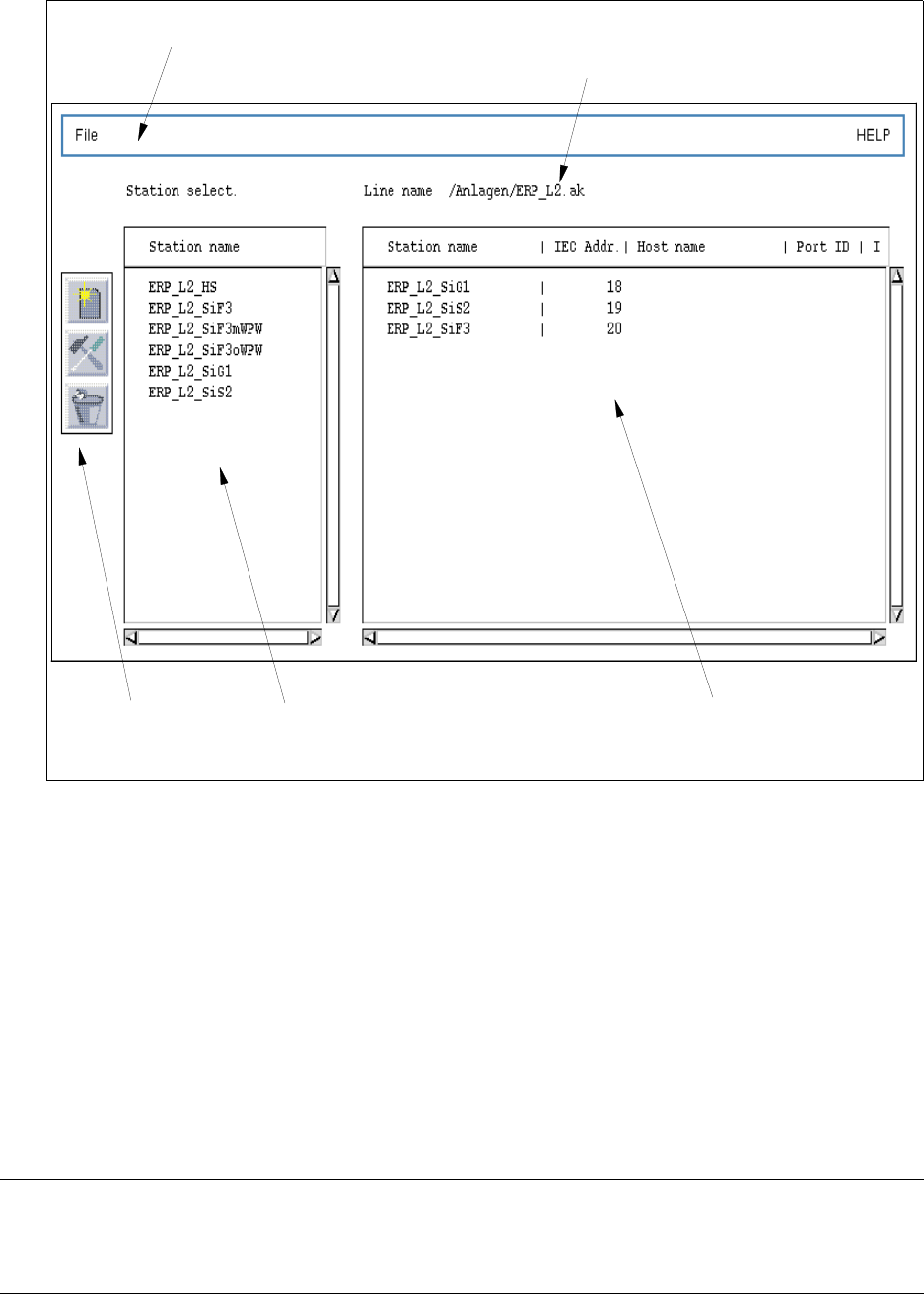
Fig. 12.2.1 "Line Editor" Main Window
The main window is subdivided as follows:
- Menu bar
- Selection field "Station selection"
- View area
- Command area
Menu Bar
The menu bar contains the "FILE" and "HELP" menus.
NOTE
Since the functions and the operation of the "FILE" and "HELP" menus are similar to those in other
application programs of the line computer, they are described in detail in chapt. 2.
Menu bar
Command area
Selection field
"Station selection"
View area
"Stations of the line"
Name of line