00191413-01.pdf - 第388页
12 Production Tools / Station and Line Confi guration User Manual Line Computer UNIX 12.2 Line Editor Software Version 501.xx 01/99 Issue 12 - 26 "Station selection" Selection Field All con figur ed station s a…
User Manual Line Computer UNIX 12 Production Tools / Station and Line Configuration
Software Version 501.xx 01/99 Issue 12.2 Line Editor
12 - 25
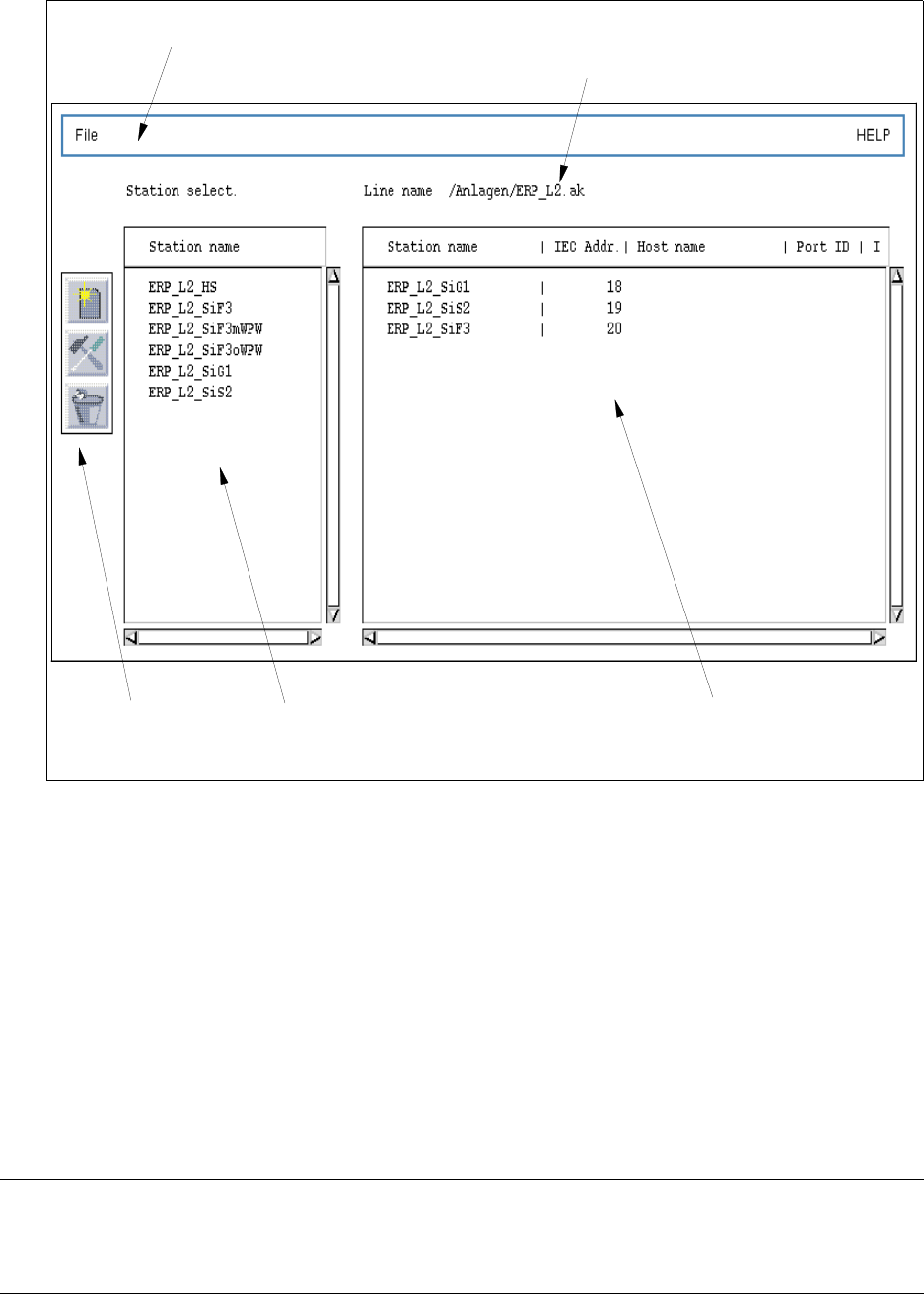
Fig. 12.2.1 "Line Editor" Main Window
The main window is subdivided as follows:
- Menu bar
- Selection field "Station selection"
- View area
- Command area
Menu Bar
The menu bar contains the "FILE" and "HELP" menus.
NOTE
Since the functions and the operation of the "FILE" and "HELP" menus are similar to those in other
application programs of the line computer, they are described in detail in chapt. 2.
Menu bar
Command area
Selection field
"Station selection"
View area
"Stations of the line"
Name of line

12 Production Tools / Station and Line Configuration User Manual Line Computer UNIX
12.2 Line Editor Software Version 501.xx 01/99 Issue
12 - 26
"Station selection" Selection Field
All configured stations are listed here (see also page 12 - 2).
They can be added individually to the current line with the aid of the appropriate command (see section 12.2.1.1).
View Area
All stations forming already part of the current line are displayed in this area together with their parameters.
Command Area
After the activation of the appropriate command in this area, selected stations can be added to the overall line
or be removed from it. Moreover, the parameters of stations that are already contained in the line can be changed
(see section 12.2.1.1).
12.2.1.1 Command Area of Line Editor
The commands are symbolized by icons. They determine the action that is to be performed.
After the activation of a command in this area, the selected station can be manipulated depending on the
command selected.
For the execution of the commands the same procedure applies:
● First select a station in the selection field or view area (depending on the function of the com-
mand),
● then click on the desired command.
Now the action (command) will be performed.
- (Allocate)
If this icon is active, it is possible to add a configured station to the current line.
● Select the desired station from the "Station selection" selection field.
● Click on the icon.
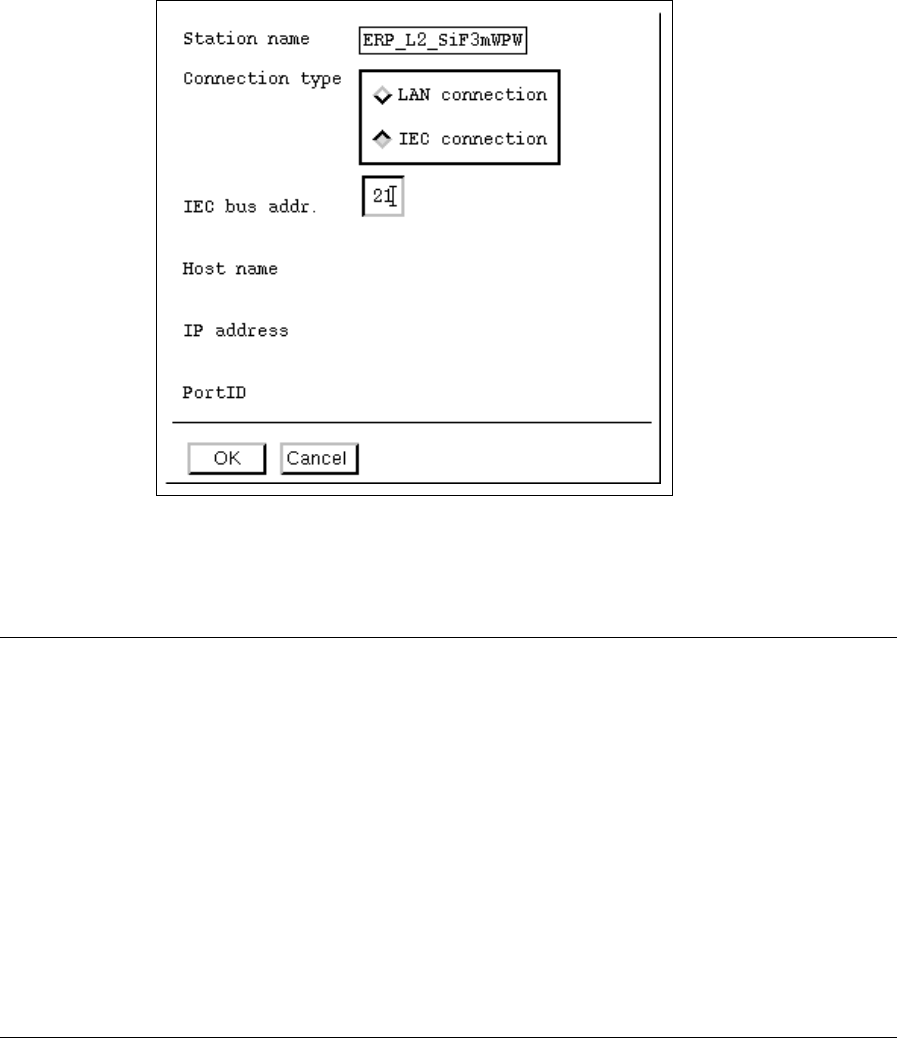
The window for entering the station parameters is opened.
User Manual Line Computer UNIX 12 Production Tools / Station and Line Configuration
Software Version 501.xx 01/99 Issue 12.2 Line Editor
12 - 27
● Activate the LAN connection or IEC connection button for the connection type desired.
● Enter the parameters in the appropriate editing fields.
NOTE
Only those parameters can be edited that are required or possible for the connection type selected.
IEC connection:
- Each IEC bus address may be assigned only once and must be consistent with the IEC bus
address set at the station (acceptable is any figure between 1 - 30 for a SIPLACE station, and
any figure between 8 - 30 for an HS180 station).
LAN connection:
- Any name desired can be entered for the host name (max. 17 characters).
- The IP-address (Internet address) is to be entered in four sections (editing fields). In
each section a number between 000 and 255 must be entered, e.g. "139.10.2.16".
- For the Port ID a number between 4000 and 7000 is to be entered.
● To accept the entries, click on OK.
If all entries are correct, the window closes and the station is integrated into the overall line.
Subsequently, the name of the station including the parameters entered is displayed in the view
area.