00191413-01.pdf - 第418页
13 Production Tools / Set-Up User Manu al Line Computer UNIX 13.1 Set-Up Editor (Feeder Part and W PC Editors) Software Version 501.xx 01/99 Issue 13 - 20 13.1.3. 5 Packaging E ditor for Wa ffle-Pac k Tr ays The waffle- …
User Manual Line Computer UNIX 13 Production Tools / Set-Up
Software Version 501.xx 01/99 Issue 13.1 Set-Up Editor (Feeder Part and WPC Editors)
13 - 19
-
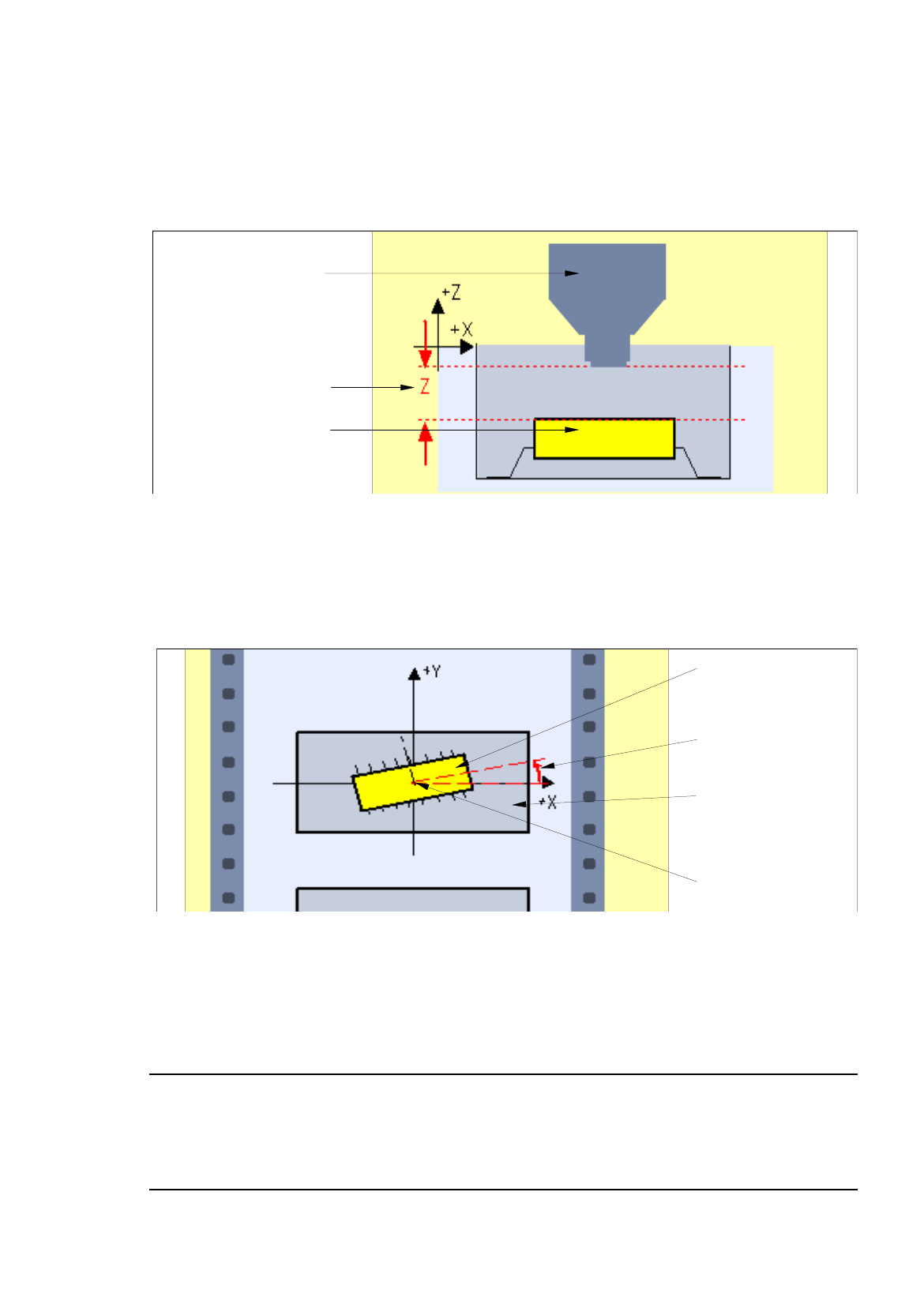
Z [mm]
Correction of the pick-up position in Z-direction: modified pick-up height of the component from the
feeder division (default value: 0.000, corresponds to the center of the feeder division).
See Fig. 13.1.12.
Fig. 13.1.12 Correction of the Pick-Up Position in Z-Direction
-
Pick-up ang. [degr]
Pick-up angle (rotational angle) of the component in the feeder division (default value: 0.00).
See Fig. 13.1.13. Only the following angles may be used: 0°, 90°, 180°, 270°.
Fig. 13.1.13 Pick-Up Angle of the Component in the Feeder Division
-
Vibrat. time [ms]
Vibration time (= time required for supplying the next component) of the selected feeder type.
(default value: minimum value in ms)
NOTE
If offset values were entered that are not possible for the selected feeder type, the respective editing
fields are surrounded by a red frame. Moreover, for the vibration time an error message is displayed.
The invalid values must first be corrected before all values can be accepted.
nozzle
component
z
[
mm
]
component
pick-up an
g
le
[
de
g
r
]
tape pocket
center of
component and
feeder division
13 Production Tools / Set-Up User Manual Line Computer UNIX
13.1 Set-Up Editor (Feeder Part and WPC Editors) Software Version 501.xx 01/99 Issue
13 - 20
13.1.3.5 Packaging Editor for Waffle-Pack Trays
The waffle-pack trays are defined in the Packaging Editor. It must be opened separately for each individual
waffle-pack tray.
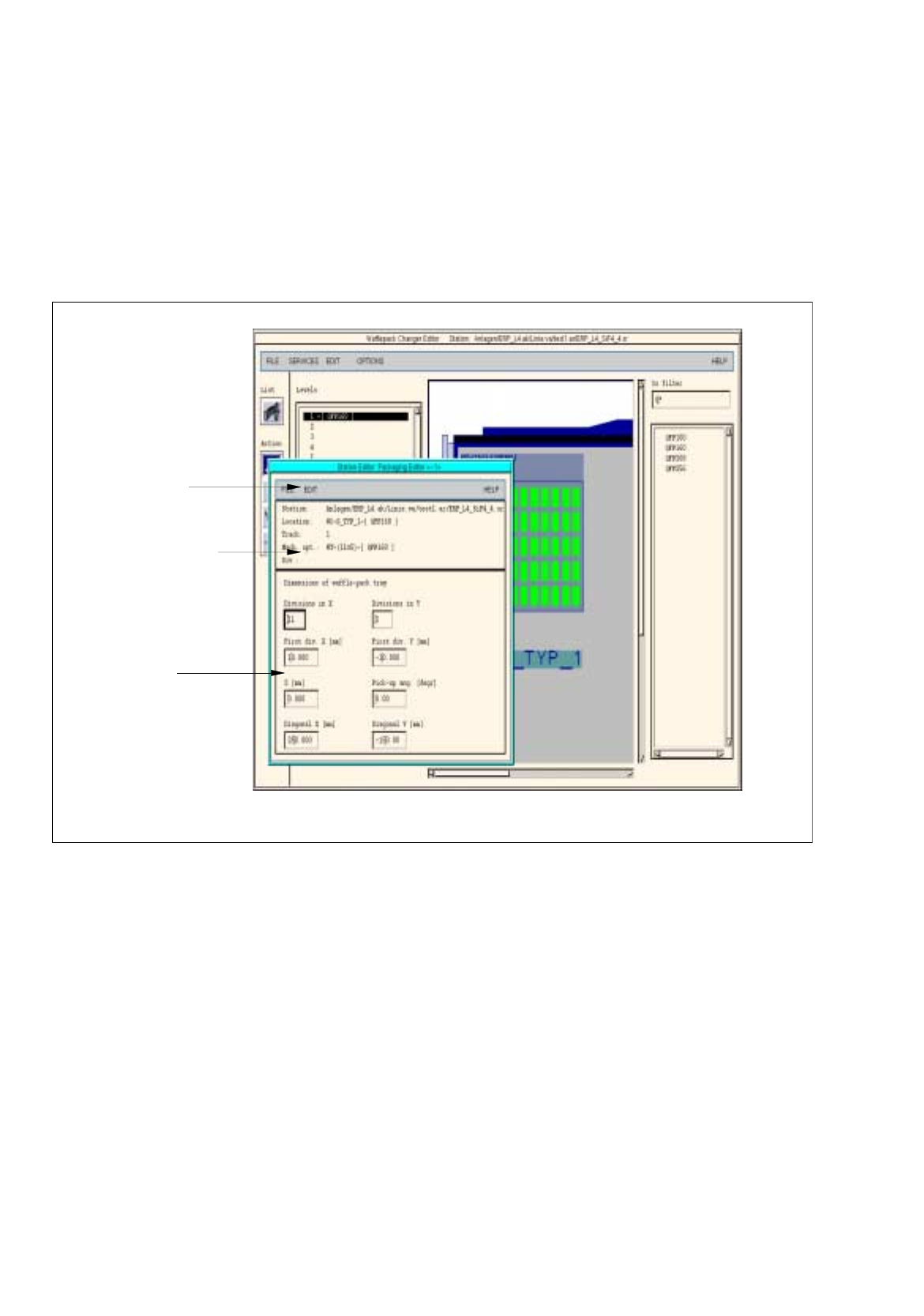
The number of the divisions in X and Y-directions are defined in the Packaging Editor. Moreover, the coordinates,
the pick-up angle and the diagonal for a given component are stated (see Fig. 13.1.14).
Fig. 13.1.14 Packaging Editor for Waffle-Pack Trays
The Packaging Editor for waffle-pack trays is subdivided into the following areas:
-
Menu bar
-
Identification field
-
Editing area
editin
g
area
menu bar
identification field

User Manual Line Computer UNIX 13 Production Tools / Set-Up
Software Version 501.xx 01/99 Issue 13.1 Set-Up Editor (Feeder Part and WPC Editors)
13 - 21
Menu Bar
The menu bar contains the menus "FILE", "EDIT" and "HELP".
NOTE
The functions and the operation of the menus "FILE" and "HELP" are similar to those in other application
programs of the line computer and are described in detail in chapt. 2 "General Information on Using the
Program".
EDIT
Menu
The EDIT menu contains the following options:
-
Reset data
The corrections are deleted from all editing fields. The factory-set default values are redisplayed.
-
Delete comp.
The component is deleted from the feeder division. This is indicated by a minus sign in the identifica-
tion field.
Identification Field
The identification field contains the following data which cannot be edited:
-
Station:
Name of the current station including "Anlagen/line/subline/set-up/
station name"
-
Location:
Designation of the current waffle-pack tray carriers
-
Track:
Number of the track or level on which the waffle-pack tray carrier is set up
with the selected waffle-pack tray
-
Mach. opt:
Waffle-pack tray with information on the number of the divisions in X and
Y-directions (e.g. 1x1) and the components set up therein. A minus sign
signifies that no component has been defined.
-
Div.:
No entry
Editing Area
Corrections are entered in the editing area which are required for the accurate removal of the components.
When the Packaging Editor is opened, the factory-set default values or the values that were entered most
recently for a given component, are displayed in the editing fields.
The values in the editing area can be changed by clicking on the individual editing fields. The values are accepted
by pressing the Enter key after each correction made.
If the entries are not to be accepted, it is possible to reset the values on the EDIT menu to the default values
using the "Reset data" option.