00191413-01.pdf - 第425页
User Manual Line Computer UNIX 13 Production Tools / Set-Up Software Version 501.xx 01/99 Issue 13.1 Set-Up Editor (Feeder Part and WPC Editors) 13 - 27 - Move If this icon is active, a nozzl e can be m oved to an other …
13 Production Tools / Set-Up User Manual Line Computer UNIX
13.1 Set-Up Editor (Feeder Part and WPC Editors) Software Version 501.xx 01/99 Issue
13 - 26
Menu Bar
The menu bar contains the menus "FILE", "EDIT" and "HELP".
NOTE
The functions and the operation of the menus "FILE" and "HELP" are similar to those in other application
programs of the line computer and are described in detail in chapt. 2 "General Information on Using the
Program".
EDIT
Menu
The EDIT menu contains the following option:
-
Reset
This function cannot be executed as of yet.
Identification Field
The identification field contains the following data which cannot be edited:
-
Station:
Name of the current station including Overall system/subline/line/set-up/
station name
-
Mach.opt.:
Name of the Nozzle Changer
-
Location:
Name of the location where the machine option is set up
Command area
Commands are available in the command area by means of which nozzles can be allocated, moved and deleted.
For a commond to be executed, it must be clicked on. The icon turns gray then.
-
Create
If this icon is active, a nozzle can be allocated to a location in the Nozzle Changer.
NOTE
If the Machine Options Editor was invoked for an HS-50 placement station in the Feeder Part Editor,
an additional (inactive) icon for "Create" is displayed in the bottom portion of the command area
(see Fig. 13.1.19). This icon enables a second nozzle changer to be set up in the station configuration
(see chapt. 12, section 12.1.3.5).
●
Click on icon in the command area.
●
Click on the target location in the Divisions selection field.
●
Click on a nozzle in the Nozzle selection field.
The number of the nozzle is then entered in the target location.
User Manual Line Computer UNIX 13 Production Tools / Set-Up
Software Version 501.xx 01/99 Issue 13.1 Set-Up Editor (Feeder Part and WPC Editors)
13 - 27
-
Move
If this icon is active, a nozzle can be moved to another location within a Nozzle Changer.
●
Click on icon in the command area.
●
Click on the target location in the Divisions selection field.
●
Click on the nozzle you wish to move.
The moved nozzle is displayed in the target location (division).
-
Delete
If this icon is active, a nozzle can be deleted from a location in the Nozzle Changer.
●
Click on icon in the command area.
●
Click on the nozzle at the particular location.
The nozzle is deleted from the location without any verification query being displayed.
Selection Field "Divisions"
This selection field contains a listing of all Nozzle Changer locations in numerical sequence. Nozzles can be
allocated to empty locations as required. If nozzles were assigned to nozzle changer locations upon setting up
the station configuration, such allocations cannot be changed in the Feeder Part Editor.
Selection Field "Nozzle"
This selection field contains a listing of all factory-defined nozzles. This list cannot be changed. Nozzles are
described as follows:
Example:
t_Pip~752 t
= default nozzle
Pip
= nozzle
752
= nozzle type
13 Production Tools / Set-Up User Manual Line Computer UNIX
13.1 Set-Up Editor (Feeder Part and WPC Editors) Software Version 501.xx 01/99 Issue
13 - 28
13.1.3.7 RV Head Nozzle Configuration / Machine Options Editor
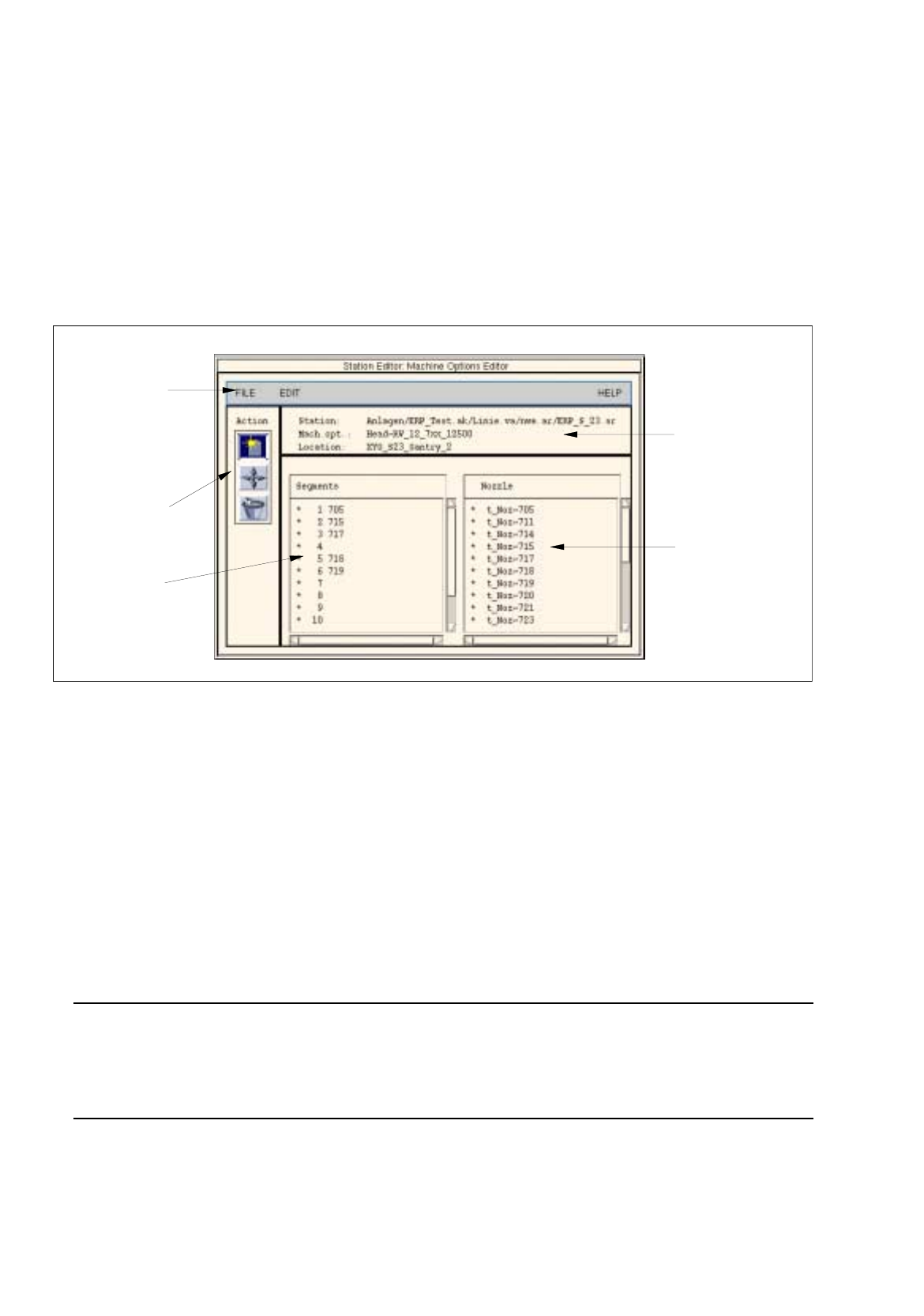
Clicking on the "RV head nozzle config." option on the SERVICES menu causes the window "Machine Options
Editor" to be opened (see Fig. 13.1.20).
The RV head with the required nozzles can be configured for a given setup in the Machine Options Editor. The
nozzles are allocated to the individual segments of the RV head. The nozzles can be moved and deleted within
the RV head.
Abb. 13.1.20 Komponentendaten-Editor, Pipettenkonfiguration RV-Kopf
The Machine Options Editor is subdivided into the following areas:
-
Menu bar
-
Identification field
-
Command area
-
Selection field "Segments"
-
Selection field "Nozzle"
Menu Bar
The menu bar contains the menus "FILE", "EDIT" and "HELP".
NOTE
The functions and the operation of the menus "FILE" and "HELP" are similar to those in other application
programs of the line computer and are described in detail in chapt. 2 "General Information on Using the
Program".
menu bar
identification field
selection field
"Nozzle"
command
selection field
"Se
g
ments"
area