00191413-01.pdf - 第476页
14 Control / Cont rol Modules User Manual Line Computer UNIX 14.4 Set-Up Modification Generator Software Version 501.xx 01/99 Issue 14 - 40 14.4.3.1 OPTIONS Me nu - Overwriting of files with/w ithout con firmatio n This …
User Manual Line Computer UNIX 14 Control / Control Modules
Software Version 501.xx 01/99 Issue 14.4 Set-Up Modification Generator
14 - 39
14.4.3 Selection Window of Set-Up Modification Generator
In the following, the different areas of the selection window and their functions are explained.
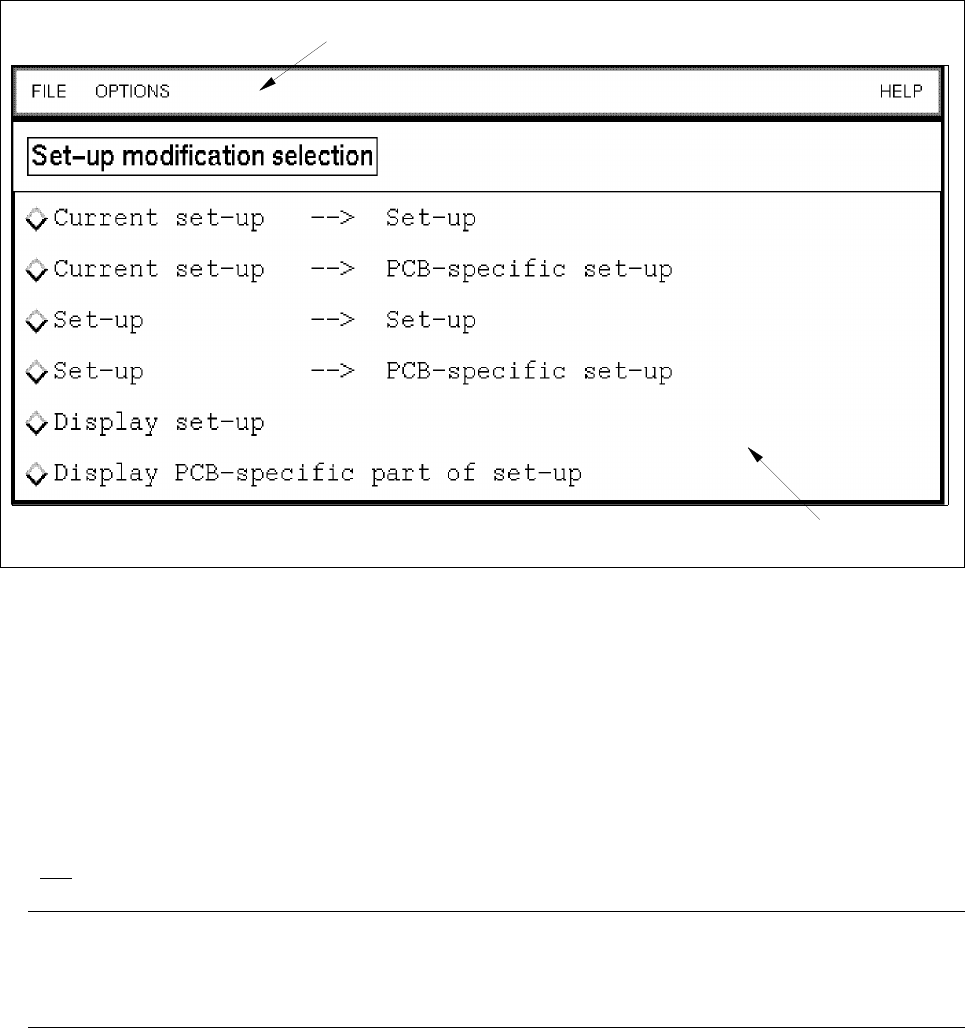
Fig. 14.4.1 Selection Window of Set-Up Modification Generator
The selection window is subdivided as follows:
- Menu bar
- Selection area
Menu bar
The menu bar contains the menus "FILE", "OPTIONS" and "HELP".
The first
menu item of the "OPTIONS" menu is described in section 14.4.3.1.
NOTE
Since the functions and the operation of the menus "FILE", "OPTIONS" and "HELP" are similar to those in
other application programs of the line computer, they are described comprehensively in chapt. 2.
Selection area
The operator can select from this window which type of changeover he wishes to perform or initiate.
with the following functions:
menu bar
selection area

14 Control / Control Modules User Manual Line Computer UNIX
14.4 Set-Up Modification Generator Software Version 501.xx 01/99 Issue
14 - 40
14.4.3.1 OPTIONS Menu
- Overwriting of files with/without confirmation
This software toggle switch enables a verification query to be displayed or suppressed prior to the
overwriting of existing data.
● Select OPTIONS --> Overwrite with/without confirm.
NOTE
When overwriting with confirmation has been set and, for example, an existing set-up is selected
from the FSB for the creation of a PCB-specific follow-up set-up, a dialog box containing an appro-
priate message is displayed which must be confirmed (see section 14.4.3.2).
When without
confirmation is set, the data will be overwritten without any verification query!
All settings selected under "OPTIONS" are also valid in the main window of the Set-Up Modification
Generator. They can, however, also be changed subsequently on the menu of the main window (see
section 14.4.4).
14.4.3.2 Selection Area
This area provides the following actions for the generation of changeover instructions - in accordance with
certain criteria - which can be initiated by the operator by clicking on the corresponding button.
The terms used in the connection with set-ups are described in section 14.4.1.
- Current set-up --> Set-up
This option enables the operator to obtain instructions for changeover from the current set-up to a
follow-up set-up which has to be specified (selected).
● Click on button Current set-up --> Set-up.
The selection window is closed and the main window of the Set-Up Modification Generator toge-
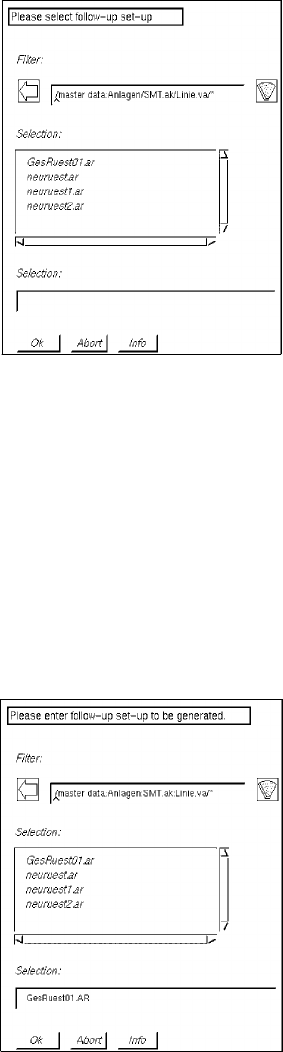
ther with the FSB for the selection of the follow-up set-up, which is located above it, is opened.
● Successively select line "*xx.ak" and subline "*xx.va" by double-clicking.
● Select follow-up set-up "xx.ar" from the FSB (see example below) by double-clicking.
User Manual Line Computer UNIX 14 Control / Control Modules
Software Version 501.xx 01/99 Issue 14.4 Set-Up Modification Generator
14 - 41
The FSB is closed and the main window of the Set-Up Modification Generator is displayed on the
screen (see Fig. 14.4.2).
- Current set-up--> PCB-specific set-up
This option enables the operator to obtain instructions for changeover from the current set-up to a
follow-up set-up for the production of a specific PCB type. A follow-up set-up is created in addition.
● Click on button Current set-up --> PCB-specific set-up.
The selection window is closed and the main window of the Set-Up Modification Generator
together with the FSB for the selection of the PCB, which is located above it, is opened.
● For the selection of the target setup, successively select by double-clicking the PCB "*xx.la",
"*.ad", line "*xx.AK" and subline "*xx.VA".
A list of possible target set-ups is now displayed in the FSB.