00191413-01.pdf - 第48页
2 General Information on Using the P rogram User Manual Line Co mputer UNIX 2.2 Window System Software Version 501.xx 01/99 Issue 2 - 14 2.2.2 Layout of a Window Fig. 2.2.3 Layout of a Window Window Frame The frame s urr…
User Manual Line Computer UNIX 2 General Information on Using the Program
Software Version 501.xx 01/99 Issue 2.2 Window System
2 - 13
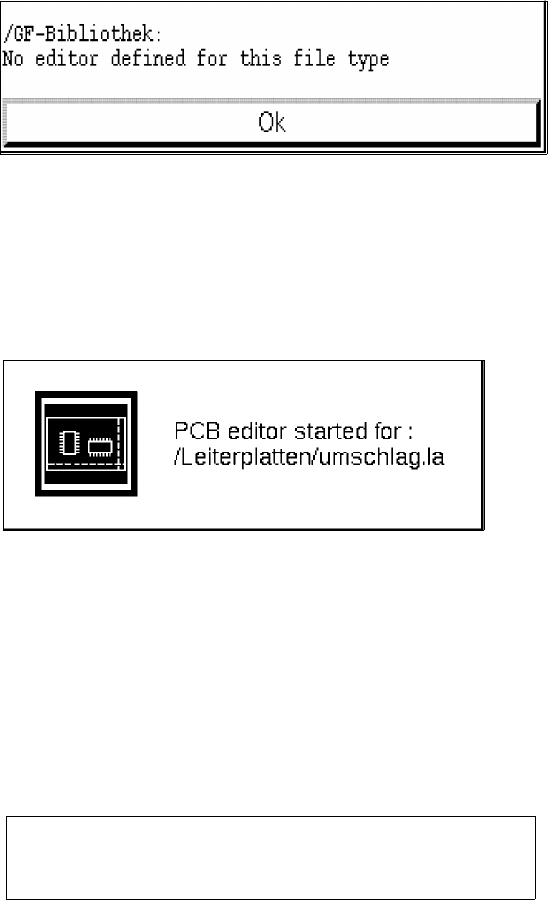
Dialog Box
Sometimes it is necessary to select among different actions, to enter file names or to acknowledge a
message. In all of these cases a so-called
Dialog Box
appears on the screen. It is used to give user
information or to request a user response. It may, however, also contain warning messages or explanations
as to why a command cannot be executed. The contents of a dialog box always request a user response.
Application Start-Up Window
Whenever the Component, PCB, GF or Adhesive Pattern Editor or the MaDaMaS system is started, a
corresponding application start-up window is displayed. This window is closed as soon as the start-up
procedure is completed and the main window of the started application is opened on the screen.
Help Window of the Online Help
Help Window Whenever the online help is activated (see section 2.5.3) and the mouse pointer is dragged
to an object for which a help text (e.g. the "Delete" command) or graphical display is available, the
corresponding text or graphical representation is displayed in a window directly adjacent to the selected
object. When the mouse pointer is moved away from the object, the help window is automatically closed.
Help Window of the Help Index
Calling up the Help Index (see section 2.5.3) causes the help window containing a listing of the available
topics to be opened. The desired topic can be selected from the window with the mouse. The corresponding
help information about the selected topic is then displayed in the help window.
Delete all (!!!) subsequently selected PCBs
WITHOUT VERIFICATION CHECK !!!!
2 General Information on Using the Program User Manual Line Computer UNIX
2.2 Window System Software Version 501.xx 01/99 Issue
2 - 14
2.2.2 Layout of a Window
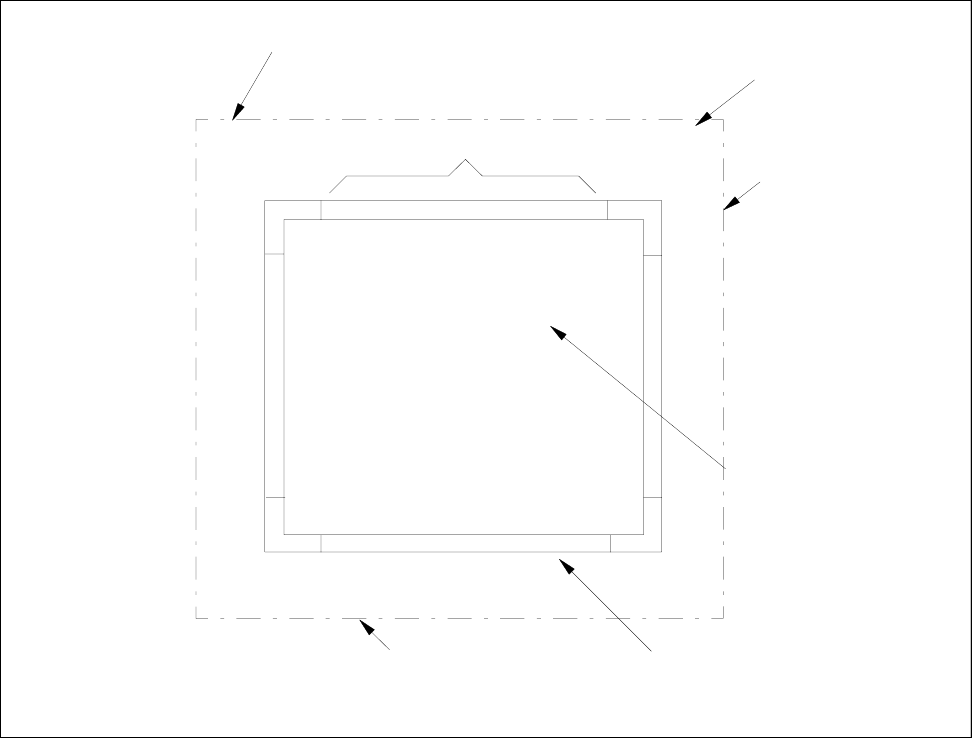
Fig. 2.2.3 Layout of a Window
Window Frame
The frame surrounding the window of an application consists of different components.
These components and their functions are briefly described in the following.
Title Bar
The title bar displays the application program’s name.
By clicking on this bar and holding down the mouse button the window can be moved.
desktop menu bar
main menu
border of the screen desktop (screen)
title bar
SMD symbol
window

User Manual Line Computer UNIX 2 General Information on Using the Program
Software Version 501.xx 01/99 Issue 2.2 Window System
2 - 15
Desktop Menu Bar
The functions of the menus contained on the menu bar are described in chapt. 3 of this manual.
A menu is opened if
● the menu name is clicked on with the left mouse button.
The menu is now opened.
Selecting an option:
● Click on menu option with the left mouse button.
The menu closes and the selected function is executed.
Main Menu (to be used in the case of problems in the LC program, following any changes to the system
settings and to „shut down" the computer)
The
Main Menu
("Root Menu") is displayed if
● the right (or untere) screen border is clicked on with the left mouse button thereby keeping the
mouse button depressed. (The menu remains displayed until the mouse button is released
again).
Selecting an option:
● Hold down mouse button and position mouse cursor on desired menu option, then release mouse
button.
The menu is closed and the selected function is executed.
Menu options Meaning
LC-Start line computer program starting after "LR-End" (see page 2 - 18)
LC-End closing desktop and terminating Line Computer program
Mount CD To integrate the CD ROM drive into the file system in order to allow CDs to be
accessed from outside the LC program (after “LC End”)
(e.g. to install Windows NT on the station computer).
Unmount CD To remove the CD ROM drive from the file system.
NOTE
On opening the Data Manager (see chapt. 4, section 4.3) the CD ROM drive will be automatically
“mounted” and may be “unmounted” again by using "Unmount CD".
Logout terminating line computer working session
Shutdown terminating line computer session and "running down" computer
(see section 2.1.3)