00191413-01.pdf - 第564页
17.3 Description of Components and PCBs User Manual Line Computer UNIX 17.3.2 PCB 2: Focus on Packa g e Form Description Software Vers ion 501.xx 01/99 Issue 17 - 32 FILE Save FILE Save FIL E Quit All ocati ng a packag e…
User Manual Line Computer UNIX 17.3 Description of Components and PCBs
Software Version 501.xx 01/99 Issue 17.3.2 PCB 2: Focus on Packa
g
e Form Description
17 - 31
To create the first pin group (pins 5 and 7) at the top and to adopt the pin model from the pin group at
the bottom, proceed as follows:
75. Click on the
Create
button.
The Group data window is opened.
76. Overwrite the default values in the editin
g
fields with the pin
g
roup data for packa
g
e form 1503
(
see dis-
pla
y
s in On-Line Help
)
and confirm b
y
pressin
g
the Enter ke
y
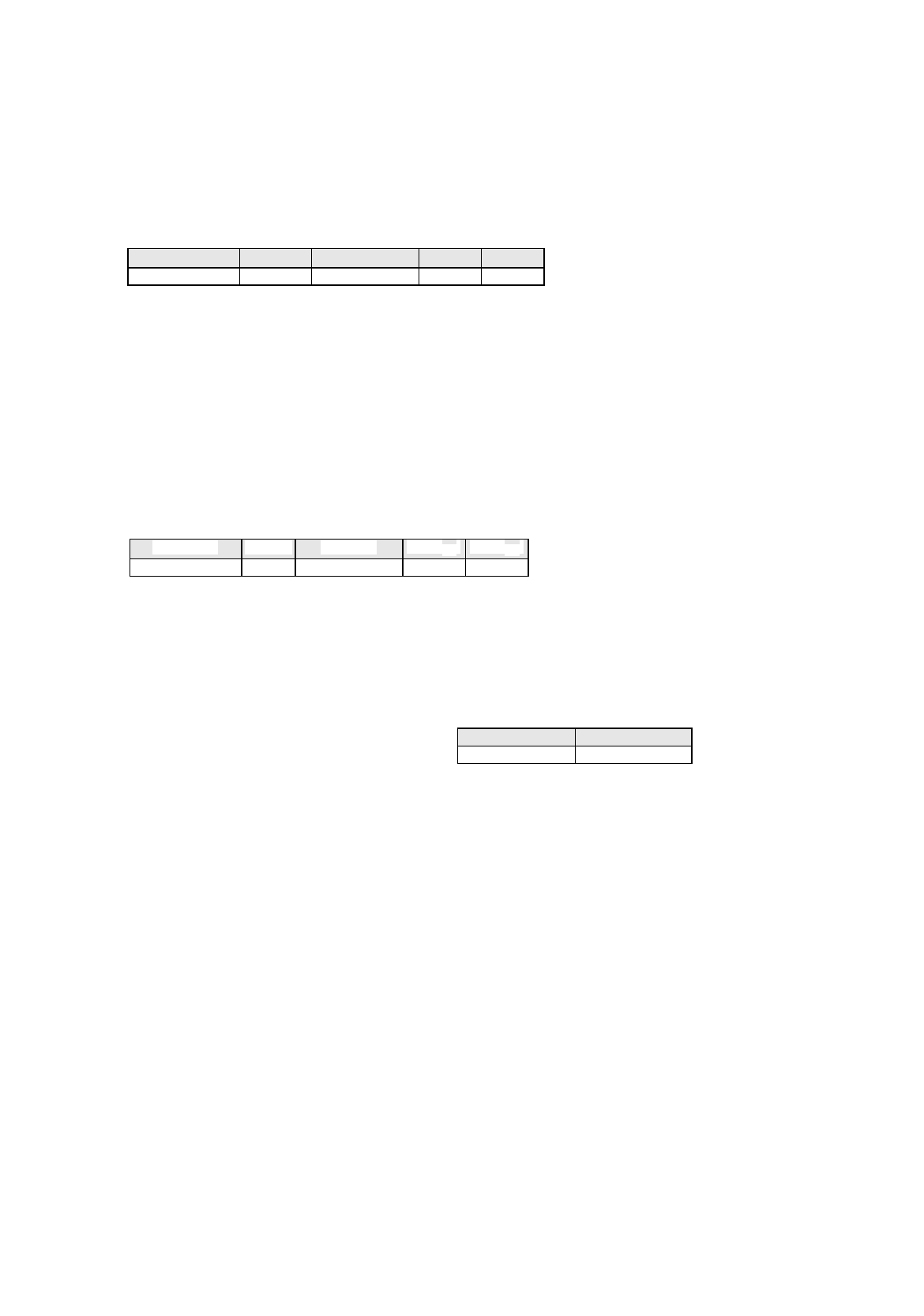
, here: see chart:
Ever
y
time the Enter ke
y
is pressed, the displa
y
of the pin
g
roup
(g
ra
y
areas
)
is updated.
77. In the selection field Model selection click on the model data of the lower pin
g
roup created.
78. Click on the
OK
button.
The Group data window is closed. The Model data for the upper pin
g
roup are adopted. The packa
g
e
form is now displa
y
ed with the pins on the bottom side and the two pins on the top side.
To create the second pin group at the top (pin 6), proceed as follows:
79. Click on the
Create
button.
The Group data window is opened.
80. Overwrite the default values in the editin
g
fields with the Pin
g
roup data for packa
g
e form 1503
(
see dis-
pla
y
s in On-Line Help
)
and confirm the entr
y
b
y
pressin
g
the Enter ke
y
, here: see chart:
Ever
y
time the Enter ke
y
is pressed the displa
y
of the pin
g
roup
(
g
ra
y
areas
)
is updated.
81. Click on the
OK
button.
The Group data window is closed.
To define the pin model for the second pin group at the top, proceed as follows:
82. Select one of the two pin
g
roups b
y
clickin
g
on it.
83. Click on the
Pin/Ball
button.
The Pin model data window is opened.
84. Enter the pin model data, here: see chart:
In this example, the automaticall
y
calculated values of the other editin
g
fields can be adopted.
The pin model is displa
y
ed
g
raphicall
y
and updated after ever
y
entr
y
.
85. Click on the
OK
button.
The Pin model data window is closed. The pins of the packa
g
e forms are now completel
y
defined. The
displa
y
corresponds to the packa
g
e form on the data sheet.
To define the handling data for package form 1503, proceed as follows:
86. Activate the
Handling data
button.
The screen for enterin
g
the handlin
g
data is displa
y
ed.
87. Activate the
Nozzle
button in the command area.
88. Click on the
Create
button.
The Nozzle t
y
pe selection window containin
g
a list of the nozzle t
y
pes is opened.
89. Click on a nozzle, here:
615
.
The selection window closes, the nozzle is transferred to the view area.
90. Select all other nozzle re
q
uired accordin
g
l
y
, here:
618.
91. Activate the
Sensor type
button.
92. Click on the
Create
button.
The Sensor t
y
pe selection window containin
g
a list of the sensor t
y
pes is opened.
93. Click on the sensor t
y
pe
,
here:
9
.
The selection window closes, the sensor t
y
pe is transferred to the view area.
No. of pins Spacing Pin angle
X (BG
Off
) Y (BG
Off
)
1 1 90 0 2.625
Pin length BL Pin width b1
1.75 1.87
No. of pins Spacing e1 Pin angle
X (BG
Off
) Y (BG
Off
)
2 3.81 90 0 2.625
17.3 Description of Components and PCBs User Manual Line Computer UNIX
17.3.2 PCB 2: Focus on Packa
g
e Form Description Software Version 501.xx 01/99 Issue
17 - 32
FILE
Save
FILE
Save
FILE
Quit
Allocating a package
form to a feeder
continued from pa
g
e 17-30
Saving package form
to feeder allocation
Package form description for pack. form 1503
continued on pa
g
e 17-34
Saving package form
data

User Manual Line Computer UNIX 17.3 Description of Components and PCBs
Software Version 501.xx 01/99 Issue 17.3.2 PCB 2: Focus on Packa
g
e Form Description
17 - 33
94. In the ’Centerin
g
’ selection box, activate the applicable buttons, here:
Centering in head
.
95. In this example, the preselected settin
g
s for the handlin
g
values, the handlin
g
instructions and the ’Acce-
leration’ special handlin
g
option can be accepted as the
y
are. No chan
g
es are re
q
uired.
96. Click on the
Save
option on the
FILE
menu.
The data are saved.
To allocate a feeder to package form 1503, proceed as follows:
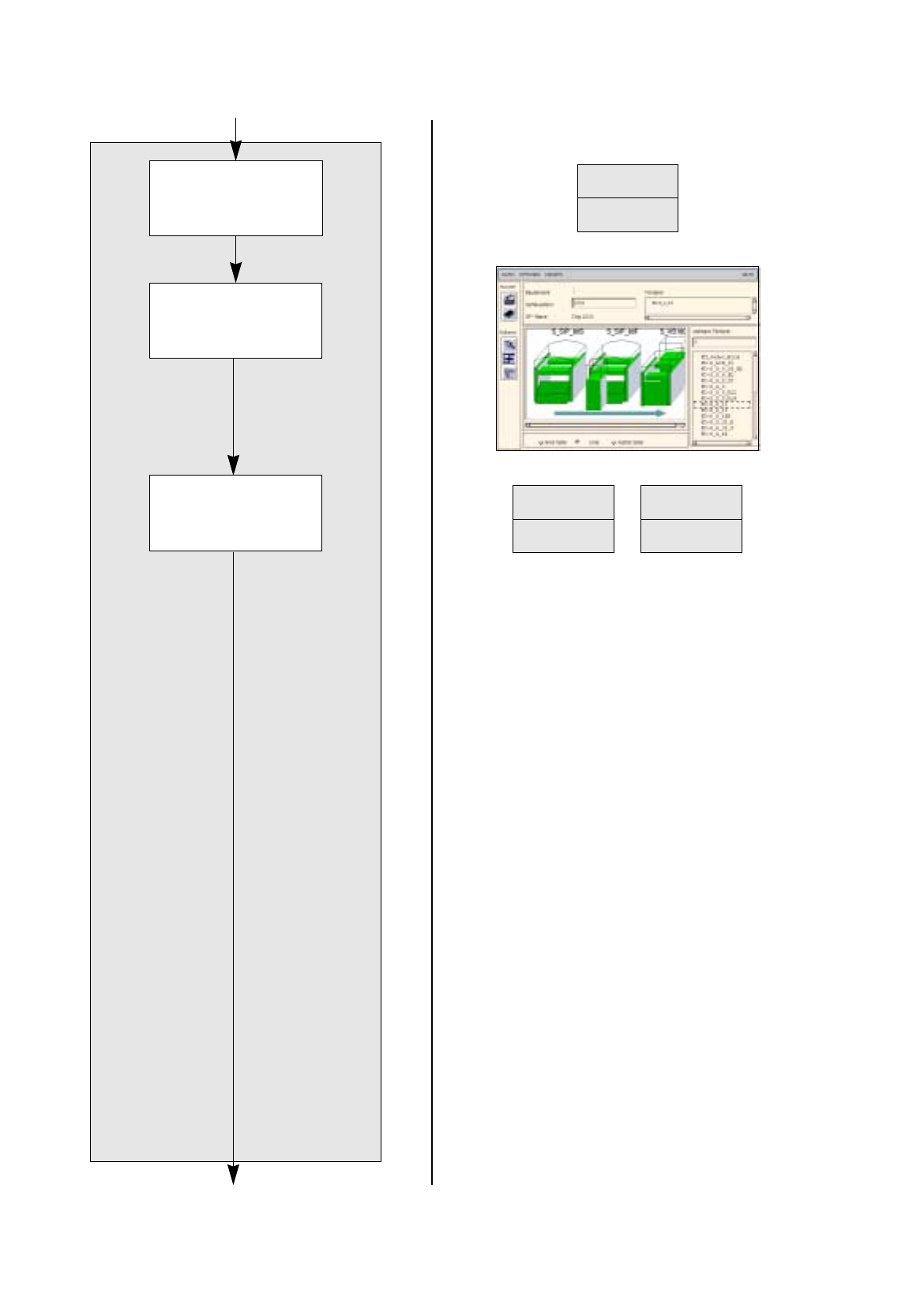
97. On the
SERVICES
menu click on the
Starting Feeder Editor
option.
The Feeder Editor is opened.
98. Activate the
Allocate
icon .
99. Click on the
Line
button.
The entire line is hi
g
hli
g
hted in li
g
ht-
g
reen.
100.Click on the appropriate feeder on the list of placeable feeders, here:
FD~S_G_12
.
The feeder is transferred to the Feeder selection field.
101.In the Feeder Editor click on the
Save
option on the
FILE
menu.
The data are now saved.
102.Click on the
Quit
option on the
FILE
menu.
The Feeder Editor is closed.
103.In the Packa
g
e Form Editor click on the
Quit
option on the
FILE
menu.
The Packa
g
e Form Editor is closed.