00191413-01.pdf - 第576页
17.3 Description of Components and PCBs User Manual Line Computer UNIX 17.3.3 PCB 3: Focus on Cluster Technique Software Version 501.xx 01/99 Issue 17 - 44 Creating a c luster conti nue d on pa g e 17-46 continu ed from …
User Manual Line Computer UNIX 17.3 Description of Components and PCBs
Software Version 501.xx 01/99 Issue 17.3.3 PCB 3: Focus on Cluster Technique
17 - 43
17.2.3.1 Package form description
PCB 3 consists of four clusters with three sin
g
le circuits each, all of which correspond to PCB 2.
For the packa
g
e form description refer to section 17.2.2.1
17.2.3.2 Component description
PCB 3 consists of four clusters with three sin
g
le circuits each, all of which correspond to PCB 2.
For the component description refer to section 17.2.2.2
17.2.3.3 Adhesive pattern description
PCB 3 consists of four clusters with three sin
g
le circuits each, all of which correspond to PCB 2.
For the adhesive pattern description refer to section 17.2.2.3.
17.2.3.4 PCB description
The offset values are to be determined automaticall
y
from Fi
g
. 17.3.7 on pa
g
e 17-41
(
solution on pa
g
e 17-51
)
.
To open the PCB Editor for a PCB, proceed as follows:
1. On the desktop click on the icon the PCB Editor .
The file selection window is opened.
2. Click on the
Selection
editin
g
field.
3. Enter the name of the PCB
,
here:
Example_3.la,
and click on the
OK
button.
A dialo
g
box is opened.
4. Click on the
TYPE
editin
g
field.
5. Enter a t
y
pe desi
g
nation, here:
Typ_1,
and click on the
OK
button:
The Component Editor is opened. The PCB is displa
y
ed as a rectan
g
le.
To specify the position of the PCB in the machine:
6. Activate the Coordinate s
y
stem icon .
7. Click on the PCB
(
rectan
g
le
)
.
A dialo
g
box containin
g
the displa
y
of four coordinate s
y
stems is opened.
8. Click on a coordinate s
y
stem, here:
0°
.
9. Click on the
OK
button.
The dialo
g
box is closed.
To enter the dimensions of the PCB, proceed as follows:
10. Activate the Select icon .
11. Click on the PCB
(
rectan
g
le
)
.
The rectan
g
le is hi
g
hli
g
hted in
g
reen.
12. Click on the
Cluster Editor...
option on the
SERVICES
menu.
The Cluster Editor is opened.
13. Enter the dimensions of the PCB, see Fi
g
. 17.3.7 on pa
g
e 17-41.
14. Click on the
Quit
option on the
FILE
menu.
The Cluster Editor is closed.
Defining fiducials:
no fiducials are present.
Defining ink spot:
no ink spot is present.
Entering placement positions:
the placement positions are defined at a later point in the sin
g
le circuits.
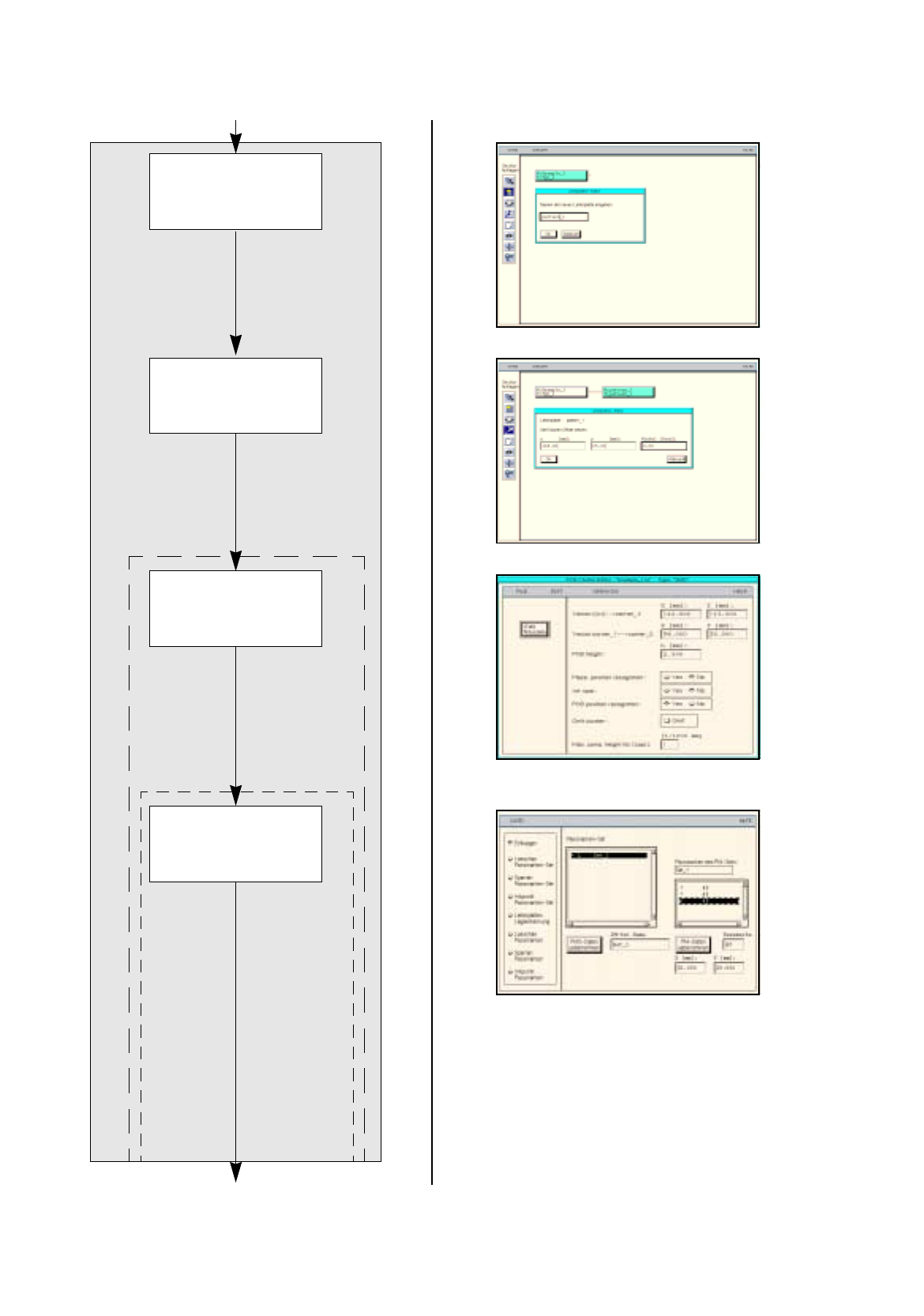
17.3 Description of Components and PCBs User Manual Line Computer UNIX
17.3.3 PCB 3: Focus on Cluster Technique Software Version 501.xx 01/99 Issue
17 - 44
Creating a cluster
continued on pa
g
e 17-46
continued from pa
g
e 17-42
Entering offset values
for the cluster
Entering dimensions
of the cluster
Defining
fiducials
Cluster Editor
Fiducial Editor
PCB description
User Manual Line Computer UNIX 17.3 Description of Components and PCBs
Software Version 501.xx 01/99 Issue 17.3.3 PCB 3: Focus on Cluster Technique
17 - 45
To create a cluster on the PCB, create as follows:
15. In the PCB Editor, activate the Create icon .
16. Click on the PCB, here:
Example_3
.
A dialo
g
box is opened.
17. Click on the editin
g
field.
18. Enter the name of the cluster, here:
pattern_1,
and click on the
OK
button.
The dialo
g
box is closed. The new cluster is displa
y
ed at the second level.
To enter the cluster offset values, proceed as follows:
19. Activate the Coordinate s
y
stem icon .
20. Click on the cluster, here:
pattern_1
.
A dialo
g
box is opened.
21. Click on the individual editin
g
fields and enter the offset values, see Fi
g
. 17.3.7 on pa
g
e 17-41.
22. Click on the
OK
button.
The dialo
g
box is closed.
To enter the dimensions of the cluster, proceed as follows:
23. Activate the Select icon .
24. Click on the cluster, here:
pattern_1
.
25. Click on the
Cluster Editor
option on the
SERVICES
menu.
The Cluster Editor is opened.
26. Enter the dimensions of the cluster, see Fi
g
. 17.3.7 on pa
g
e 17-41.
To define the fiducials for the cluster, proceed as follows:
27. In the Cluster Editor click on the
Edit fiducials
button.
The Fiducial Editor is opened.
28. Activate the
Insert
button.
29. Click on the
Fiducial set name
editin
g
field.
30. Enter a name for the new fiducial set, here:
Set_1
.
31. Click on the
Accept fiducial set
button.
The fiducial set Set_1
appears on the fiducial list.
32. Click on the fiducial set Set_1
on the fiducial list.
33. Click on the
Fiducial
editin
g
field.
34. Enter the fiducial number for the first fiducial, here:
48
.
35. Click on the individual editin
g
fields for the coordinates, enter
coordinates do not confirm with the Enter ke
y)
, here: see chart:
36. Click on the
Accept fiducial data
button.
The data of the fiducial are transferred to the list of the fiducials of the fiducial set.
37. Define the remainin
g
fiducials analo
g
ousl
y
, here:
fiducials
48
and
48
.
38. Activate the
PCB position recognition
button.
39. Click on the fiducial set Set_1 on the fiducial list.
The fiducial set name Set_1
is preceded b
y
an
L
for the PCB position reco
g
nition.
40. Click on the
Quit
option on the
FILE
menu.
The Fiducial Editor is closed.
41. Click on the
Quit
option on the
FILE
menu.
The Cluster Editor is closed.
Ficucial number X Y
48 5 5
48 5 111
48 145 5