00191413-01.pdf - 第65页
User Manual Line Computer UNIX 2 General Information on Using the P rogram Software Version 501.xx 01/99 Issue 2.5 Menu Bar in the Application Window 2 - 31 Explanation of Text Marking in the Help Window: In the foll owi…
2 General Information on Using the Program User Manual Line Computer UNIX
2.5 Menu Bar in the Application Window Software Version 501.xx 01/99 Issue
2 - 30
2.5.3.1 Basic Information on Using the Help Index
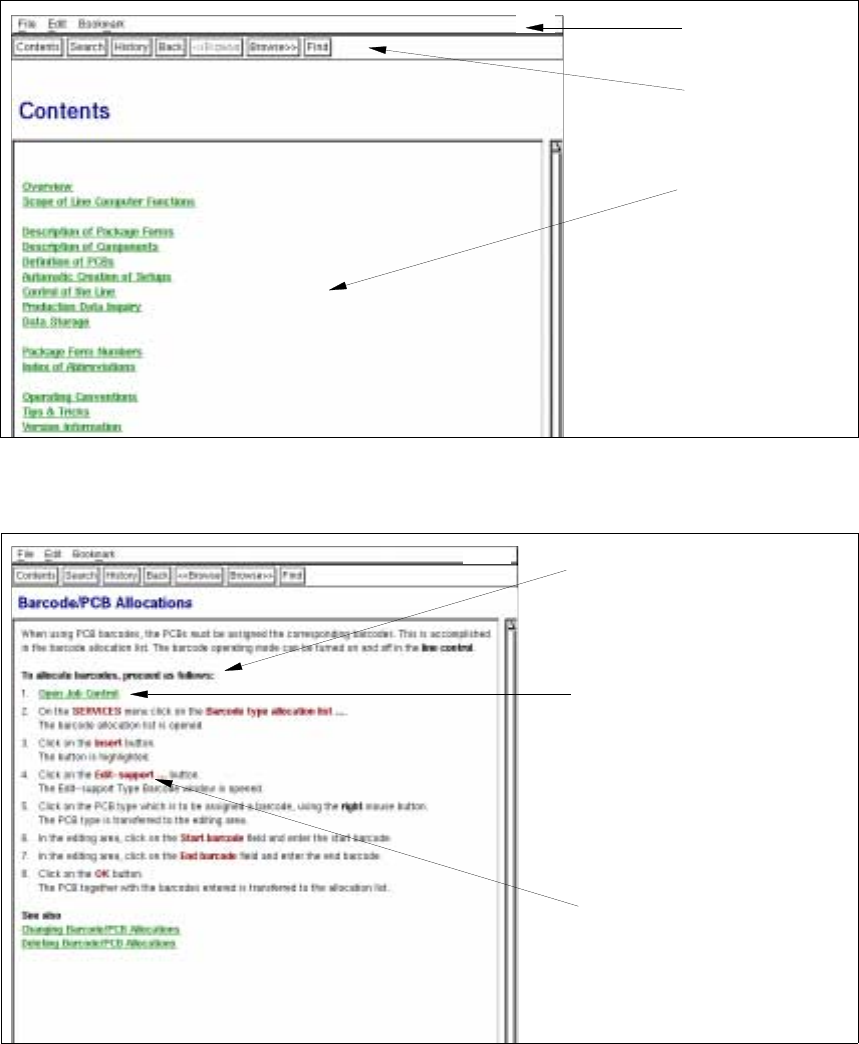
Invoking the Help Index
● Select HELP --> Index.
The Help window containing a list of all available Help topics is opened.
● Click on the desired topic.
The information about the selected topic is displayed in the Help window.
Menu bar
Command line
Selection list
of help topics
Help topic
Sensitive text area
(link to more
detailed information
on the current topic))
Term from the user interface
of the LC program
User Manual Line Computer UNIX 2 General Information on Using the Program
Software Version 501.xx 01/99 Issue 2.5 Menu Bar in the Application Window
2 - 31
Explanation of Text Marking in the Help Window:
In the following, the meaning of the different highlighting of terms or text portions in the help window is explained:
● As a rule, the terms of the help topics appear in green type and are underlined.
The Help Index comprises two týpes of underlining with different meanings:
- When a term or text portion underlined with a solid line is clicked on, the user obtains information on
the selected topic in the help window.
- The Help Index glossary contains terms underlined with a dotted line.
If such a term is clicked on, the user obtains, in a separate box, a quick definition of the term.
● Terms from the user interface of the LC program are highlighted in red.
They cannot be selected.
Menu Bar
The menus "File", "Edit" and "Bookmark" are contained on the menu bar.
- File
The "File" menu contains the "Exit" menu option by means of which the Help Index facility can be exited.
● Click on File --> Exit.
The Help window is closed.
- Edit
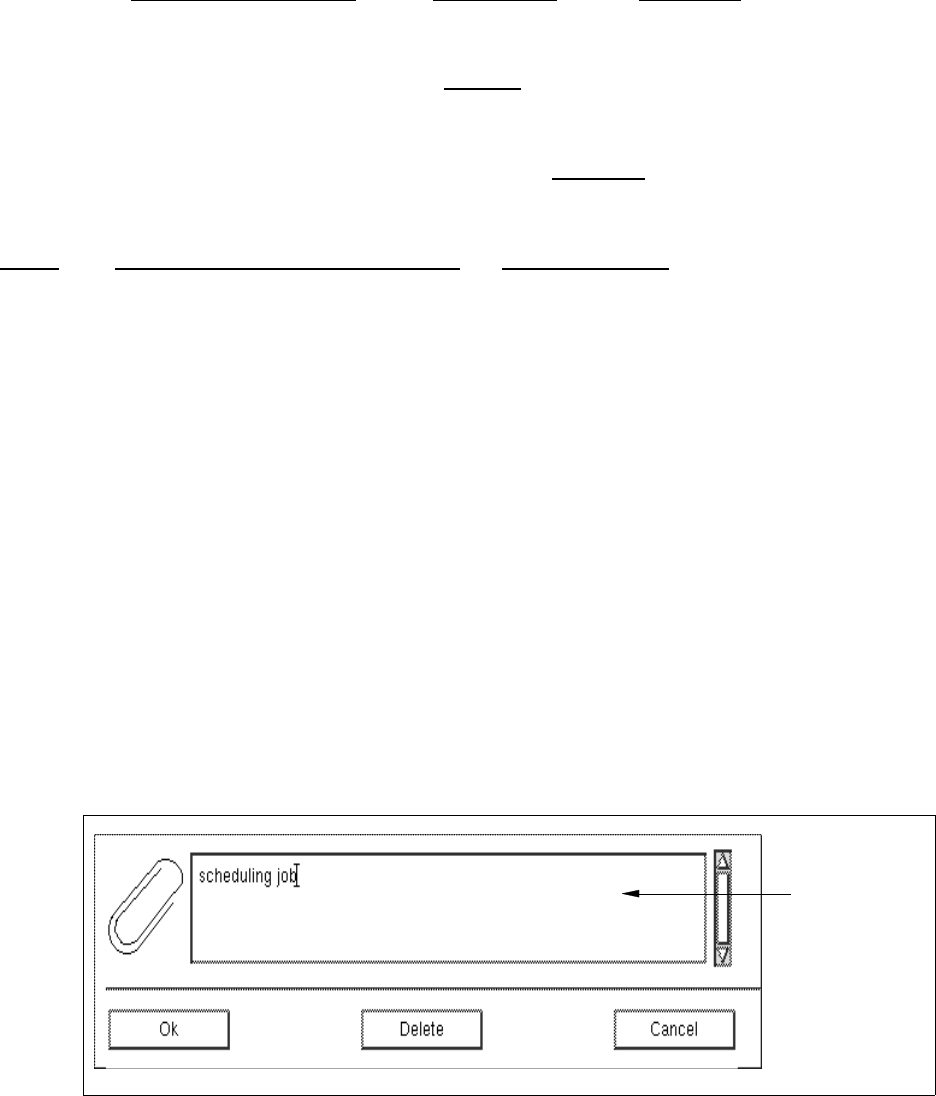
The "Edit" menu contains the "Annotate..." menu option. It allows the user to add his own notes to the
current Help topic.
● Select the Help topic to which you wish to add a note.
● Click on Edit --> Annotate...
The dialog box for entering the note is opened.
editing field
2 General Information on Using the Program User Manual Line Computer UNIX
2.5 Menu Bar in the Application Window Software Version 501.xx 01/99 Issue
2 - 32
● Enter the desired note in the editing filed and click on OK to confirm your entry.
The dialog box is closed, and in the Help window a paper clip symbol is displayed in the upper left
corner of the display area.
Editing the note (change or delete):
● Select the paper clip symbol by double-clicking. The dialog box is opened, and the note can be
edited with the keyboard as in any other text editor.
Or else:
● Click on the Delete button.
The dialog box is closed, and the annotation no longer exists.
- Bookmark
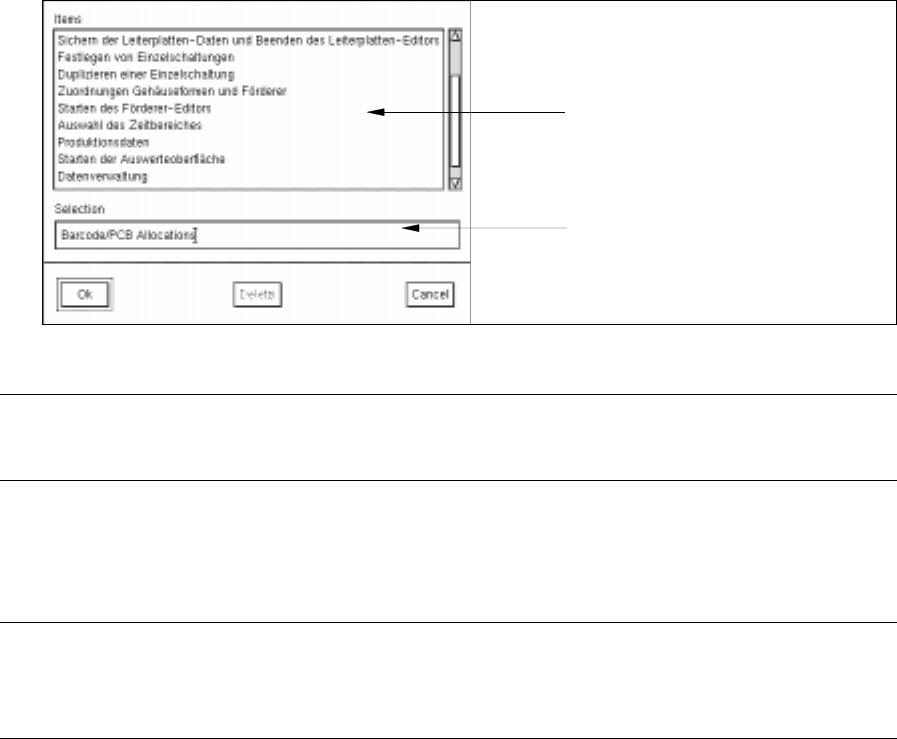
The "Bookmark" menu contains the "Define..." menu option. It lets the user mark a given place for
future reference. As soon as a bookmark has been defined for a help topic, the marked position can
be quickly reached from the "Bookmark" menu.
● Select the help topic for which the bookmark is to be defined.
● Click on Bookmark --> Define...
The following dialog box is opened.
The title of the current help topic is displayed as the bookmark name in the editing field.
NOTE
If you want to use another name for the bookmark, you can enter it in the editing field.
● Click on OK to confirm your entry.
The dialog box is closed, and the name of the bookmark is displayed in the "Bookmark" menu
underneath the "Define" command.
NOTE
All bookmarks defined in this manner are listed under the "Bookmark" menu.
list of the
defined bookmarks
editing field
(name of the bookmark)