00191413-01.pdf - 第88页
3 Desktop (Root W indow) User Manual Line Computer UNIX 3.2 Desktop User Interface Software Version 501.xx 01/99 Issue 3 - 18 - Replace GF-number Followin g any cha nges i n the GF l ibrary, th is me nu option i s used t…
User Manual Line Computer UNIX 3 Desktop (Root Window)
Software Version 501.xx 01/99 Issue 3.2 Desktop User Interface
3 - 17
- Convert the standard Siemens library range only
The standard configurations of nozzle and sensor system types that may still be missing will be
entered in all GF-files contained in the GF-Bibliothek within the range from 1 through 1499.
- Convert entire GF-Bibliothek
The standard configurations of nozzle and sensor system types that may still be missing will be
entered in all GF-files contained in the GF-Bibliothek.
Procedure:
● Click on the button associated with the desired option.
● Click on OK.
The checking process or conversion, respectively, starts.
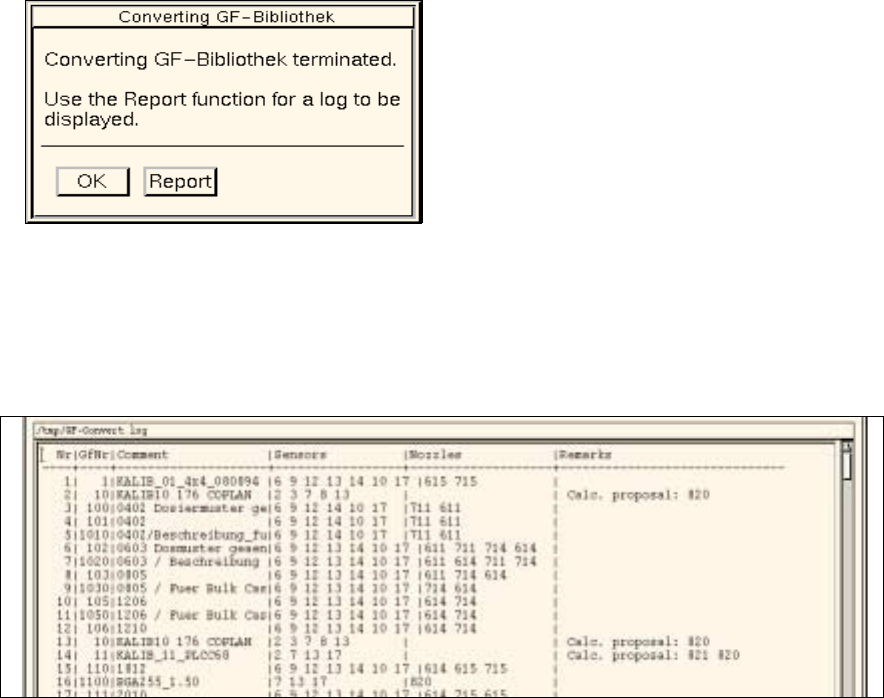
When the action has been completed, the following dialog box is displayed.
Use the Report button if you wish to view the result of the check or conversion.
● Click on Report in the dialog box.
The main window of the File Display function opens. The contents of the "GF-Convert.log" log file
are displayed in the view area.
● Close the main window of File Display using the menu option FILE --> Exit.
● Click on OK in the dialog box.
The dialog box closes.
● Click on Cancel in the dialog window.
The dialog window closes.
3 Desktop (Root Window) User Manual Line Computer UNIX
3.2 Desktop User Interface Software Version 501.xx 01/99 Issue
3 - 18
- Replace GF-number
Following any changes in the GF library, this menu option is used to replace the GF number
associated with given components with a different one.
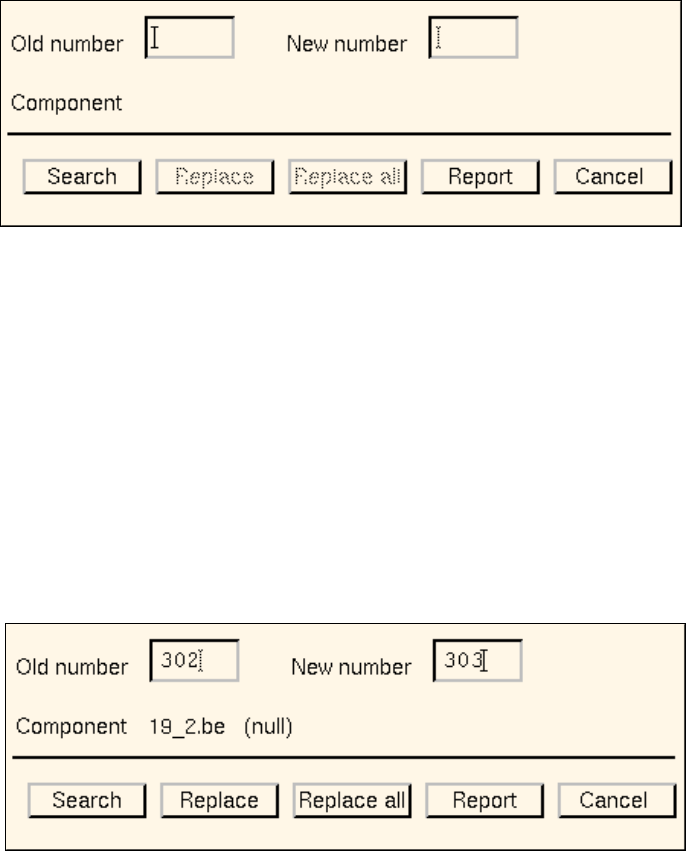
● Click on OPTIONS --> Replace GF-number.
The following dialog box opens.
Procedure:
● In the "Old number" editing field enter the GF number that is to be replaced.
● In the "New number" editing field enter the GF number that is to replace the old number.
● Click on the Search button.
The file name of the first component found that is associated with the GF number entered under
"Old number" is displayed next to the "Component" entry. In addition, the comment that may have
been entered in the Component Editor for the component concerned is displayed next to the file
name.
● Click on the Replace button.
The old GF number is replaced with the new GF number in the component file displayed, and the
search for the next matching component is started.
Or else:
● Click on the Replace all button.
User Manual Line Computer UNIX 3 Desktop (Root Window)
Software Version 501.xx 01/99 Issue 3.2 Desktop User Interface
3 - 19
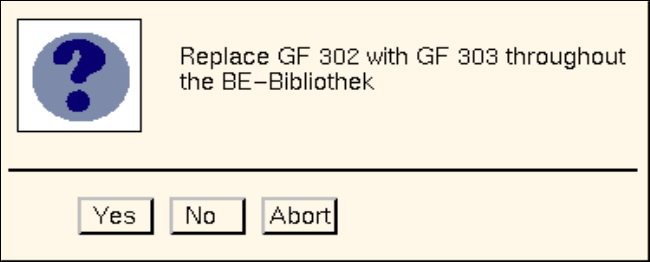
The following dialog box opens.
● Click on No or Abort if the action displayed in the dialog box is not to be executed.
● Click on Yes if the action displayed in the dialog box is to be executed.
From the currently found occurrence of the component (component file) onwards, the old GF
number will be replaced with the new GF number in all subsequently found occurrences of the
component (component files).
The Report button in the dialog box can be used to display the results of the action.
● Click on Report in the dialog box.
The File Display main window opens.
● For details on how to continue, refer to page 3 - 15.
● When all desired replacements have been made, click on Cancel in the dialog box.
The window closes.