00191413-01.pdf - 第99页
User Manual Line Computer UNIX 3 Desktop (Root Window) Software Version 501.xx 01/99 Issue 3.2 Desktop User Interface 3 - 29 "USER" Menu - New user This fun ction is used to s et up an ac count for a new user. …
3 Desktop (Root Window) User Manual Line Computer UNIX
3.2 Desktop User Interface Software Version 501.xx 01/99 Issue
3 - 28
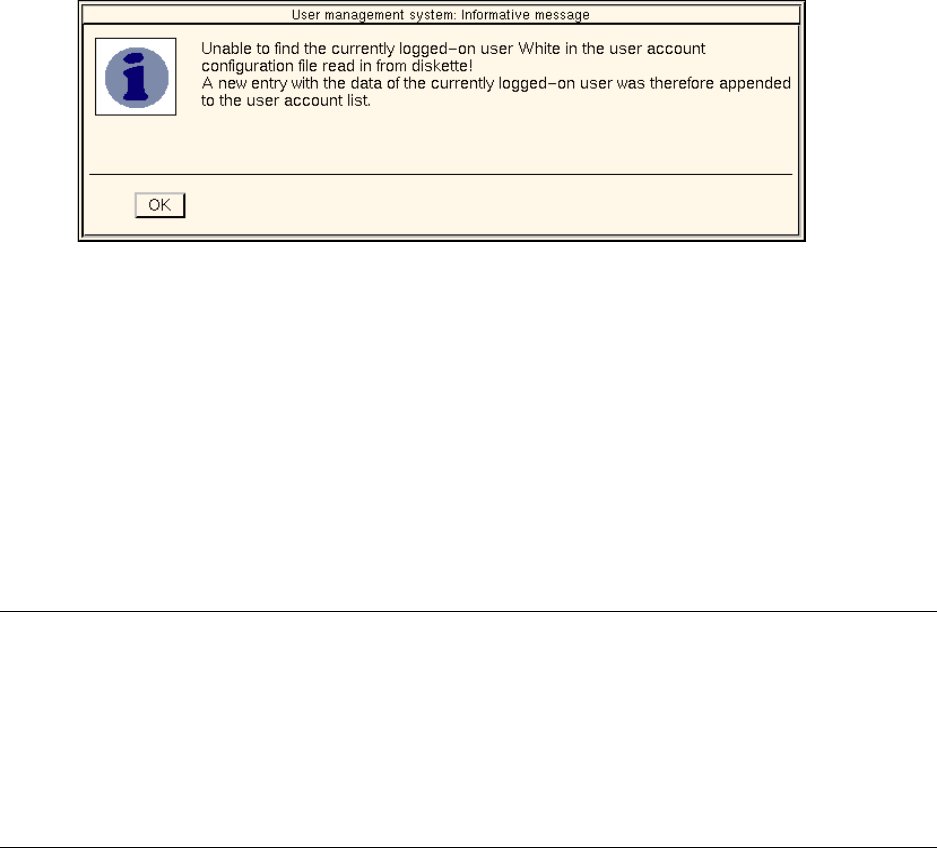
● Close the dialog box by clicking on OK.
The account of the currently logged-on user is automatically added to the list of user accounts of
the new configuration file.
- Print
This function is used to output the data of the user account configuration file to the default printer.
- Close
The "Administration of user accounts" dialog window closes.
NOTE
Upon switchover of the data storage system (see chapt. 4, section 4.2.1.1) the user account configuration
file valid for the particular system will be read in.
If the account of the currently logged-on user is not contained in this configuration file, the above dialog
box will be displayed.
If no user account configuration file exists in the new data storage system, an error message is displayed
and the currently used configuration file will continue to be used.

User Manual Line Computer UNIX 3 Desktop (Root Window)
Software Version 501.xx 01/99 Issue 3.2 Desktop User Interface
3 - 29
"USER" Menu
- New user
This function is used to set up an account for a new user.
● The further procedure to be followed is described on page 3 - 30.
- Delete user
This function is used to delete a user account from the user account list .
● Select the user account to be deleted in the view area.
● Click on USER --> Delete user.
Prior to the deletion operation, a dialog box is displayed with a verification query as to whether
you really want to delete the selected user account.
● Click on OK to confirm the deletion.
The dialog box closes, and the user account is no longer contained in the account list.
- Change user
This function allows you to change the description, the password and the access right settings of a
user account.
● The further procedure to be followed is described on page 3 - 32.
- Reset user to default account
This menu function allows the settings of the access rights assigned to the function groups to be reset
to the settings of the default account provided such an account exists for the selected user.
NOTE
If a user account was set up with the aid of a default account (see page 3 - 30), the name of the
default account is displayed in the "Default account" column next to the user’s name (see Fig. 3.2.1).
● In the view area click on the entry containing the user’s name whose account is to be reset to the
default account.
● On the menu bar, click on USER --> Reset user to default account.
The settings of the access rights assigned to the function groups are reset to the settings of the
default account.
If no default account is available (i.e. it has been deleted), a corresponding message is displayed.
3 Desktop (Root Window) User Manual Line Computer UNIX
3.2 Desktop User Interface Software Version 501.xx 01/99 Issue
3 - 30
Setting up an account for a new user
● In the view area of the "Administration of user accounts" dialog window (see Fig. 3.2.1) click on
the entry containing the user’s name whose account is to serve as template (default account) for
the new account.
NOTE
If an account is to be set up without any template, the preceding work step is dispensed with.
● Click on USER --> New user on the menu bar.
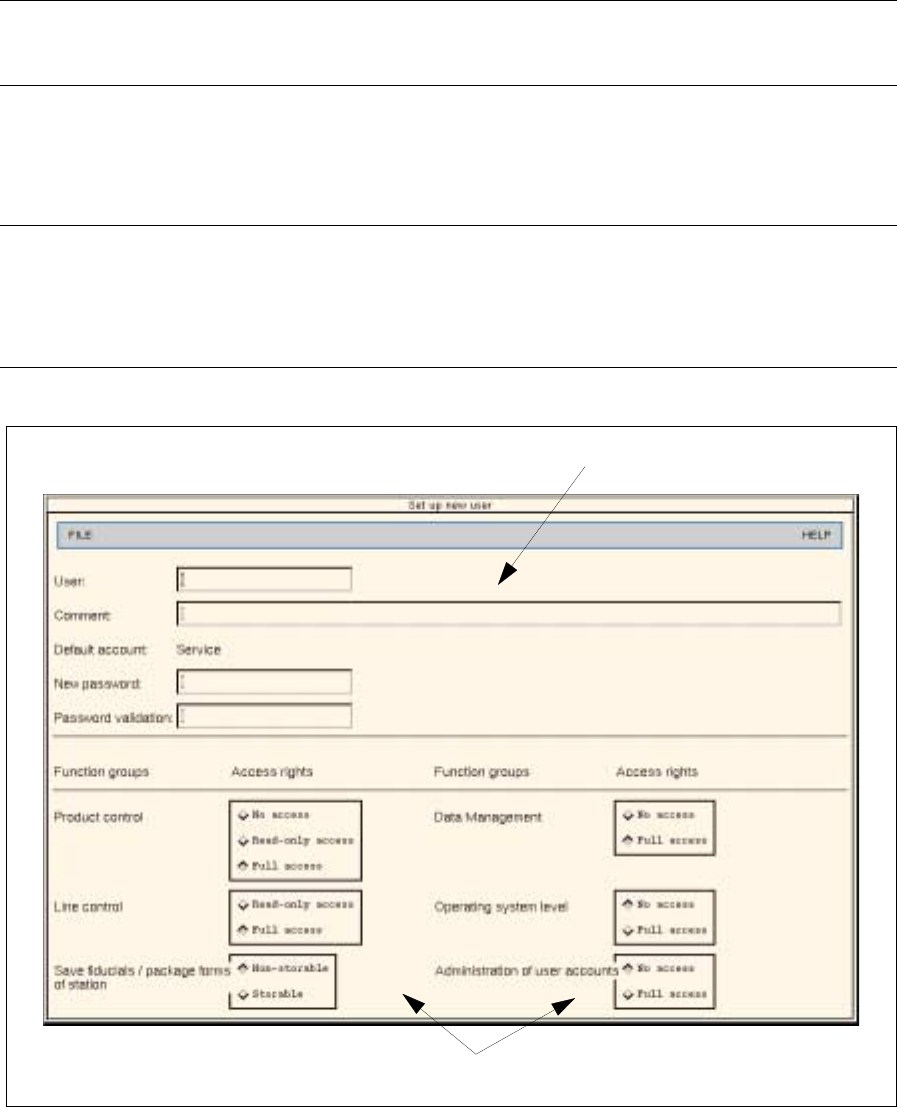
The user account configuration window for entering the user data and the settings of the access
rights opens (see Fig. 3.2.2).
NOTE
If a template (default account) was used, its name will be displayed in the editing area.
The access right settings were adopted from the default account.
The default account’s name cannot be edited.
Fig. 3.2.2 User Account Configuration Window (Example: New User)
The menu bar of the configuration window contains the "FILE" and "HELP" menus.
The menu functions of the "FILE" menu are briefly described in the following.
Editing area
Setting area