00196956-02_IM_OIS_SIS 10.1_DE EN.pdf - 第17页
OIS 10.1 / Installation Manual Ausgabe 11/2012 Edition The following dialog box is open ed. Figure 3-18: Connection to database ► Select a database instance. The installation routine must log in to the SQL Serv er as sys…
OIS 10.1 / Installation Manual Ausgabe 11/2012 Edition
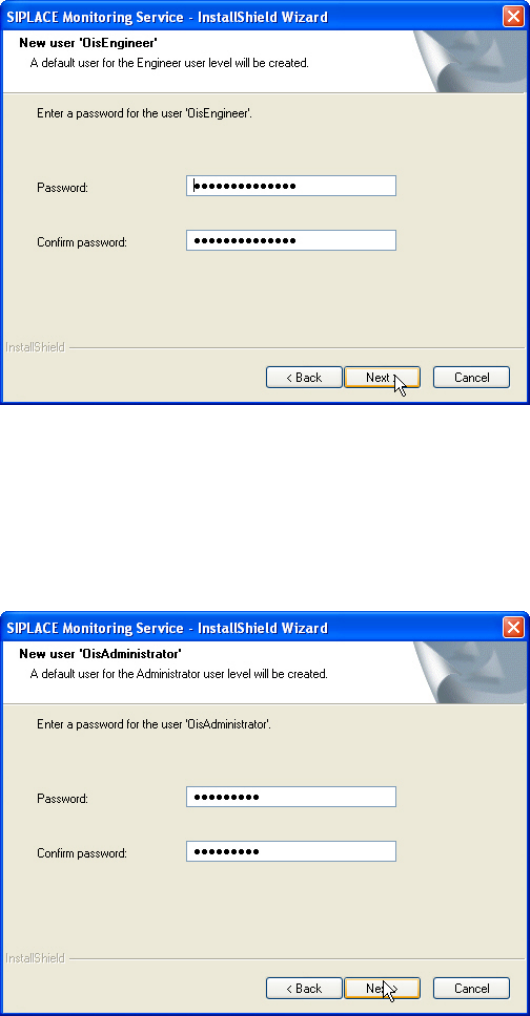
Figure 3-16: Defining a password for OisEngineer
► Enter the password for the OisEngineer.
The default password is "SmallSiplace.1".
► Enter the password again to confirm.
► Click Next >.
Figure 3-17: Defining a password for OISAdministrator
► Enter the password for the OisAdministrator.
The default password is "Siplace.1".
► Enter the password again to confirm.
► Click Next >.
16
OIS 10.1 / Installation Manual Ausgabe 11/2012 Edition
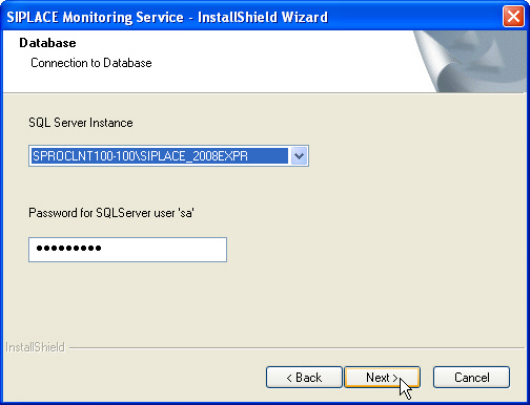
The following dialog box is opened.
Figure 3-18: Connection to database
► Select a database instance.
The installation routine must log in to the SQL Server as system administrator (sa) in order to set
up or update the database schema.
► Enter the system administrator password.
► Click Next >.
17
OIS 10.1 / Installation Manual Ausgabe 11/2012 Edition
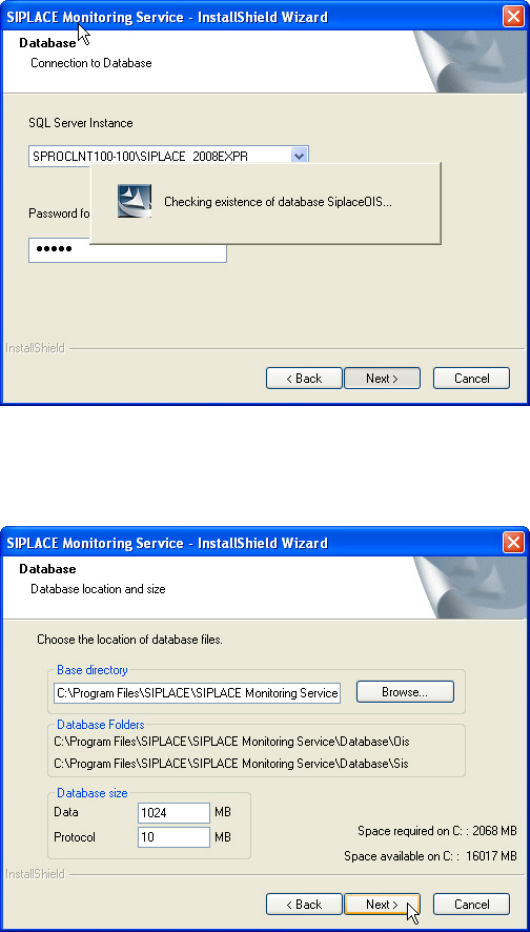
The following dialog box is opened.
Figure 3-19: Checking database instance
Information is gathered on the selected database instance (takes appr. 15-30 seconds). Thereafter
the following dialog box is opened.
Figure 3-20: Entering database size
► Click Browse... if you want to select another installation directory for the database.
The Database\OIS and Database\SIS sub directories are created.
► Enter the starting file size for the database files.
The default values are generally acceptable, and the files are allowed to grow as your database
expands.
► Click Next >.
18