00196956-02_IM_OIS_SIS 10.1_DE EN.pdf - 第21页
OIS 10.1 / Installation Manual Ausgabe 11/2012 Edition 3.2.2 Finishing the installation of the OIS soft ware Once the installation process has b een comple ted, the following dialog box app ears. Figure 3-25: Finishing i…
OIS 10.1 / Installation Manual Ausgabe 11/2012 Edition
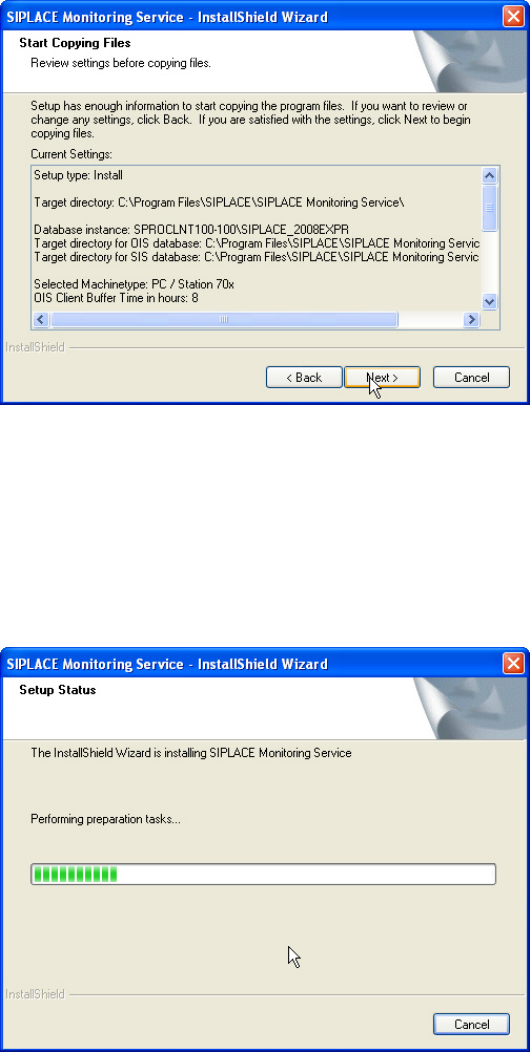
The following dialog box is opened.
Figure 3-23: Reviewing settings
This shows a summary of the settings and entries you have made so far.
► Check the settings.
► If you wish to change your entries, click < Back to return to the appropriate dialog.
► Click Next> to start the actual installation process.
The software is then installed.
Figure 3-24: Installation
20
OIS 10.1 / Installation Manual Ausgabe 11/2012 Edition
3.2.2 Finishing the installation of the OIS software
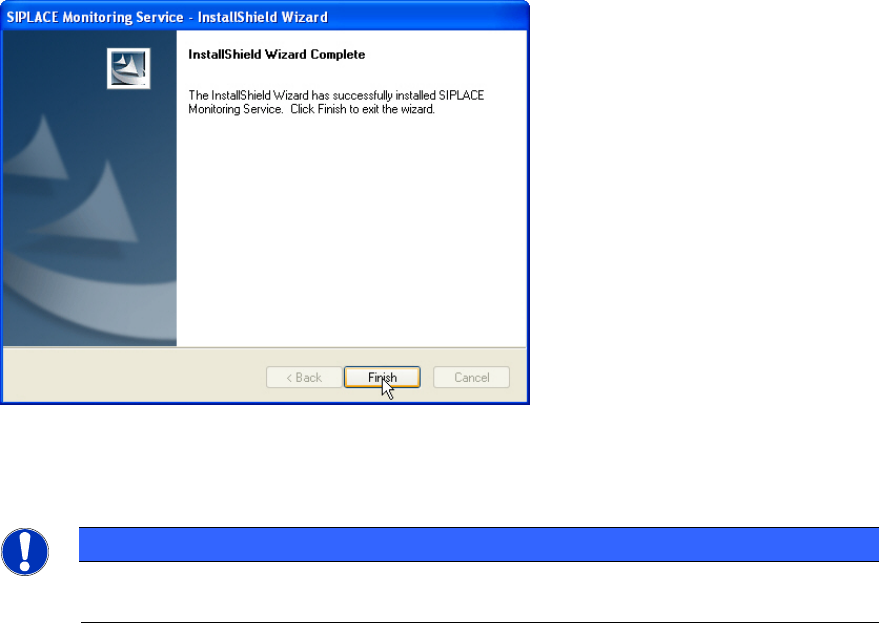
Once the installation process has been completed, the following dialog box appears.
Figure 3-25: Finishing installation
► Click Finish to close the setup.
NOTICE
If this dialog box suggests rebooting the computer, you should do so, as the installation
is only completed after a reboot.
21
OIS 10.1 / Installation Manual Ausgabe 11/2012 Edition
3.3 Modifying the installation
The Modify option allows you to change the installation entries made to date. This allows you, for
instance, to add or remove a language.
► Click the Windows Start button and select Settings and then Control Panel.
► Start the Add/Remove Programs dialog, by double-clicking on Add/Remove Programs.
► Select the program from the list (SIPLACE OIS / SIPLACE Monitoring Service) and click on
Change/Remove.
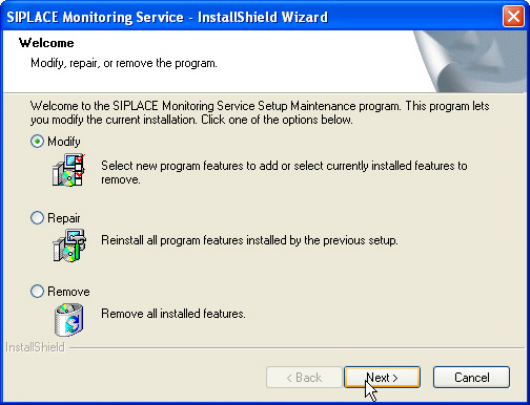
The setup program will start and display the following dialog box.
Figure 3-26: Modifying program
► Select Modify.
► Click Next >.
22