00196956-02_IM_OIS_SIS 10.1_DE EN.pdf - 第28页
OIS 10.1 / Installation Manual Ausgabe 11/2012 Edition The following dialog box is open ed if Monitoring Service is installed. Figure 3-35: Backing up/removing databases ► Select Backup databases to keep the O IS/SIS dat…
OIS 10.1 / Installation Manual Ausgabe 11/2012 Edition
3.5 Removing the program (Uninstallation)
The Remove option removes all the installed components, including all the corresponding entries
in the Registry.
You have the option to keep or remove the database.
► Click the Windows Start button and select Settings and then Control Panel.
► Start the Add/Remove Programs dialog, by double-clicking on Add/Remove Programs.
► Select the program from the list (SIPLACE OIS / SIPLACE Monitoring Service) and click on
Change/Remove.
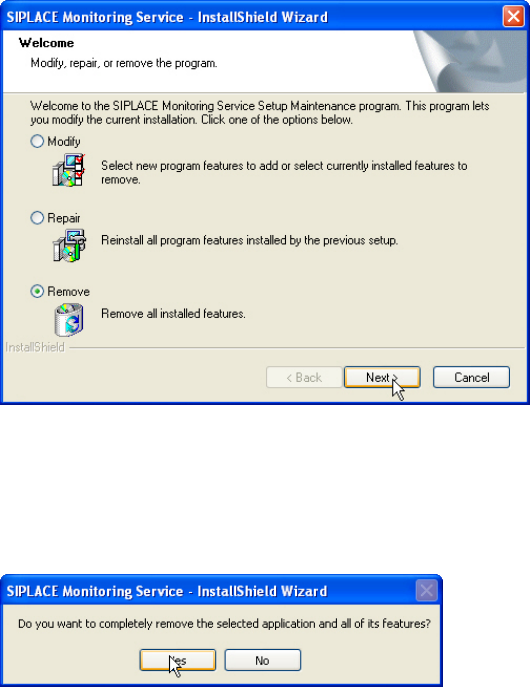
The setup program will start and display the following dialog box.
Figure 3-33: Removing program
► Select Remove.
► Click Next >.
The following request appears.
Figure 3-34: Request
► Respond to the request with Yes.
27
OIS 10.1 / Installation Manual Ausgabe 11/2012 Edition
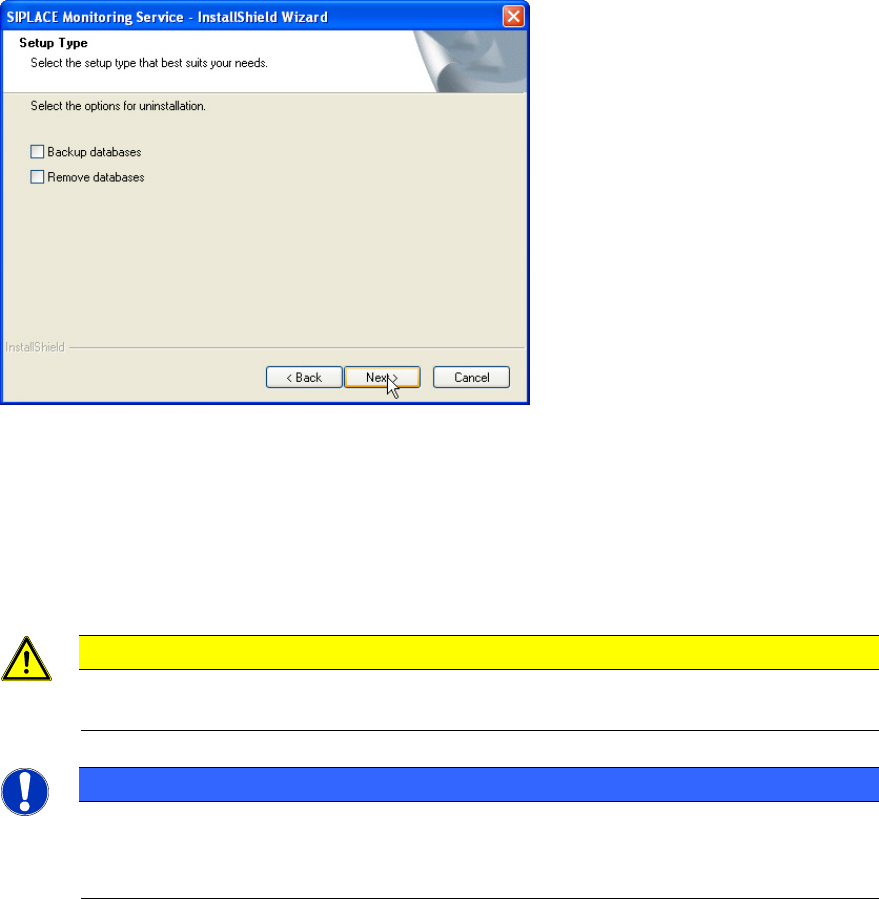
The following dialog box is opened if Monitoring Service is installed.
Figure 3-35: Backing up/removing databases
► Select Backup databases to keep the OIS/SIS databases.
or
► Select Remove databases to remove the OIS/SIS databases.
► Click Next >.
CAUTION
If you remove the databases, all the recipe and setup data of the OIS/SIS system are
lost!
NOTICE
Deinstallation options
Depending on the selected deinstallation options further dialog boxes might appear now
(e.g. Figure 3-29 and Figure 3-30).
28
OIS 10.1 / Installation Manual Ausgabe 11/2012 Edition
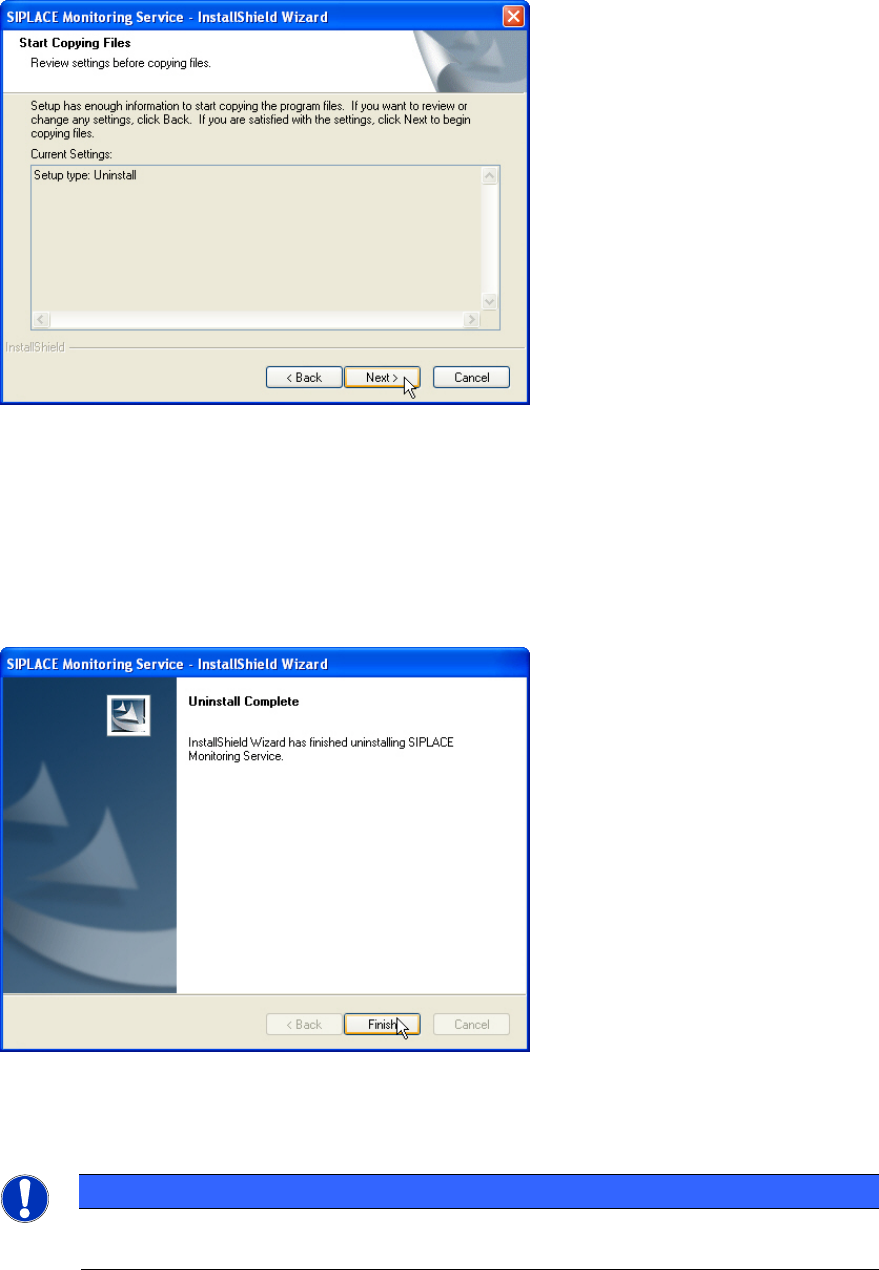
The following dialog box is opened.
Figure 3-36: Reviewing settings
This shows a summary of the settings and entries you have made so far.
► Check the settings.
► If you wish to change your entries, click < Back to return to the appropriate dialog.
► Click Next > to start the uninstallation process.
Once the uninstallation process has been completed, the following dialog box appears.
Figure 3-37: Finishing uninstallation
► Click Finish to complete the uninstallation process.
NOTICE
If this dialog box suggests rebooting the computer, you should do so, as the
uninstallation is only completed after a reboot.
29