00196956-02_IM_OIS_SIS 10.1_DE EN.pdf - 第8页
OIS 10.1 / Installation Manual Ausgabe 11/2012 Edition The installation program differentiates betwee n Installation , see section 3.2 on page 9 , and Maintenance mode . The setup program recognizes which ty pe of instal…
OIS 10.1 / Installation Manual Ausgabe 11/2012 Edition
3 Installation
► Prepare your computer with the Support Media DVD before starting the installation.
3.1 Starting the installation
► Start Windows.
► Log in with administrative permissions.
► Put the CD-ROM in the drive.
After a few seconds, the setup will be started automatically.
NOTICE
► If the setup does not start automatically, manually start the setup.exe program from
the root directory of the CD-ROM.
NOTICE
Installation duration
As of the OIS 10.0 version the UsedComponents OIS table has been split into three
tables. Due to this database conversion, installation may take a little bit longer as for
former versions.
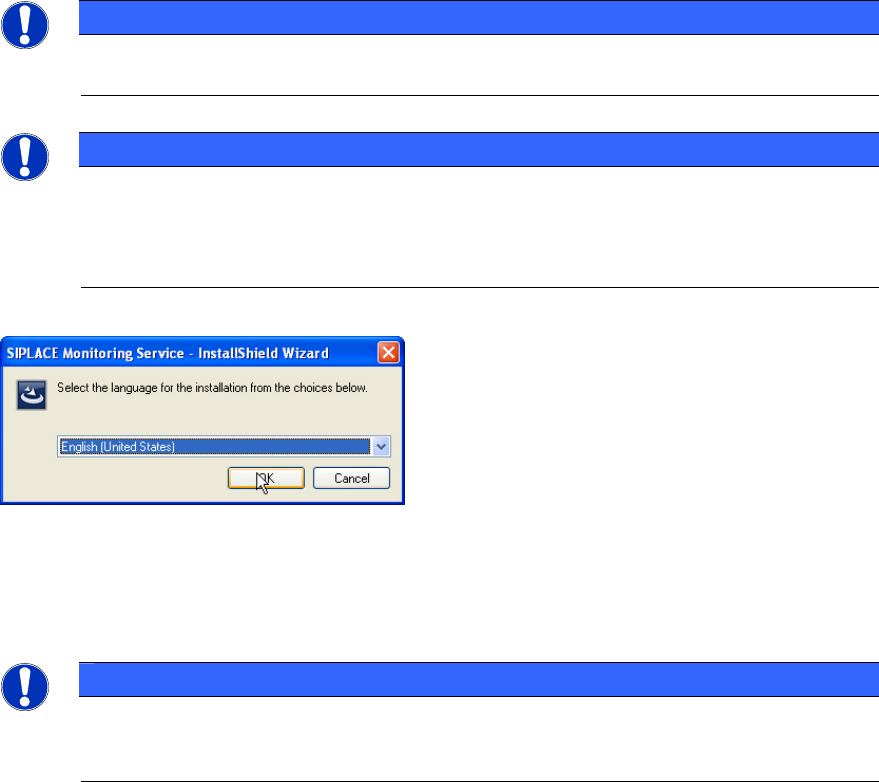
When the setup program is started, the following dialog box appears on the screen.
Figure 3-1: Selecting setup language
► Select the language you wish to use for the installation and click OK.
This setting will only affect the language used in the setup dialogs.
NOTICE
You can use the < Back and Next > buttons to move backward and forward within the
setup program. You can exit the program at any time using the Cancel button. This exits
the program without making any changes to the system.
7
OIS 10.1 / Installation Manual Ausgabe 11/2012 Edition
The installation program differentiates between Installation, see section 3.2 on page 9, and
Maintenance mode. The setup program recognizes which type of installation is required.
For an upgrade to a higher version, the previous installed version has to be removed before the
higher version can be new installed. Previous versions < OIS 10.0 have to be removed manually.
Previous versions as of OIS 10.0 will be removed automatically by the setup program.
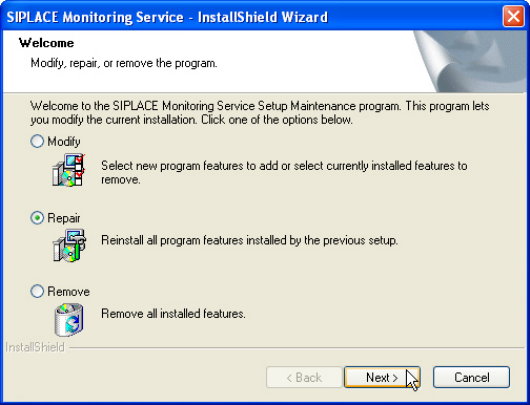
If the setup program detects that an update has to be perfomed, the following dialog will appear
first.
Figure 3-2: Maintenance mode dialog
► Select one of the following options, to determine what you want to do with the existing
installation.
Further information about these options can be found in the appropriate sections of this
document.
● Modify (see section 3.3 on page 22)
● Repair (see section 3.4 on page 24)
● Remove (see section 3.5 on page 27)
8
OIS 10.1 / Installation Manual Ausgabe 11/2012 Edition
3.2 Installation of the OIS software
As of the OIS 10.0 version the setup has been re-designed in order to support newer technologies,
such as Windows Installer and Windows 7. The new setup also contains the OIS Client installation
that was delivered as a separate setup package in former versions.
3.2.1 Starting the installation of the OIS software
NOTICE
Sample installation
In the following sample installation Monitoring Service as well as OIS Client will be
installed. If only one of the programs shall be installed, some of the described dialog
boxes do not appear.
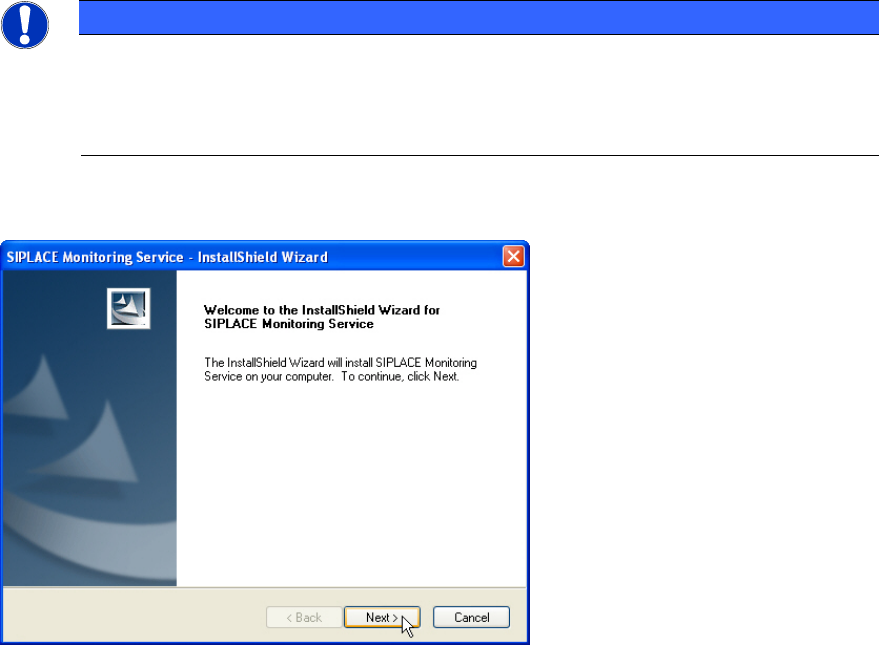
The following dialog box is opened.
Figure 3-3: Welcome SIPLACE Monitoring Service
► Close all open applications.
► Continue by clicking Next>.
9