KE-2030使用说明书 - 第132页
4 – 33 The position of the cell t o which an IC mark is copied with the [Vision Copy ] command (3) V ision copy dialog box W hen y ou select the [ Vision Copy ] comm and, the dialog box appears as shown in the f igure be…
4 – 32
4.3.14 Vision Copy
This command allows you to copy mark data, which is registered onto the mark
database, as a BOC mark or IC mark into your data.
(1) Copying as a BOC mark
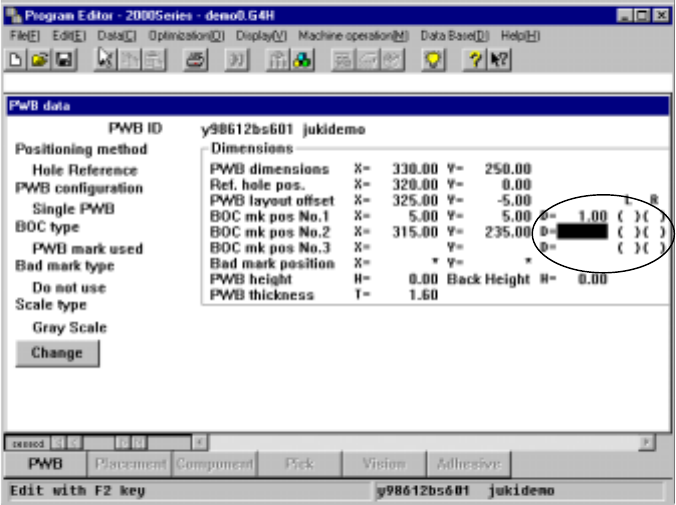
Step 1: Move the cursor into the cell “D =” of the menu item “BOC mk pos No.
1 (2 or 3, as desired)” on the PWB data screen.
Step 2: Select the [Edit] menu command provided with the Program Editing
utility, then the [Vision Copy] command.
The position of the cell to which a BOC mark is copied with the [Vision Copy]
command
(2) Copying as an IC mark
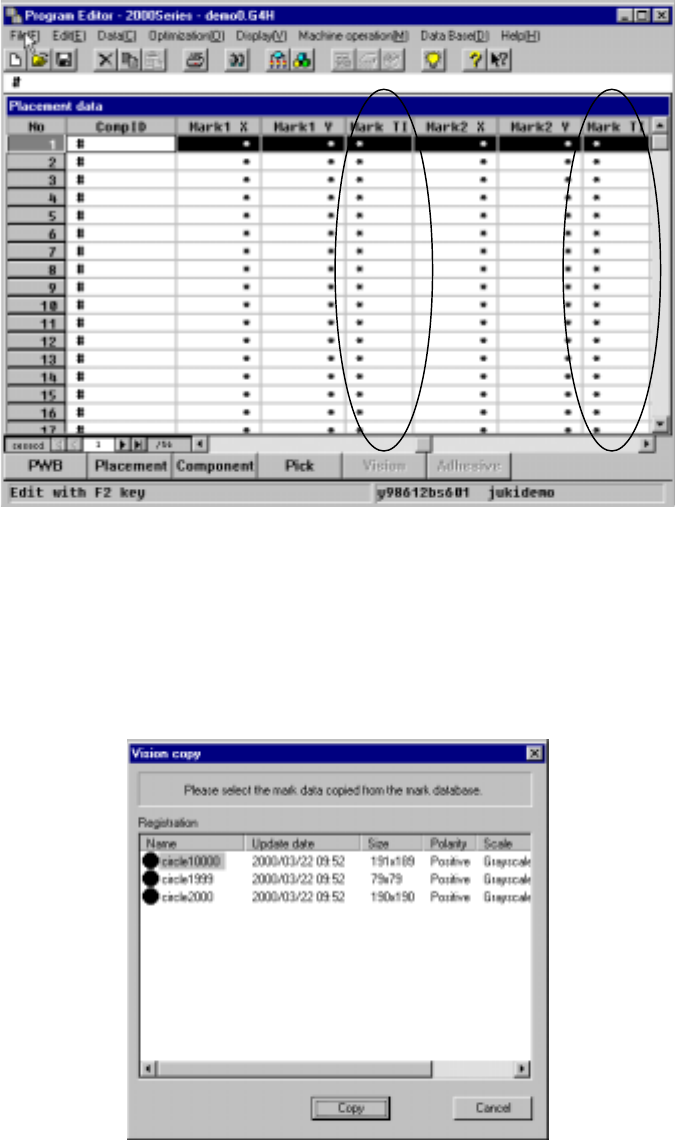
Step 1: Move the cursor to the cell メ Mark モ which indicates the IC mark
point on the Placement data screen.
Step 2: Select the [Edit] menu command provided with the Program Editing
utility, then the [Vision Copy] command.
4 – 33
The position of the cell to which an IC mark is copied with the [Vision Copy]
command
(3) Vision copy dialog box
When you select the [Vision Copy] command, the dialog box appears as shown
in the figure below.
Select mark data to be copied from the “Registration” list, then click the <Copy>
button.
Vision copy dialog box
When you click the <Copy> button, an asterisk mark (*) appears in the mark
teaching column (Mark T). When you use a KE-2030, this mark appears in both
columns for the left and right stations.

4 – 34
If you specify the mark data already registered, the following overwriting
confirmation message appears on the screen.
Overwriting mark confirmation message
To overwrite mark data, click the <Yes> button.