KE-2030使用说明书 - 第206页
4 – 107 4.9 Checking Data Completion Status 4.9.1 Data completion stat us Invoke this com mand f rom the Dat a menu. W hen y ou click t he [Data com pletion status] command, t he following dialog box appears on the scree…
4 – 106
⑤ X1, Y1, Z
These parameters set the coordinates of the feeder component pickup position.
When the items “Sply”, “Pos”, “Type”, and “Lane” are set, these values are
automatically calculated and shown. Once a value is entered to each coordinate,
you can change it (by teaching also).
CAUTION
To avoid a risk of injury, do not place your hand in the machine, nor
move your face or head close to the machine while the machine is
performing teaching operation.
CAUTION
If the bank is never recognized (since the machine zeroes, or the bank
moves down then up), it may be recognized automatically before the
machine moves to the pick position. Since the head moves across the
feeder while the feeder bank is being recognized, do not place your
hand in the machine, nor move your face or head to the machine.
Especially, take care when the feeder bank is recognized not from the
menu but during teaching or tracking a pick position.
4 – 107
4.9 Checking Data Completion Status
4.9.1 Data completion status
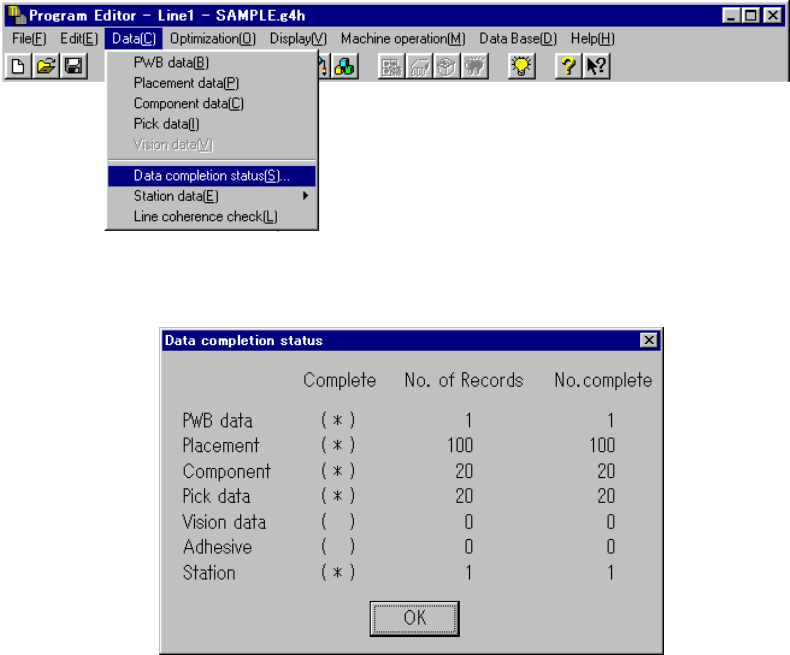
Invoke this command from the Data menu.
When you click the [Data completion status] command, the following dialog box
appears on the screen.
The dialog box shown above displays the number of input records as the menu item
“No. of Records”, the number of completed records as the menu item “No. complete”,
and whether each type data is completed or not as the menu item “Complete”.
Each display item is described below:
① Complete
Displays whether each type of data is completed or not.
(*) data is completed.
( ) data is not completed.
If the value of the menu item “No.of Records” is equal to that of “No. complete”,
the data is handled as “completed”.
② No. of Records
Displays the number of input records regardless of whether each record is
completed or not, that is, displays the total number of records including
incomplete records.
③ No. of complete
Displays the number of records entered completely, that is, displays the number
of records whose necessary items are all entered.
When you click the <OK> button, the machine returns to the data screen from
which you invoked this command.
4 – 108
4.9.2 Line coherence check
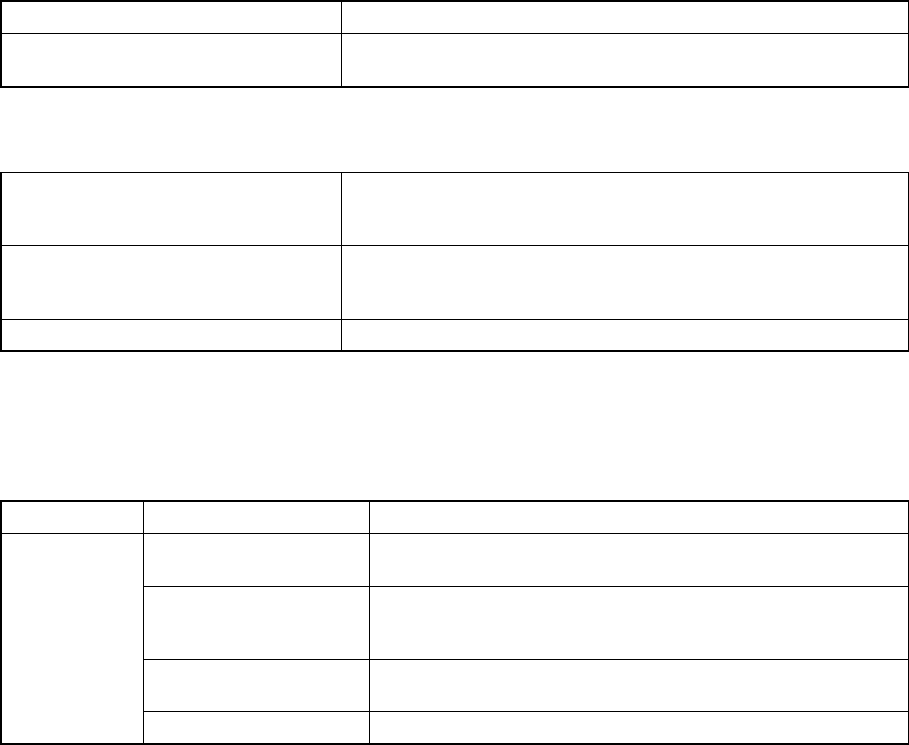
(1) When to invoke the check command
When invoking the Optimization utility Interrupts the next process when an error occurs.
Arbitrary invoking
You can invoke the data coherence check by selecting the menu
command when you want to.
(2) Report of the check result
Notification
Notification of the successful check
Notification of a warning
Notification of an error
Error list
Number of errors
Error information: Error position (data type, data number, item
name), and cause of errors
Display and print of the error list To be performed with the standard tool provided with Windows
(3) Coherence check items: error conditions
The chip shooter name becomes effective as the model name in the error
conditions.
Data type Item Error conditions
Positioning method
Although the item “Positioning method” is set to “Shape
Reference”, all line stations are not set for the shape reference.
BOC Type
Although the item “BOC Reference” is set to be used, the OCC-L
of the KE-2010 or “OCC-L” or “OCC-R” of the
KE-2020/2030/2040 is not set to be used.
Mark pattern matching
Although the mark data is set to use the mark pattern matching
function, the VCS is not set to “JVS2” or “JVS3”.
PWB data
Bad mark type The item “Bad mark type” is not set to be used.