KE-2030使用说明书 - 第261页
4 – 162 4. Copying a stick changer component • If t here is no stick changer on t he copy destination, the sam e type of st ick changer is newly assigned to the copied st ick chang er component. The component is assig ne…
4 – 161
(3) Copying a feeder
Select a feeder, and while holding the CTRL key, drag it. The selected feeder
is copied.
Note:
•
The selected feeder is copied on the mounting position nearest the original
feeder position. Although the machine tries to copy a feeder on the side
(front or rear) nearest to the position at which you released the trackball
button, the beep sounds and your copy operation is canceled if the
machine cannot occupy the appropriate feeder mounting area on the side
(front or rear) where the selected feeder is copied. Even though there is
the sufficient area on the opposite side, the selected feeder cannot be
copied on that side.
•
After copied, the copied (not original) feeder is selected.
•
When you select two or more feeders to be copied, the beep sounds and
your copy operation is canceled if the copied feeders cannot be mounted
with maintaining the same space between them as the original feeders
maintained.
(4) Deleting a feeder
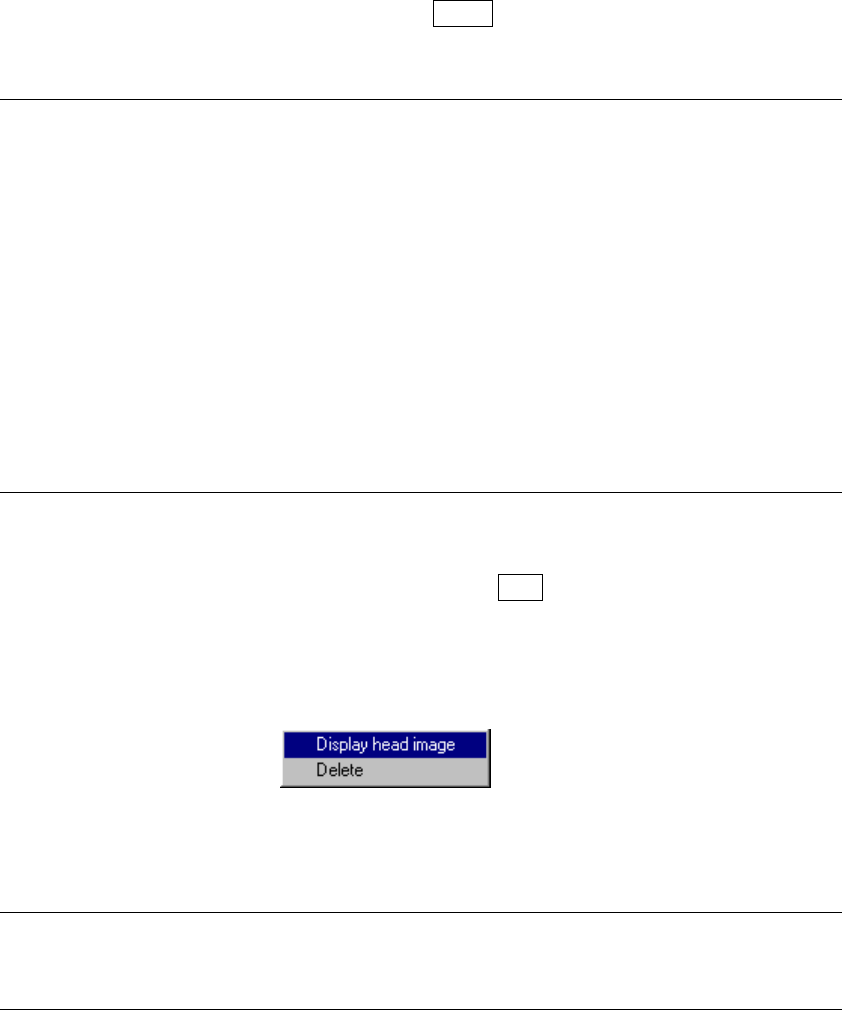
Select a feeder to highlight it, then press the DEL key. The selected feeder is
deleted. When you press the right button of a trackball while a feeder is being
selected, the following pop-up menu appears on the screen which allows you to
delete the selected feeder.
Figure 4.11.1.11 Pop-up menu displayed on the
Feeder layout window
Note: If all feeders associated with a certain component are deleted, its specified
supply position is canceled, then set to “Auto” and the data disappears from
the screen.
3. Copying a stick component
• If there is no stick feeder on the copy destination, the same type of stick
feeder is newly assigned to the copied stick component. The component is
assigned to the Lane 1. The stick feeder is mounted at the position which is
nearest the copy destination so that it can occupy the appropriate mounted
area.
• Stick components can be copied between the same type of stick feeders.
4 – 162
4. Copying a stick changer component
• If there is no stick changer on the copy destination, the same type of stick
changer is newly assigned to the copied stick changer component. The
component is assigned to the Lane 1. The stick changer is mounted at the
position which is nearest the copy destination so that it can occupy the
appropriate mounted area.
5. Display head image
This command changes Feeder layout window display mode to Head image
display mode. Click the right button of a trackball to open the pop-up menu,
then select the [Display head image] command.
Figure 4.11.1.12 Selecting the [Display head image] command
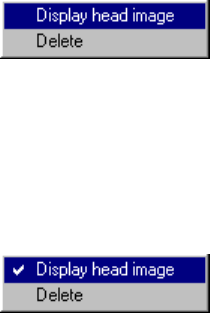
When you are already in Head image display mode, the check mark appears
next to the [Display head image] command on the pop-up menu.
Figure 4.11 1.13 When you are in Head image display mode
4 – 163
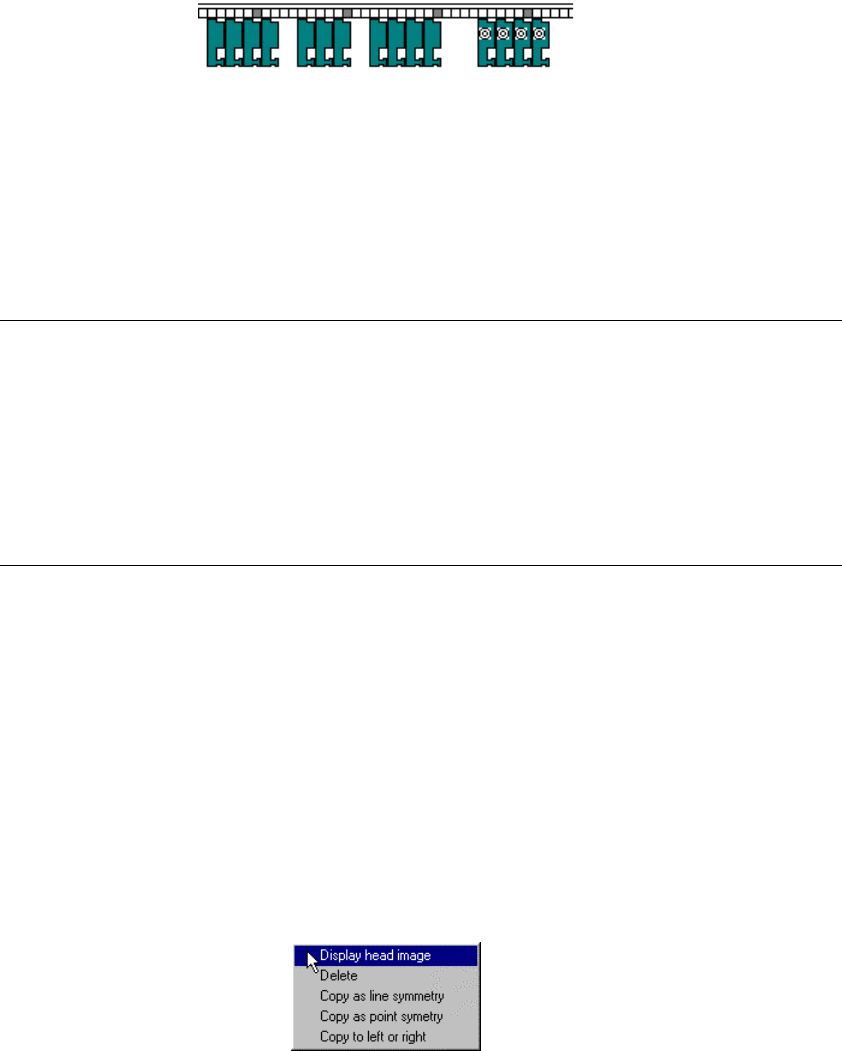
In Head image display mode, the trackball cursor is displayed instead of the
head image figure. If you assign feeders according to the head assignments
and execute the Optimization utility, components will be very likely to be picked
up simultaneously.
Figure 4.11.1.14 Screen example in Head image display mode
Head image display mode is canceled when you click the left button of a
trackball or select the [Display head image] command again after opening the
pop-up menu.
Note:
•
Although it becomes likelier that feeders pick up components
simultaneously after you assign the feeders according to the head
assignments and execute the Optimization utility, those feeder may pick up
components at the same time as other feeders do.
•
The trackball arrow mark cursor position indicates the same position as the
reference head (normally the left head) of the head image cursor figure
indicates. When you move this reference head over the figure of a feeder,
and click the right button of a trackball, the copy operation functions rapidly.
7. Copy as line symmetry or Copy as point symmetry
These commands copies the selected feeder symmetrically with respect to a
line or point.
While dragging the trackball to enclose the feeder which is to be copied to
highlight it, press the right button of the trackball. The pop-up menu appears
on the screen as shown below.
Select either of the commands [Copy as line symmetry] or [Copy as point
symmetry].
If you select the front feeder, it is copied to the rear side, while if you select the
rear feeder, it is copied to the front side.
Figure 4.11.1.15 Pop-up menu
(1) When you select the [Copy as line symmetry] command
The selected feeder is copied at the position where the copied feeder fixing hole
faces the original feeder fixing hole.