KE-2030使用说明书 - 第379页
6 − 33 ② Left Front W hen y ou select the [ W indow ] comm and f rom the m enu bar, the [ Management Inf o.] comm and on the displayed menu, then t he [Lef t Front ] command, the screen shown in Figure 6.2.3. 1.2 appears…
6 − 32
6.2.3.1 Basic operation to display production management information
①
Total
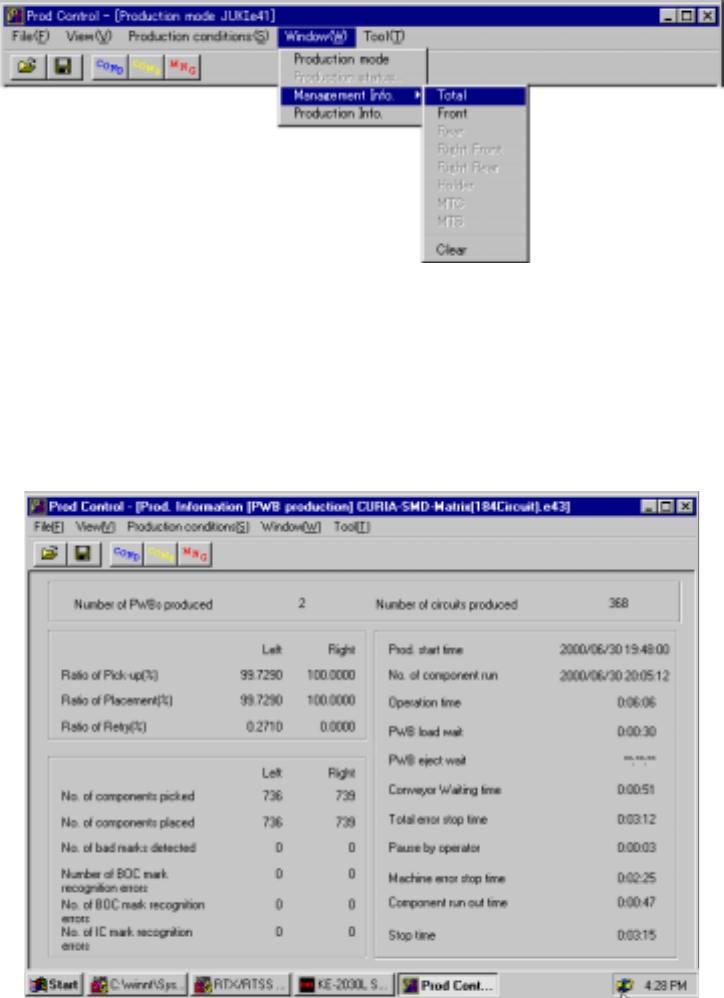
To display the production management information, select the [Window]
command from the menu bar, the [Management Info.] command on the displayed
menu after you select the [Window] command, then the [Total] command. The
screen shown in Figure 6.2.3.1.1 appears.
Figure 6.2.3.1.1 Prod. Information (Total)
6 − 33
②
Left Front
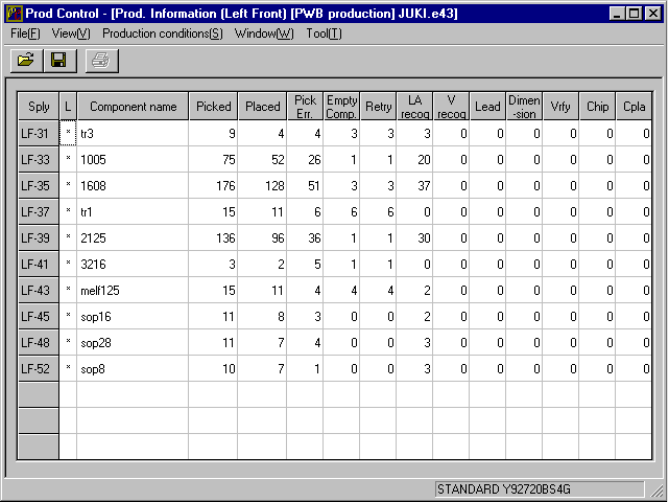
When you select the [Window] command from the menu bar, the [Management
Info.] command on the displayed menu, then the [Left Front] command, the
screen shown in Figure 6.2.3.1.2 appears.
Figure 6.2.3.1.2 Prod. Information (Front)
To clear the production management information displayed on the screen, select the
[Window] command from the menu bar, the [Management info.] command on the
displayed menu, then the [Clear] command.
6.2.3.2 Storing the production management data
When you perform the "Save" command for a file after production, you can save the
production management information as a file separately.
6 − 34
6.2.4 Production information
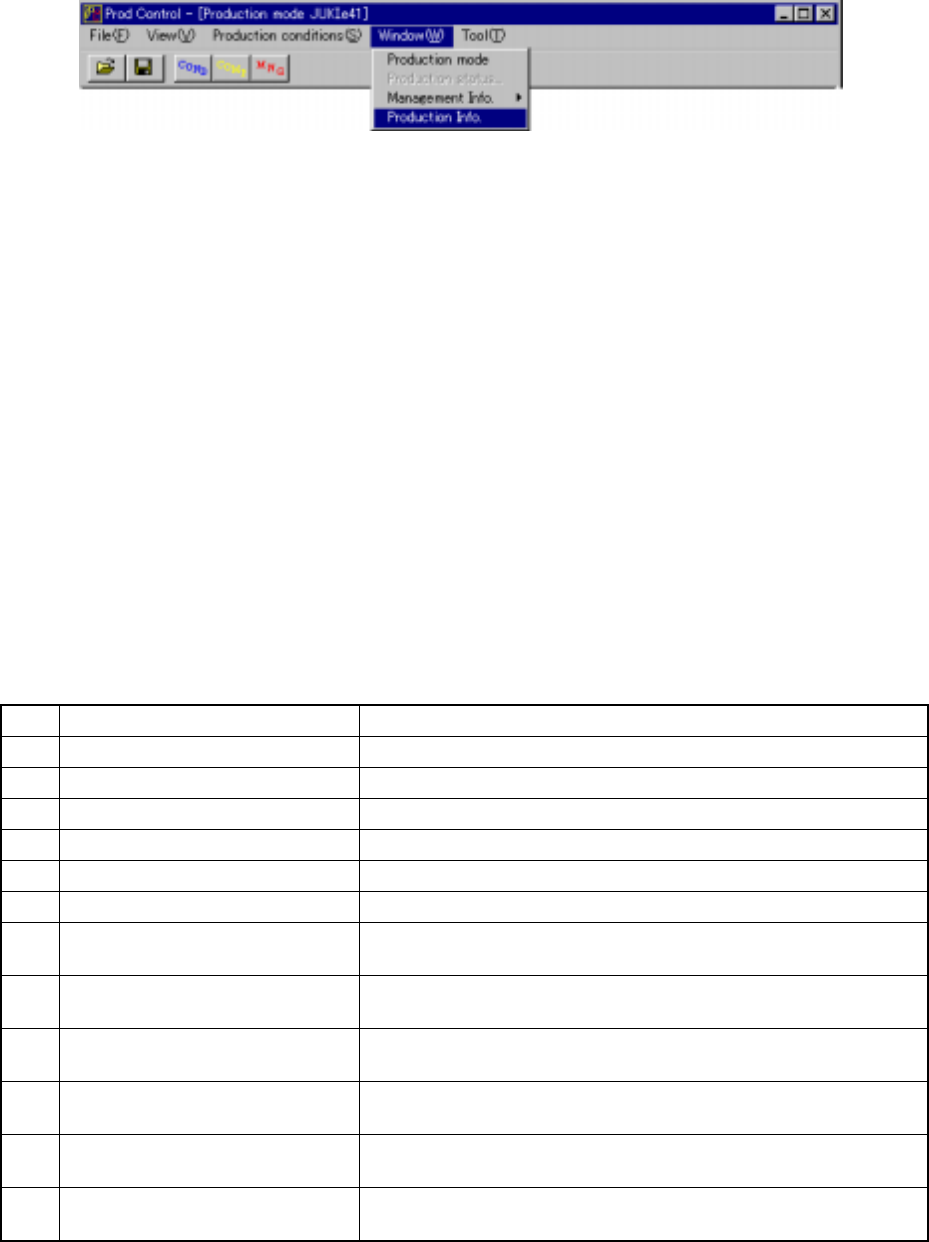
Figure 6.2.4.1 Selecting the [Production Info.] command
Production information display the tact of a leaf PWB, all place rate, all pick rate, and
vacuum levels.
This section explains the procedures for displaying the production information.
(1) Conditions for creating the production information data
①
When the production mode is set for the PWB production.
②
Once all place rate and all pick rate is displayed, new data for the next
production is added to the previous data.
If you want entirely new data to be created, clear the data already created
from production management information.
(2) Items
①
Total management information
No. Item Description
1 Tact on a board Procedure time on a board.
2 All Place Rate Shows the component placement ratio of the entire machine.
3 All Pick Rate Shows the component pick-up ratio of the entire machine.
4 Pick Pos. Picking up a component or moving it to the pick-up position.
5 After component picked Now vacuum level after component picked of heads
6 After component placed Now vacuum level after component placed of heads
7 Attaching a nozzle
(no component)
Now vacuum level attaching a nozzle (no component) of heads
8 Picking a component
(component data)
Now vacuum level picking a component (component data) of heads
9 After component picked
thresholed
Now thresholed after heads picked a component
10 After component placed
thresholed
Now thresholed after heads placed a component
11 Judged result of vacuum error
(after comp. picked)
Judged result of vacuum error (after comp. picked) comparing now
threshold to now vacuum level
12 Judging result of vacuum error
(after comp. placed)
Judged result of vacuum error (after comp. placed) comparing now
threshold to now vacuum level