KE-2030使用说明书 - 第515页
7 − 21 7.2.2.4 Shape clamp posi tion A screen appears as shown in Figure 7.2. 2.4.1 “ Shape clamp position sett ing dialog box” when [Shape clamp position] is selected f rom t he [Setting Group] menu. Figure 7.2.2. 4.1 S…
7 − 20
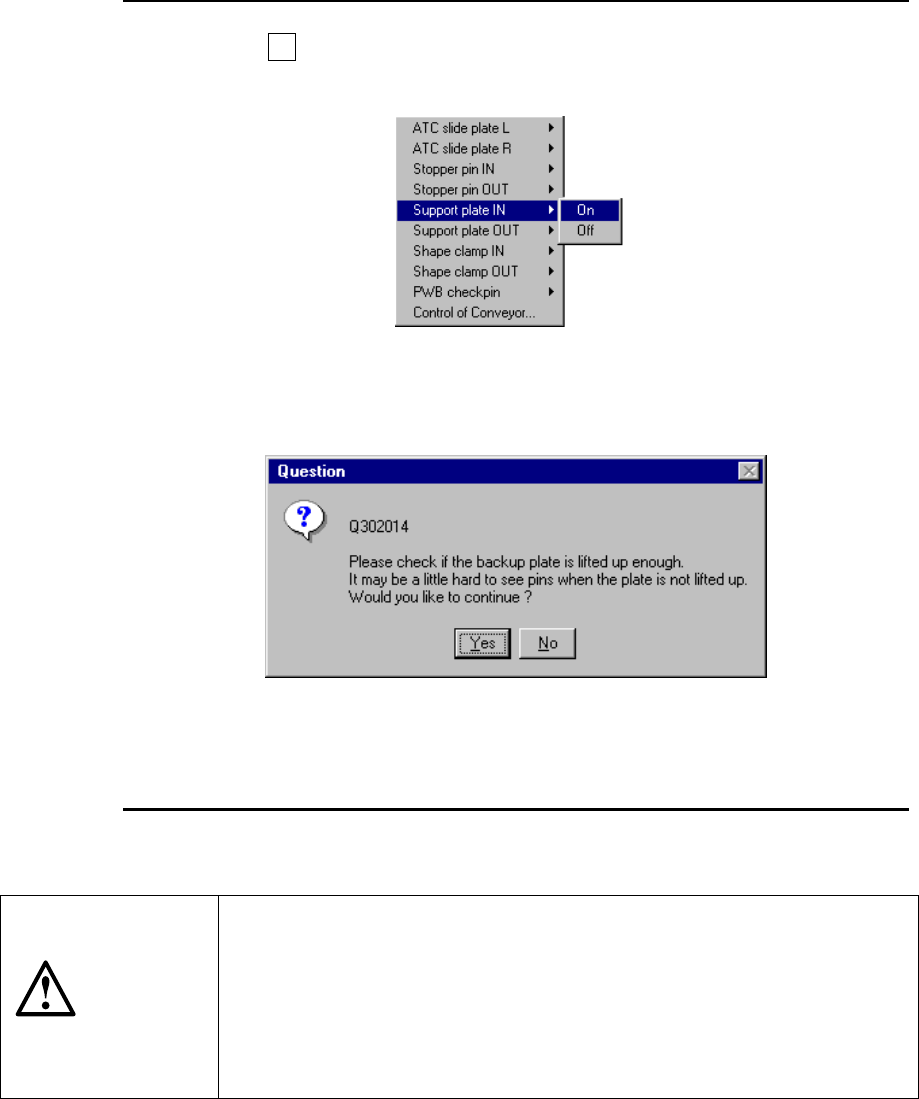
◇ Press the F9 key or click the right button of the track ball to start up the
Mechanical Setup window. Then, set the “Support plate” to ON.
Figure 7.2.2.3.2
◇ During teaching, the following “Question” message appears on the screen.
Figure 7.2.2.3.3
◇ When the support plate is raised, click the <Yes> button.
CAUTION
To avoid a risk of injury, do not place your hand in the machine, nor
move your face or head close to the machine during operation of the
HOD.
If you are to produce PWBs based on the reference pin, be sure to
check the setting of the item "Reference pin" above. If the reference
pin is not set before a PWB is fed, the "Reference pin error" is
displayed on the screen.
7 − 21
7.2.2.4 Shape clamp position
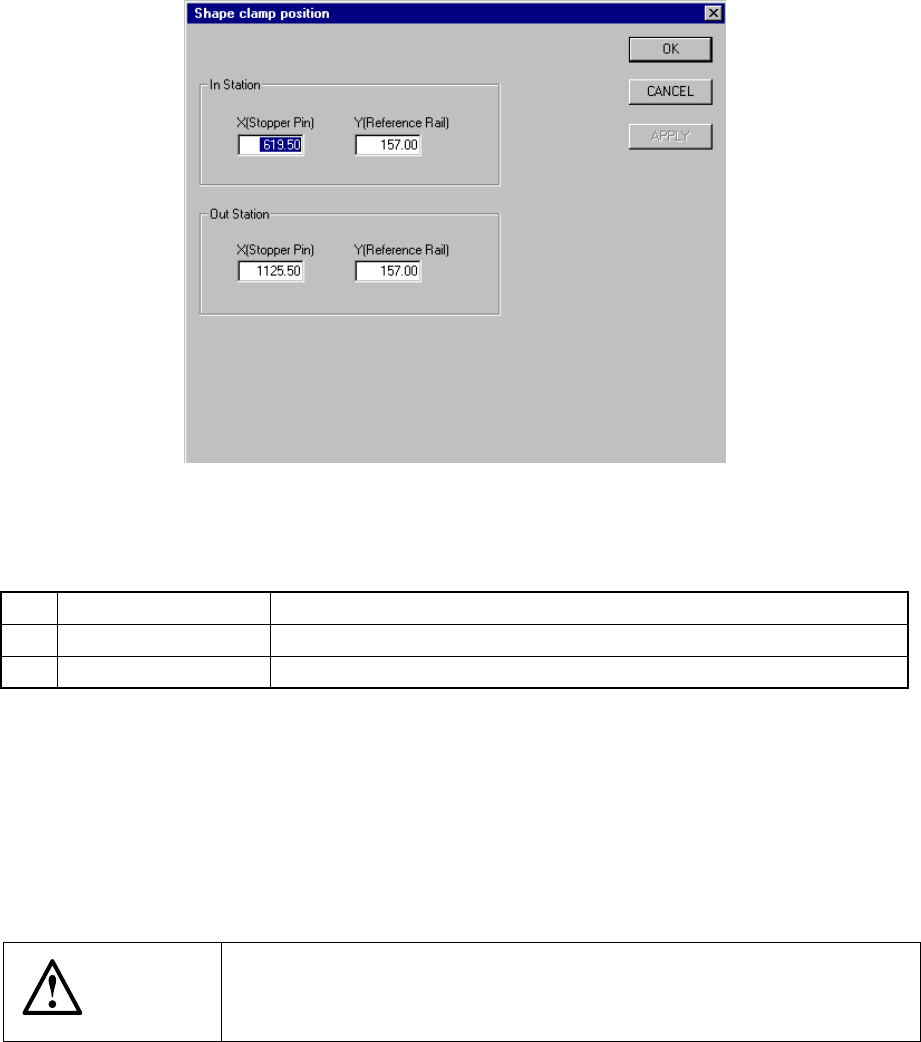
A screen appears as shown in Figure 7.2.2.4.1 “Shape clamp position setting dialog
box” when [Shape clamp position] is selected from the [Setting Group] menu.
Figure 7.2.2.4.1 Shape clamp position setting dialog box
(1) Setting items
No. Item Description
1 X Stopper pin position
2 Y Reference board transport rail position
(2) Setting the position
− Key in X and Y coordinate value directly from the keyboard.
− Use the HOD to teach and enter the coordinates for X and Y separately. In
this case, if X is in focus, only X is taught, then stored.
− To teach Y, Y shall be in focus.
CAUTION
To avoid a risk of injury, do not place your hand in the machine, nor
move your face or head close to the machine during operation of the
HOD.
7 − 22
7.2.2.5 Head wait position
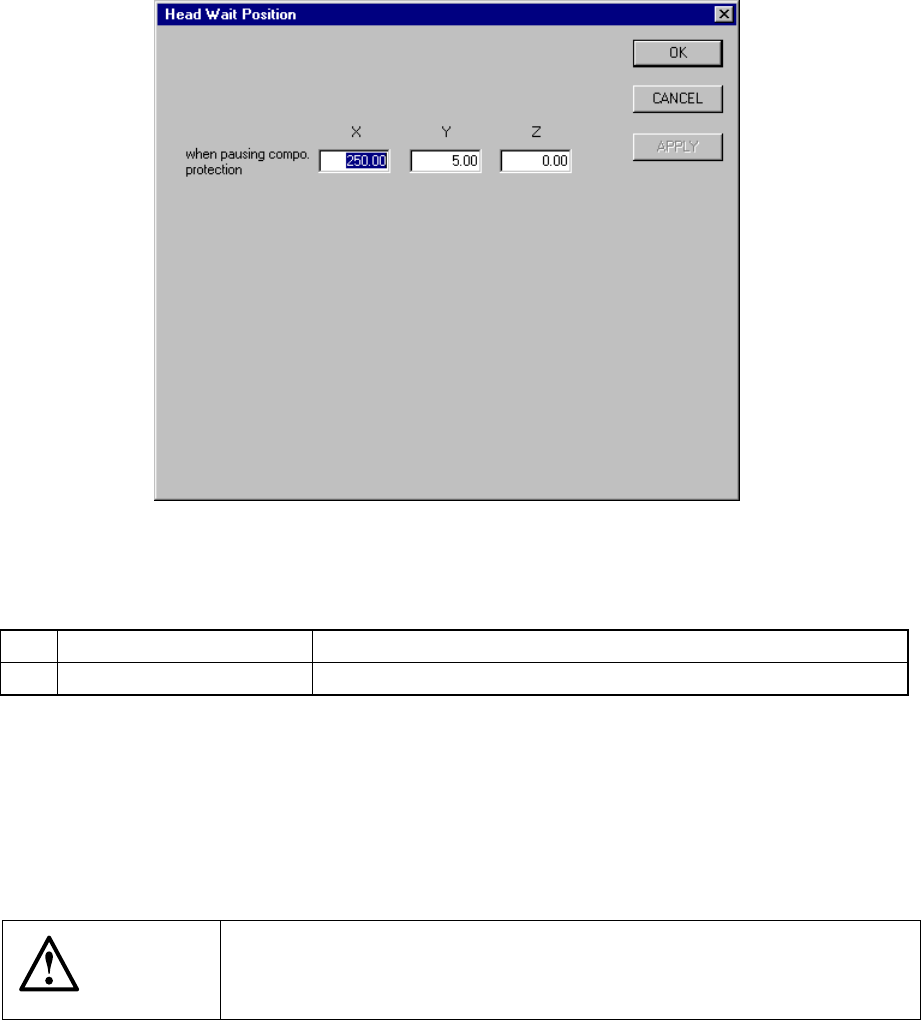
When you select the menu item “Head wait position”, the following “Head Wait
Position” dialog box appears on the screen as shown below.
Figure 7.2.2.5.1 “Head Wait Position” dialog box
(1) Setting items
No. Item Description
1 X, Y, Z Position at which the head pauses to protect a component
(2) Setting the position
− Key in X, Y, and Z coordinate values directly from the keyboard.
− Use the HOD to teach and enter the coordinates. In this case, if either X or
Y is in focus, both values are taught, then entered.
− Z must be in focus to teach the Z coordinate.
CAUTION
To avoid a risk of injury, do not place your hand in the machine, nor
move your face or head close to the machine during operation of the
HOD.