KE-2030使用说明书 - 第517页
7 − 23 7.2.2.6 Component scrap posi tion A screen appears as shown in Figure 7.2. 2.6.1 “ Component scrap position set ting dialog box” when [Component scrap posit ion] is selected f rom t he [Setting Group] menu. Figure…
7 − 22
7.2.2.5 Head wait position
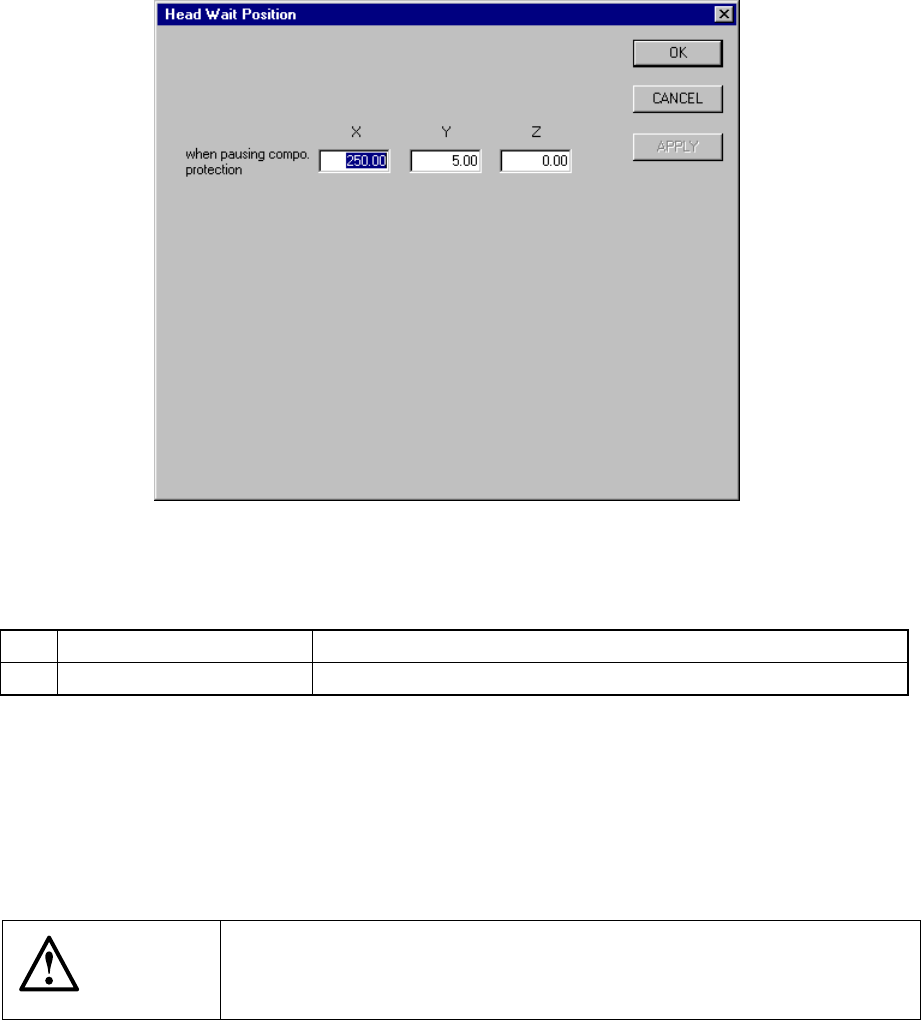
When you select the menu item “Head wait position”, the following “Head Wait
Position” dialog box appears on the screen as shown below.
Figure 7.2.2.5.1 “Head Wait Position” dialog box
(1) Setting items
No. Item Description
1 X, Y, Z Position at which the head pauses to protect a component
(2) Setting the position
− Key in X, Y, and Z coordinate values directly from the keyboard.
− Use the HOD to teach and enter the coordinates. In this case, if either X or
Y is in focus, both values are taught, then entered.
− Z must be in focus to teach the Z coordinate.
CAUTION
To avoid a risk of injury, do not place your hand in the machine, nor
move your face or head close to the machine during operation of the
HOD.
7 − 23
7.2.2.6 Component scrap position
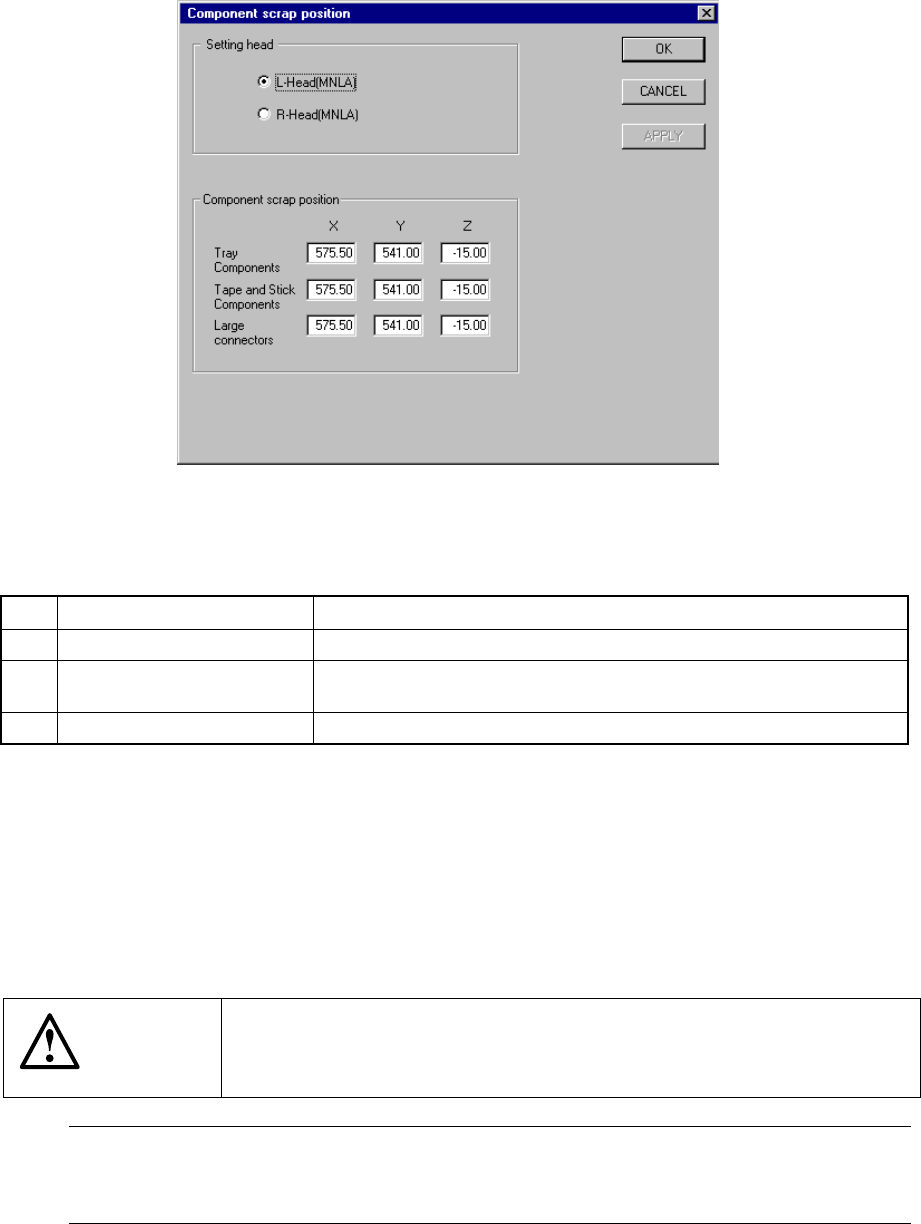
A screen appears as shown in Figure 7.2.2.6.1 “Component scrap position setting
dialog box” when [Component scrap position] is selected from the [Setting Group]
menu.
Figure 7.2.2.6.1 Component scrap position setting dialog box
(1) Setting items
No. Item Description
1 Tray Components (X, Y, Z) The scrap position for IC components
2 Tape & Stick Components
(X, Y, Z)
The scrap position for chip components
3 Large Connectors (X, Y, Z) The scrap position for large components
(2) Setting the position
− Key in X, Y, and Z coordinate values directly from the keyboard.
− Use the HOD to teach and enter the coordinates. In this case, if either X or
Y is in focus bothe values are taught, then entered.
− Z must be in focus to teach the Z coordinate.
CAUTION
To avoid a risk of injury, do not place your hand in the machine, nor
move your face or head close to the machine during operation of the
HOD.
Note: The left head cannot be as the component scrap position on the right side.
The right head cannot be set to the component scrap position on the left side
either.
7 − 24
7.2.2.7 Device enable
A screen appears as shown in Figure 7.2.2.7.1 “Device enable setting dialog box
with tabs” when [Device enable] is selected from the [Setting Group] menu.
Figure 7.2.2.7.1 Device enable setting dialog box with tabs
When you click the corresponding tab, the “Std Device enable ”, “Option Device
enable ” or “Function Device enable ” dialog box appears.
7.2.2.7.1 Std Device enable
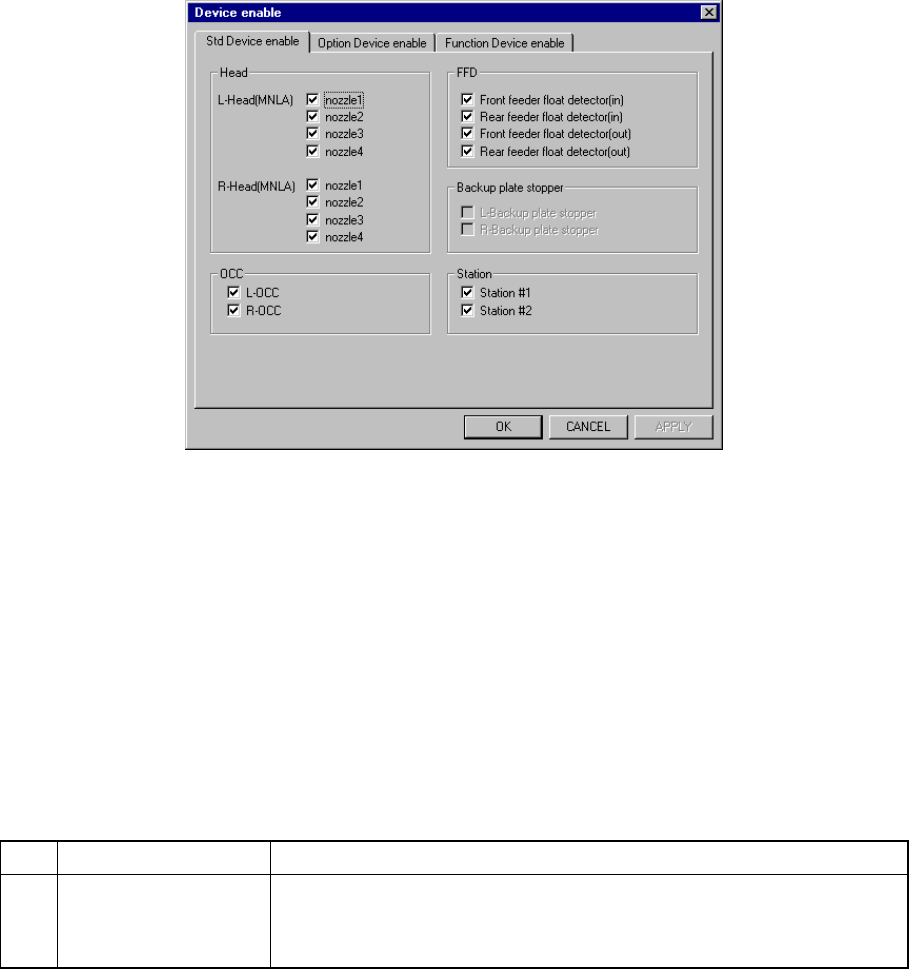
When you click the “Std Device enable” tab, a screen appears as shown in Figure
7.2.2.7.1 “Device enable 1 setting dialog box”. The “Device enable 1” dialog box
is displayed as the initial screen immediately after you select the [Std Device
enable] menu item from the [Setting Group] pull-down menu.
(1) Setting items
No. Item Description
1 Std Device enable Unit to be used/not used
If a system unit malfunctions that unit may be defined as “a unit not used”
using this menu item. This allows the pick-and-place sequence to be
executed without modifying the production program data.
Table 7.2.2.7.1 shows whether or not a pick-and-place sequence can be
completed if the production program requires the unit defined as to be used
before it can complete itself.
(2) Setting the unit
− Specify the device unit to be used with the check box.
− A device unit which is not installed as an option (displayed in dimmed
characters) cannot be checked.
z Zeroing is required again when changing the head status from as not to be
used to as to be used.