KE-2030使用说明书 - 第78页
3 − 13 ② Home, End W hen the infor mation covers two or more scr een pages, the Home k ey moves the cursor t o the beginning of the line and End key does to t he end of the line. ③ Scroll − If the ↑ key is pressed when y…
3 − 12
3 − 13
② Home, End
When the information covers two or more screen pages, the Home key
moves the cursor to the beginning of the line and End key does to the end of
the line.
③ Scroll
− If the ↑ key is pressed when you are on the top line of a screen page
and if there is more information vertically before it, the key scrolls the
information down one line.
− If the ↓ key is pressed when you are on the bottom line of a screen
page and if there is more information vertically after it, the key scrolls the
information up one line.
− If the ← key is pressed when you are at the beginning of the line and if
there is more information to the left, the key scrolls the information one
field to the left.
− If the → key is pressed when you are at the end of the line and if there
is more information to the right, the key scrolls the information one field to
the right.
④ Insert
The Insert key toggles data entry mode between the Insert mode and
Overtype mode.
Data entry mode Cursor shape
Insert
❙
Blinking
Overtype
− Blinking
3 − 14
3.4 Starting up or Terminating the System
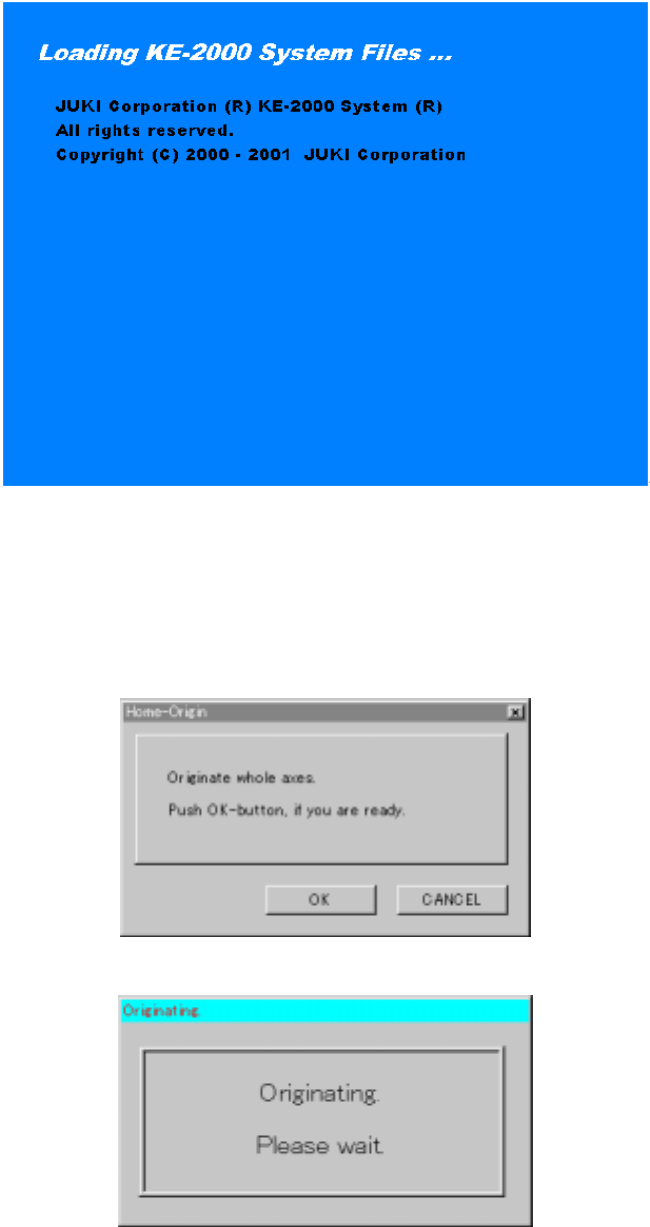
Windows NT starts up after power-on, then the application manager included as the
software for the main unit is executed: the initialize window appears on the screen.
Figure 3.4.1 Start-up screen
When the system is initialized for a while, the <Returning to ORIGIN> screen appears.
If you do not perform the return-to-origin function, press the <CANCEL> key. When
the system completes the return-to-origin function successfully, the application
manager window appears on the screen.
Figure 3.4.2 <Home-Origin> dialog box
Figure 3.4.3 Zeroing waiting dialog box