KE-2030使用说明书 - 第80页
3 − 15 Figure 3.4.4 M ain w indow T o term inate the system, click the <Exit> comm and button. W hen you click the <Exit> button, t he confir mation dialog box appears on the screen. W hen you click the <O…
3 − 14
3.4 Starting up or Terminating the System
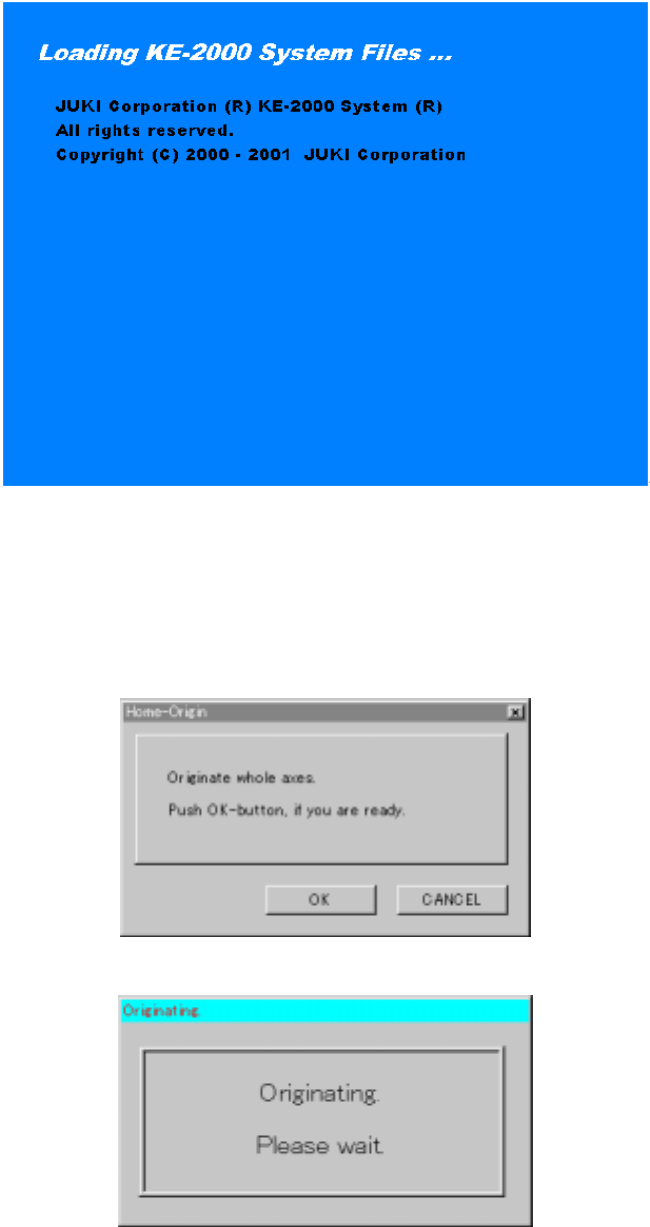
Windows NT starts up after power-on, then the application manager included as the
software for the main unit is executed: the initialize window appears on the screen.
Figure 3.4.1 Start-up screen
When the system is initialized for a while, the <Returning to ORIGIN> screen appears.
If you do not perform the return-to-origin function, press the <CANCEL> key. When
the system completes the return-to-origin function successfully, the application
manager window appears on the screen.
Figure 3.4.2 <Home-Origin> dialog box
Figure 3.4.3 Zeroing waiting dialog box
3 − 15
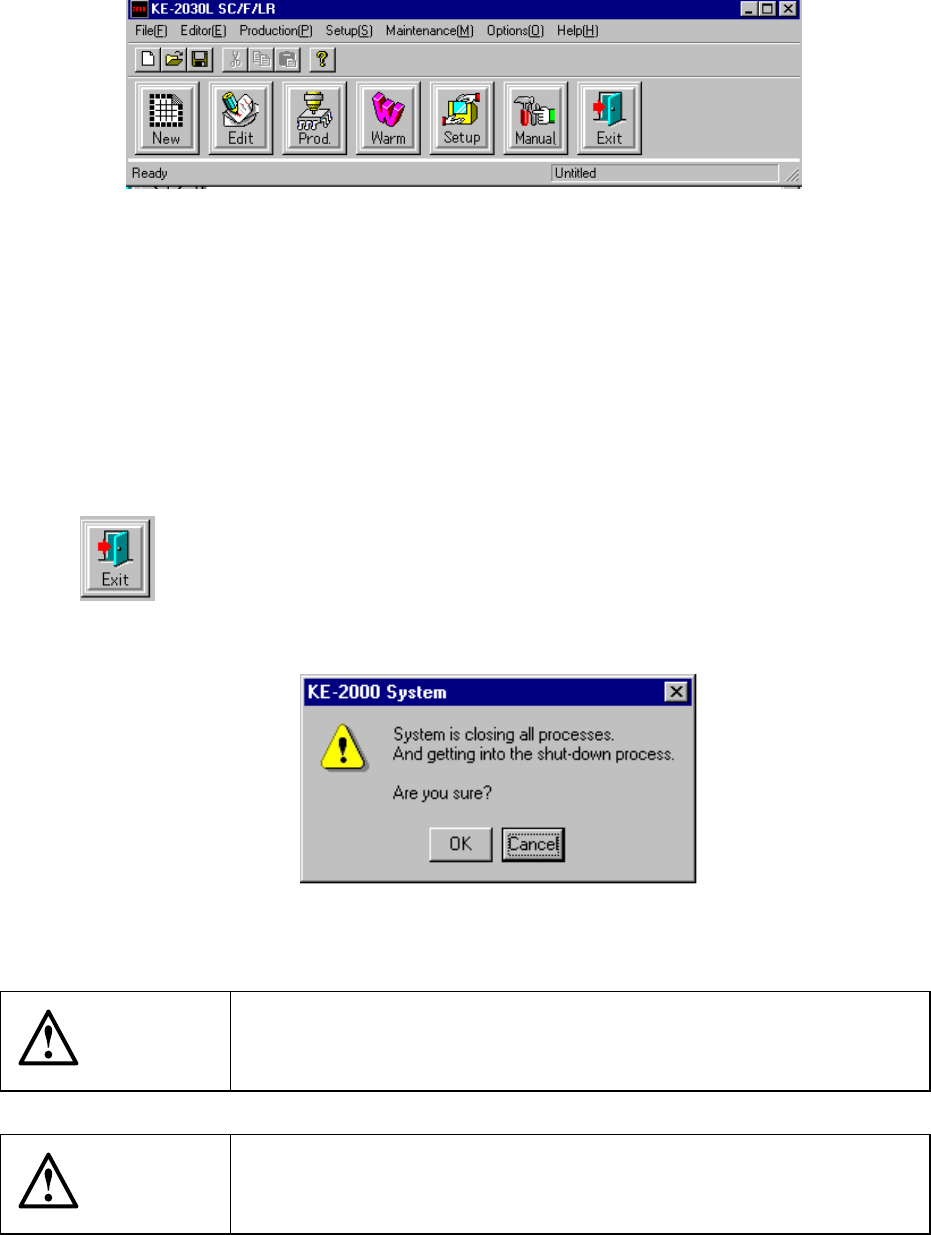
Figure 3.4.4 Main window
To terminate the system, click the <Exit> command button. When you click the <Exit>
button, the confirmation dialog box appears on the screen. When you click the <OK>
button displayed on this dialog box, the shut down process starts, then the system
terminates. If you click the <Cancel> button on this dialog box, the main menu
reappears.
When you click the <Exit> button, the shut-down process confirmation
dialog box opens.
Figure 3.4.5 shut-down process confirmation dialog box
CAUTION
If you turn off the machine without performing the shut-down process,
you may not be able to restart the machine. Be sure to perform the
shut-down process to terminate the system.
CAUTION
When you start up the main unit, two consol screens (under DOS) are
started up at the same time. These consol screens are necessary to
control the system. Never close them.
3 − 16
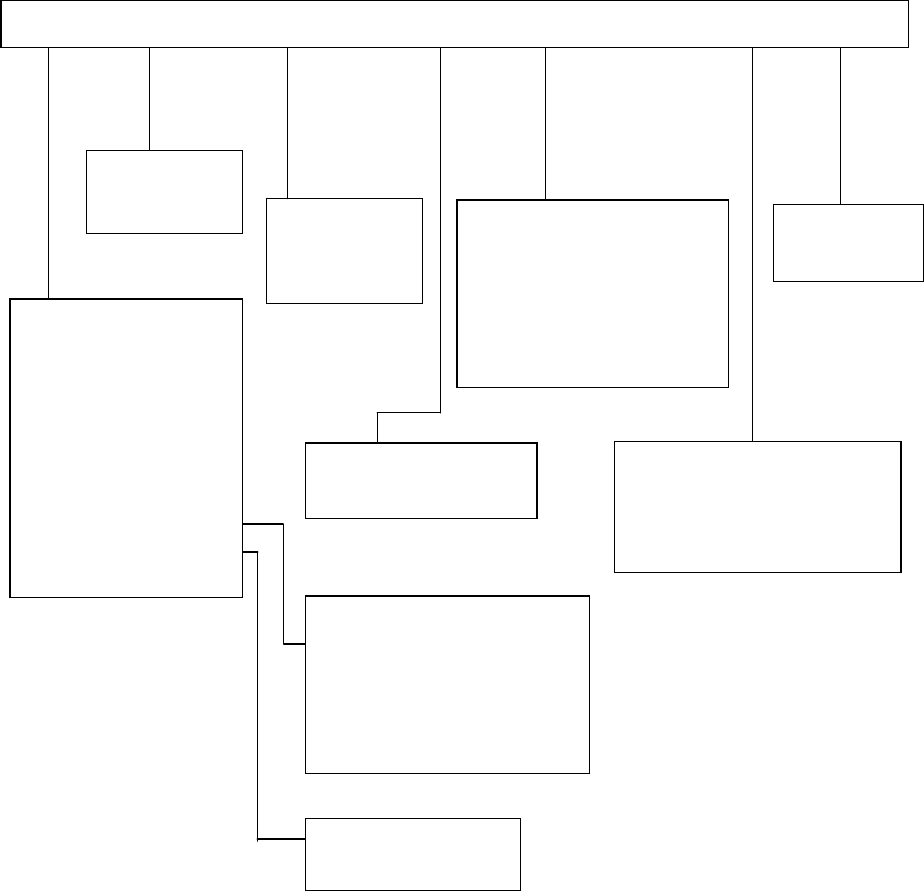
3.5 Menu Organization
3.5.1 Main Menu
Pwb Production
Trial Run
Dry Run
Warming Up
Idle mode
Self-Calibration
Machine Management
information
Mech-Parameter Setting
MS P t S tti
File [F] Editor [E] Production [P] Setup [S] Maintenance [M] Options [O] Help [H]
Machine Set up
Manual Operation
Program Editor
Database Editor
Change User Group
User Group Environmental Settings
Option Setting
Environment Setting
Control Data File Storage
Data Manager
New [N] Ctrl + N
Open [O] Ctrl + O
Save [S] Ctrl + S
Save as [A]
File Management [Explorer]
Default Folder
Printer Setup
Print
Control Data Management
Exit [X]
Production Program List
Retry List
Production Management Data
Machine Management information
Machine Setup Data
Option Setting Data
KE-2000 Help
About Programs