00198503-02_IM_SIPLACE_Pro_15.1_R18-1_EN - 第46页
SIPLACE Pro 15.1 (R18 - 1) / Installat ion Manual 05/2018 Edition 46 7 First Booting after Installation After a new install ation of the databas e, it is necessary to import the stand ard shape library. This step is requ…
SIPLACE Pro 15.1 (R18-1) / Installation Manual 05/2018 Edition
45
SIPLACE Pro Upgrade is compatible with the installed language pack
The SIPLACE Pro version that has been currently installed is compatible with the already installed
language pack.
► Perform the SIPLACE Pro upgrade as usual without changing the language pack.
After the upgrade all languages installed with the language pack are available.

SIPLACE Pro 15.1 (R18-1) / Installation Manual 05/2018 Edition
46
7 First Booting after Installation
After a new installation of the database, it is necessary to import the standard shape library. This
step is required to use SIPLACE Pro and it ensures that data is available to be used for reporting.
► In SIPLACE Pro Desk, select Tools – Import – Standard Shape Library...
Two import variants are available:
– Component shape numbers
– Component shape names
► Do not import the two variants parallel or mixed.
After having upgraded the database from a previous version (see chapter 3) it is not necessary to
import data from the component shape library.
7.1 Troubleshooting after Installation
7.1.1 SystemFeeder Inventory
It might happen that the SystemFeeder import does not work directly after installation. You will get
an appropriate warning message at the end of the installation. In this case:
► Reboot the computer.
► Start the SystemFeeder import manually by clicking the appropriate start menu shortcut.
7.1.2 COM+ Installation Problems
If you did not close all applications and services using SIPLACE Pro (like ASM OIB), you may get
COM+ installation error messages during the installation of SIPLACE Pro. In this case:
► Reboot the computer.
► If still installed, uninstall SIPLACE Pro completely as described in the appropriate chapter.
CAUTION
► Ensure you stop all applications and services that might use the SIPLACE Pro
Interface – especially ASM OIB Services.
SIPLACE Pro 15.1 (R18-1) / Installation Manual 05/2018 Edition
47
Ensure that no SIPLACE Pro COM+ component is still installed by performing the following actions:
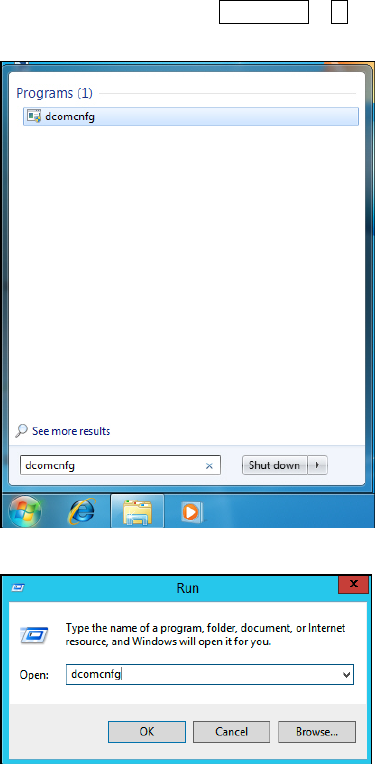
► Open the DCom configuration tool of Windows by typing dcomcnfg in the search field of the
Start menu or press Windows + R to open the Run window of Windows and type dcomcnfg
in the field.
Figure 7-1: Opening DCom configuration tool using the search field in Windows 7
Figure 7-2: Opening DCom configuration tool using the Run window