00198503-02_IM_SIPLACE_Pro_15.1_R18-1_EN - 第53页
SIPLACE Pro 15.1 (R18 - 1) / Installat ion Manual 05/2018 Edition 53 Figure 8-3: Specifying Wi ndows user account ► If applicable, make t he desired change s for the account conf iguration. ► Click the Next button. NOTIC…
SIPLACE Pro 15.1 (R18-1) / Installation Manual 05/2018 Edition
52
► Select the Modify button.
► Click the Next button.
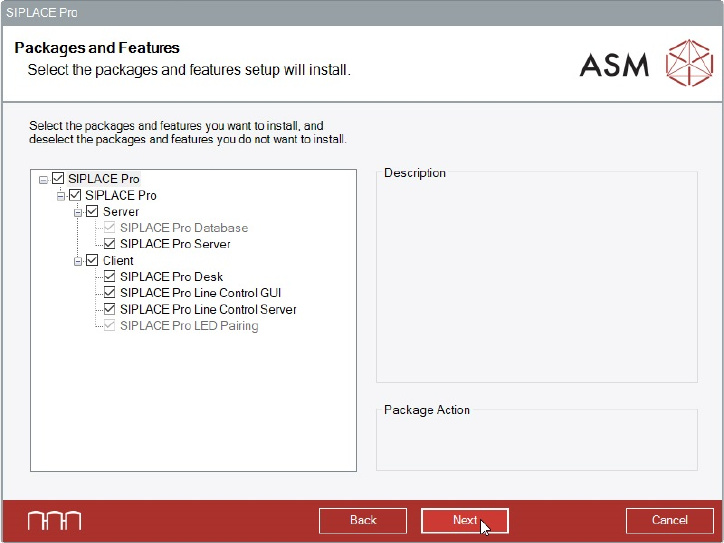
The Packages and Features dialog is displayed.
Figure 8-2: Packages and features
► Verify the installed features, change the selection as needed and click the Next button.
Unselected features (were installed before) will not be installed.
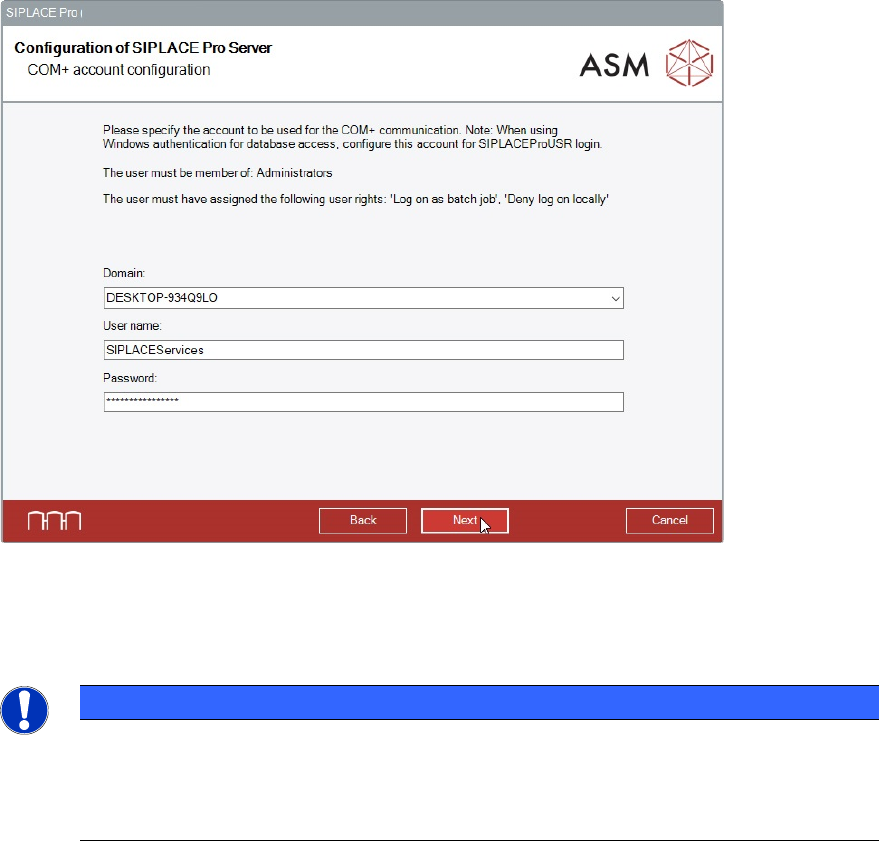
If you install a local SIPLACE Pro Server, the Configuration of SIPLACE Pro Server dialog is
displayed.
In this dialog is specified under which Windows user account the server component of SIPLACE
Pro runs.
SIPLACE Pro 15.1 (R18-1) / Installation Manual 05/2018 Edition
53
Figure 8-3: Specifying Windows user account
► If applicable, make the desired changes for the account configuration.
► Click the Next button.
NOTICE
Depending on the features you selected at your first installation, the SIPLACE Pro setup
may ask for the name of the SIPLACE Pro Server and / or Line Control Server.
You can find information about these configuration dialogs in section 6.2.1 and section
6.2.2.
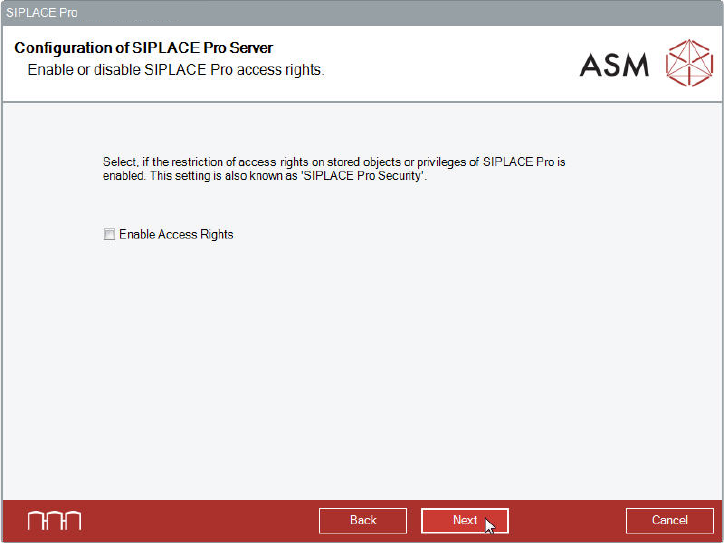
In the next dialog, the SIPLACE Pro access rights (SIPLACE Pro Security) are enabled or disabled.
SIPLACE Pro 15.1 (R18-1) / Installation Manual 05/2018 Edition
54
Figure 8-4: Enabling / disabling SIPLACE Pro access rights
► If applicable, enable or disable the SIPLACE Pro access rights.
► Click the Next button.