EdisonStandardOwnersManual-RevA-20170818B.pdf - 第103页
Edison Printer User Manual (Part Number 1023838) P RINTER O PERATIONS Rev. A 103 Copyright © 2017 ITW EAE All rights reserved. No part of the contents of this manual ma y be reproduced, copied or transmitted in any form …
PRINTER OPERATIONS Edison Printer User Manual (Part Number 1023838)
102 Rev. A
Copyright © 2017 ITW EAE
All rights reserved. No part of the contents of this manual may be reproduced, copied or transmitted in any form or by any
means including graphic, electronic, or mechanical methods or photocopying, recording, or information storage and
retrieval systems without the written permission of ITW EAE, unless for purchaser's personal use.
5.3.2.2. After Initialization: Load a Process Program
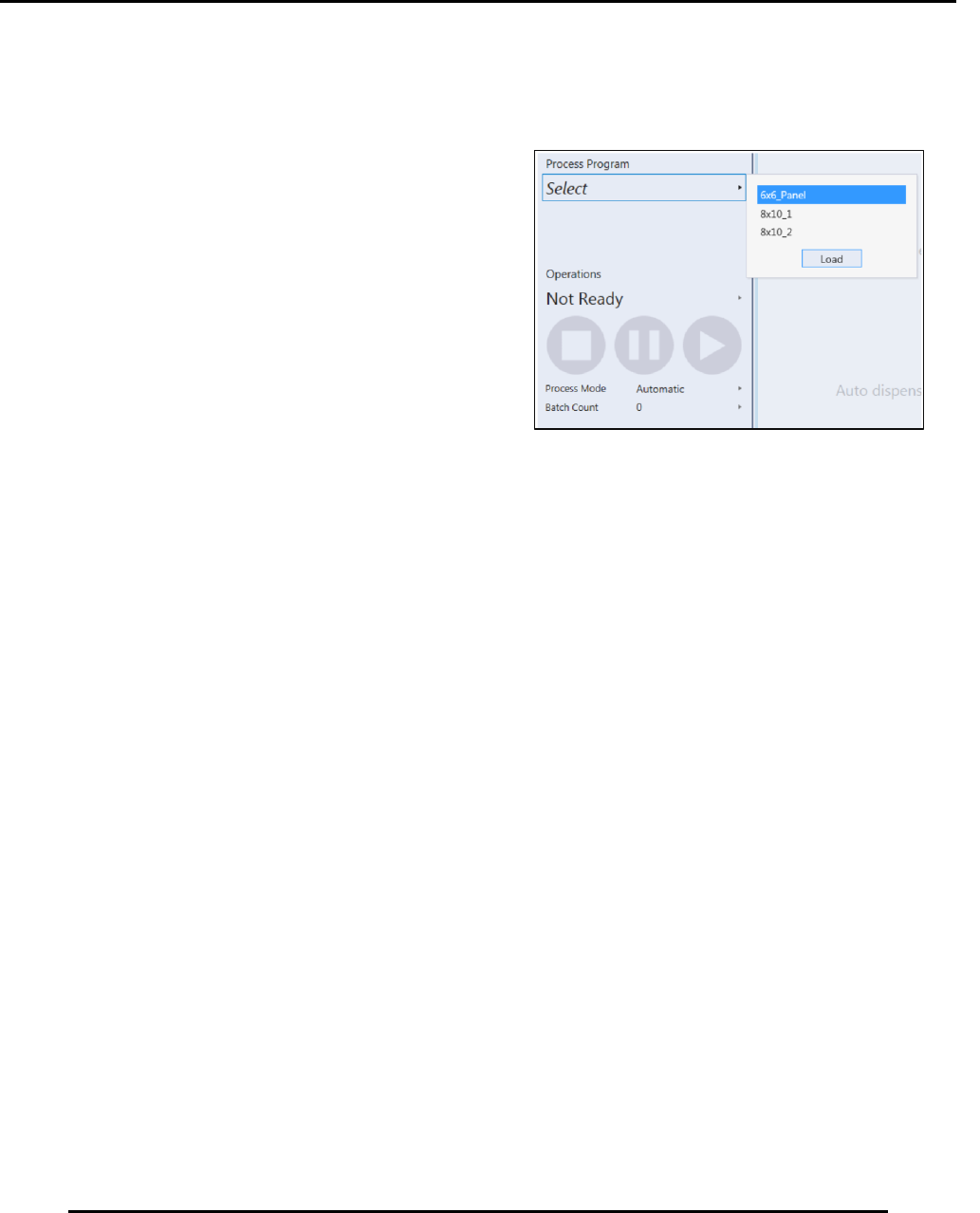
After initialization, the Edison printer prompts you to select a process program to load, provided a
process program has been entered (Figure 83).
Select the desired process program, then press
Load. The Changeover process starts immediately.
To load the process program without initiating the
changeover process, select Cancel at the bottom of the Changeover screen.
Figure 83. Select Process Program.
Edison Printer User Manual (Part Number 1023838) PRINTER OPERATIONS
Rev. A 103
Copyright © 2017 ITW EAE
All rights reserved. No part of the contents of this manual may be reproduced, copied or transmitted in any form or by any
means including graphic, electronic, or mechanical methods or photocopying, recording, or information storage and
retrieval systems without the written permission of ITW EAE, unless for purchaser's personal use.
5.4. System Security Operations
Intueri software allows you to create groups of users and set access for each group. Individual
users can be assigned to any or all of the groups created.
5.4.1. Logged Out Settings
Use Logged Out Settings to define printer access levels when no users are logged in.
5.4.2. Add Security Settings
Create new users, create a new group or elevate privileges for existing users. Set each security
setting by allowing or denying privileges.
5.4.2.1. Create a New User
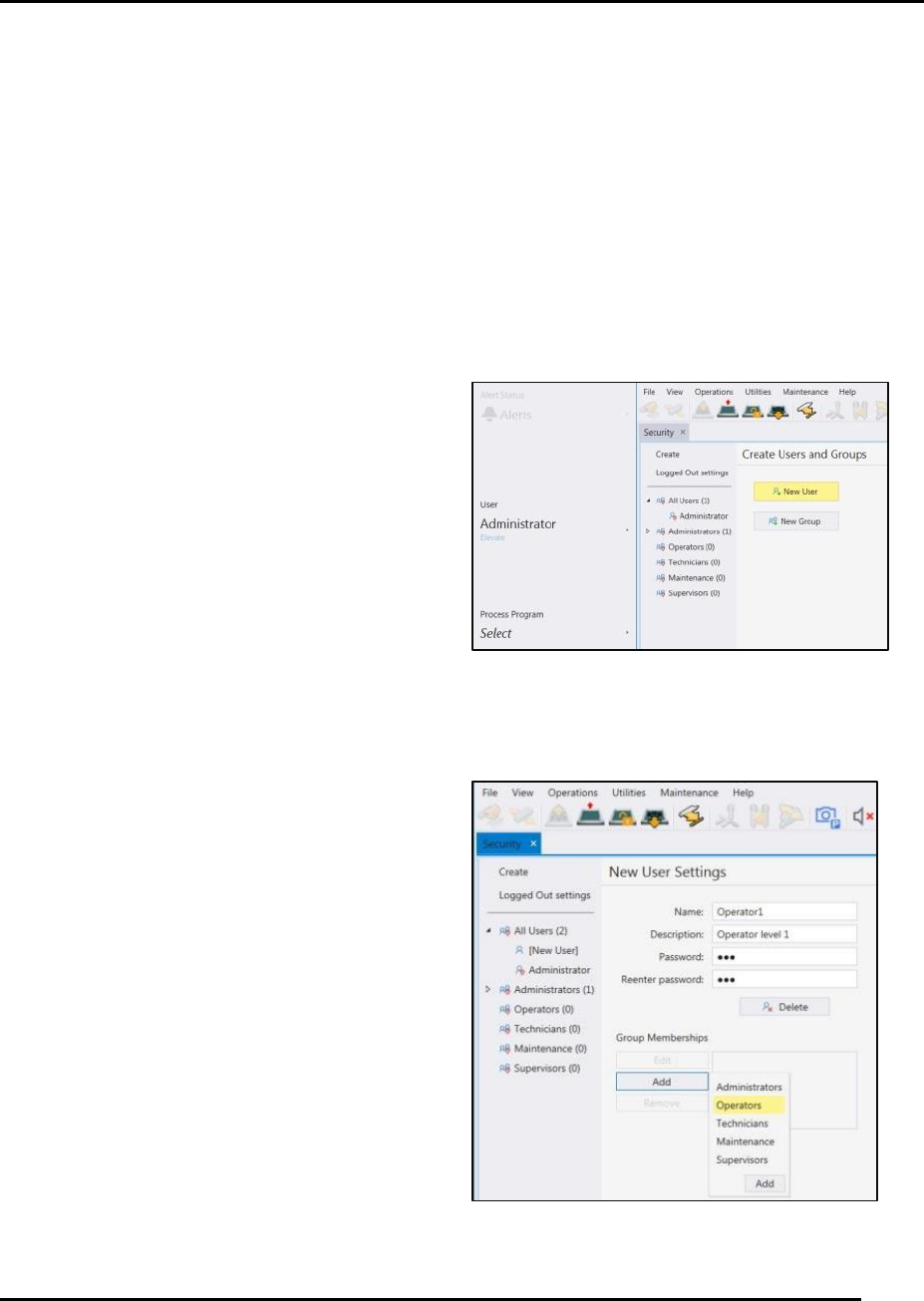
1. Navigate to Security > Create Users and
Groups.
2. Click on New User (Figure 84).
3. On the New User Settings screen (Figure 85),
enter:
a. Ether the name, description and password information.
b. Add the appropriate group memberships, if
any.
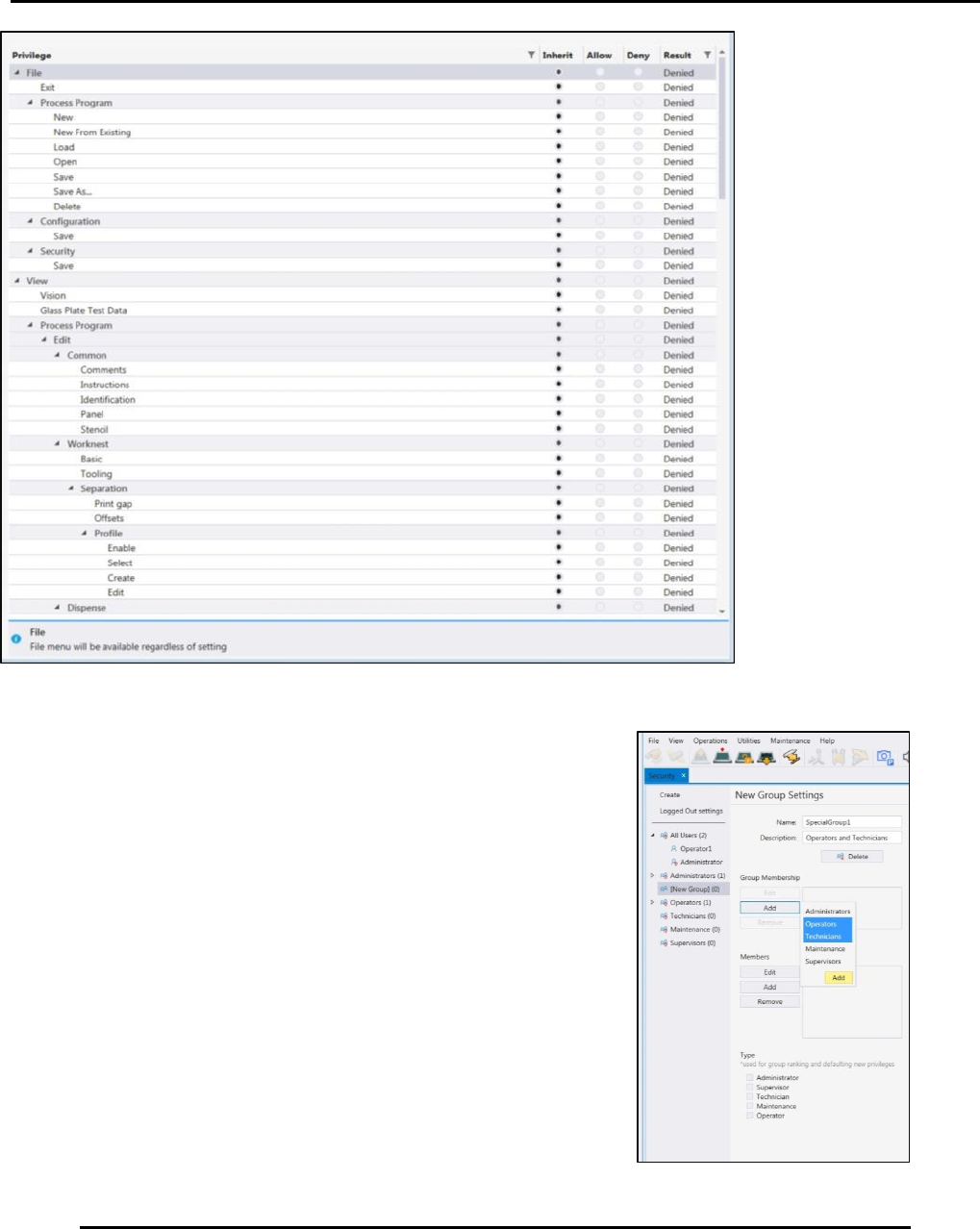
c. Select the appropriate privileges for the
new user: Check Inherit (assign privileges
from Group Membership settings), Allow
or Deny. The Result column shows status
of the privilege (Figure 87).
4. Press Save before leaving the screen to ensure
your security settings are preserved.
Figure 84. Create New User.
Figure 85. New User Settings.
PRINTER OPERATIONS Edison Printer User Manual (Part Number 1023838)
104 Rev. A
Copyright © 2017 ITW EAE
All rights reserved. No part of the contents of this manual may be reproduced, copied or transmitted in any form or by any
means including graphic, electronic, or mechanical methods or photocopying, recording, or information storage and
retrieval systems without the written permission of ITW EAE, unless for purchaser's personal use.
5.4.2.2. Create a New Group
1. Navigate to Security > Create Users and Groups.
2. Click on New Group (Figure 89).
5. On the New Group Settings screen (Figure 89), enter:
a. Enter the name and Description of the new group.
b. Edit, Add, and Remove members as needed under the
Group Membership section (Figure 88).
c. Set group privileges as necessary (Figure 88).
Figure 87. Setting Privileges