EdisonStandardOwnersManual-RevA-20170818B.pdf - 第106页
P RINTER O PERATIONS Edison Printer User Manual (Part Number 1023838) 106 Rev. A Copyright © 2017 ITW EAE All rights reserved. No part of the contents of thi s manual may be reproduced, copied or transmitted in any form …
Edison Printer User Manual (Part Number 1023838) PRINTER OPERATIONS
Rev. A 105
Copyright © 2017 ITW EAE
All rights reserved. No part of the contents of this manual may be reproduced, copied or transmitted in any form or by any
means including graphic, electronic, or mechanical methods or photocopying, recording, or information storage and
retrieval systems without the written permission of ITW EAE, unless for purchaser's personal use.
5.4.2.3. Elevate Privileges
Intueri software allows an administrator to temporarily login an operator as a more privileged
user:
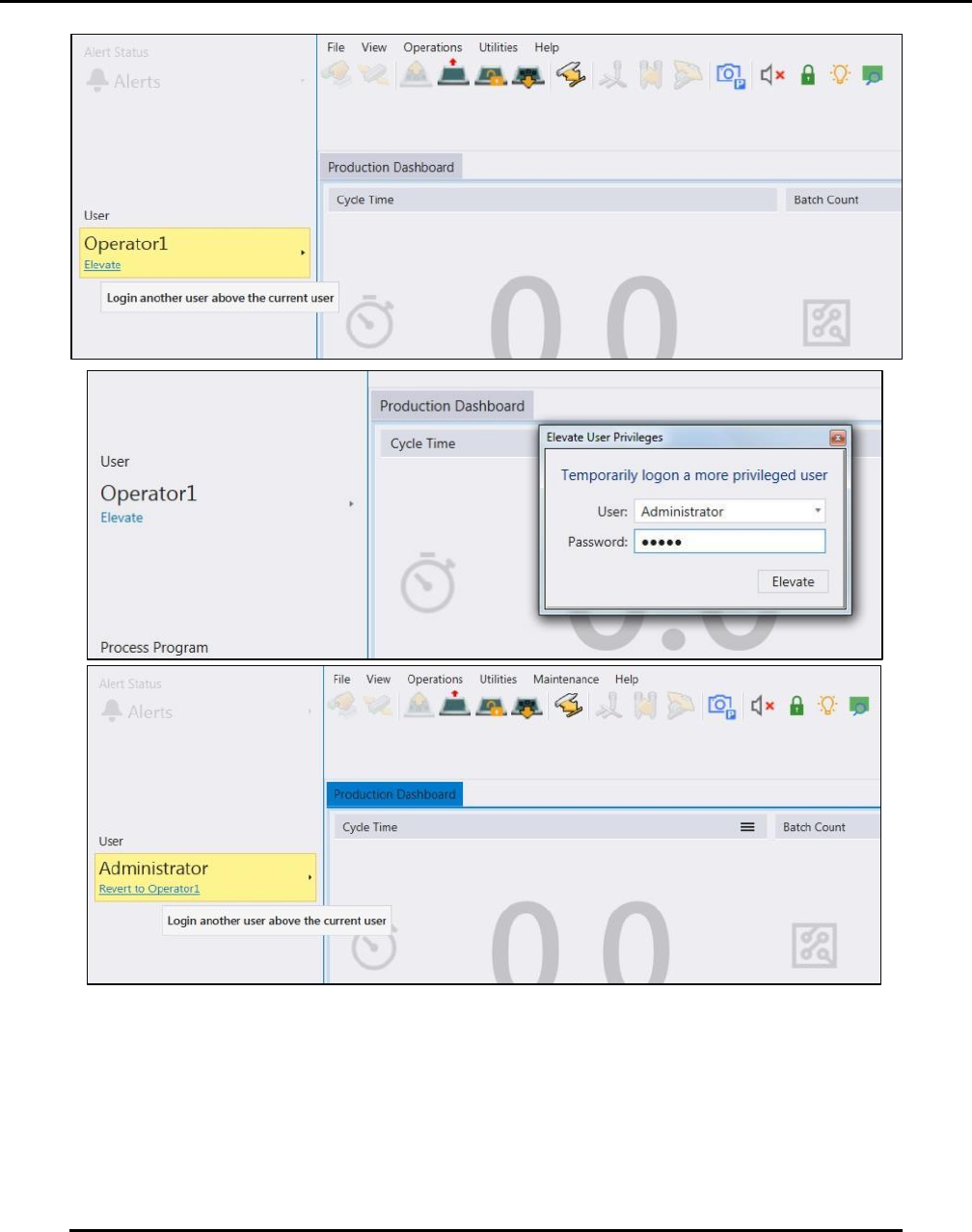
1. From the Production Dashboard, press Elevate to display the elevate login screen (Figure
90).
2. Enter the administrator username and password. (Figure 90).
3. When the administrator logs out the previous person logged in gets logged in again but with
elevated privileges.
4. To revert to the previous privileges, press Revert to Operator1. (Figure 90).
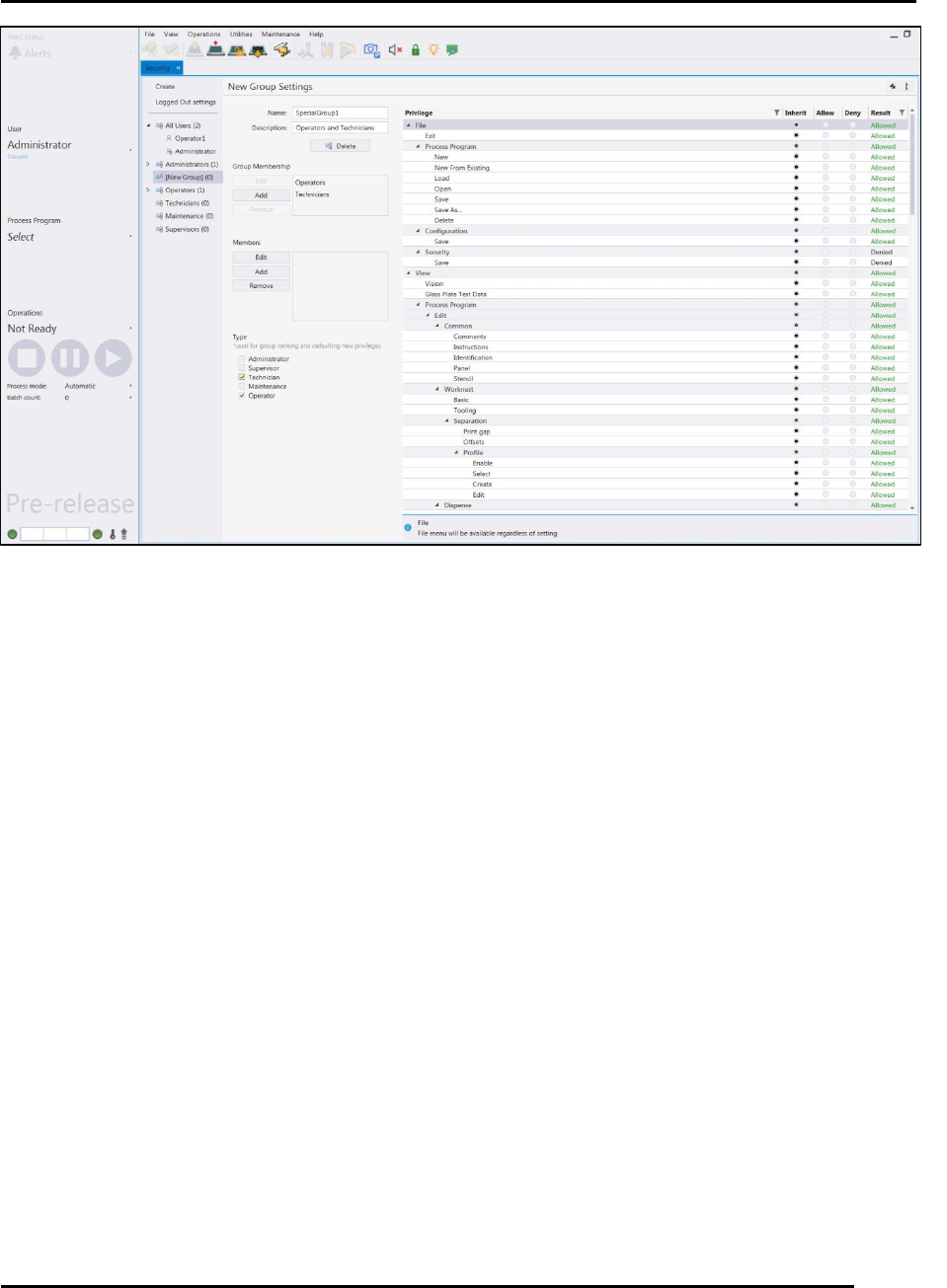
Figure 89. Create a New Group.
Figure 88. Set Group Privileges.
PRINTER OPERATIONS Edison Printer User Manual (Part Number 1023838)
106 Rev. A
Copyright © 2017 ITW EAE
All rights reserved. No part of the contents of this manual may be reproduced, copied or transmitted in any form or by any
means including graphic, electronic, or mechanical methods or photocopying, recording, or information storage and
retrieval systems without the written permission of ITW EAE, unless for purchaser's personal use.
Figure 90. Elevate Privileges Dialogue Screens.
Edison Printer User Manual (Part Number 1023838) PRINTER OPERATIONS
Rev. A 107
Copyright © 2017 ITW EAE
All rights reserved. No part of the contents of this manual may be reproduced, copied or transmitted in any form or by any
means including graphic, electronic, or mechanical methods or photocopying, recording, or information storage and
retrieval systems without the written permission of ITW EAE, unless for purchaser's personal use.
5.4.3. Add a New Group
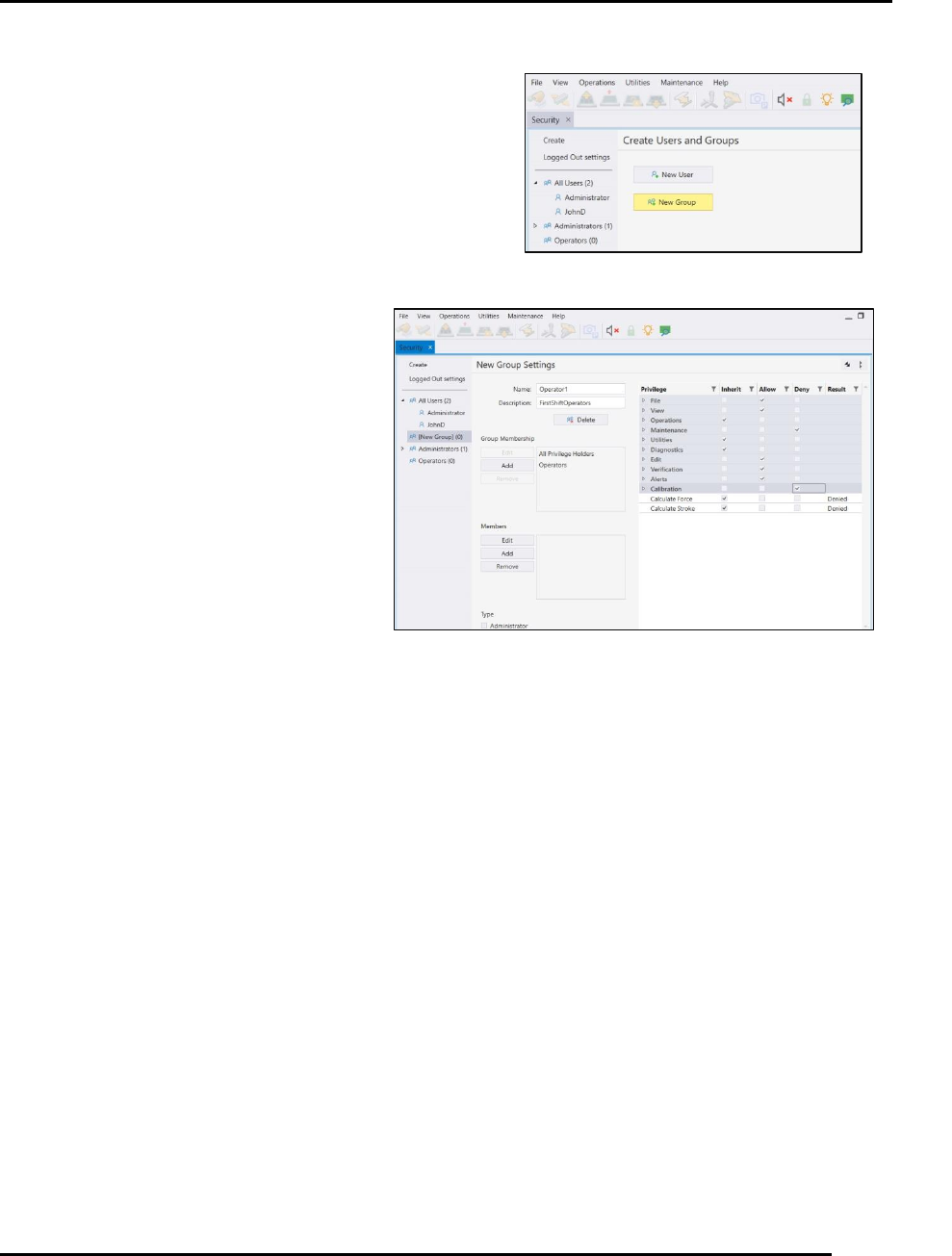
1. From the main menu, navigate to View > Security
Settings
2. Navigate to Create | Create Users and Groups.
3. Click New Group (Figure 93).
4. Enter Group information (Figure 94).
a. Name
b. Description, for instance, the Group
title.
c. Enter Group Memberships
i. Groups can have member in
other groups.
ii. These subgroups retain the
inherent privileges of the group
unless those privileges are
specifically denied.
d. Press Add to assign a group
membership. Note that a user can
be assigned to more than one
group.
Figure 91. New Group Screen.
Figure 92. Identify New Group.