EdisonStandardOwnersManual-RevA-20170818B.pdf - 第108页
P RINTER O PERATIONS Edison Printer User Manual (Part Number 1023838) 108 Rev. A Copyright © 2017 ITW EAE All rights reserved. No part of the contents of thi s manual may be reproduced, copied or transmitted in any form …
Edison Printer User Manual (Part Number 1023838) PRINTER OPERATIONS
Rev. A 107
Copyright © 2017 ITW EAE
All rights reserved. No part of the contents of this manual may be reproduced, copied or transmitted in any form or by any
means including graphic, electronic, or mechanical methods or photocopying, recording, or information storage and
retrieval systems without the written permission of ITW EAE, unless for purchaser's personal use.
5.4.3. Add a New Group
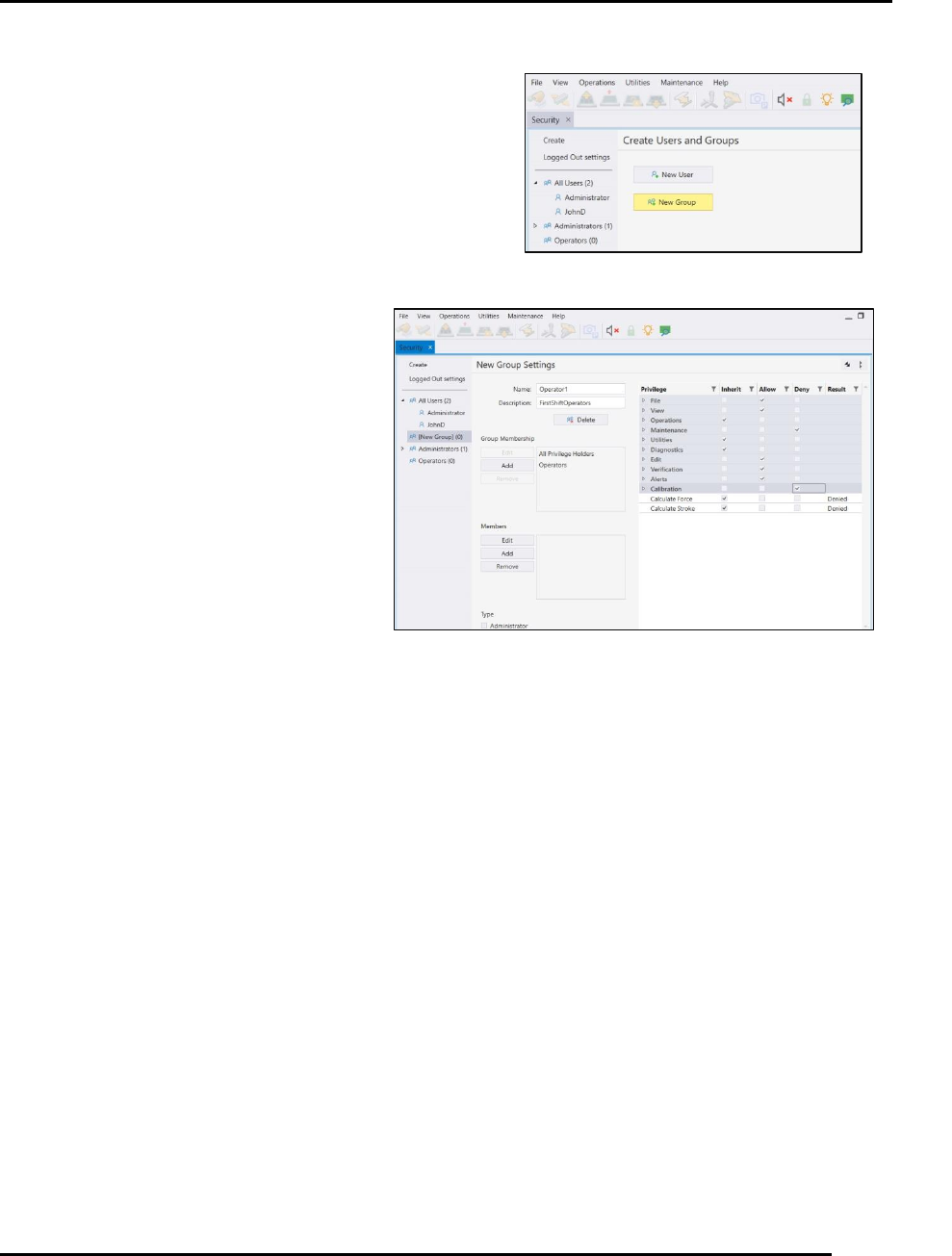
1. From the main menu, navigate to View > Security
Settings
2. Navigate to Create | Create Users and Groups.
3. Click New Group (Figure 93).
4. Enter Group information (Figure 94).
a. Name
b. Description, for instance, the Group
title.
c. Enter Group Memberships
i. Groups can have member in
other groups.
ii. These subgroups retain the
inherent privileges of the group
unless those privileges are
specifically denied.
d. Press Add to assign a group
membership. Note that a user can
be assigned to more than one
group.
Figure 91. New Group Screen.
Figure 92. Identify New Group.
PRINTER OPERATIONS Edison Printer User Manual (Part Number 1023838)
108 Rev. A
Copyright © 2017 ITW EAE
All rights reserved. No part of the contents of this manual may be reproduced, copied or transmitted in any form or by any
means including graphic, electronic, or mechanical methods or photocopying, recording, or information storage and
retrieval systems without the written permission of ITW EAE, unless for purchaser's personal use.
5.4.4. Add a New User
Passwords are case-sensitive.
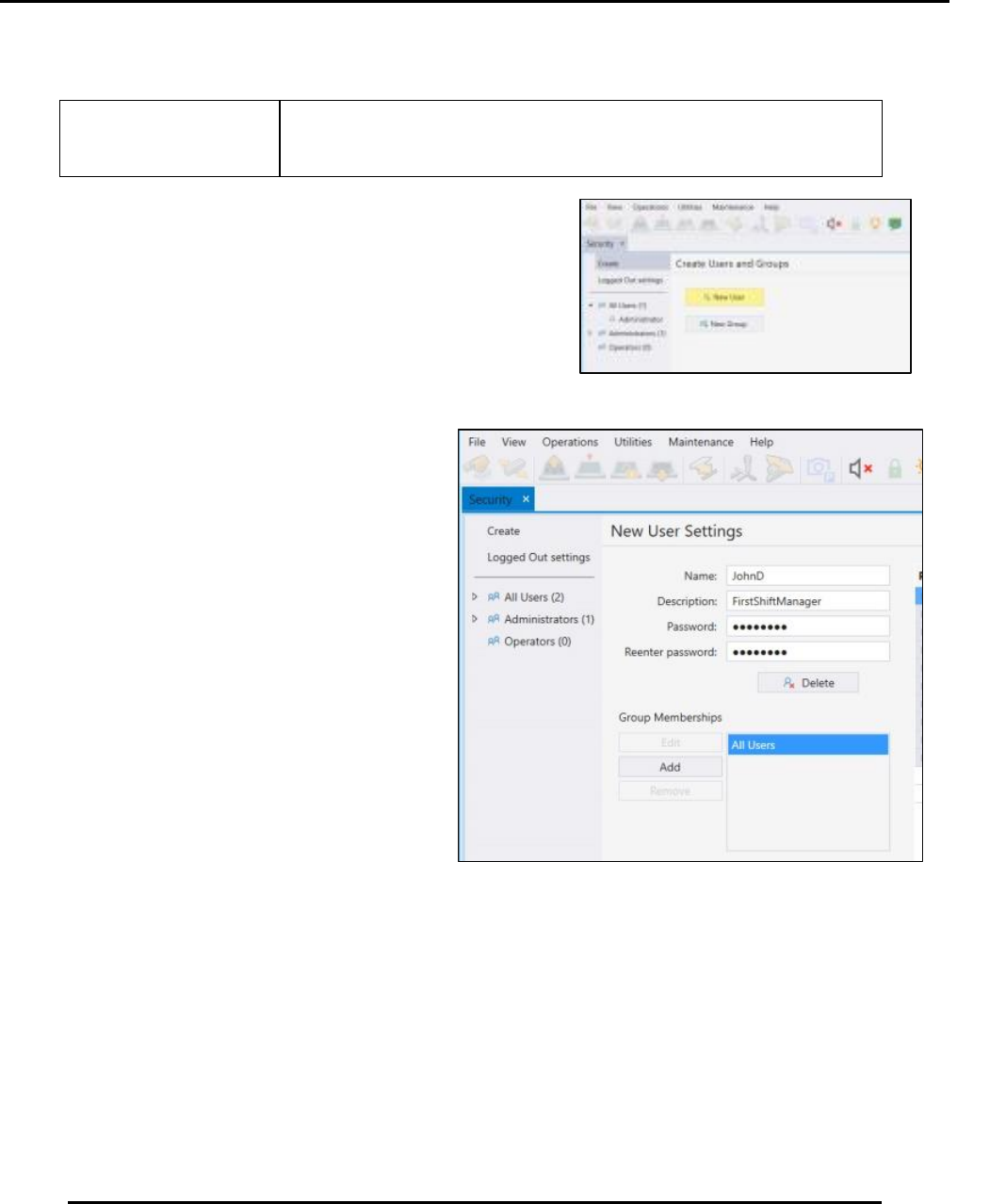
1. From the main menu, navigate to View > Security
Settings
2. Navigate to Create | Create Users and Groups.
3. Click New User (Figure 93).
4. Enter user information (Figure 94).
a. Name
b. Description, for instance, the user’s
title
c. Password
d. Reenter password
5. Enter Group Memberships
Without a group assignment, the user
will be able to log on but do nothing
else. Group membership provides the
user with full access to printer functions
at the highest level of group
membership
a. Press Add to assign a group
membership. Note that a user can be
assigned to more than one group.
Figure 93. New User Screen.
Figure 94. Identify New User.
Edison Printer User Manual (Part Number 1023838) PRINTER OPERATIONS
Rev. A 109
Copyright © 2017 ITW EAE
All rights reserved. No part of the contents of this manual may be reproduced, copied or transmitted in any form or by any
means including graphic, electronic, or mechanical methods or photocopying, recording, or information storage and
retrieval systems without the written permission of ITW EAE, unless for purchaser's personal use.
5.5. Preparing for Production
Preparing for production typically starts with loading the required process program, which
automatically starts the Changeover routine.
5.5.1. Load a Process Program
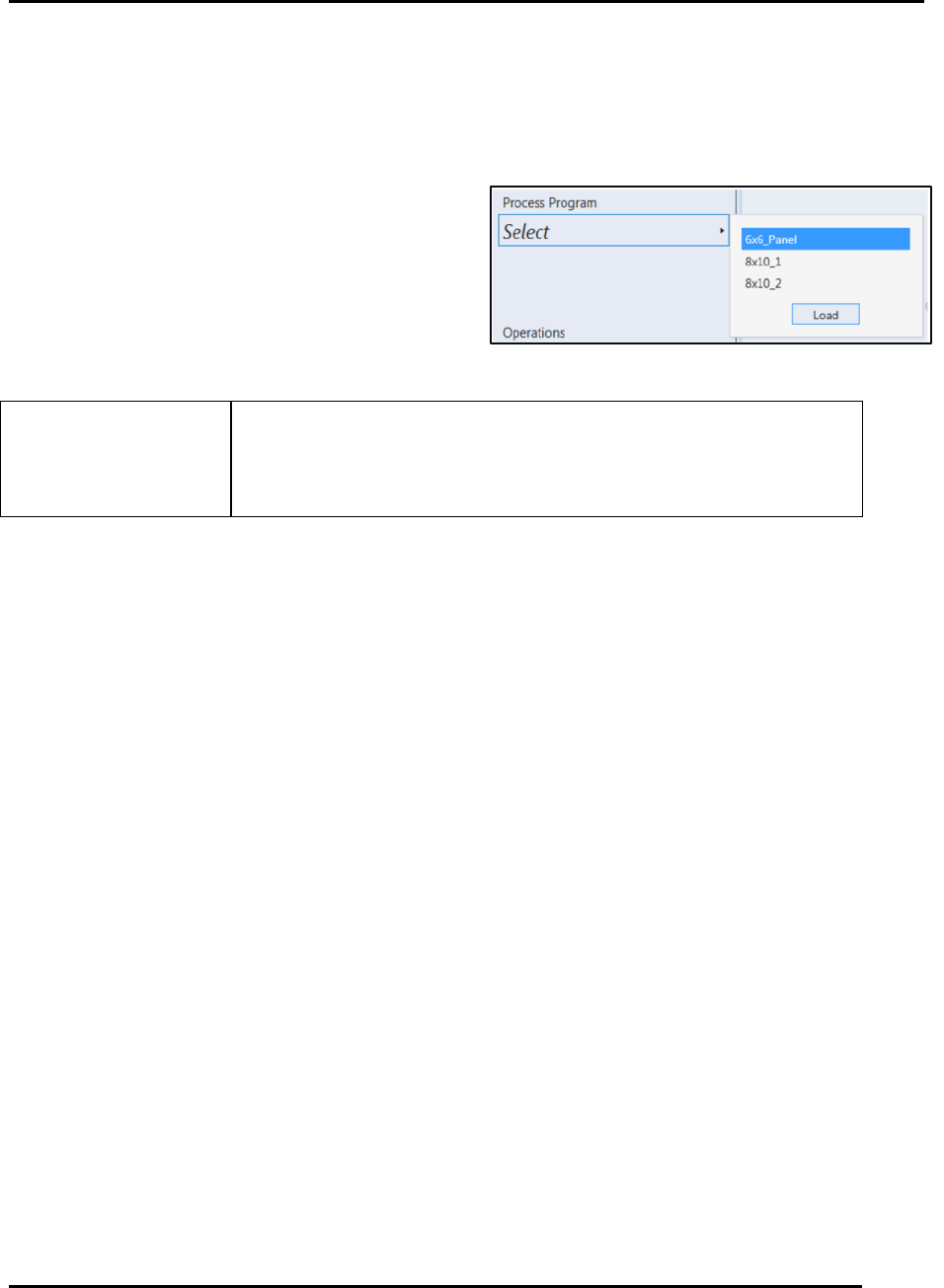
After completing printer initialization, the Intueri
software prompts the user to select a process
program from a list of previously created process
programs (Figure 95).
1. Click (or double-click) on the desired program.
2. Press Load.
Load another program by following the Load a Process Program
procedure (Section 5.5.1). There is no need to, nor provision for,
unloading a program.
5.5.2. Changeover Wizard Example
The Changeover Wizard begins automatically after loading a process program. The Changeover
Wizard prepares the printer for production using a series of prompts for installing the necessary
materials and components the loaded process program requires.
The number of prompts and tasks during changeover will vary depending on the process program.
This changeover example routine is one of the more extensive routines and occurs after printer
initialization.
5.5.2.1. Setup
The changeover task involves entering specific instructions for the operator to follow during
printer setup (Figure 96). Enter information on the Setup Screen only during creation or editing of
the process program. These instructions appear on screen (for example, the instructions in Figure
97). Specific instructions may include:
Specific operator instructions, for instance, “Use highest quality wiper paper.”
Additional useful information that is above and beyond the information entered into the
process program input fields.
Specific comments pertaining to the process program, comments that will help the operator.
Figure 95. Select a Process Program to Load.