EdisonStandardOwnersManual-RevA-20170818B.pdf - 第139页
Edison Printer User Manual (Part Number 1023838) M AINTENANCE Rev. A 139 Copyright © 2017 ITW EAE All rights reserved. No part of the contents of this manual ma y be reproduced, copied or transmitted in any form or by an…
MAINTENANCE Edison Printer User Manual (Part Number 1023838)
138 Rev. A
Copyright © 2017 ITW EAE
All rights reserved. No part of the contents of this manual may be reproduced, copied or transmitted in any form or by any
means including graphic, electronic, or mechanical methods or photocopying, recording, or information storage and
retrieval systems without the written permission of ITW EAE, unless for purchaser's personal use.
6.2.4. Verify Switch Functionality
6.2.4.1. Verify E-Stop (EMO) Operator Switch Functionality—Monthly
Introduction
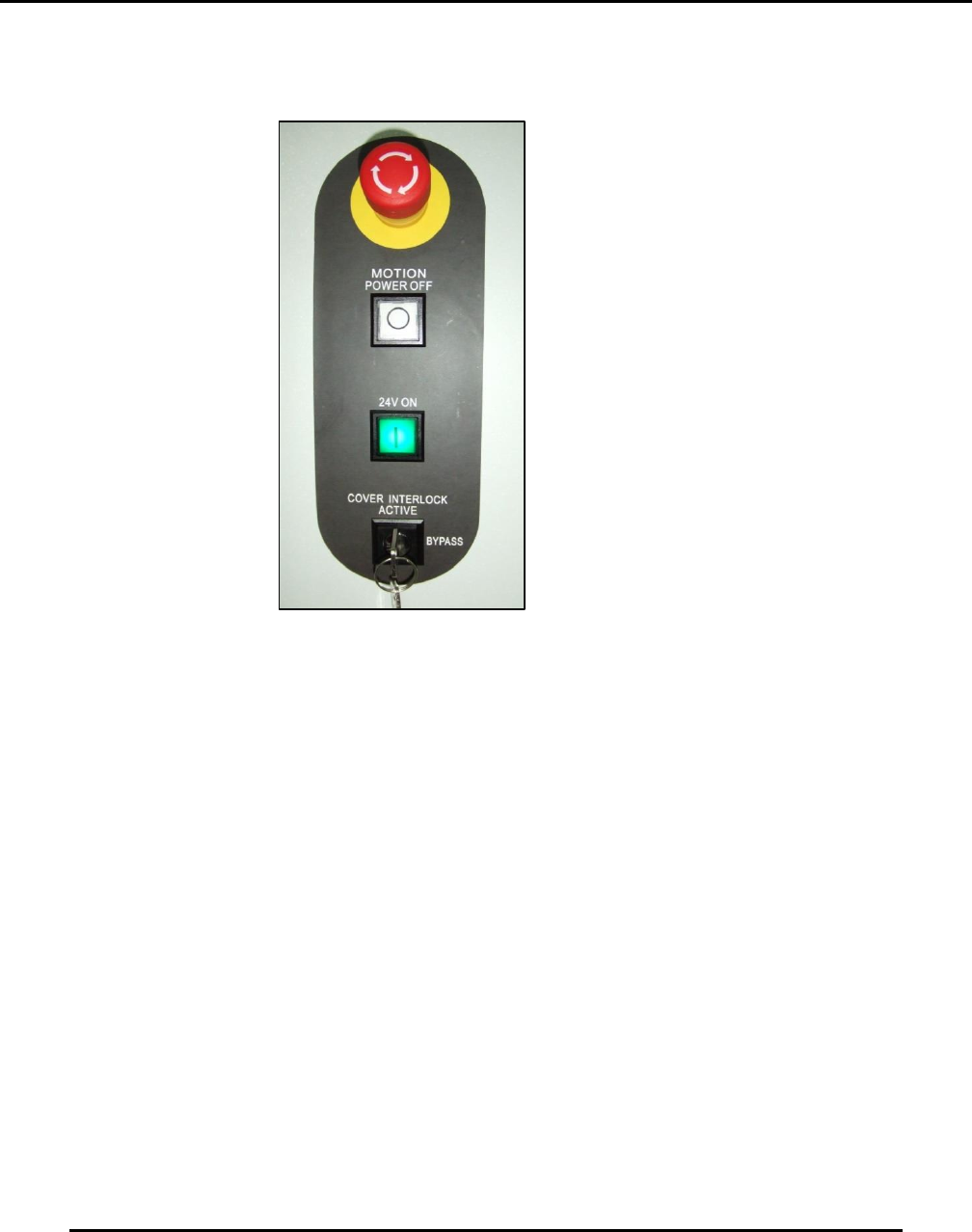
Verify E-Stop (EMO) operator switch functionality monthly routine (Figure 138).
Estimated Completion Time
Less than 5 minutes
Procedure
Bring the printer to a fully initialized condition.
Load a process program, then:
o Push the red E-Stop button to ensure the system shuts down the air and motion
control elements of the printer.
The E-Stop button remains locked down until manually disengaged from that
position
o After observing air and motion control shut down, twist the E-Stop ¼ turn clockwise
to disengage from the secure E-stop condition.
Open hood.
Examine the back side of the switch:
o Verify wire connections to the switch are secure.
o Verify the operator block is properly fastened.
Figure 138. Verify E-Stop (EMO)
Monthly.

Edison Printer User Manual (Part Number 1023838) MAINTENANCE
Rev. A 139
Copyright © 2017 ITW EAE
All rights reserved. No part of the contents of this manual may be reproduced, copied or transmitted in any form or by any
means including graphic, electronic, or mechanical methods or photocopying, recording, or information storage and
retrieval systems without the written permission of ITW EAE, unless for purchaser's personal use.
NOTE: The E-Stop switch is intended for emergency use only. Use the white Power Off switch
for normal printer shutdown.
6.2.4.2. Verify Motion Power Off Operator Switch Functionality—Monthly
Introduction
Verify white Power Off operator switch functionality monthly routine (Figure 138).
Estimated Completion Time
Less than 5 minutes
Procedure
Bring the printer to a fully initialized condition.
Load a process program, then:
o Push the white Motion Power Off button to ensure the system shuts down the air and
motion control elements of the printer.
o The button is a momentary contact type and should return to the normal position.
Open hood.
Examine the back side of the switch:
o Verify wire connections to the switch are secure.
o Verify the operator block is properly fastened.
NOTE: The white Motion Power Off button does not illuminate at any time.
6.2.4.3. Verify Power On Operator Switch Functionality—Monthly
Introduction
Verify green Power On (24V ON) operator switch functionality monthly routine (Figure 138).
Estimated Completion Time
Less than 5 minutes
Procedure
Start from a complete printer Power Off condition.
Turn printer main breaker ON.
Push the green 24V ON (Power On) button to start the power control module.
o Note that the green light on the 24V ON switch comes on and stays ON, ensuring 24
VDC supply is functional.
o The switch is a momentary contact type and should return to the normal position.
Open hood.
Examine the back side of the switch:
o Verify wire connections to the switch are secure.
o Verify the operator block is properly fastened.
NOTE:
MAINTENANCE Edison Printer User Manual (Part Number 1023838)
140 Rev. A
Copyright © 2017 ITW EAE
All rights reserved. No part of the contents of this manual may be reproduced, copied or transmitted in any form or by any
means including graphic, electronic, or mechanical methods or photocopying, recording, or information storage and
retrieval systems without the written permission of ITW EAE, unless for purchaser's personal use.
If the light comes ON but the goes OFF, check the circuitry associated with the system
power. Reference the electrical drawing.
If the light does not come ON but the printer power is ON, replace the switch because the
switch lamp is defective.
6.2.5. Verify Cover Interlock Active/Bypass Key Switch Operator Switch
Functionality—Monthly
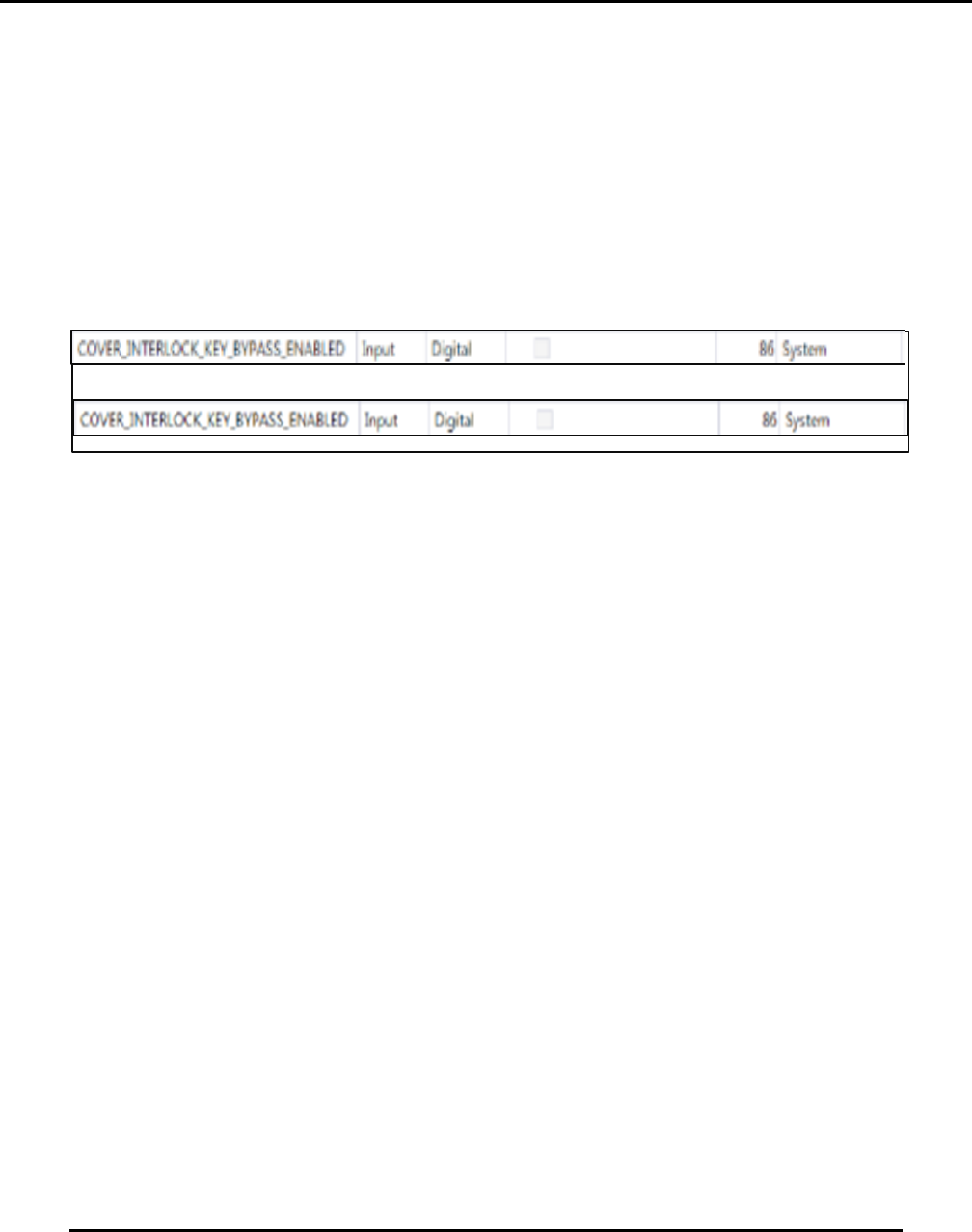
Figure 139. Check Cover Interlock Bypass.
Introduction
Verify Cover Interlock Active / Bypass Key switch operator switch functionality
monthly routine.
Estimated Completion Time
Less than 5 minutes
Procedure
Navigate to View > Diagnostics > IO View.
Click on System Group in Groups.
Turn the Cover Interlock key from Active to Bypass (Figure 138).
o The checkbox associated with COVER_INTERLOCK_KEY_BYPASS_ ENABLED
will go from unchecked to checked (Figure 139).
Open hood.
Examine the back side of the switch:
o Verify wire connections to the switch are secure.
o Verify the operator block is properly fastened.
NOTE:
The Cover Interlock key is for used by properly trained technical personnel for maintenance
purposes such as calibrations.
After verifying Cover Interlock key functionality, remove and secure the key. Do not leave
the Cover Interlock in the printer.
X