EdisonStandardOwnersManual-RevA-20170818B.pdf - 第170页
M AINTENANCE Edison Printer User Manual (Part Number 1023838) 170 Rev. A Copyright © 2017 ITW EAE All rights reserved. No part of the contents of thi s manual may be reproduced, copied or transmitted in any form or by an…

Edison Printer User Manual (Part Number 1023838) MAINTENANCE
Rev. A 169
Copyright © 2017 ITW EAE
All rights reserved. No part of the contents of this manual may be reproduced, copied or transmitted in any form or by any
means including graphic, electronic, or mechanical methods or photocopying, recording, or information storage and
retrieval systems without the written permission of ITW EAE, unless for purchaser's personal use.
Select the WORKNEST Z axis.
o Click Home (bottom of the screen).
Clean the board support (lifters) using a clean lint-free cloth and cotton swabs (both
dampened with approved cleaning solvent).
o Pay special attention to the underside of the lifters when cleaning.
Make sure to remove all paste build-up.
Ensure all tooling and foreign objects are removed from the underside of the rails or damage
can occur.
If you have the Edge Lok option, inspect the assembly for loose, damaged, or missing parts.
o Check for paste build-up and other debris.
o Clean as required using a clean lint-free cloth and cotton swabs (both dampened with
approved cleaning solvent).
Clean the work table surface using a clean lint-free cloth dampened with approved cleaning
solvent.
o Make sure to wipe the table area under the front and rear track assemblies as well.
6.2.34. Clean Stencil Shelves—Daily
Introduction
Clean the stencil shelves.
Estimated Completion Time
Less than 5 minutes.
Procedure
Remove the stencil from the shelf (if present).
Caution: Safety Glasses
Wear protective safety glasses when handling solvent or
printing media. These chemicals can cause eye injury. Review
Safety Data Sheet before use.
Caution: Safety Gloves
Wear protective gloves when handling solvent or printing media.
Solvent can cause skin irritation. Review Safety Data Sheet
before use.
MAINTENANCE Edison Printer User Manual (Part Number 1023838)
170 Rev. A
Copyright © 2017 ITW EAE
All rights reserved. No part of the contents of this manual may be reproduced, copied or transmitted in any form or by any
means including graphic, electronic, or mechanical methods or photocopying, recording, or information storage and
retrieval systems without the written permission of ITW EAE, unless for purchaser's personal use.
Clean the entire right side shelf assembly using a clean lint-free cloth dampened with an
approved cleaning solvent.
o Repeat for the left side assembly.
Replace the stencil (if previously removed).
6.2.35. Clean Solvent Pan–As Necessary
Introduction
Solvent Pan Cleaning
Estimated Completion Time
Less than 30 minutes
Procedure
All Edison machines are equipped with a solvent leak sensor mounted to the stencil wiper. The
sensor is located at the rear of the wiper on the, mounted on the lower area of the wiper
backplane. When this sensor detects liquid solvent in the wiper pan, the machine will stop and
power will be automatically shut off.
Remove solvent from the pan and sensor before powering the machine up and returning to
service.
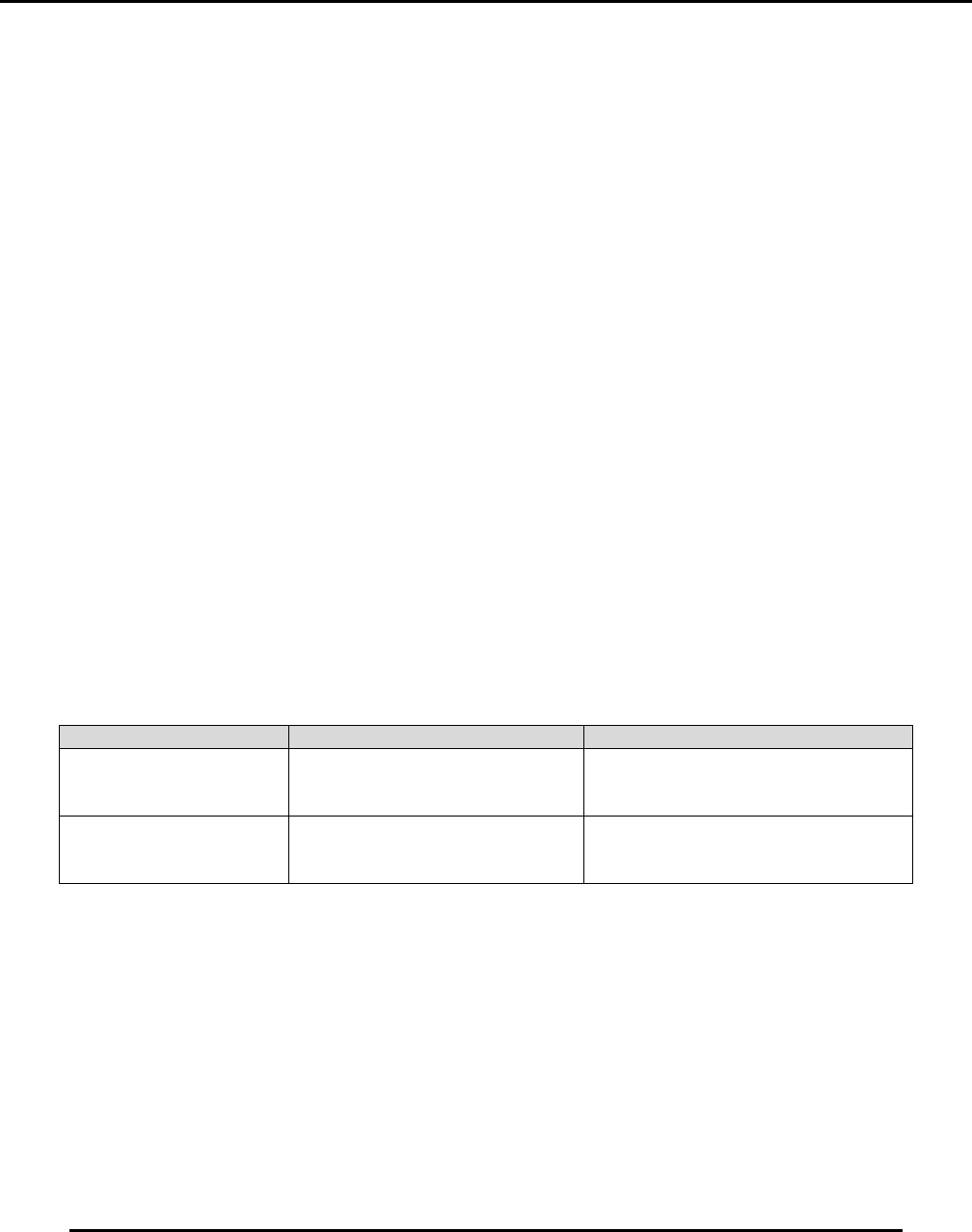
There are two procedures for removing solvent from the wiper pan (Table 18):
Table 18. Two procedures for removing solvent from wiper pan.
Procedure
Section
When to Use
Solvent Pan Cleaning
(Machine Power Off)
The leak sensor has detected
solvent and shut power off to the
machine
Solvent Pan Cleaning
(Machine Power On)
Machine power is on when a leak or
spill is noticed but the leak sensor
has not detected it.

Edison Printer User Manual (Part Number 1023838) MAINTENANCE
Rev. A 171
Copyright © 2017 ITW EAE
All rights reserved. No part of the contents of this manual may be reproduced, copied or transmitted in any form or by any
means including graphic, electronic, or mechanical methods or photocopying, recording, or information storage and
retrieval systems without the written permission of ITW EAE, unless for purchaser's personal use.
6.2.35.1. Solvent Pan Cleaning (Machine Power Off)
1. Put on proper personnel protective equipment. This should include
a. Solvent-resistant gloves and
b. Splash protection for the face and eyes.
2. Lockout/tagout the machine.
3. Open the front hood.
4. Remove the following from the machine:
a. Squeegee blades
b. Enclosed Flow pump head
c. Stencil
d. Any boards
5. Remove the wiper idler roller shaft.
6. Remove the wiper paper supply and take-up rolls.
7. Using approved solvent absorbing materials, soak up the liquid solvent in the wiper pan.
8. The solvent sensor is protected from light by a labyrinth incorporated in the mounting
bracket. Ensure that the area under the solvent leak sensor and in the labyrinth is free of
liquid solvent.
9. Once the solvent has been removed from the wiper pan, the machine is ready to be returned
to service.
10. Remove any lockout / tagout devices from the machine.
11. Turn on power to the computer. Do not turn on power to the machine at this time.
12. Start the Intueri application and log in.
13. Verify that the solvent leak sensor alarm is cleared. If not, clear the alarm.
14. Reinstall the wiper paper supply and take-up rolls.
15. Reinstall the wiper idler roller shaft.
16. Reset the machine.
17. Reload the process program and configure the machine to return to service.
18. Reinstall the stencil, squeegees or rheopump as required.
Warning!
Solder paste and other printing medium may be present at the
print head and on the stencil. These materials contain lead and
are hazardous to your health and the environment.
Always wear protective gloves and safety goggles when
handling printing medium and make sure you properly dispose
of all waste material according to manufacturer’s instructions.
Failure to comply could result in personal injury and/or damage
to the environment.