EdisonStandardOwnersManual-RevA-20170818B.pdf - 第42页
S AFETY Edison Printer User Manual (Part Number 1023838) 42 Rev. A Copyright © 2017 ITW EAE All rights reserved. No part of the contents of thi s manual may be reproduced, copied or transmitted in any form or by an y mea…
Edison Printer User Manual (Part Number 1023838) SAFETY
Rev. A 41
Copyright © 2017 ITW EAE
All rights reserved. No part of the contents of this manual may be reproduced, copied or transmitted in any form or by any
means including graphic, electronic, or mechanical methods or photocopying, recording, or information storage and
retrieval systems without the written permission of ITW EAE, unless for purchaser's personal use.
Unauthorized alterations or modifications can impair printer functionality and safety. Never
modify any electrical circuits.
2.8. Safety Devices
The Edison printer has several devices designed to improve safety:
Emergency Stop Button: Automatically removes air from the printer.
Safety Circuit and Interlock System: Device on the front hood designed to prevent access
to specific printer hazards during motion.
Motion Control: Use to test printer motion.
Interlock Bypass: Allows user to open hood and jog access while printer is in motion.
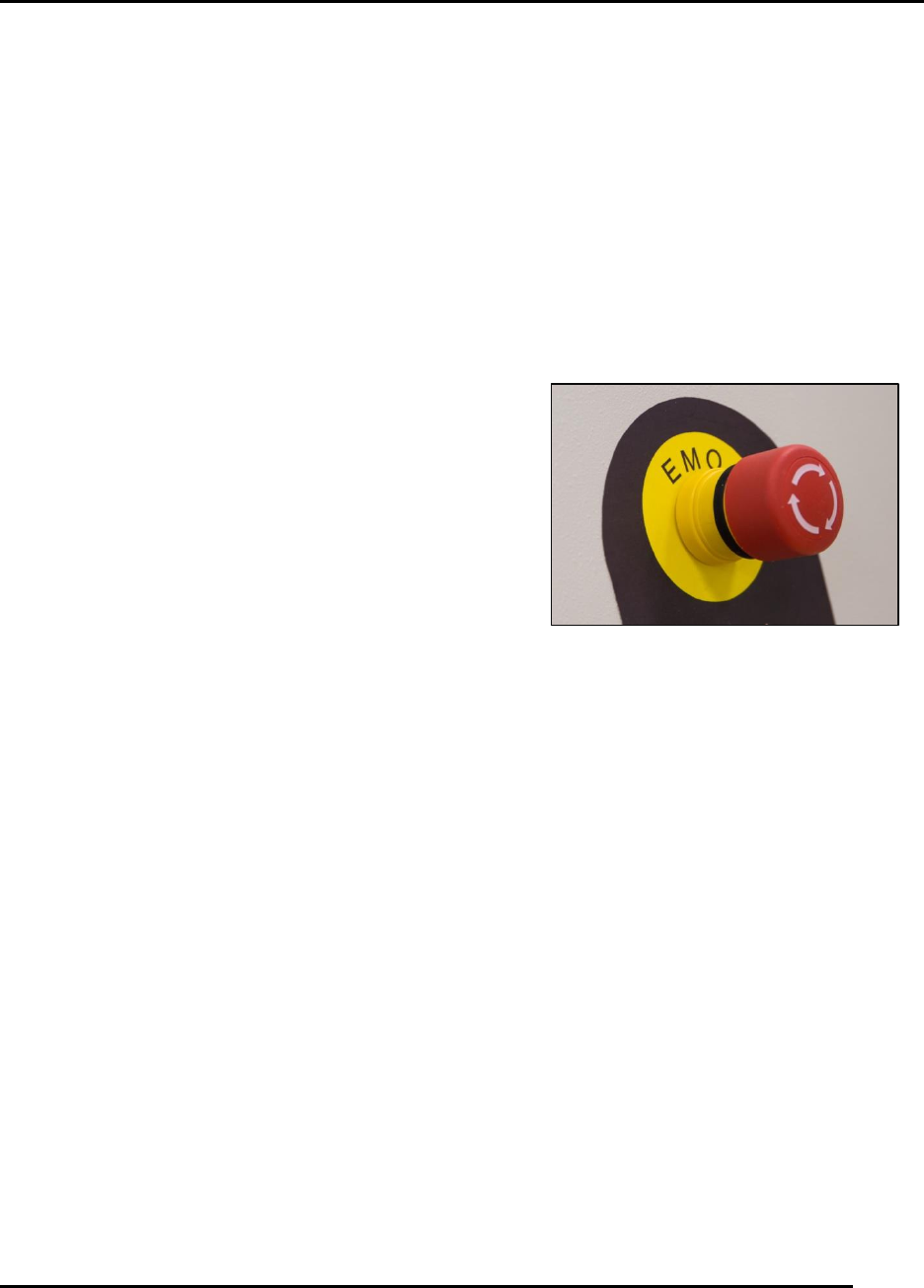
2.8.1. EMO (Emergency Stop Button)
Press the EMO (Emergency Stop Button) to automatically
remove air front the printer—up to the regulator. Twist the
EMO to release after stopping.
2.8.2. Safety Circuit and Interlocks
The Edison printer safety circuit and interlock system employs an interlock device on the front
hood to prevent access to specific printer hazards during printer motion. Do not attempt to defeat
this interlock through the use of spare interlock actuators or any other means.
Figure 15. EMO (Emergency Stop Button).
SAFETY Edison Printer User Manual (Part Number 1023838)
42 Rev. A
Copyright © 2017 ITW EAE
All rights reserved. No part of the contents of this manual may be reproduced, copied or transmitted in any form or by any
means including graphic, electronic, or mechanical methods or photocopying, recording, or information storage and
retrieval systems without the written permission of ITW EAE, unless for purchaser's personal use.
2.8.3. Motion Control
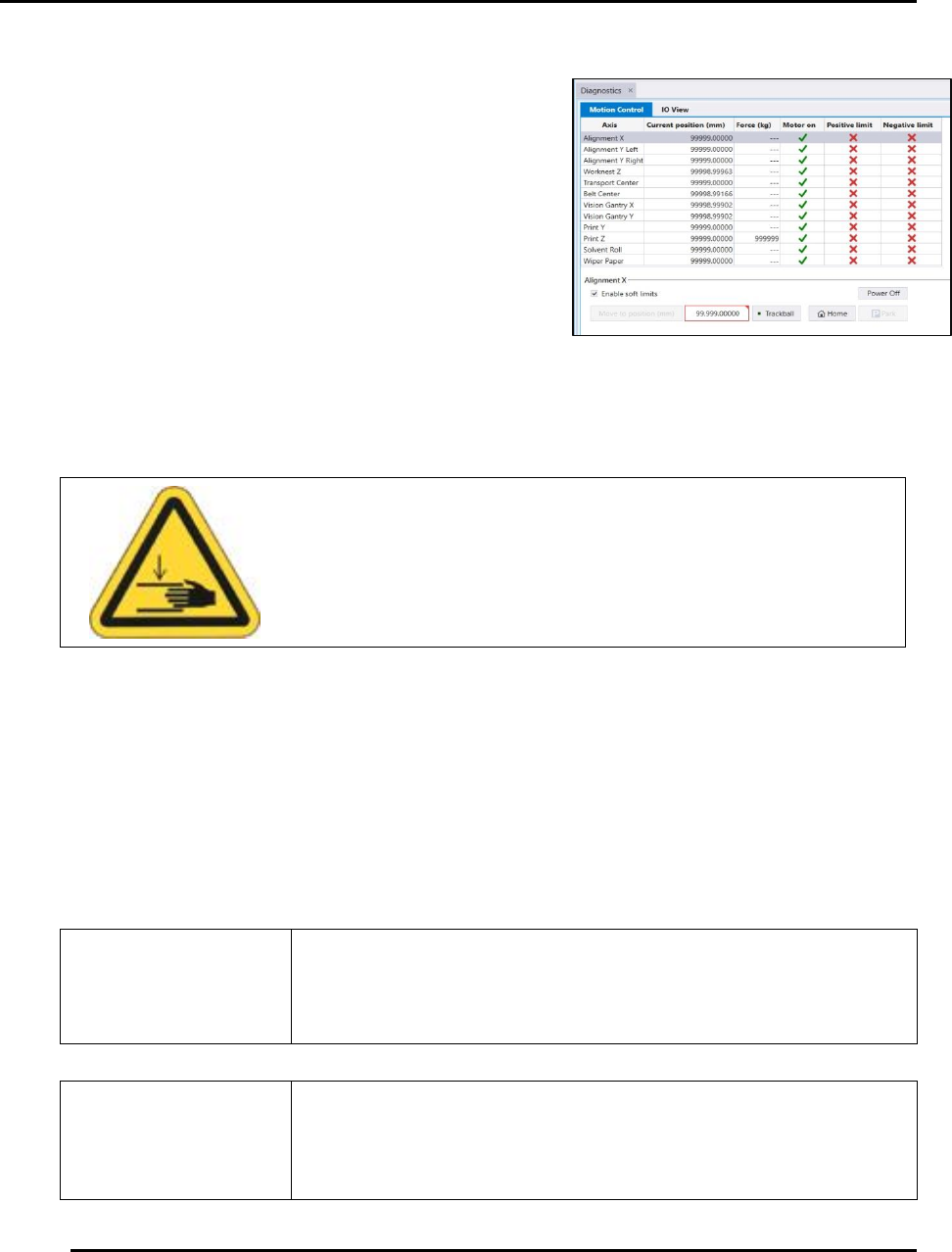
Motion Control allows movement of the printer
components along the different axes during set-up and
preventive maintenance routines.
Printer motion is available via the Motion Control
screen (Figure 16).
Access the Motion Control access this screen:
1. Select View > Diagnostics from the menu bar at
the top of the screen.
2. Click the Motion Control Quick Link.
2.8.4. Interlock Bypass and Printer Motion
Service and maintenance procedures (for instance, calibration) require access to the printer
interior while motion is active. Use the Interlock Bypass key switch to open the hood and jog
axes while the printer is in motion. During these situations, speed is reduced to twenty-five
percent (25%) for all axes. Axes will travel at normal speed with the key set to Bypass and the
hood closed.
Use the Interlock Bypass key only when instructed by the Intueri
software.
Ensure the printer is free of objects that may interfere with or
obstruct movement before you initialize or jog any printer
component. Failure to comply may result in printer damage.
Caution!
Keep hands clear of printer while testing printer motion.
Figure 16. Motion Control Screen.
Edison Printer User Manual (Part Number 1023838) SAFETY
Rev. A 43
Copyright © 2017 ITW EAE
All rights reserved. No part of the contents of this manual may be reproduced, copied or transmitted in any form or by any
means including graphic, electronic, or mechanical methods or photocopying, recording, or information storage and
retrieval systems without the written permission of ITW EAE, unless for purchaser's personal use.
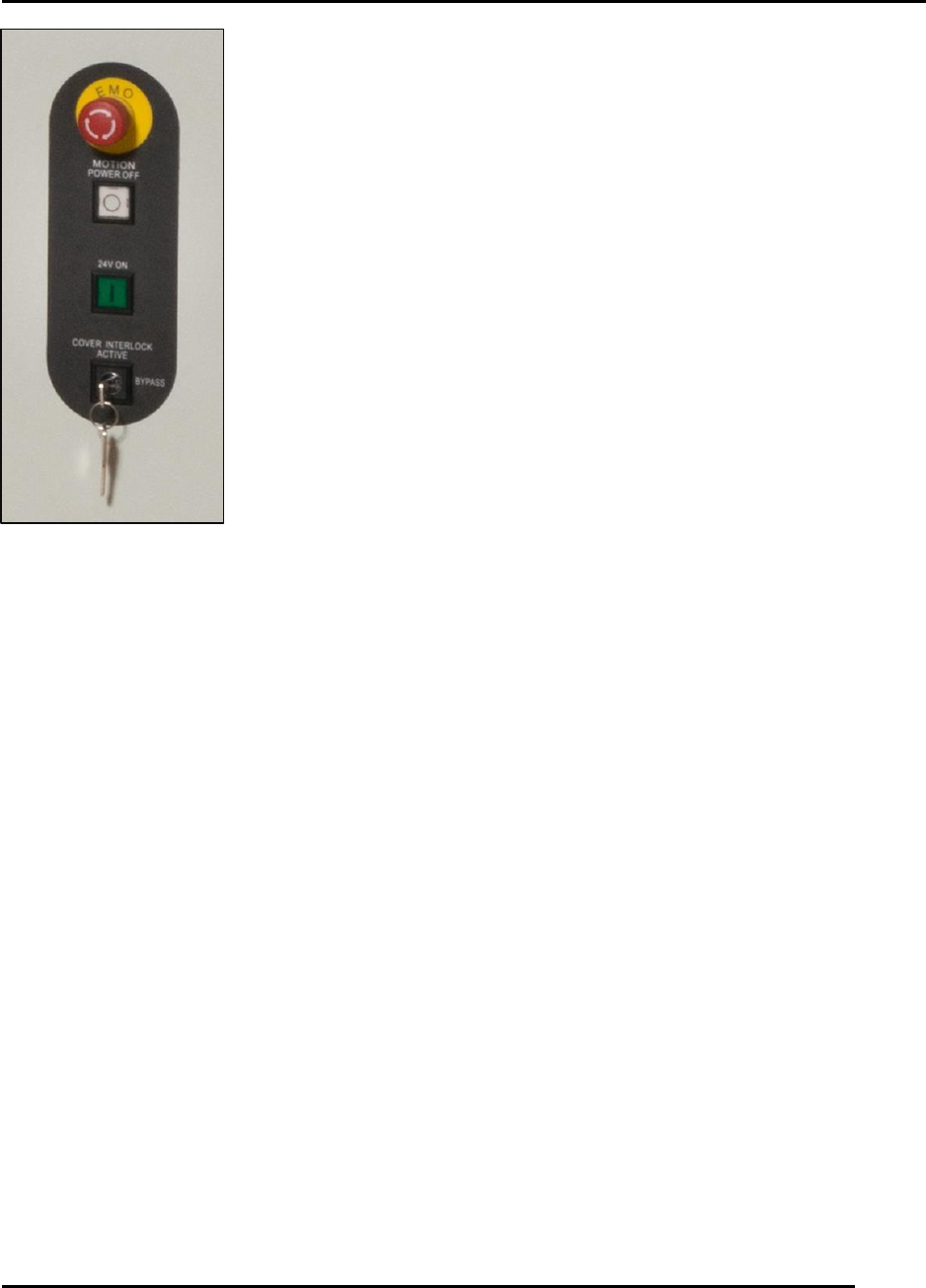
Place the key in the horizontal position to open the hood and jog axes
(Figure 17). Close the hood and set the key in the vertical position to
return the printer to normal operating speed.
Figure 17. Key position:
vertical vs. horizontal.