EdisonStandardOwnersManual-RevA-20170818B.pdf - 第66页
P ROCESS P ROGRA M C REATION Edison Printer User Manual 66 Rev. A Copyright © 2017 ITW EAE All rights reserved. No part of the contents of thi s manual may be reproduced, copied or transmitted in any form or by an y mean…

Edison Printer User Manual (Part Number 1023838) INSTALLATION AND INITIAL START-UP
Rev. A 65
Copyright © 2017 ITW EAE
All rights reserved. No part of the contents of this manual may be reproduced, copied or transmitted in any form or by any
means including graphic, electronic, or mechanical methods or photocopying, recording, or information storage and
retrieval systems without the written permission of ITW EAE, unless for purchaser's personal use.
1. Position forklift blades under the printer base within the area designated by the left and right
forklift blade labels and confirm that the forklift blades do not pinch any loose pneumatic or
electrical lines and fully extend across the printer base.
2. Lift the printer high enough to remove the leveling pads and install the isolators to the bottom
of the printer.
3. Using a 30mm open end wrench, loosen the top hex nut of the leveling pad, then on the very
bottom of the leveling pad use a 10mm socket to 3/8 in socket (METRIC?), remove the
leveling pads from each corner of the printer.
4. Install the isolators on the bottom of the printer, using a 30mm socket.
5. Install the foam plugs.
6. Orient the skid so the isolator pads will sit on top of the skid feet when the printer is
completely lowered onto the skid.
7. Slowly lower the printer down to the skid, centering the isolator pads over the center of the
skid feet.
8. Secure the isolators to the platform using a ¾ in. socket on the lag bolt mounting hardware.
9. Slide the two support timbers under the printer along the inside edges of the isolators. Secure
the timbers to the platform using the appropriate mounting hardware.
10. Install the front, rear, and two side panels.
11. Install the crate cover.
PROCESS PROGRAM CREATION Edison Printer User Manual
66 Rev. A
Copyright © 2017 ITW EAE
All rights reserved. No part of the contents of this manual may be reproduced, copied or transmitted in any form or by any
means including graphic, electronic, or mechanical methods or photocopying, recording, or information storage and
retrieval systems without the written permission of ITW EAE, unless for purchaser's personal use.
4. Process Program Creation
Use the Intueri Process Program page to develop new process programs.
Process program development is done through the Intueri Process Program page. This section
describes that page, and provides instructions for creating and saving process programs.
4.1. Access the Process Program Page
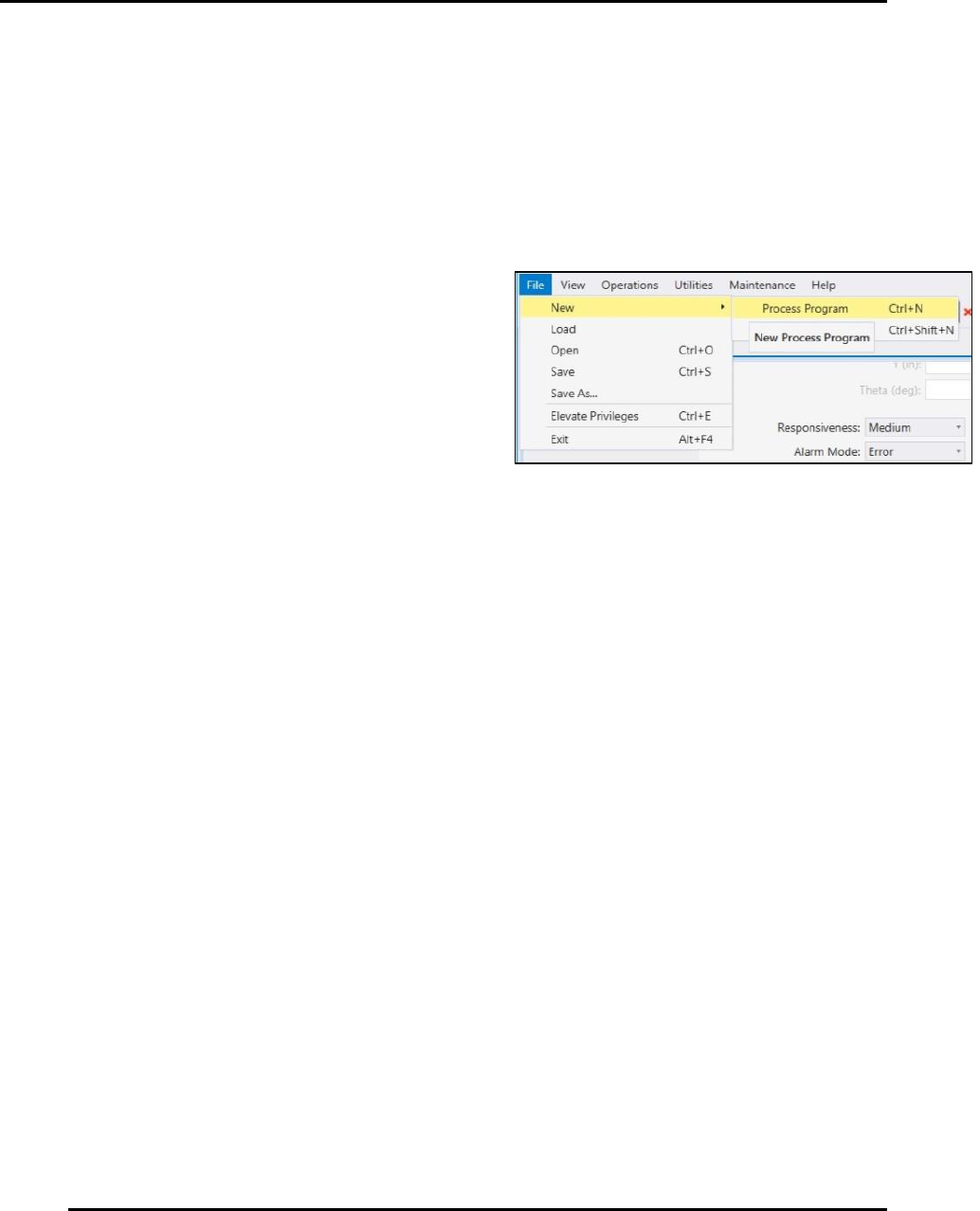
Access the process program page to create a new
process program by navigating to File > New >
Process Program
(Figure 40).
Alternately, select Ctrl + N to create a new
process program.
Hover over a parameter field a brief description for
any given parameter. Click the field to activate it
for the purpose of inputting a value.
Figure 40. Access the Process Program Screen.
Edison Printer User Manual (Part Number 1023838) PROCESS PROGRAM CREATION
Rev. A 67
Copyright © 2017 ITW EAE
All rights reserved. No part of the contents of this manual may be reproduced, copied or transmitted in any form or by any
means including graphic, electronic, or mechanical methods or photocopying, recording, or information storage and
retrieval systems without the written permission of ITW EAE, unless for purchaser's personal use.
4.1.1. Working with the Process Program Window
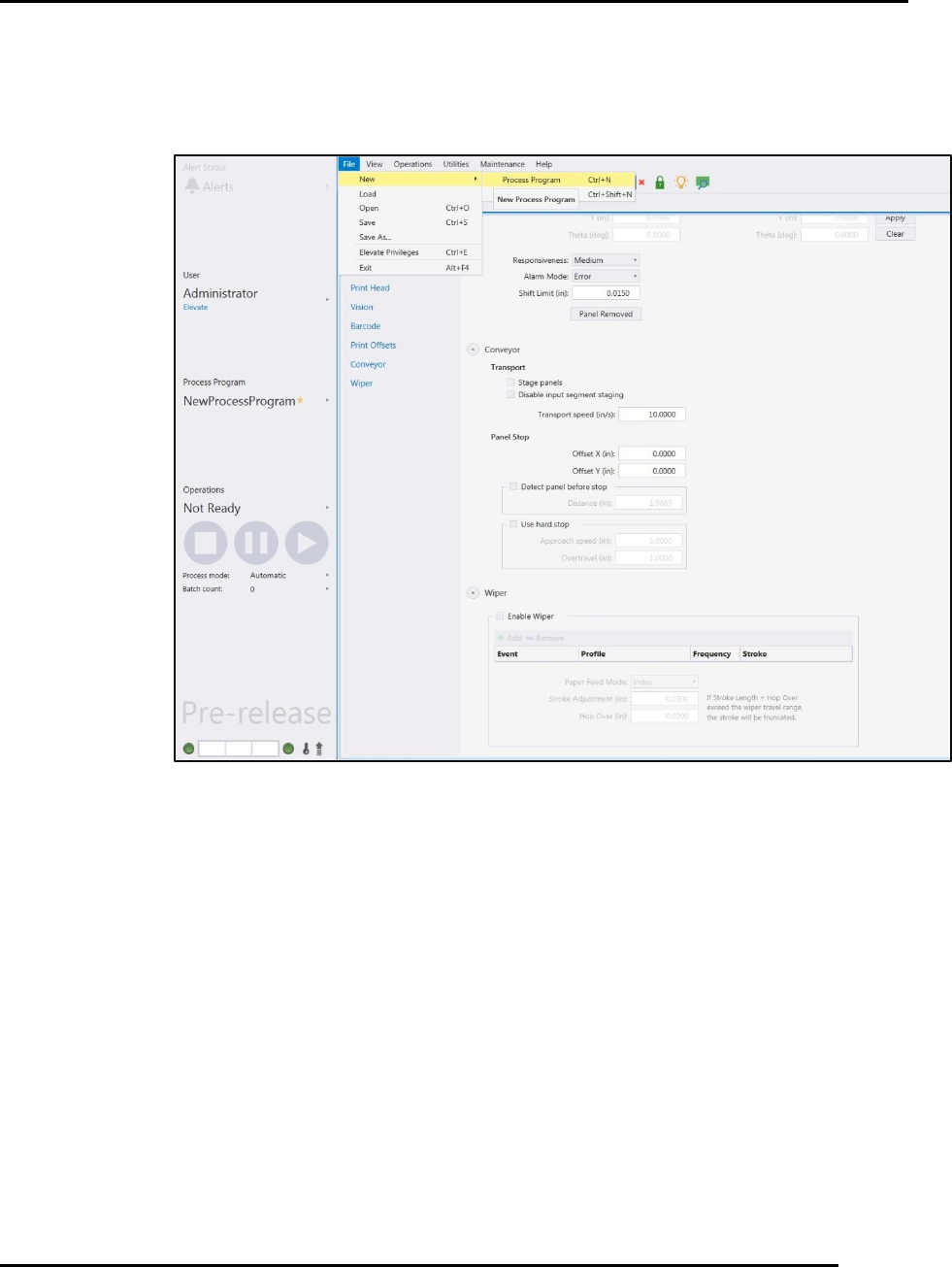
The Process Program Window (Figure 41) provides access to all the required parameters for
process program development. The page is organized into Quick Links for each of the program
areas:
Common
Worknest
Dispense
Print Head
Vision
Barcode
Print Offsets
Conveyor
Wiper
4.1.1.1. Scroll
Scroll down the Process Program Window to input appropriate entries.
4.1.1.2. Using Quick Links
Use the Process Program Quick Links to quickly jump to a specific area of the process program
page.
4.1.1.3. Hover for Information
Hover over a parameter field to display a brief description (and valid range) for that parameter.
Click in the field to activate the field and input a value.
Figure 41. Process Program Windows and Quick Links.