EdisonStandardOwnersManual-RevA-20170818B.pdf - 第67页
Edison Printer User Manual (Part Number 1023838) P ROCESS P ROGRA M C REATION Rev. A 67 Copyright © 2017 ITW EAE All rights reserved. No part of the contents of this manual may be reproduced, copi ed or transmi tted in a…
PROCESS PROGRAM CREATION Edison Printer User Manual
66 Rev. A
Copyright © 2017 ITW EAE
All rights reserved. No part of the contents of this manual may be reproduced, copied or transmitted in any form or by any
means including graphic, electronic, or mechanical methods or photocopying, recording, or information storage and
retrieval systems without the written permission of ITW EAE, unless for purchaser's personal use.
4. Process Program Creation
Use the Intueri Process Program page to develop new process programs.
Process program development is done through the Intueri Process Program page. This section
describes that page, and provides instructions for creating and saving process programs.
4.1. Access the Process Program Page
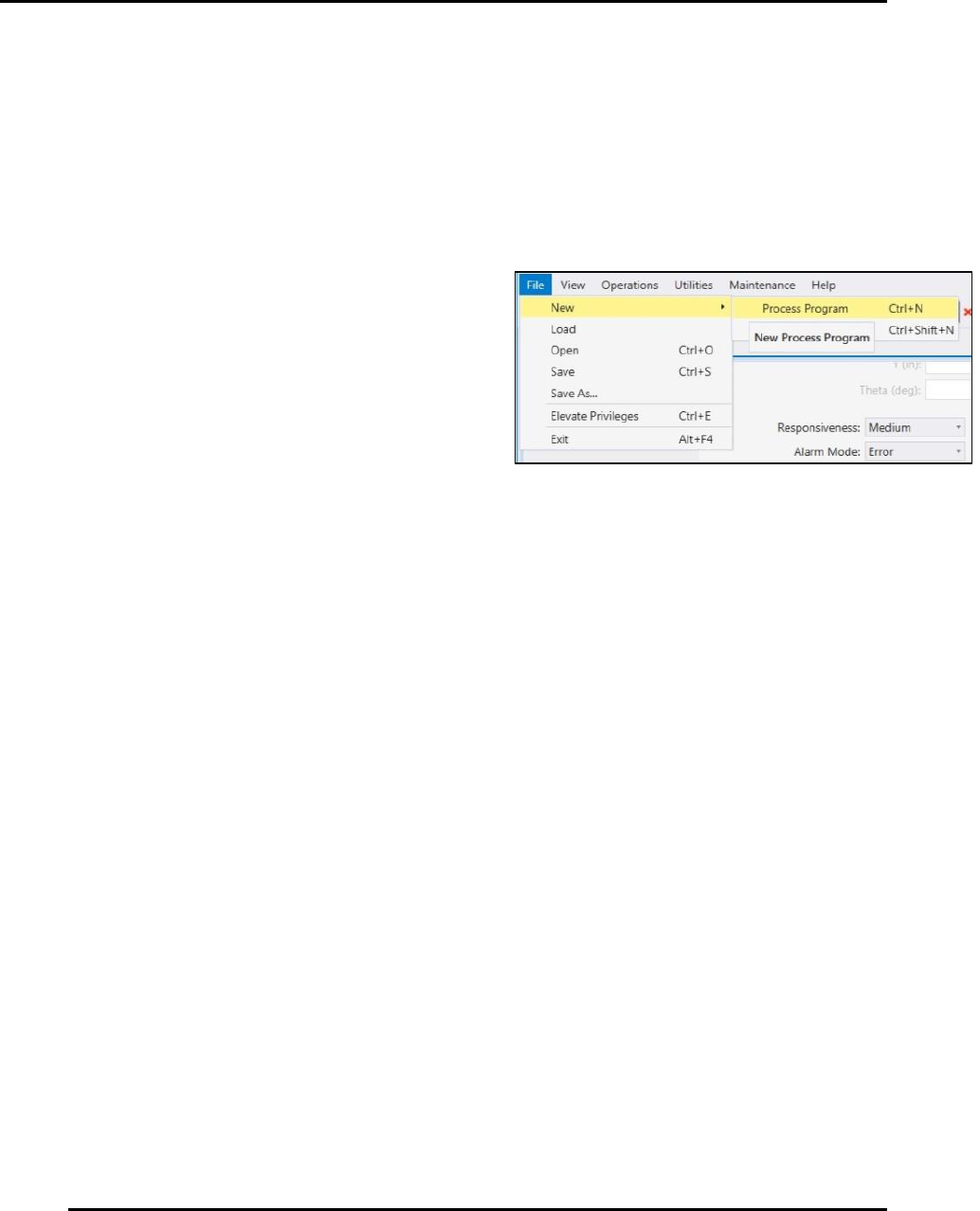
Access the process program page to create a new
process program by navigating to File > New >
Process Program
(Figure 40).
Alternately, select Ctrl + N to create a new
process program.
Hover over a parameter field a brief description for
any given parameter. Click the field to activate it
for the purpose of inputting a value.
Figure 40. Access the Process Program Screen.
Edison Printer User Manual (Part Number 1023838) PROCESS PROGRAM CREATION
Rev. A 67
Copyright © 2017 ITW EAE
All rights reserved. No part of the contents of this manual may be reproduced, copied or transmitted in any form or by any
means including graphic, electronic, or mechanical methods or photocopying, recording, or information storage and
retrieval systems without the written permission of ITW EAE, unless for purchaser's personal use.
4.1.1. Working with the Process Program Window
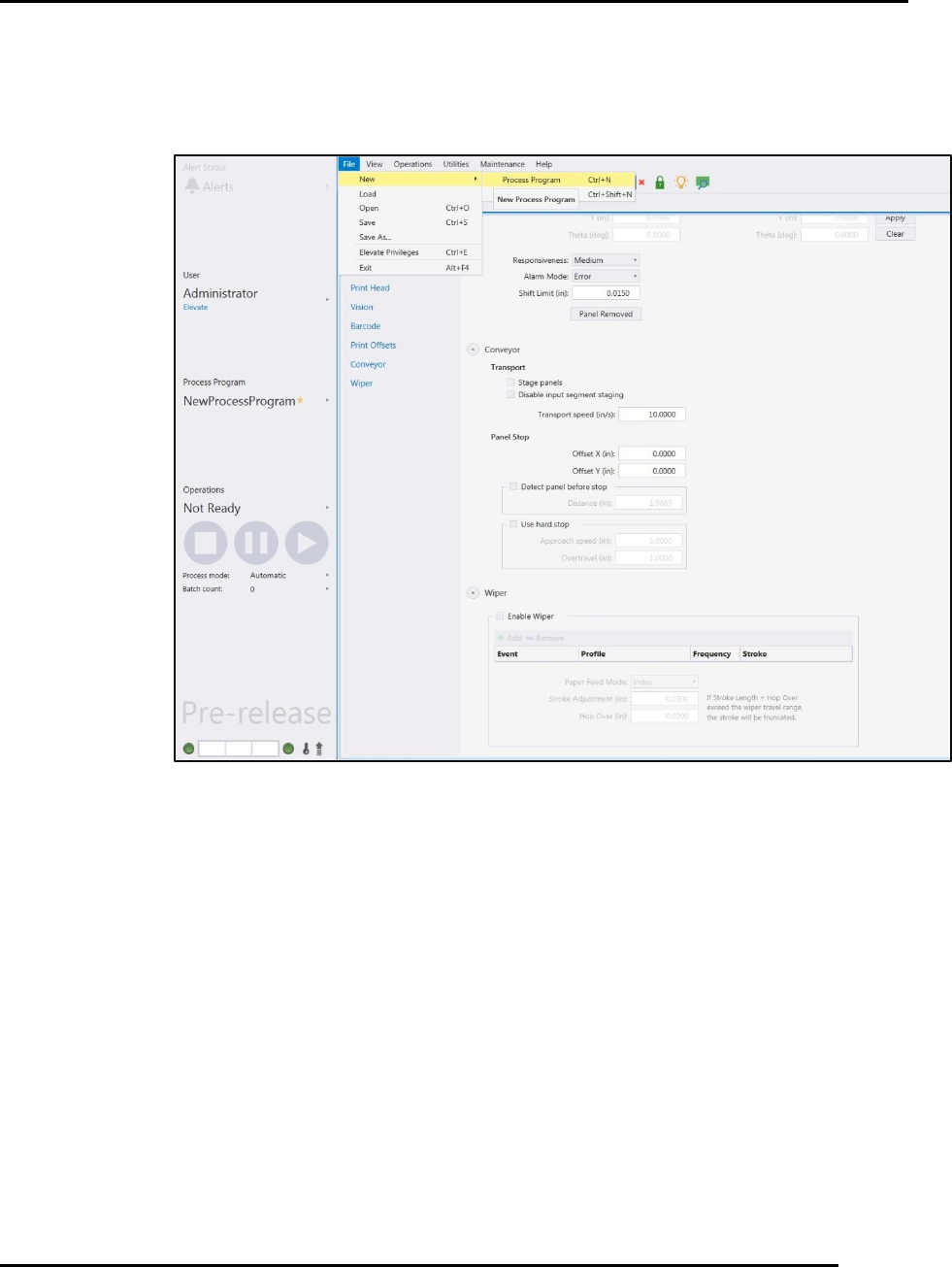
The Process Program Window (Figure 41) provides access to all the required parameters for
process program development. The page is organized into Quick Links for each of the program
areas:
Common
Worknest
Dispense
Print Head
Vision
Barcode
Print Offsets
Conveyor
Wiper
4.1.1.1. Scroll
Scroll down the Process Program Window to input appropriate entries.
4.1.1.2. Using Quick Links
Use the Process Program Quick Links to quickly jump to a specific area of the process program
page.
4.1.1.3. Hover for Information
Hover over a parameter field to display a brief description (and valid range) for that parameter.
Click in the field to activate the field and input a value.
Figure 41. Process Program Windows and Quick Links.
PROCESS PROGRAM CREATION Edison Printer User Manual
68 Rev. A
Copyright © 2017 ITW EAE
All rights reserved. No part of the contents of this manual may be reproduced, copied or transmitted in any form or by any
means including graphic, electronic, or mechanical methods or photocopying, recording, or information storage and
retrieval systems without the written permission of ITW EAE, unless for purchaser's personal use.
Modify Units on Process Program Window.
Switch Display Units between Imperial and Metric using the
System Preferences page (Navigate from View > Configuration >
System Preferences).
4.1.1.4. Out of Range Parameters & Error List
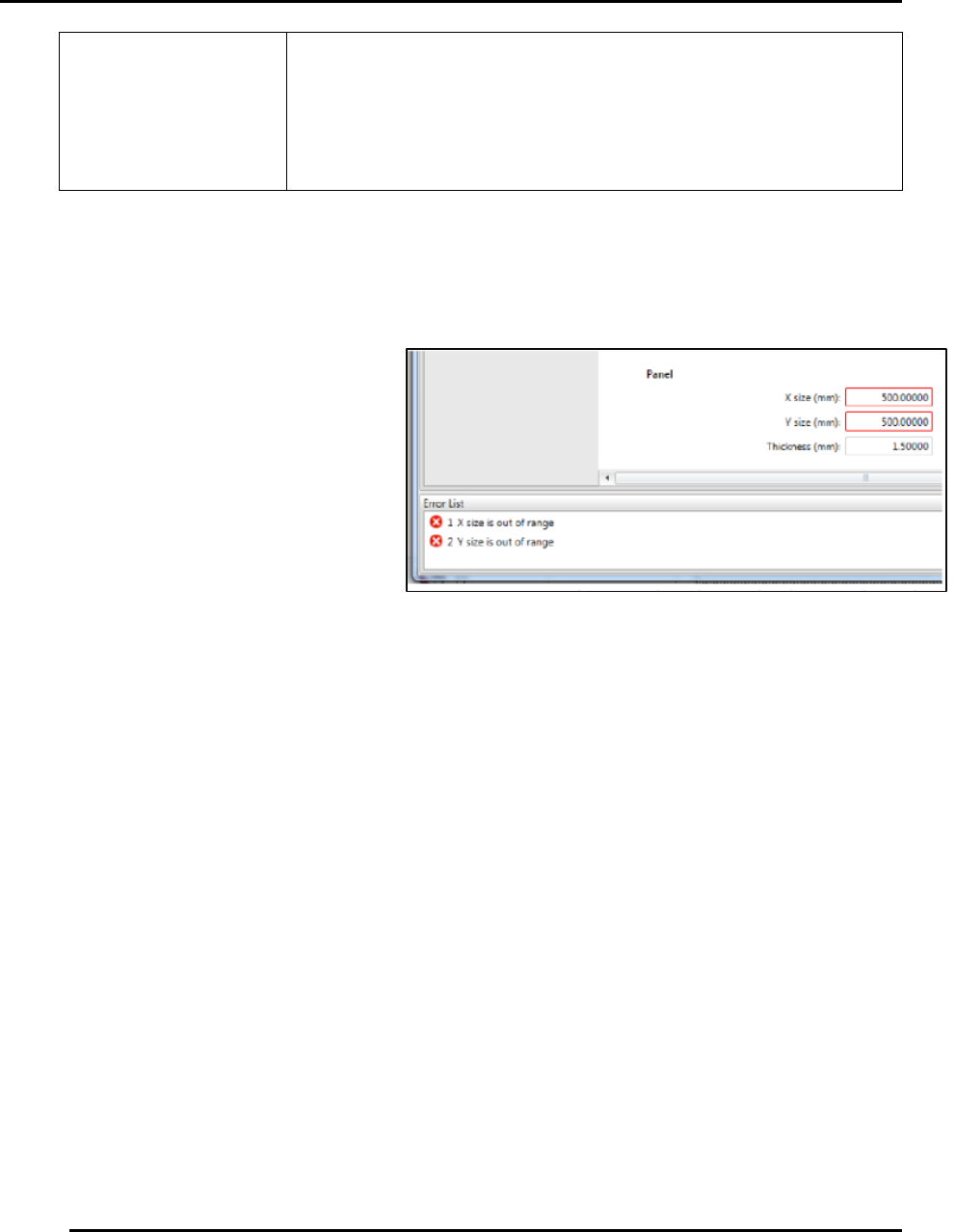
Out of range parameters are identified by a red border around the parameter input field. Specific
errors are displayed in an Error List
at the bottom of the page.
Double-click an error in the Error
List to selects the associated input
field for editing. Correct the input to
remove the error from the Error List.
If you attempt to save a file with out
of range parameters, Intueri software
displays all parameters that must be
changed prior to successfully saving
the file.
4.2. Create a New Process Program
Access the process program page to create a new process program by navigating to File > New >
Process Program (Figure 43). The new process program will be entirely blank.
1. Change the name of the program before saving it
2. Enter values as required by your program.
3. Save the new process program file using either:
a. Select File > Save to save as the existing file name.
b. Select File > Save As and enter a new program name.
Figure 42. Out of range Parameters and Error List. X and Y both
identified as out of range.