EdisonStandardOwnersManual-RevA-20170818B.pdf - 第76页
P ROCESS P ROGRA M C REATION Edison Printer User Manual 76 Rev. A Copyright © 2017 ITW EAE All rights reserved. No part of the contents of thi s manual may be reproduced, copied or transmitted in any form or by an y mean…
Edison Printer User Manual (Part Number 1023838) PROCESS PROGRAM CREATION
Rev. A 75
Copyright © 2017 ITW EAE
All rights reserved. No part of the contents of this manual may be reproduced, copied or transmitted in any form or by any
means including graphic, electronic, or mechanical methods or photocopying, recording, or information storage and
retrieval systems without the written permission of ITW EAE, unless for purchaser's personal use.
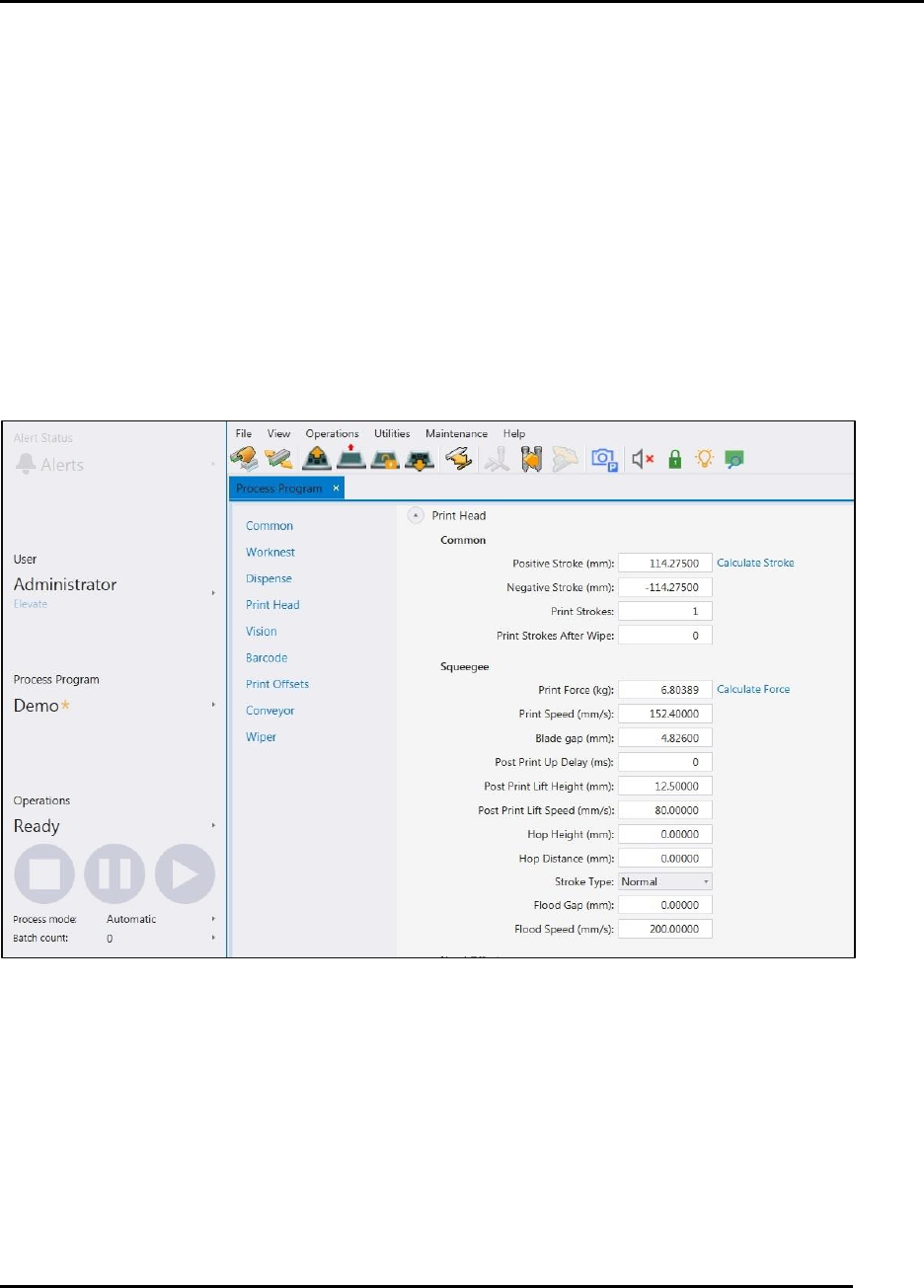
Squeegee (Figure 49):
o Print force: Press Calculate Force to automatically fill the value. The software
calculates force based on panel size.
o Print Speed: Enter desired print speed (mm/s)
o Blade Gap: Enter desired blade gap (mm)
o Post Print Up Delay: Enter desired delay (ms)
o Post Print Lift Height: Enter desired height (mm)
o Post Print Lift Speed: Enter desired speed (mm/s)
o Hop Height: Enter Desired height (mm)
o Hop Distance: Enter desired distance (mm)
o Stroke Type: Select from pull-down menu selections include Normal, Flood/Print,
Print/Flood
o Flood Gap: Enter desired gap (mm)
o Flood Speed: Enter desired speed (mm/s)
Figure 49. Process Program Data Screen 1.
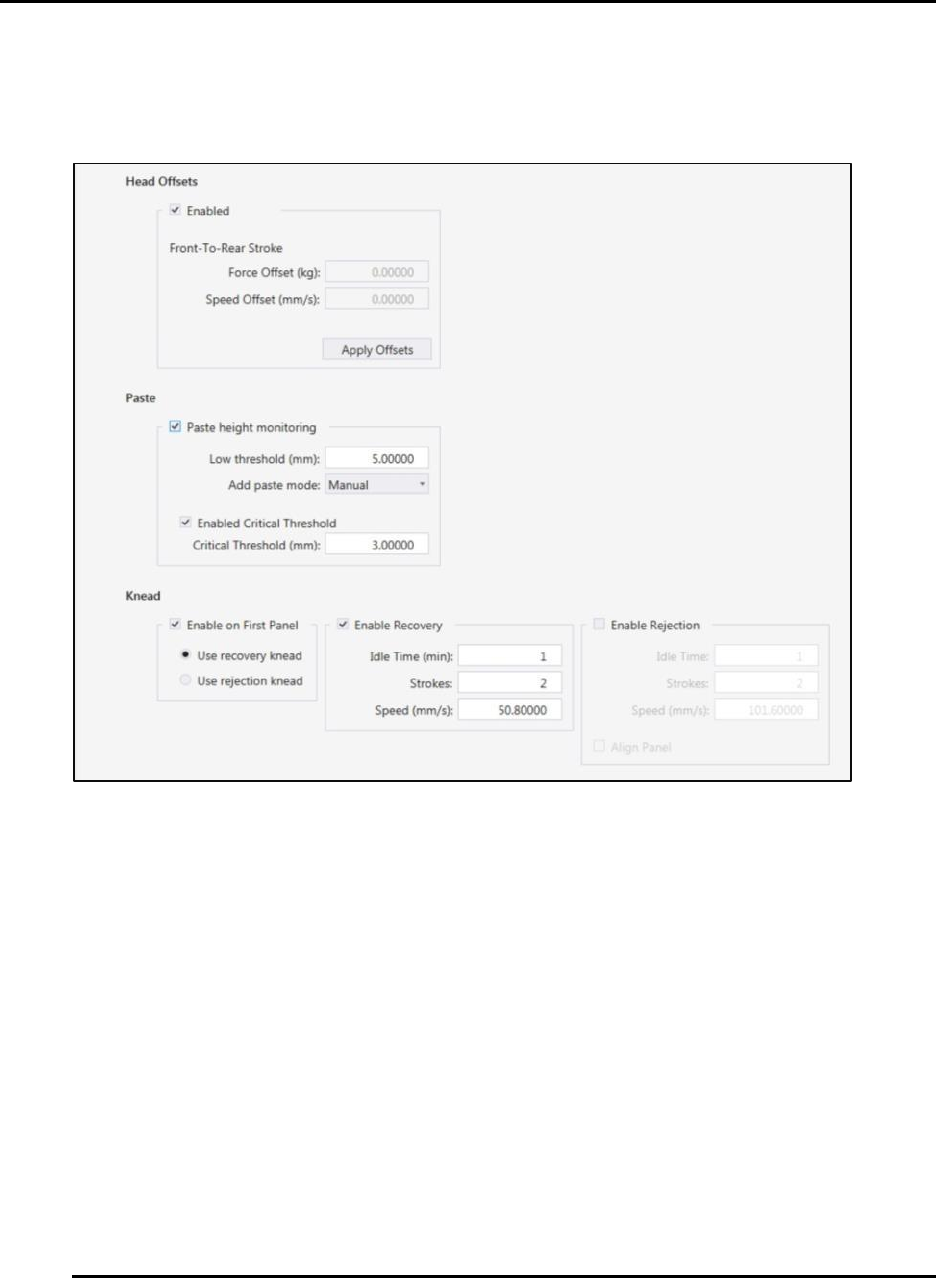
Head Offsets (Figure 50)
o Check Enabled to allow offsets
o Enter desired Force Offset and Speed Offset.
o Click Apply Offsets.
Paste (Figure 50):
o Check Paste height monitoring to allow monitoring
o Enter desired Low threshold
o Select Add paste mode from drop down menu
o Check Enabled Critical Threshold to enable
PROCESS PROGRAM CREATION Edison Printer User Manual
76 Rev. A
Copyright © 2017 ITW EAE
All rights reserved. No part of the contents of this manual may be reproduced, copied or transmitted in any form or by any
means including graphic, electronic, or mechanical methods or photocopying, recording, or information storage and
retrieval systems without the written permission of ITW EAE, unless for purchaser's personal use.
Enter desired Critical Threshold.
Knead (Figure 50):
o Click Enable on First Panel to allow paste kneading on first panel
Figure 50. Process Program Data Screen 2
Edison Printer User Manual (Part Number 1023838) PROCESS PROGRAM CREATION
Rev. A 77
Copyright © 2017 ITW EAE
All rights reserved. No part of the contents of this manual may be reproduced, copied or transmitted in any form or by any
means including graphic, electronic, or mechanical methods or photocopying, recording, or information storage and
retrieval systems without the written permission of ITW EAE, unless for purchaser's personal use.
Fiducial
4.2.7. Vision Program Data
The Edison printer and Intueri software use a
camera system for precise alignment of panel and
stencil (Figure 51). Use the Vision screen to teach
fiducial placement for alignment and panel
identification (Figure 53). The software-based
Vision dialogue is also used to teach the individual
panels of a panelized board.
Before using the Vision program, ensure the Edison printer
worknest is cleared of any panels.
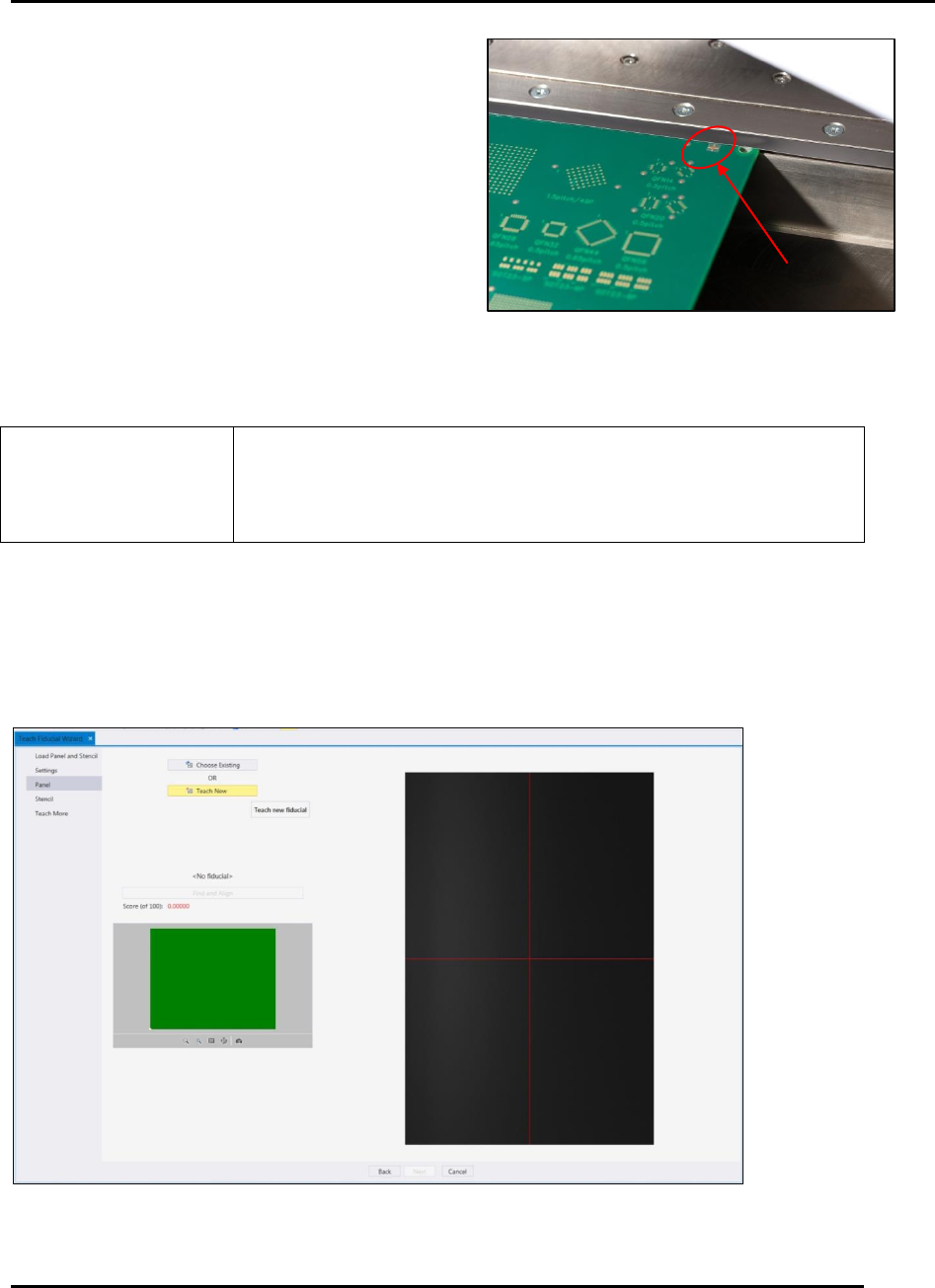
4.2.7.1. Teach New Fiducial
Click on Teach New (Figure 52) to enter new fiducial alignment data, and continue with Section
4.2.7.2 Panel IDs.
Figure 52. Teaching a New Fiducial.
Figure 51. The Edison Printer uses a camera and
panel-mounted fiducials for precise alignment
between panel and stencil.