EdisonStandardOwnersManual-RevA-20170818B.pdf - 第93页
Edison Printer User Manual (Part Number 1023838) P ROCESS P ROGRA M C REATION Rev. A 93 Copyright © 2017 ITW EAE All rights reserved. No part of the contents of this manual may be reproduced, copi ed or transmi tted in a…
PROCESS PROGRAM CREATION Edison Printer User Manual
92 Rev. A
Copyright © 2017 ITW EAE
All rights reserved. No part of the contents of this manual may be reproduced, copied or transmitted in any form or by any
means including graphic, electronic, or mechanical methods or photocopying, recording, or information storage and
retrieval systems without the written permission of ITW EAE, unless for purchaser's personal use.
4.2.11. Wiper
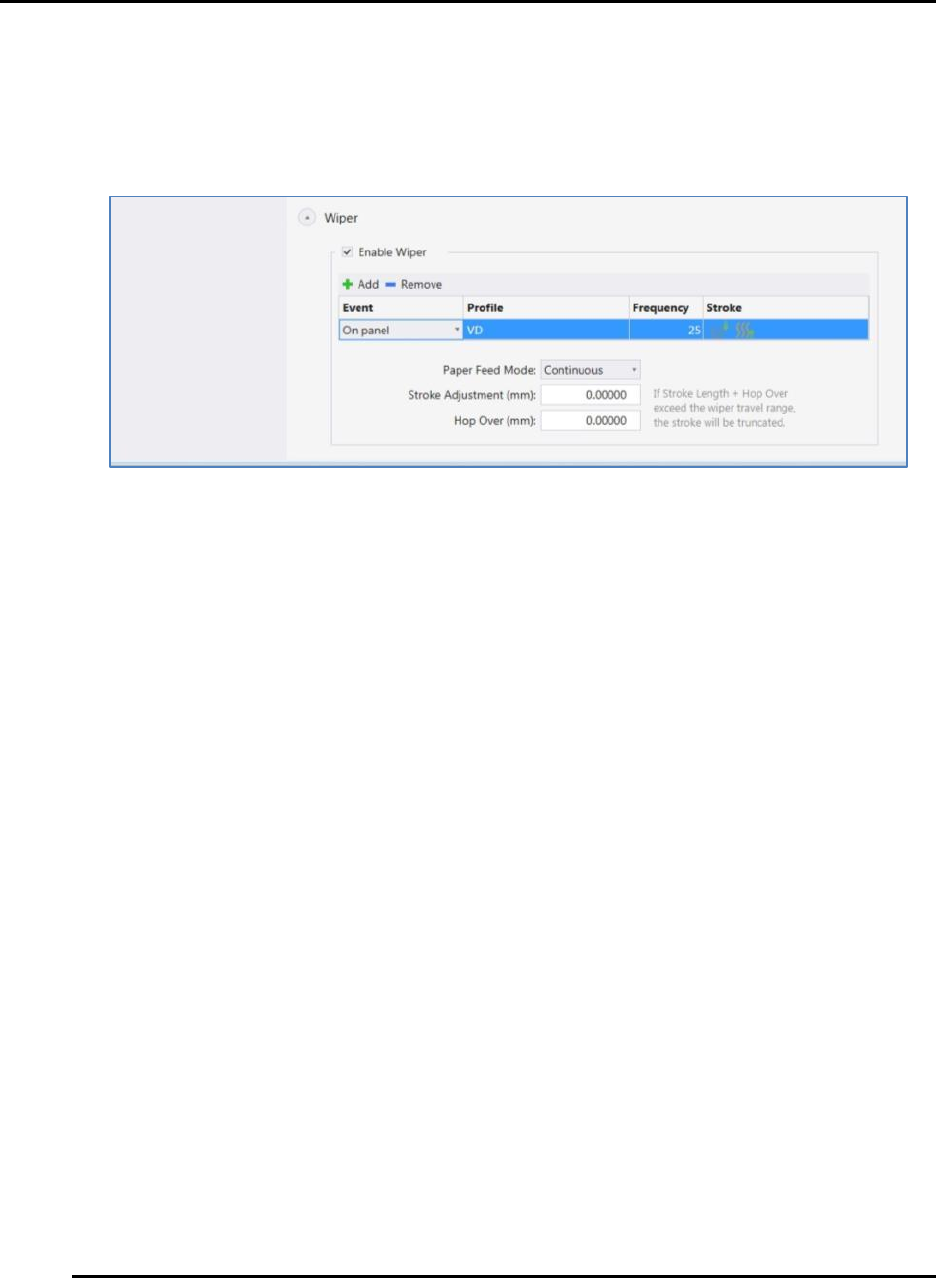
Figure 71 shows the wiper configuration screen
Figure 71. Process Program: Wiper Configuration.
Edison Printer User Manual (Part Number 1023838) PROCESS PROGRAM CREATION
Rev. A 93
Copyright © 2017 ITW EAE
All rights reserved. No part of the contents of this manual may be reproduced, copied or transmitted in any form or by any
means including graphic, electronic, or mechanical methods or photocopying, recording, or information storage and
retrieval systems without the written permission of ITW EAE, unless for purchaser's personal use.
4.3. Create a New Process Program from an Existing Program
Process programs created from an existing program are an exact duplicate of that program.
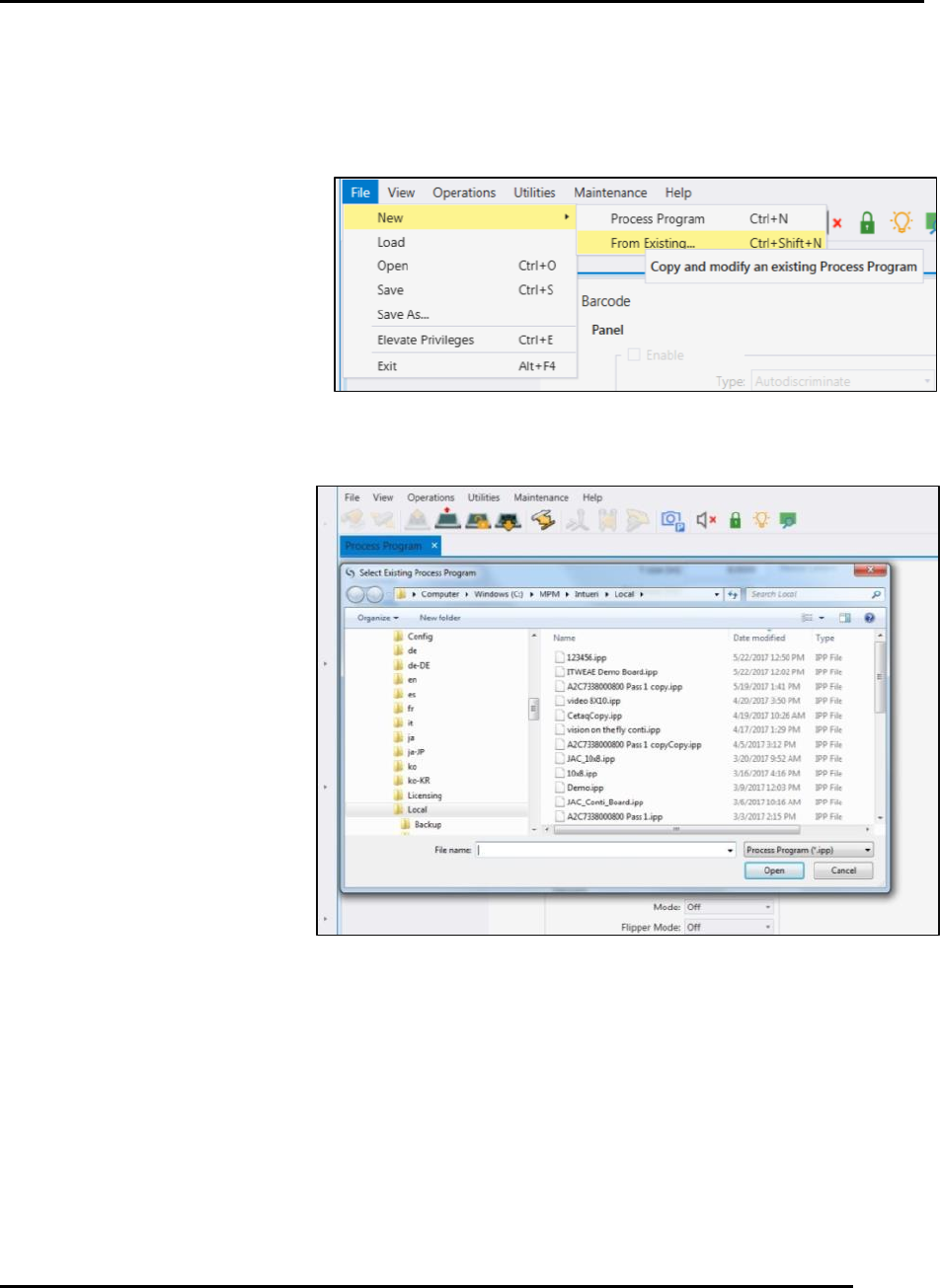
1. Access the process program page to create a new process program from an existing program
by navigating to File > New >
From Existing (Figure 72).
2. Select the desired process program from list (Figure 73).
a. Save and rename as
desired
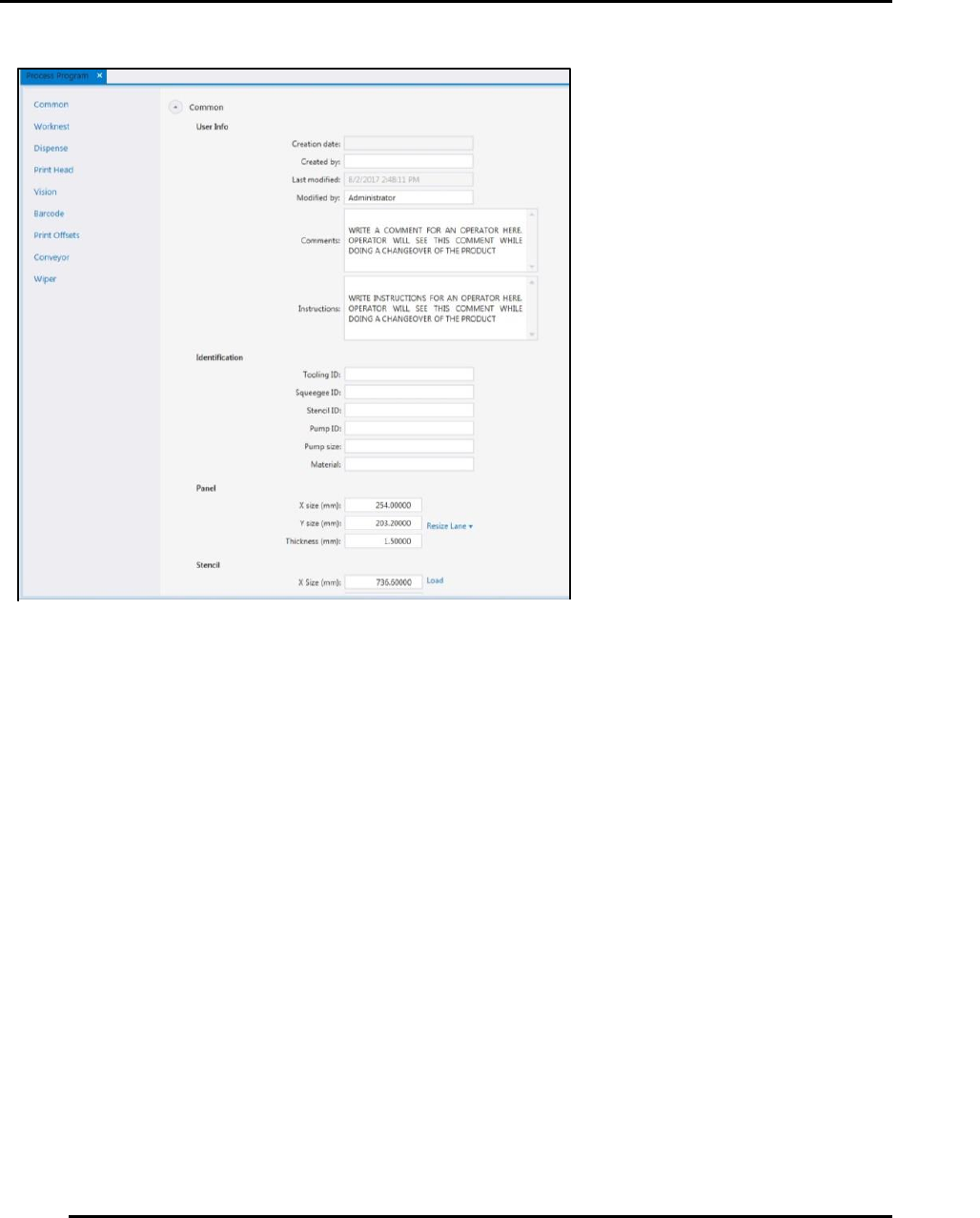
b. Include special instructions and comments as necessary (Figure 74).
Figure 72. Create a New from Existing Program.
Figure 73. Pick existing process program to create from.
PROCESS PROGRAM CREATION Edison Printer User Manual
94 Rev. A
Copyright © 2017 ITW EAE
All rights reserved. No part of the contents of this manual may be reproduced, copied or transmitted in any form or by any
means including graphic, electronic, or mechanical methods or photocopying, recording, or information storage and
retrieval systems without the written permission of ITW EAE, unless for purchaser's personal use.
3. Revise and replace values as desired, when following the prompts
4. The Edison printer software will walk you through the rest of the steps, which include
cleaning and removing blades, unloading the stencil and removing tooling
5. Follow the Changeover prompts (or select Cancel at the bottom of the Changeover screen to
load the file without completing the changeover routine).
6. Select View > Process Program.
7. Modify the file as required, then rename by selecting File > Save As...
4.4. Choose Existing Fiducial
Navigate to the Teach Fiducial Wizard screen
Click on Choose Existing to select an existing fiducial alignment program (Figure 52).
Select the desired fiducial (Figure 52).
Figure 74. Add instructions and comments as necessary.